

Scenarios
Identity Center of Cloud Organization supports SSO based on SAML 2.0. The cloud platform is an SP, and the identity management system of an enterprise is an IdP. Through SSO, enterprise employees can use users in the IdP to log in to Identity Center directly.
Operation Steps
Enabling SSO
1.Log in to the Cloud Organization console and choose Identity Center Management > Settings **>**SSO Login. After enabling SSO, you can configure IdP information.
Note:
Currently, only SSO is supported, and username and password login is not supported.
- In the SSO Login area, toggle on the SSO switch.

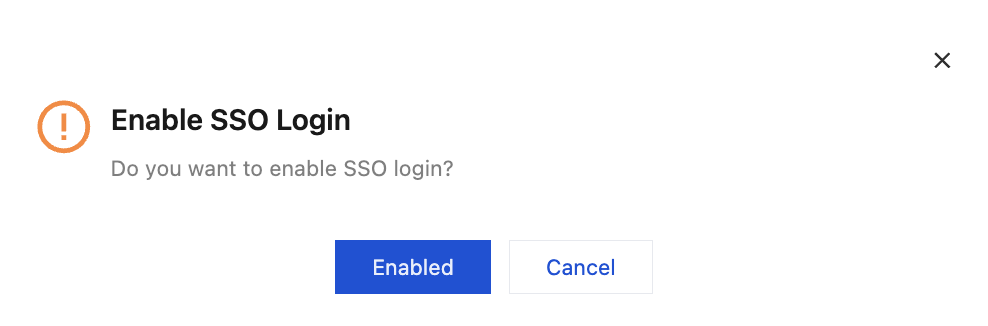
- In the Enable SSO Login dialog box, click Enable.
Managing SP Information
When configuring SSO in an external IdP, you need to use the SP metadata file. You can download this file by performing the following operations: Log in to the Cloud Organization console, choose Identity Center Management > Settings **>**SSO Login, and click Download SP Metadata Document in the Service Provider (SP) Info area. You can also view or copy the ACS URL and Entity ID information for manual configuration in an external IdP.
Managing IdP Information
You need to configure IdP information and toggle on the SSO switch to use the SSO feature normally.
Both manual configuration and metadata file upload are supported to configure IdP information.
- Manual configuration only applies to essential attributes for SSO: Entity ID, Login Address, and SAML Signing Certificate.
- If you need to configure more IdP information, generate a metadata file on the IdP side and use the metadata upload method for configuration.
Configuring IdP Information
You need to configure IdP information before enabling SSO.
You have logged in to Cloud Organization > Identity Center.
In the left sidebar, click Settings.
In the Identity Provider (IdP) Information area of SSO Login, click Configure Identity Provider Information.
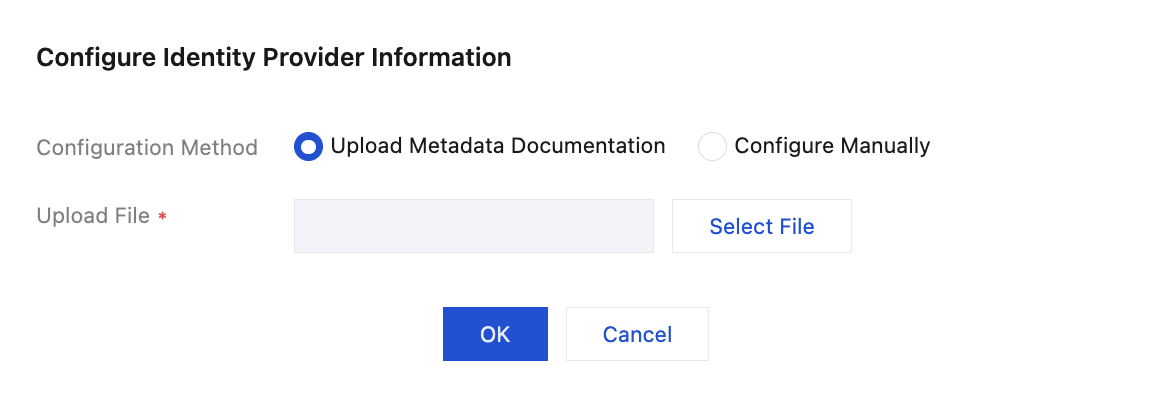
In the Configure Identity Provider Information dialog box, select Upload Metadata Documentation or Manual Configuration to configure IdP information.
You can choose either of the following two methods for configuration. Obtain the relevant metadata file or configuration information from your IdP.- Upload the metadata file
Click Select File to upload the IdP's metadata file.
- Manual configuration
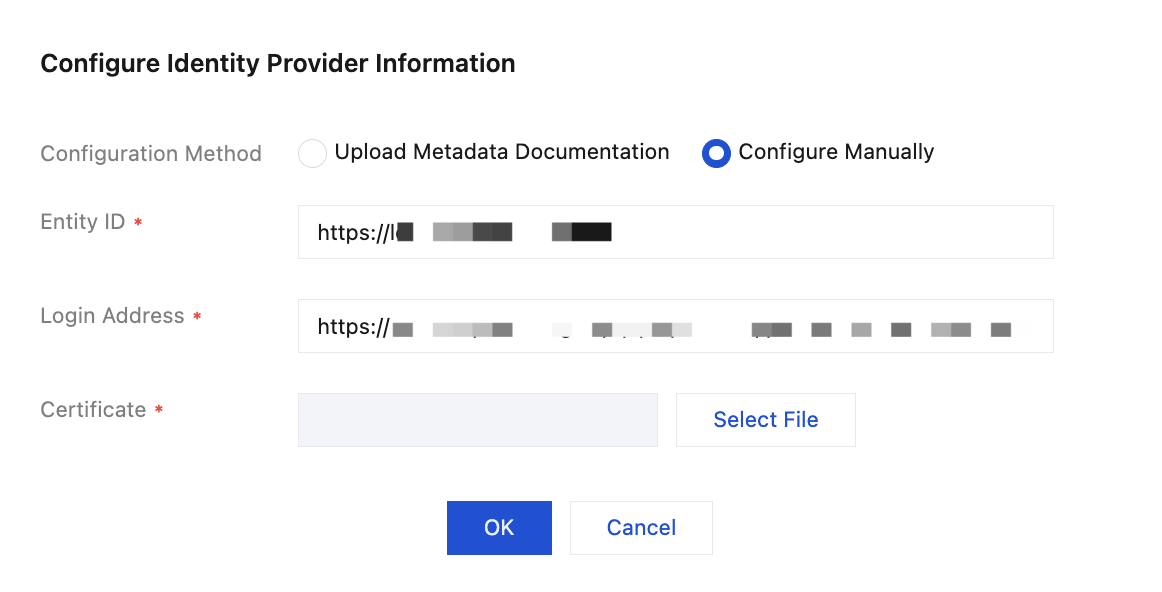
- Entity ID: IdP identifier.
- Login Address: IdP login address.
- Certificate: a certificate used by the IdP for SAML response signing. You can click Select a File to upload the IdP's certificate.
- Upload the metadata file
Click OK.
Updating IdP Information
You can update IdP information regardless of whether SSO is enabled or disabled. However, when you update the information when SSO is enabled, inconsistencies between new and existing IdP information may cause SSO failure. Proceed with caution.
- In the Identity Provider (IdP) Information area of SSO Login, click Configure Identity Provider Information.
- In the Configure Identity Provider Information dialog box, select the configuration method, modify the configuration information, re-upload the certificate or metadata file, and click OK.