

Scenarios
You can configure CAM user synchronization, create a CAM user with the same name as the Identity Center user in the target account, and then access resources in the account via the CAM user.
This document provides an example on how to configure CAM user synchronization, create a CAM user (user1) with the same name as the Identity Center user (user1) in the member account (Account1), and then grant administrative permissions for CVM to the CAM user (user1), enabling access to CVM resources in the member account (Account1) via the CAM user (user1).
Operation Steps
Step 1: Configuring CAM User Synchronization
Use the admin account to configure CAM user synchronization in Identity Center.
- Choose **Cloud Organization >**Identity Center.
- In the left sidebar, click CAM Sync > Multi-account Authorization Management.
- On the Multi-account Authorization Management page, select a target account.
In this example, a member account (Account1) is selected. - Click Configure CAM User Synchronization.
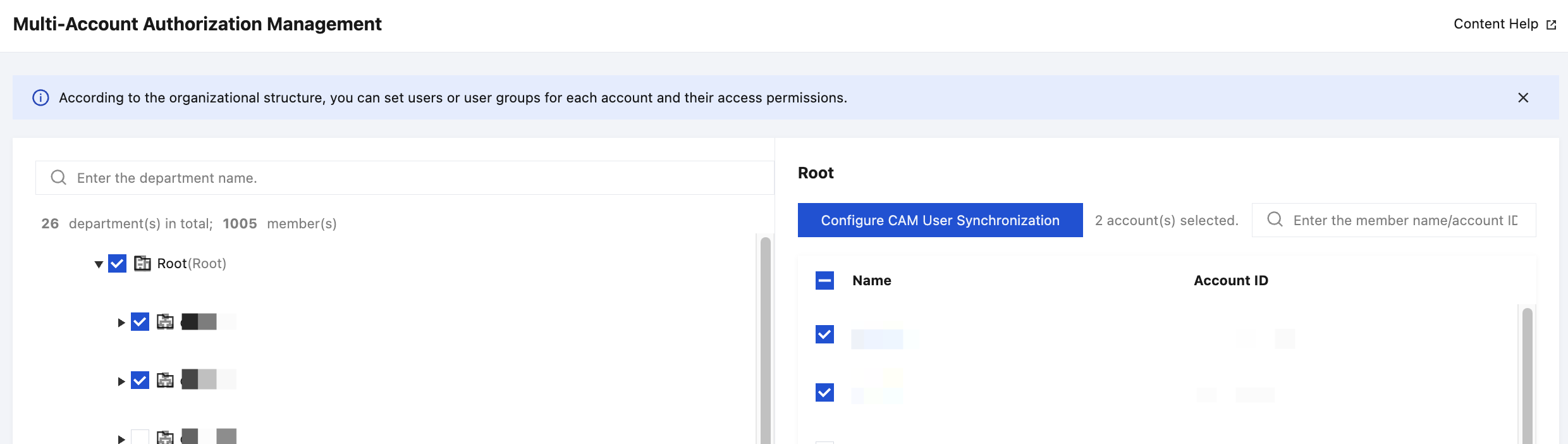
- On the Configure CAM User Synchronization panel, select a target user or user group, and click Next.
In this example, an Identity Center user (user1) is selected.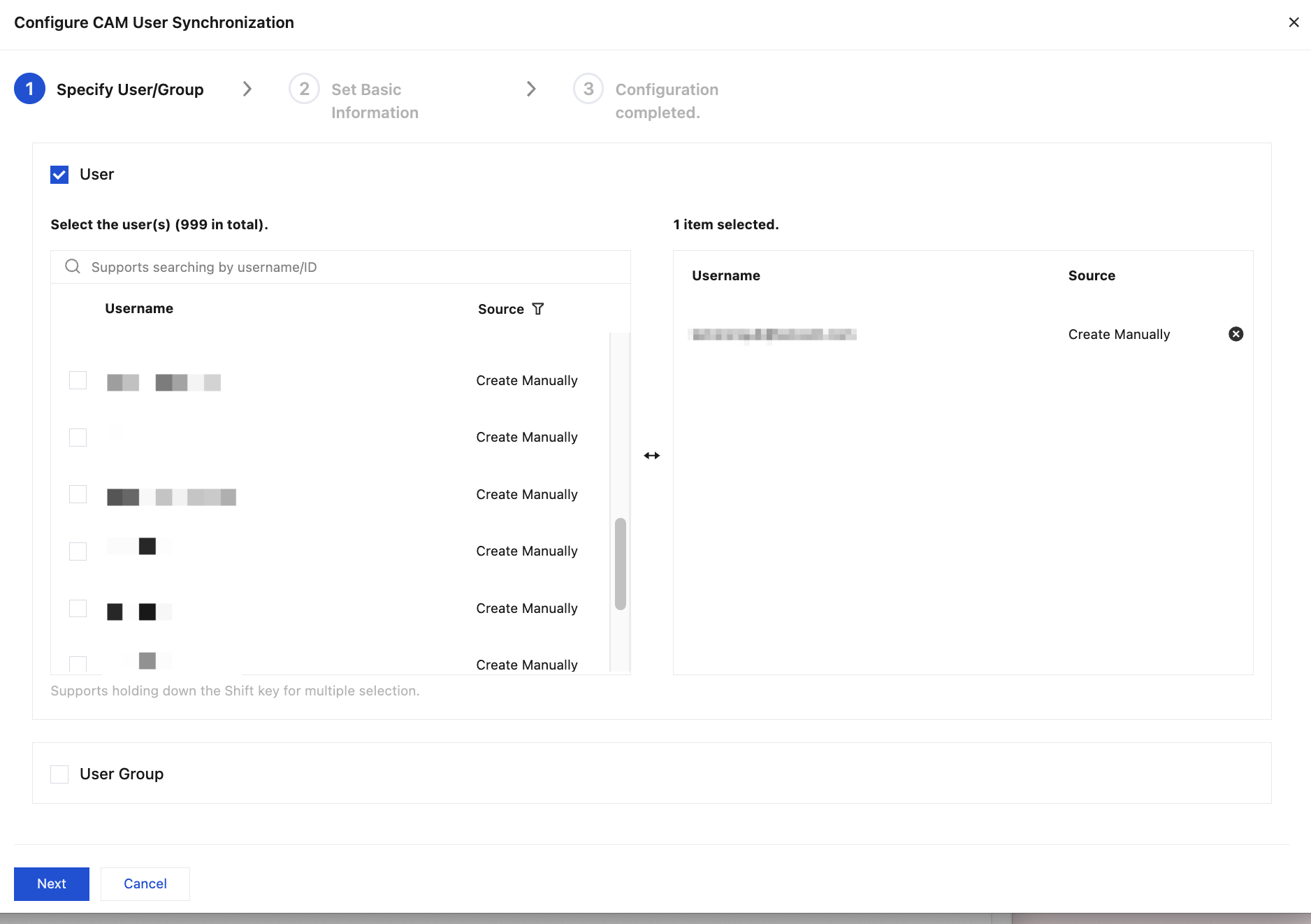
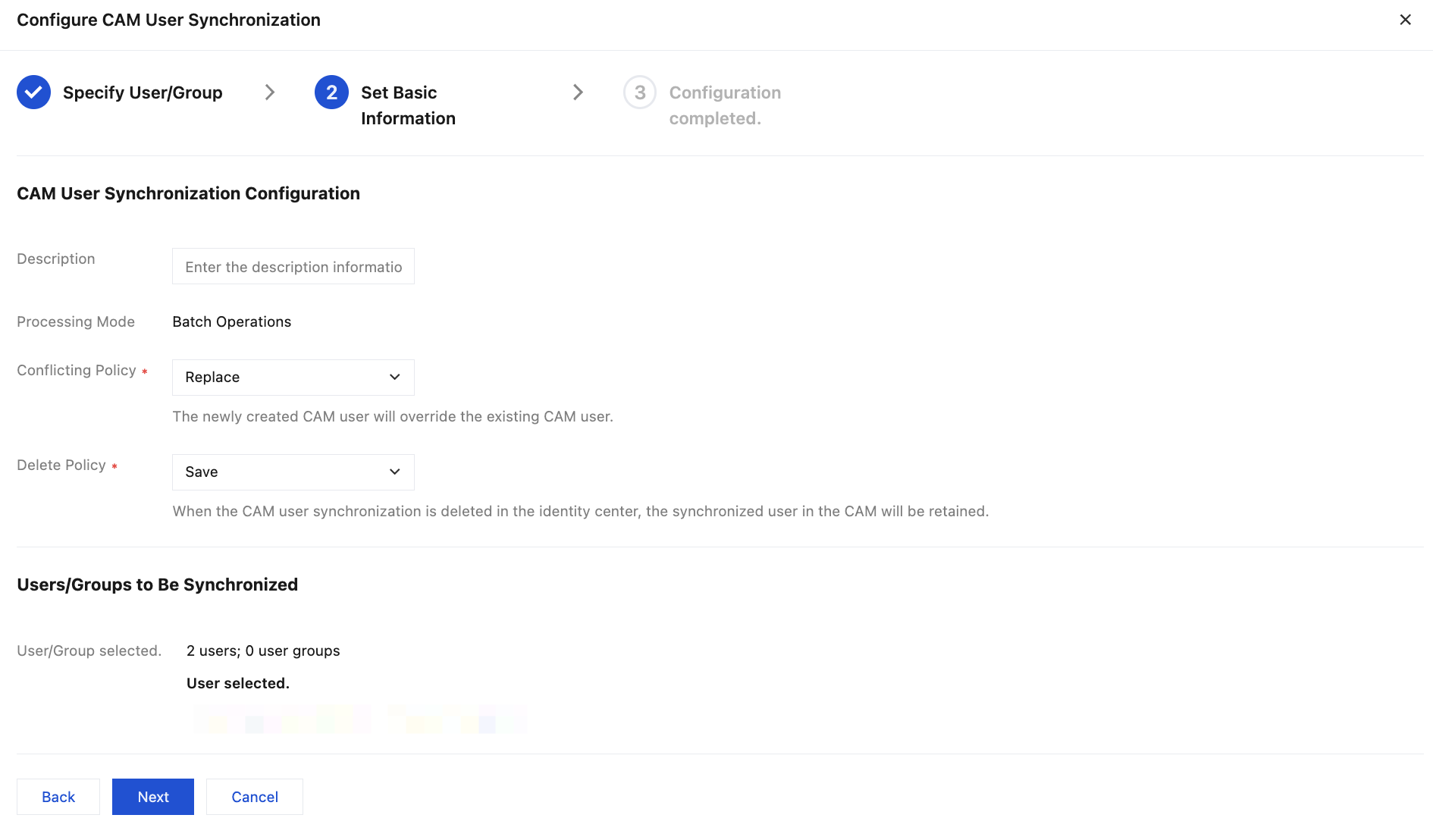
- Set the following basic information, and then click Next.
- Enter a description of CAM user synchronization.
- Configure Conflict Policy.
- Conflict policy: a policy to handle the situation where a CAM user with the same name exists in the target account.
- Replace: The created CAM user will overwrite the existing CAM user.
- Save Both: The created CAM user will be renamed by the system, and both the new and old CAM users will be retained.
- Configure Deletion Policy.
- Deletion policy: the handling policy for already synchronized CAM users when the CAM user synchronization is deleted.
- Retain: When the CAM user synchronization is deleted, the already synchronized CAM user will be retained.
- Delete: When the CAM user synchronization is deleted, the already synchronized CAM user will be deleted.
- Click Complete.
After successful configuration, a CAM user with the same name will be created in the target account. In this example, a CAM user (user1) with the same name as the Identity Center user (user1) will be synchronously created in the member account (Account1).
Step 2: Authorizing the CAM User
Sub-users synchronized to CAM through Identity Center > Configure CAM User Synchronization are not granted any permission. You need to authorize these users in the CAM console. If you need to preset permissions through Identity Center, choose to configure CAM role synchronization.
- Log in to the member account (Account1).
- Authorize the CAM user (user1).
In this example, the CAM user (user1) will be granted administrative permissions for CVM. For specific operations, see Sub-user Permission Settings.
Step 3: Accessing the Cloud Platform as an Identity Center User
The Identity Center user (user1) accesses CVM resources in the member account (Account1) via the CAM user (user1).
- Log in to the Identity Center user portal as an Identity Center user (user1).
For specific operations, see Identity Center User Login. - Access CVM resources in the member account (Account1) as a CAM user.