

Scenarios
After creating login permissions, you can configure login permissions for members. This document introduces how to configure login permissions for members and delete member login permissions in the Cloud Organization console.
Operation Steps
Configuring Member Login Permissions
- Log in to the Cloud Organization console. In the left sidebar, choose Unified Member Login > Multi-Member Authorization Management.
- In the member list, select the members to configure permissions.
- Click Configure permission.
- Select permissions.
Select the permissions to be configured from the permission list, as shown in the figure below: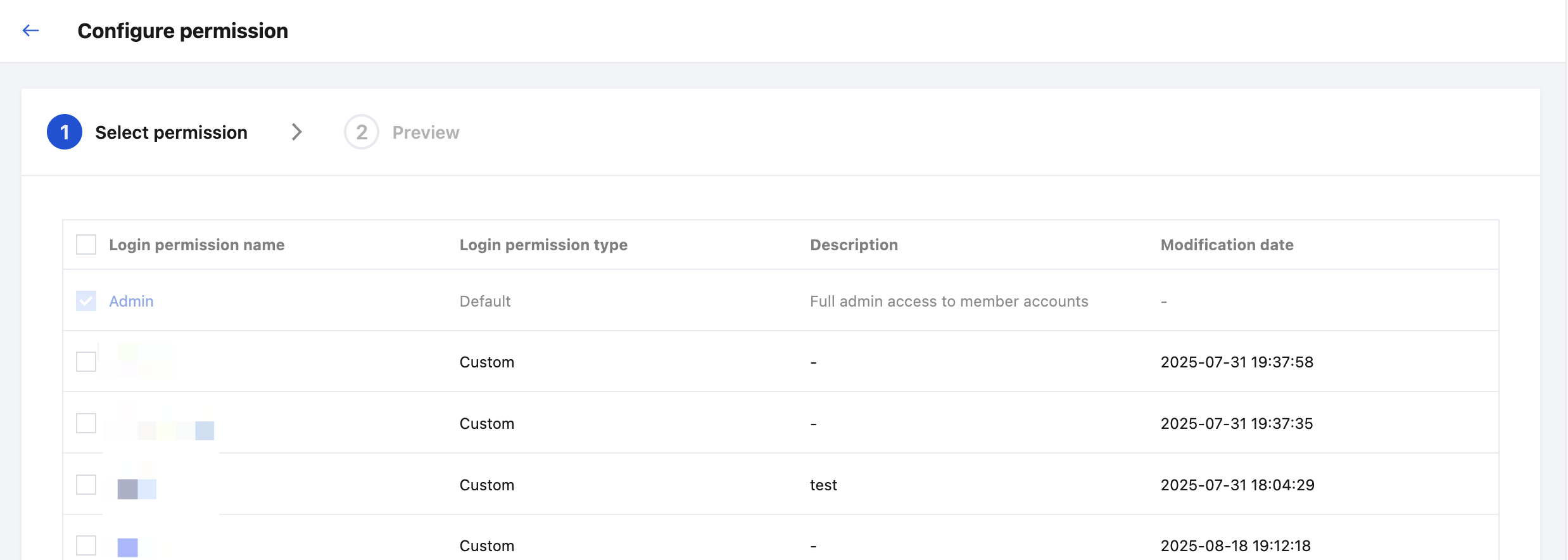
- Preview and confirm the permissions.
On the Preview page, confirm the member account and permission information, as shown in the figure below: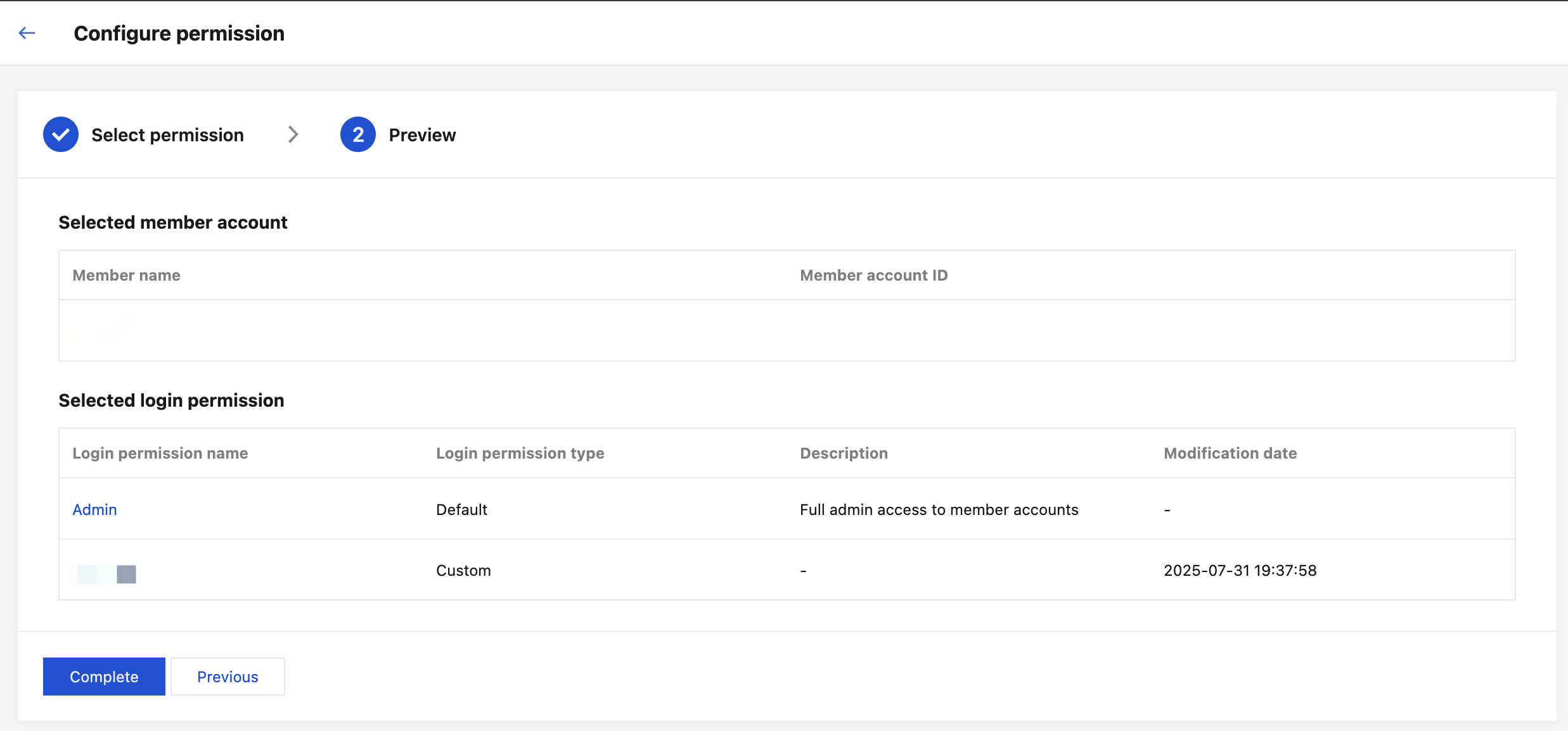
- Select permissions.
- Click Complete to successfully configure login permissions for members.
Deleting Login Permissions
Method 1:
- Log in to the Cloud Organization console. In the left sidebar, choose Unified Member Login > Multi-Member Authorization Management.
- Select a member and click Delete permission in the Operation column.
- In the pop-up Delete login permission window, select the permission to be deleted.
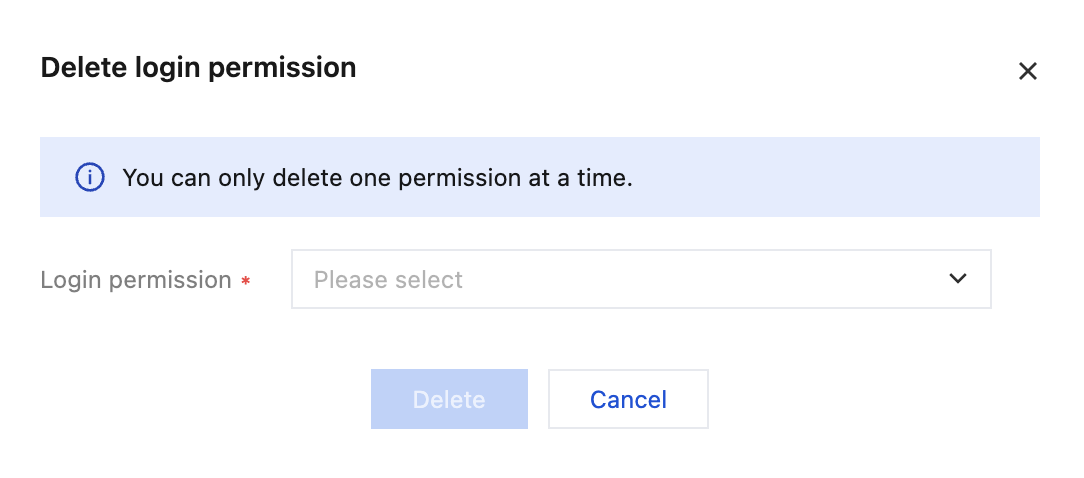
- Click Delete to successfully delete the login permission.
Method 2:
- Log in to the Cloud Organization console. In the left sidebar, choose Unified Member Login > Multi-Member Authorization Management.
- Click a member name to go to the Member details page.
- On the Member details page, select the permissions to be deleted and click Delete permission in the Operation column, as shown in the figure below:
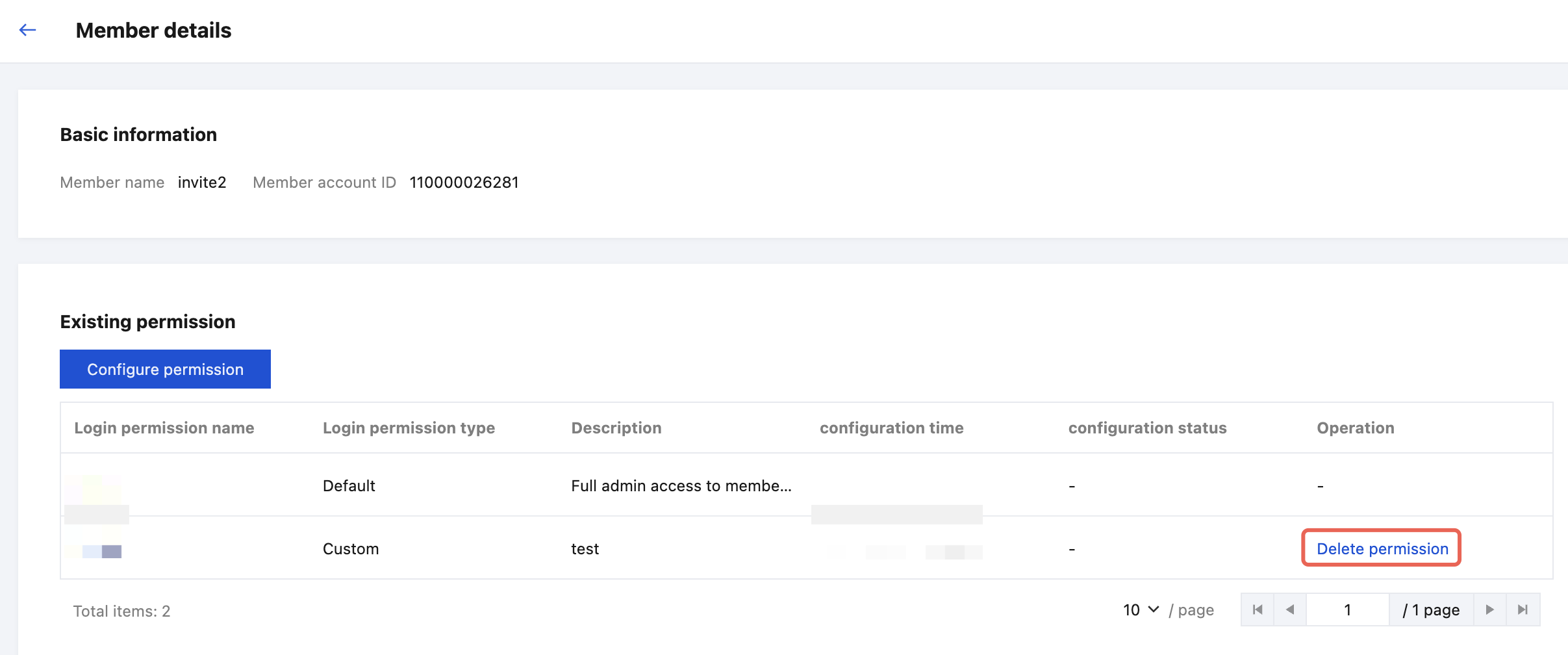
- In the pop-up window, click OK to successfully delete the login permission.
