Prerequisites for Inter-VPC Firewall Creation: Establishing a Peering Connection
A VPC is a user-defined and exclusive network space on the cloud that is logically isolated.
A peering connection is a large-bandwidth and high-quality cloud resource interconnection service that supports multi-VPC and heterogeneous network interconnections. The interconnection of a peering connection does not transmit.
Creating a VPC
- Choose Cloud Computing & Networking > VPC.
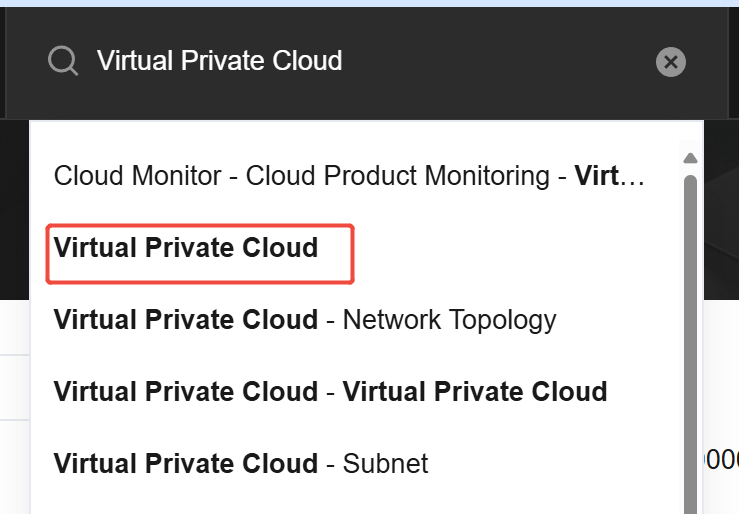
- Click Create.
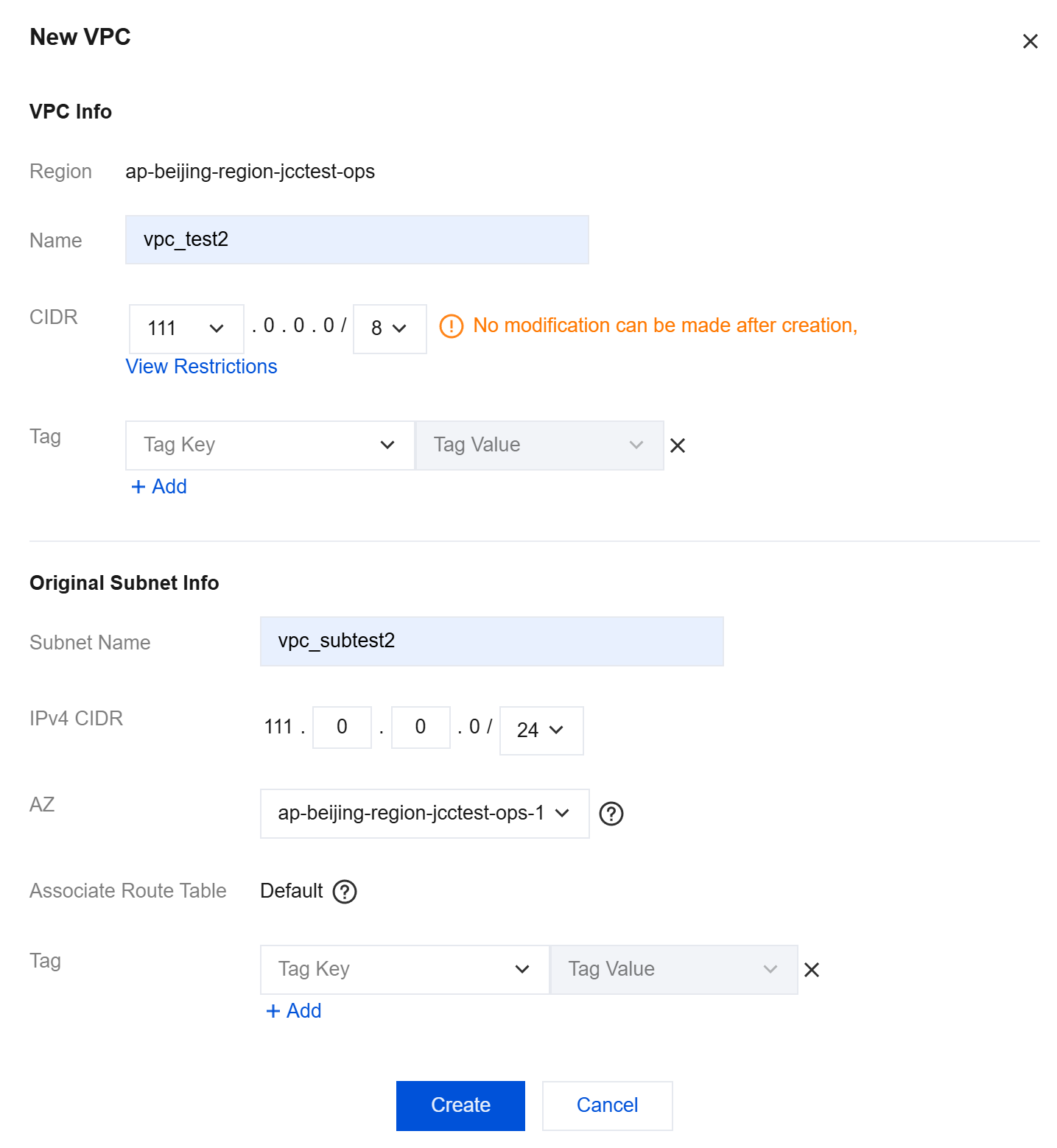
- Enter the VPC name and CIDR block, and the name and CIDR block of the subnet under the VPC, select an availability zone, and then click Create.
Since a peering connection will be established later, it is recommended that the VPC names here be more semantically readable, such as vpc1 and vpc2.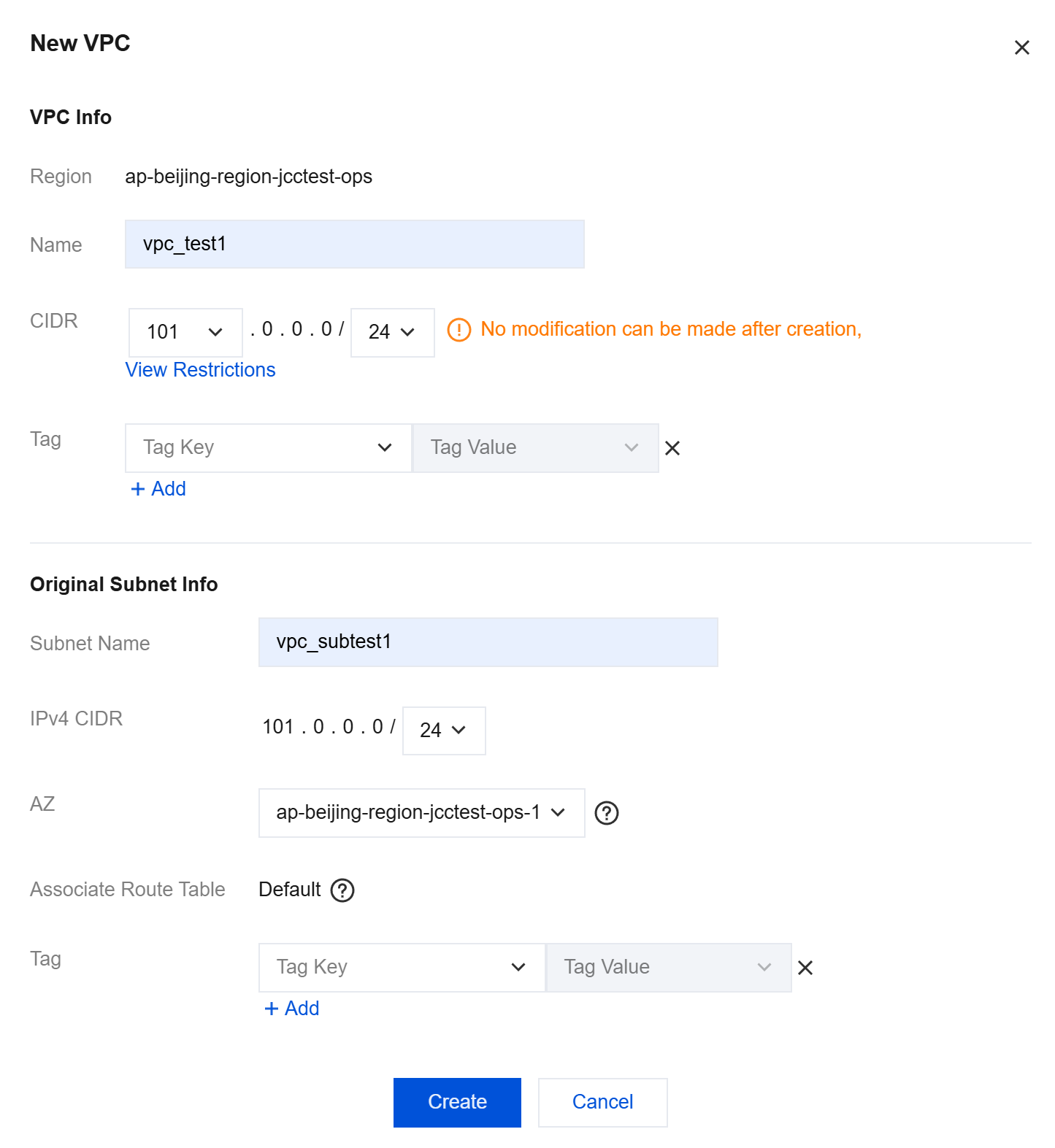
Creating a Peering Connection
- Choose Peering Connection in the left sidebar.
- Click Create. In the Create Peering Connection pop-up window, enter the peering connection name and select a region and a VPC.
Pay attention to the selection of the local network and the peer network here, as it affects the subsequent use of the UDP protocol in CFW (where the local network corresponds to the client side, and the peer network corresponds to the server side).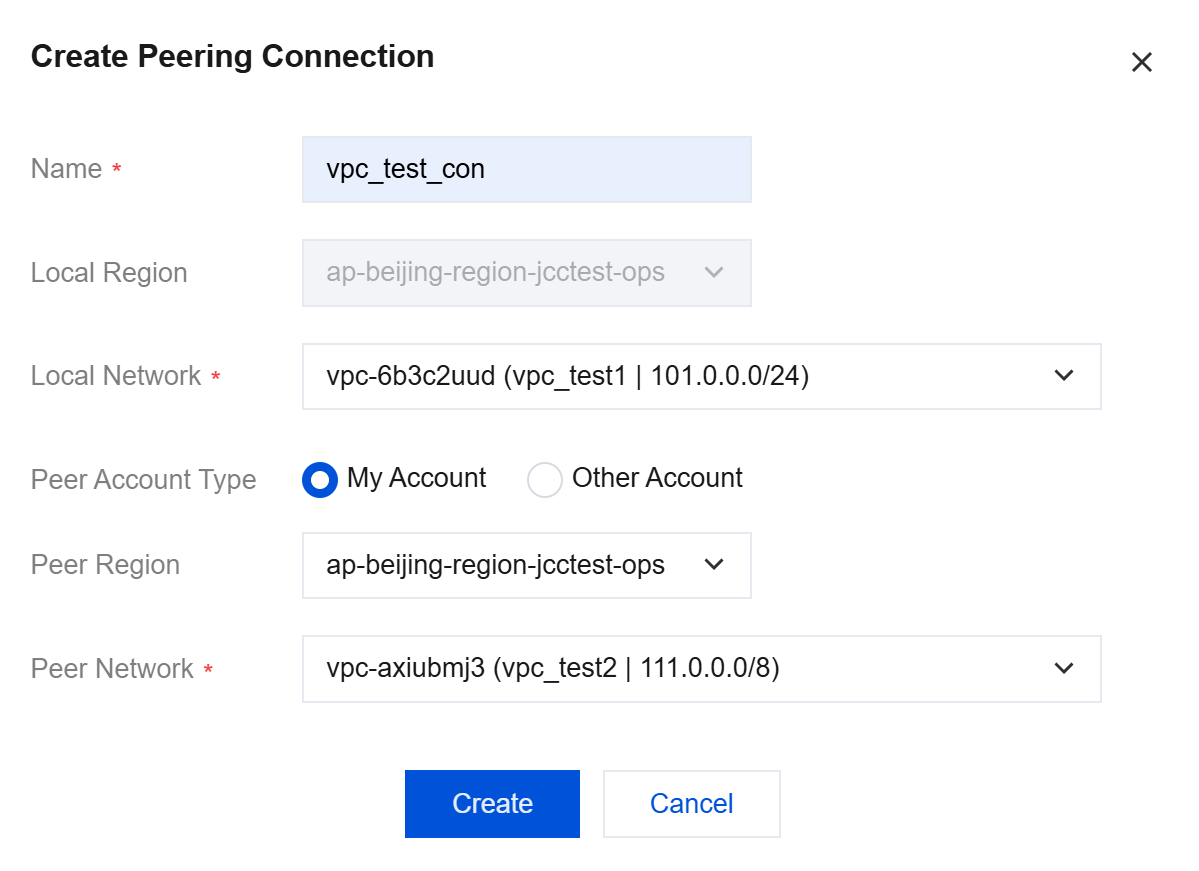
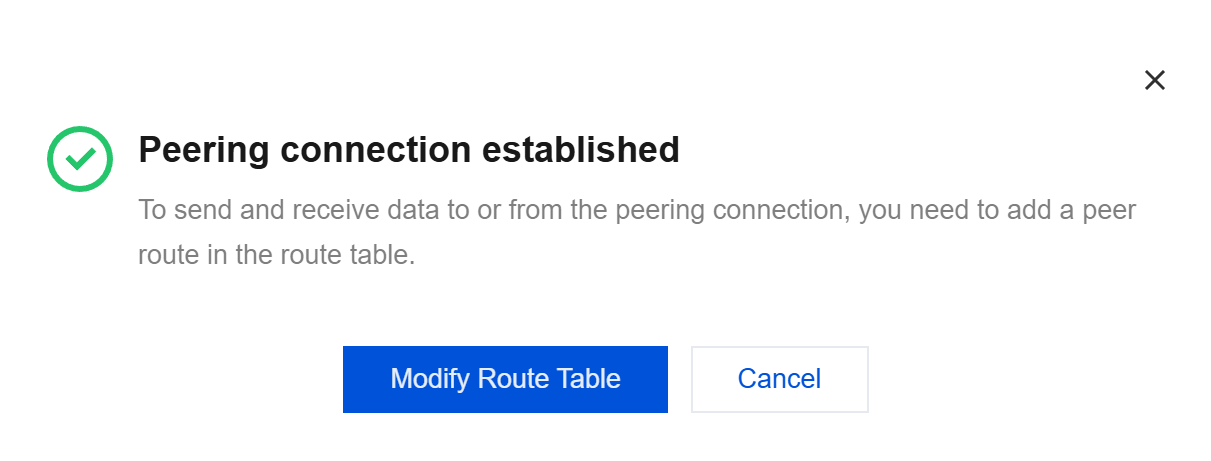
- After the peering connection is created successfully, a window is displayed, as shown in the following figure. You can go to the Route Table page by clicking Modify Route Table in the pop-up window or through the left sidebar.
Configuring a Route Table
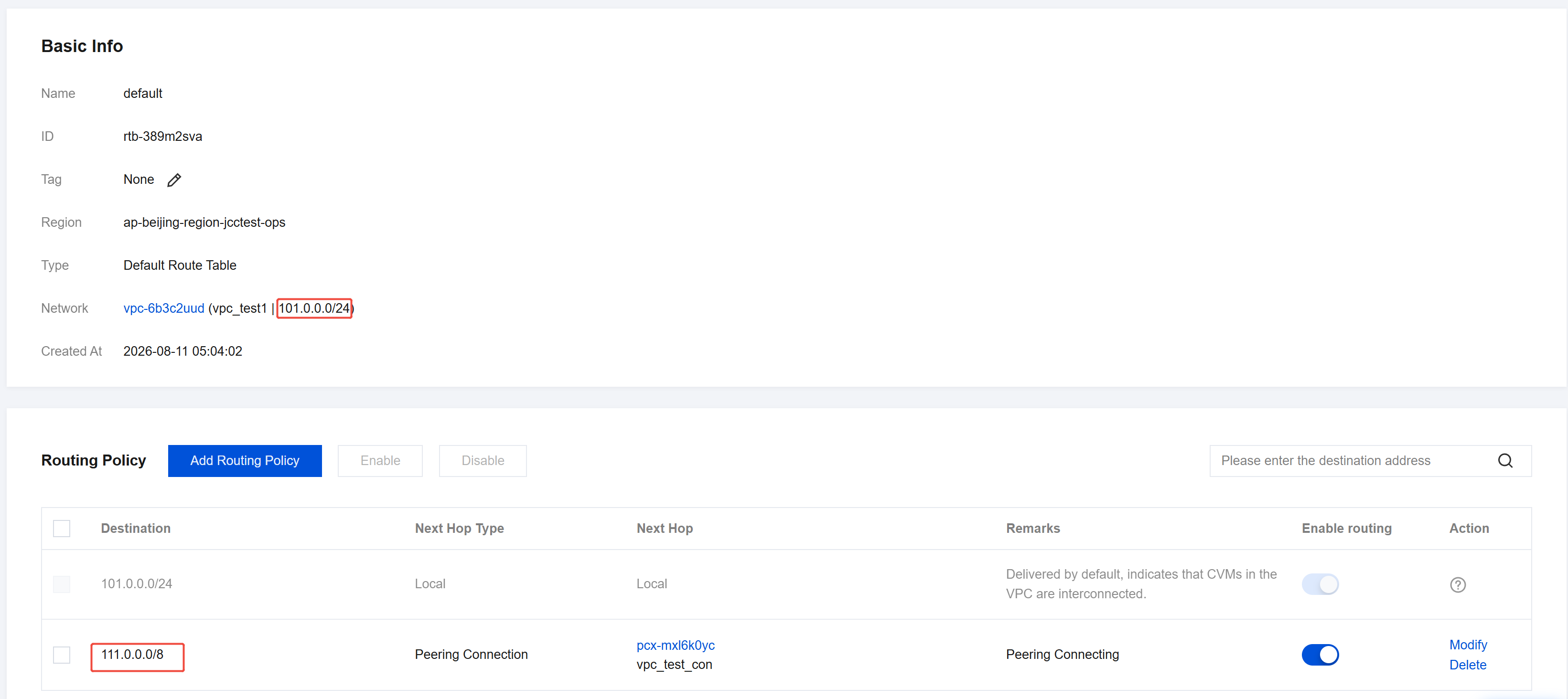
- On the Route Table page, select the VPCs you created before and configure them. Note that two VPCs need to be configured.
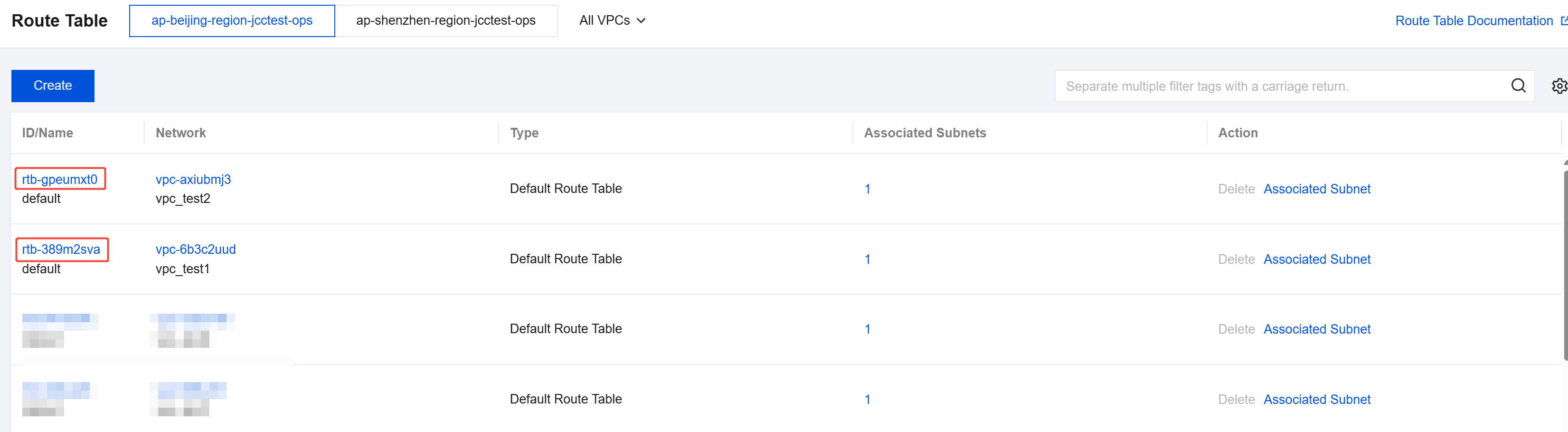
- Click the blue ID corresponding to a VPC to go to the details page.
- Click Add Routing Policy and enter the destination (another VPC CIDR), the next hop type (peering connection), and the next hop information. (The previously created peering connection is displayed here by default.) Then, enter the remarks and click Create.
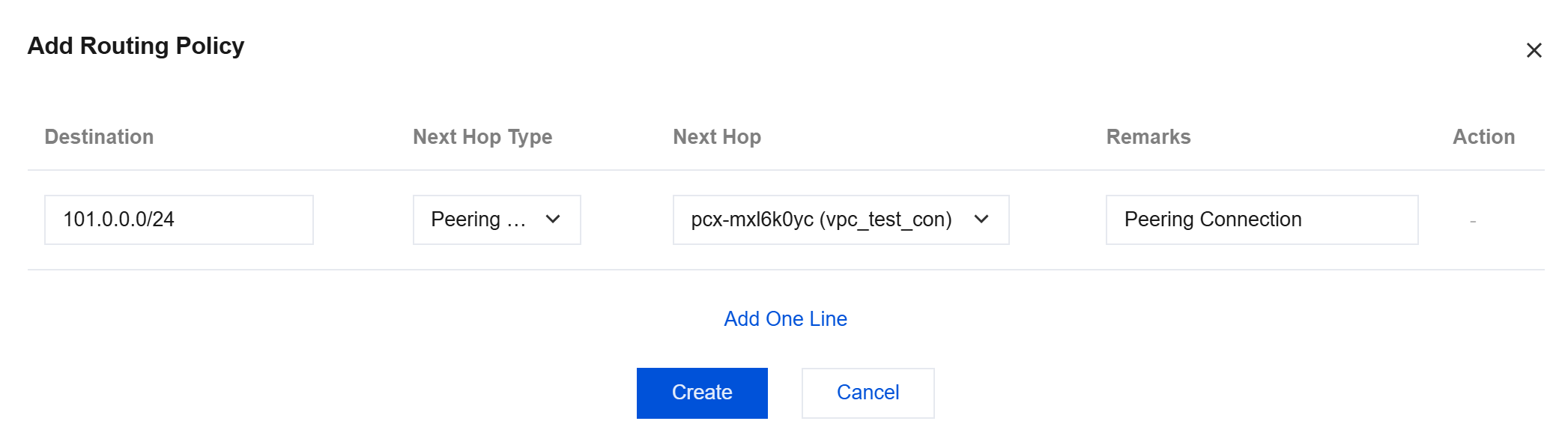
- After successful creation, the corresponding information is displayed in the list.

- Perform the preceding steps for another VPC.
Creating VPC Firewall Instances
Note:
- In normal mode, you need to select a VPC with a connected peering connection under the local account during access.
- In administrator mode or multi-account mode, you need to select two VPCs with cross-tenant peering connections during the first access.
Create an Inter-VPC Firewall in private network mode. In the left sidebar, choose Firewall Toggle > VPC Boundaries (Primary/Secondary).
On the VPC boundaries (primary/secondary) page, click Firewall Instance to go to the firewall instance page, and then click Create Firewall.
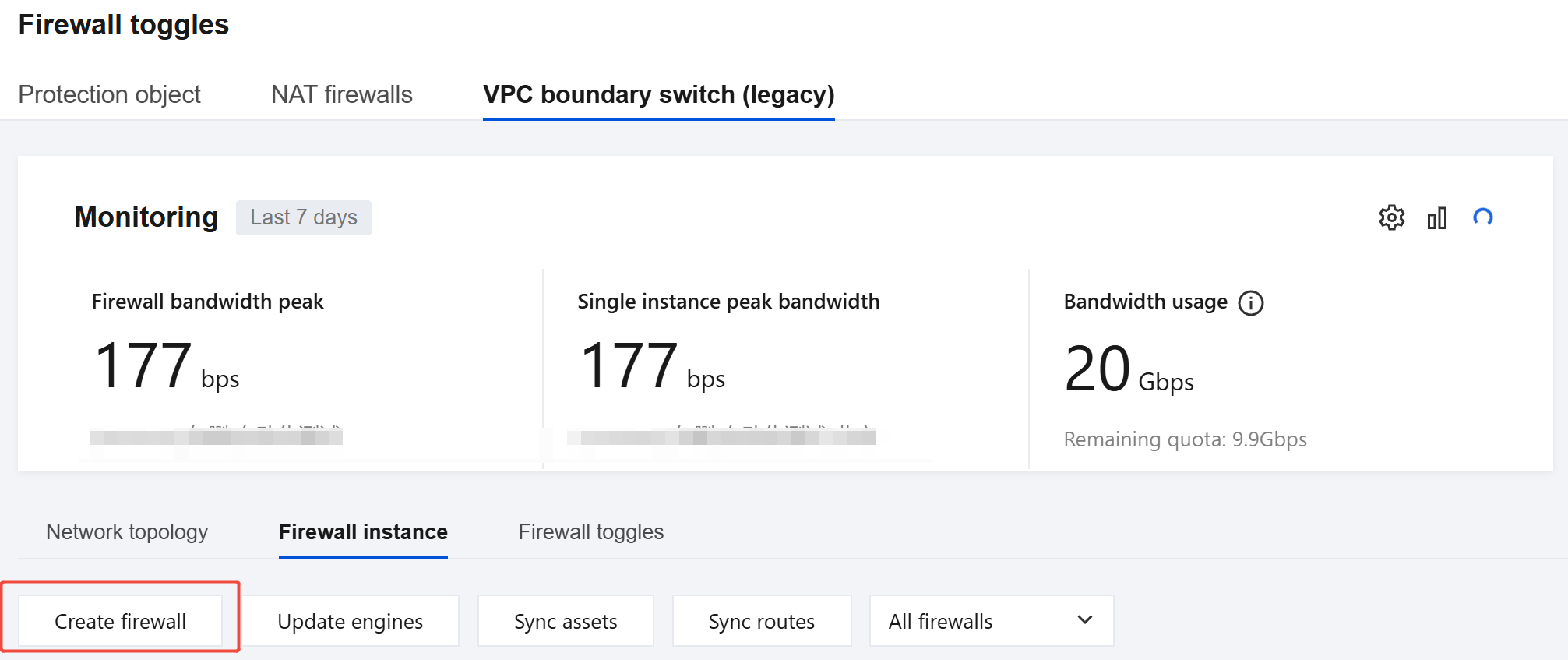
In the Create Inter-VPC Firewall pop-up window, enter an instance name, select Private Network Mode, and then click Next.
Note:
- Instance Name: custom name defined when you create a firewall instance.
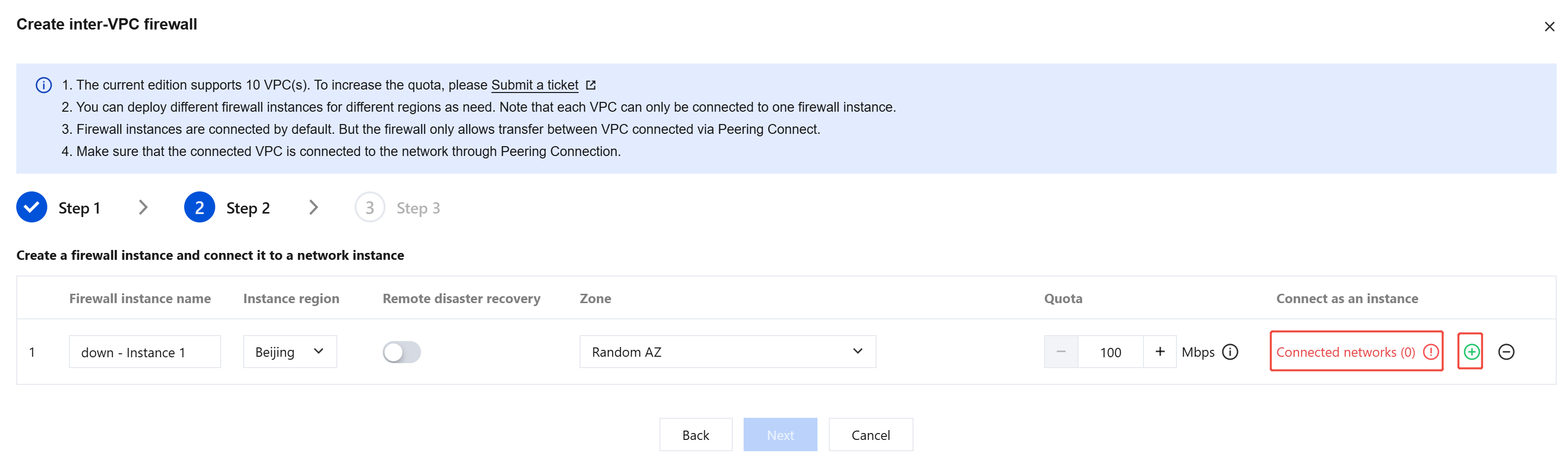
- Set the firewall instance bandwidth specifications and connect to the network, and click Next. If the number of instances does not meet your requirements, you can click ➕ on the right to create multiple firewall instances.
- Region: Indicates the region to which the VPC with protection enabled belongs.
- Remote Disaster Recovery: The Inter-VPC Firewall supports remote disaster recovery. After you check it, the primary and secondary engines are automatically deployed in different AZs.
- Availability Zone: Select a suitable AZ based on your requirements.
- Instance Bandwidth: An instance supports throughput of 200 Mbps to 10 Gbps (up to 6 Gbps configurable in the console). To configure a bandwidth greater than the configurable limit, submit a ticket or perform a scale-up. If the maximum bandwidth is insufficient, you can create multiple firewall instances to distribute the traffic. However, please note that each firewall instance has its own throughput limit. If there are multiple firewall instances, please ensure that each individual instance stays within its throughput limit.
- The firewall does not establish basic network connections. Before connecting to the network, make sure that peering connections have been created between VPCs. If no connection is established between VPCs, the connection does not take effect, and no firewall toggle is displayed.
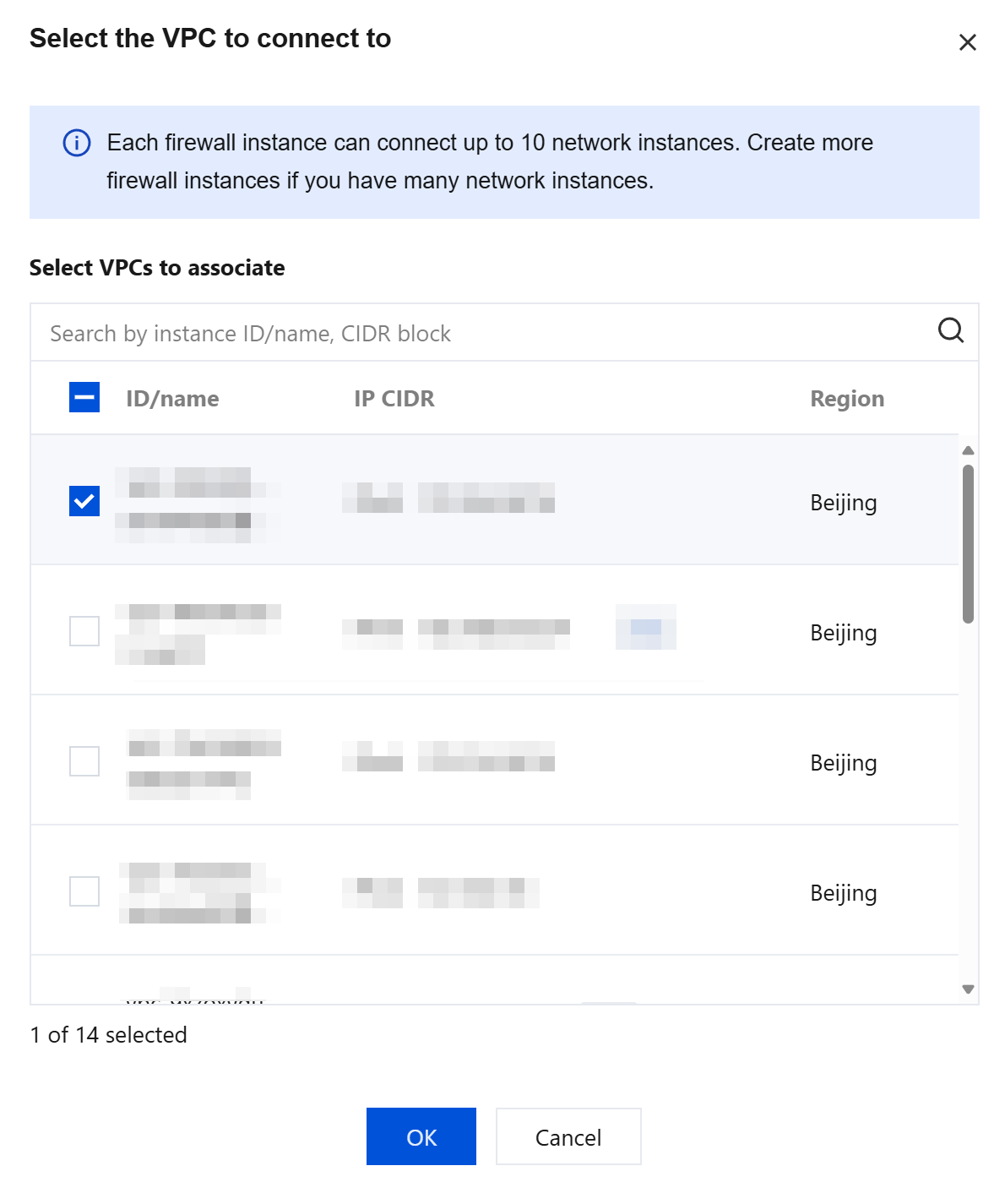
- Each firewall instance allows up to 10 VPCs in the same region, and you can create multiple firewall instances in the same region. It is recommended to plan the VPCs to be connected by region in advance before creating firewall instances and performing network connection.
Click Connected Networks, select VPCs within the region as needed, and then click OK. Note that a VPC can connect to only one firewall instance.
Configure How to Create the Routing Subnet, Firewall VPC, and Routing Mode, and click Create after checking these settings.
Note:
CFW will create a subnet in the VPC you connect to, which will be used to redirect traffic to the firewall. You can choose different methods for creating this subnet. The routing subnet cannot be modified after the firewall is created.
- Preferred Proprietary IP Range: CFW will automatically select an idle subnet IP range in the VPC you chose. If the VPC has no subnet quota, the extended IP range of the selected VPC will be used.
- Preferred Extended IP Range: CFW will prioritize using the available extended IP range reserved by the VPC. This mode will not consume the subnet quota of the selected VPC. The extended IP range refers to the auxiliary IP range within the VPC.
- Custom: You can specify a subnet IP range for the firewall. Note that it must be a /24 subnet, and the custom IP range must fall within the CIDR of the current VPC, for example, 192.168.0.0/24.
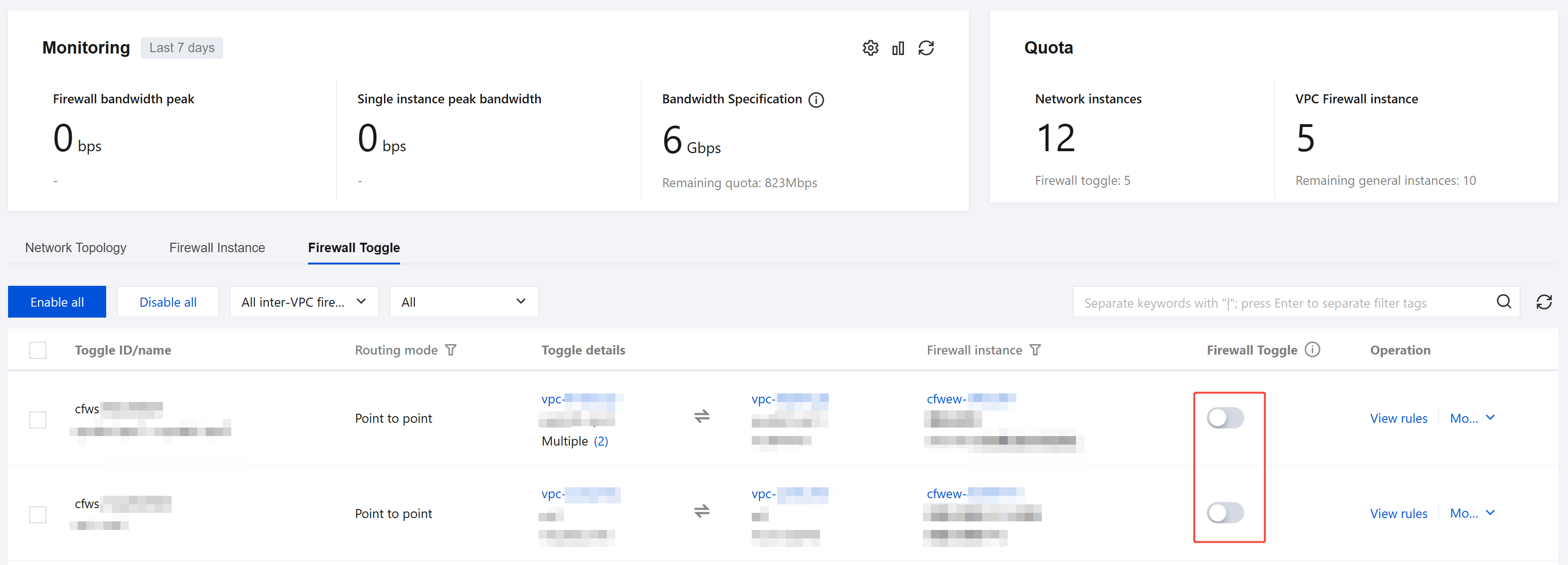
Enable the firewall toggle. Once the toggle is enabled, the inter-VPC access traffic will be directed to CFW for filtering and forwarding.
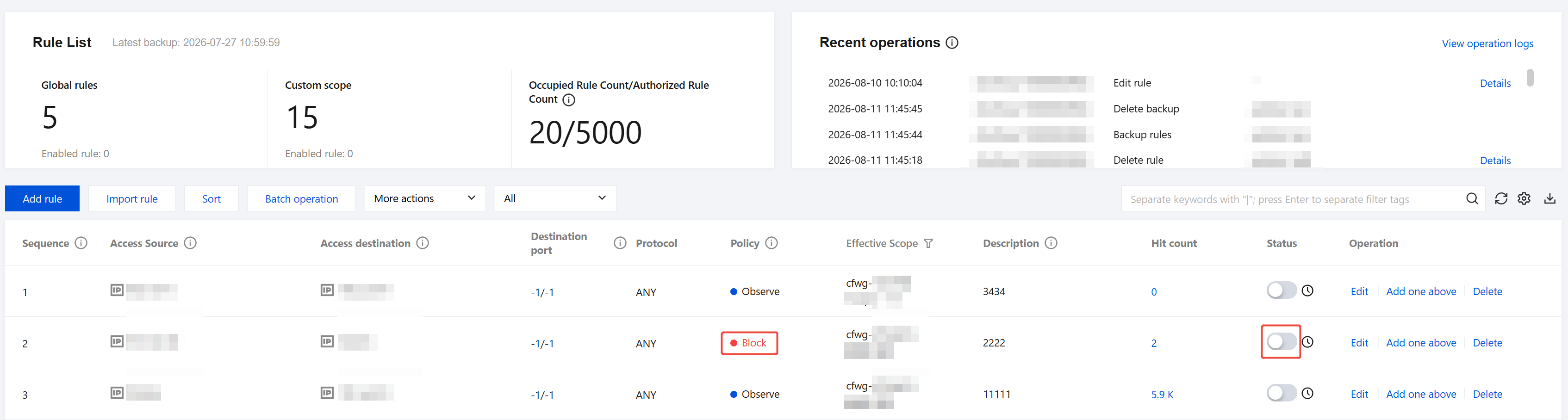
Choose Security Policies > Access Control > Add Rules to add access control rules.
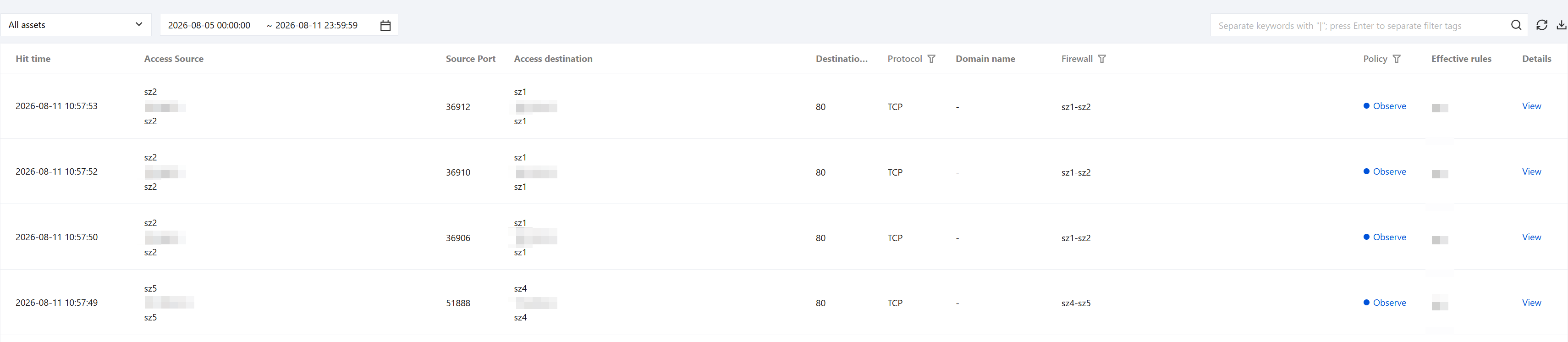
Choose Cloud Log Service > Access Control Logs to view the generated interception or observation log.