

Presentation of Alarm Events
[Cloud Platform Operation Side] - [Monitoring System] - [Cloud Product Metrics] - [CFW]
[Monitoring System] Alarm Events and Metrics:
No Mbuf Is Available When Receiving Messages [Critical]
Threshold:
View metrics: View monitoring folding line graphs and monitoring events.
Monitoring events: [CFW core workload event monitoring]
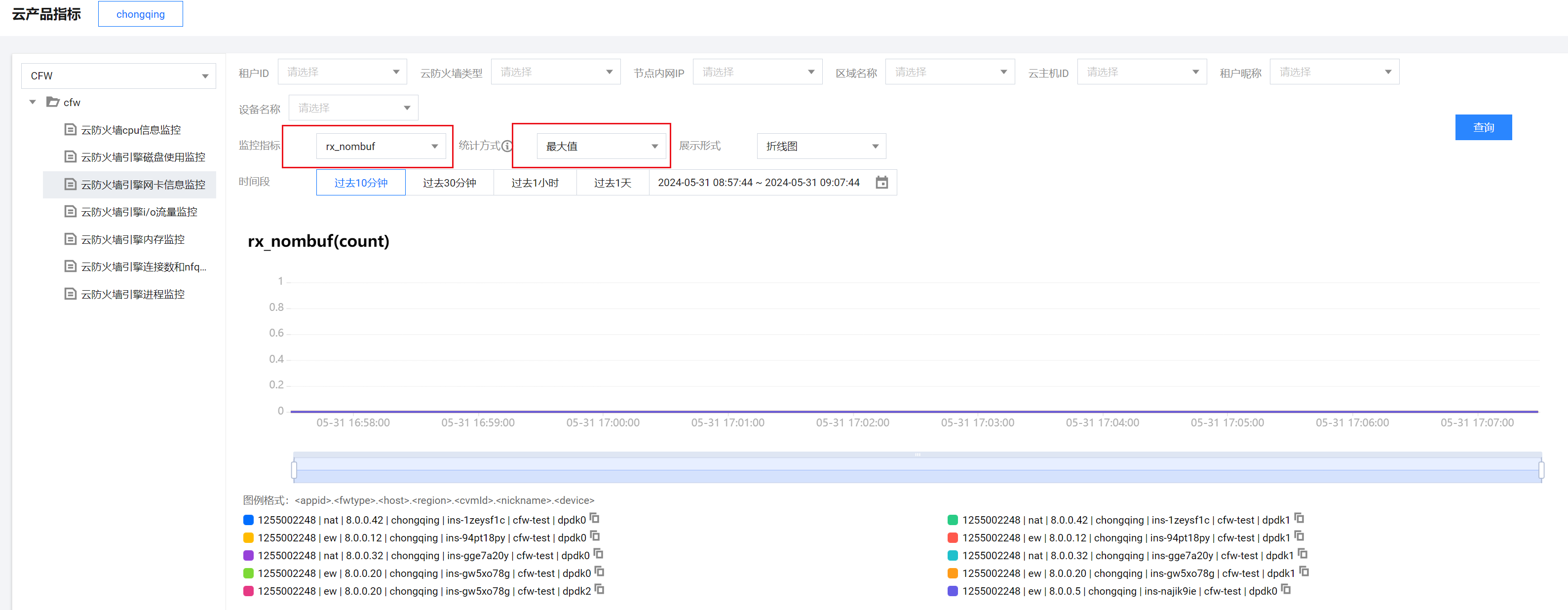
No Mbuf is available when receiving messages tcs_type = "cfw_event_err_info", event_name = "NO_MBUF"Monitoring folding line graph: [CFW engine NIC information - rx_nombuf] When rx_nombuf is not 0, it indicates that an exception exists.
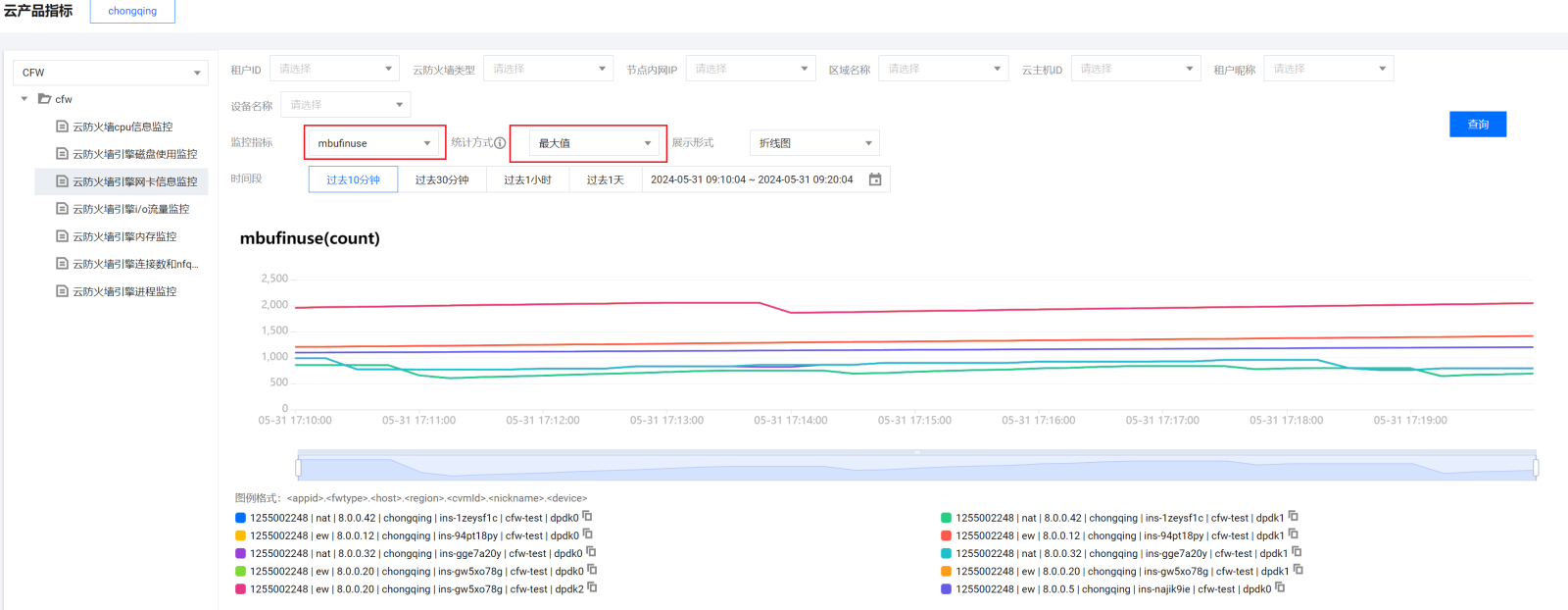
Monitoring folding line graph: [CFW engine NIC information - mbufinuse]
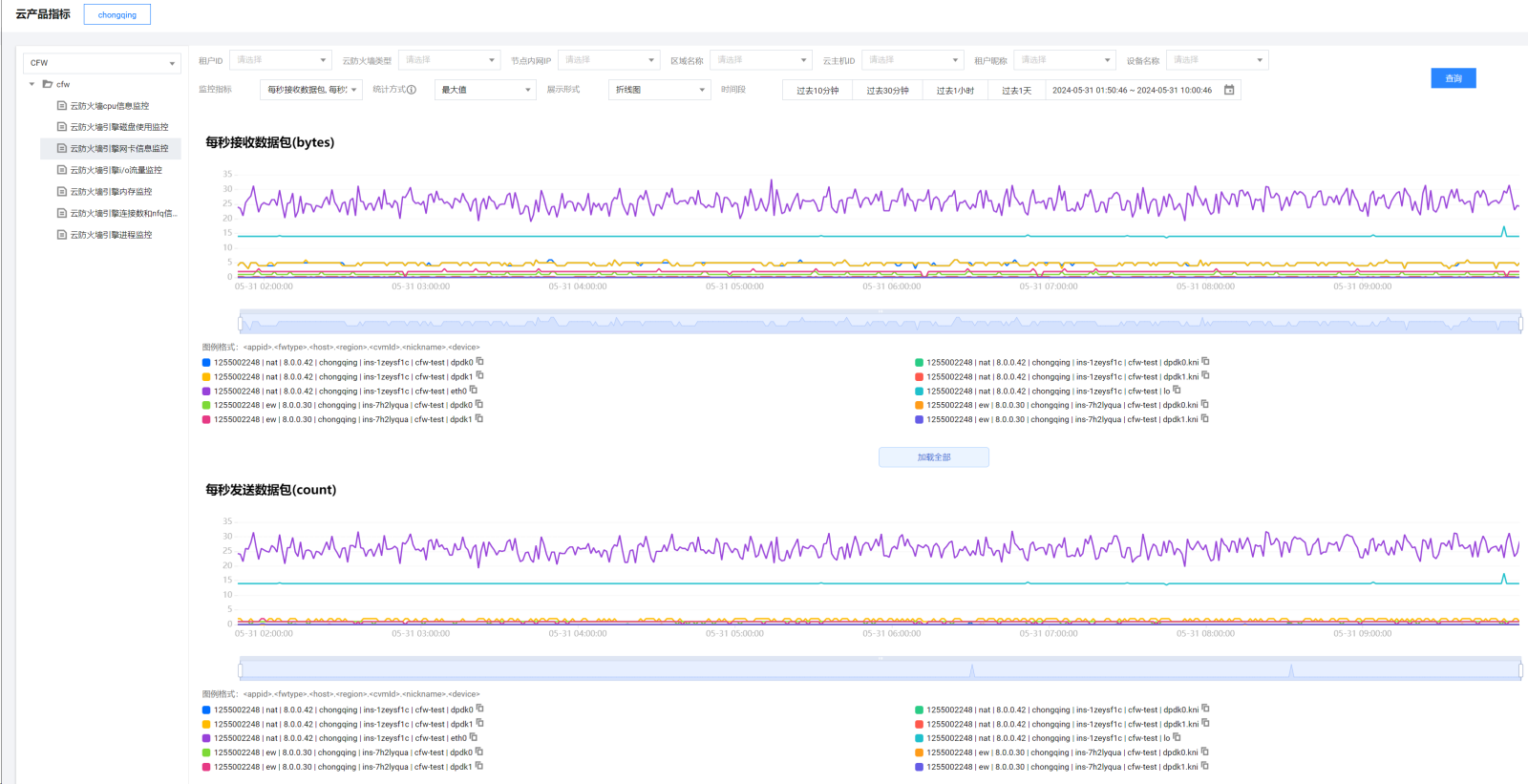
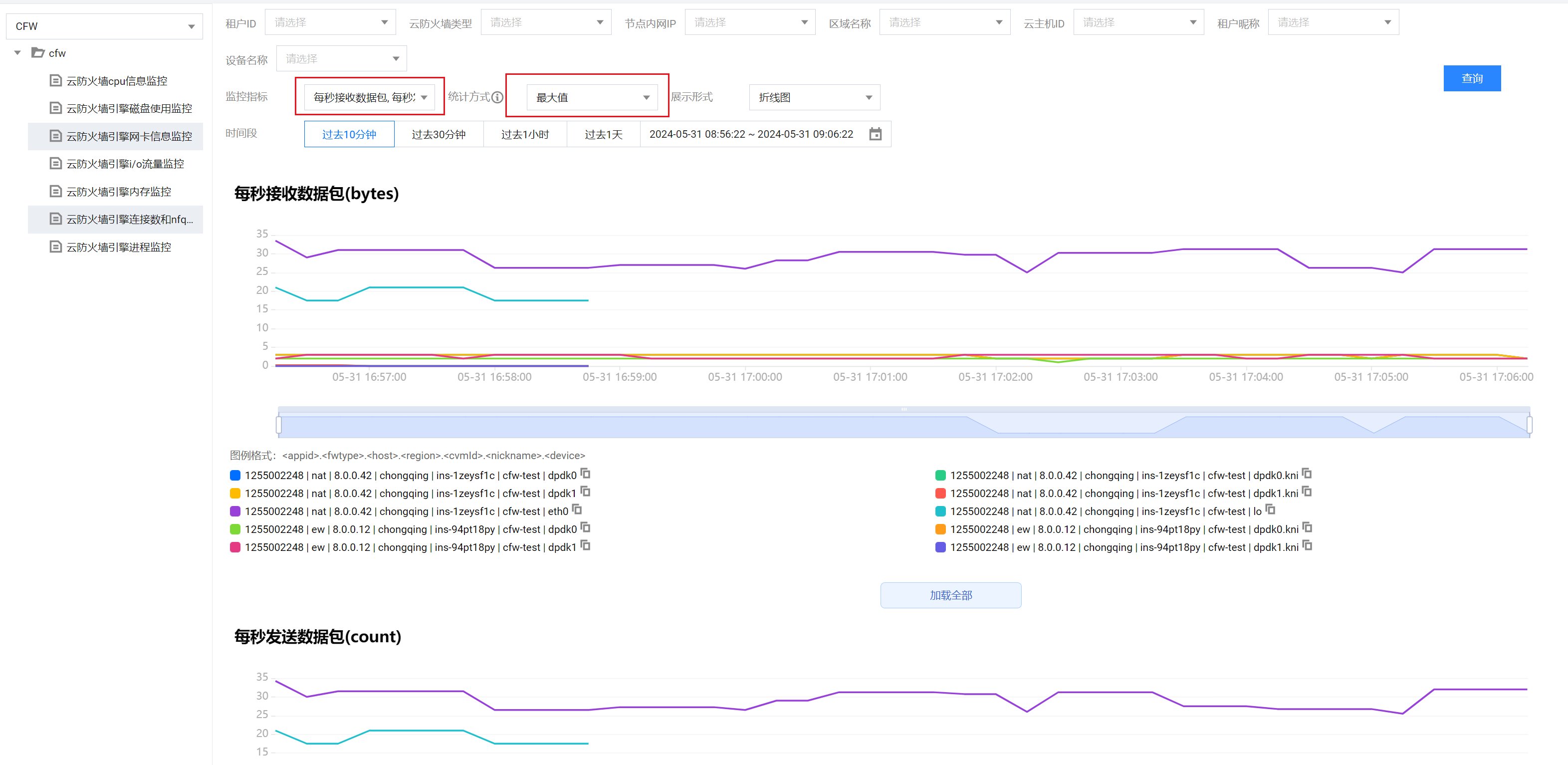
Monitoring folding line graph: [CFW engine NIC information - sending or receiving data packets per second]
Insufficient Huge Page Memory Leads to an Automatic Primary-Secondary Switch [Critical]
Threshold: The primary engine memory usage exceeds 98%.
View metrics: View monitoring folding line graphs and monitoring events.
- Monitoring events: [CFW core workload event monitoring]
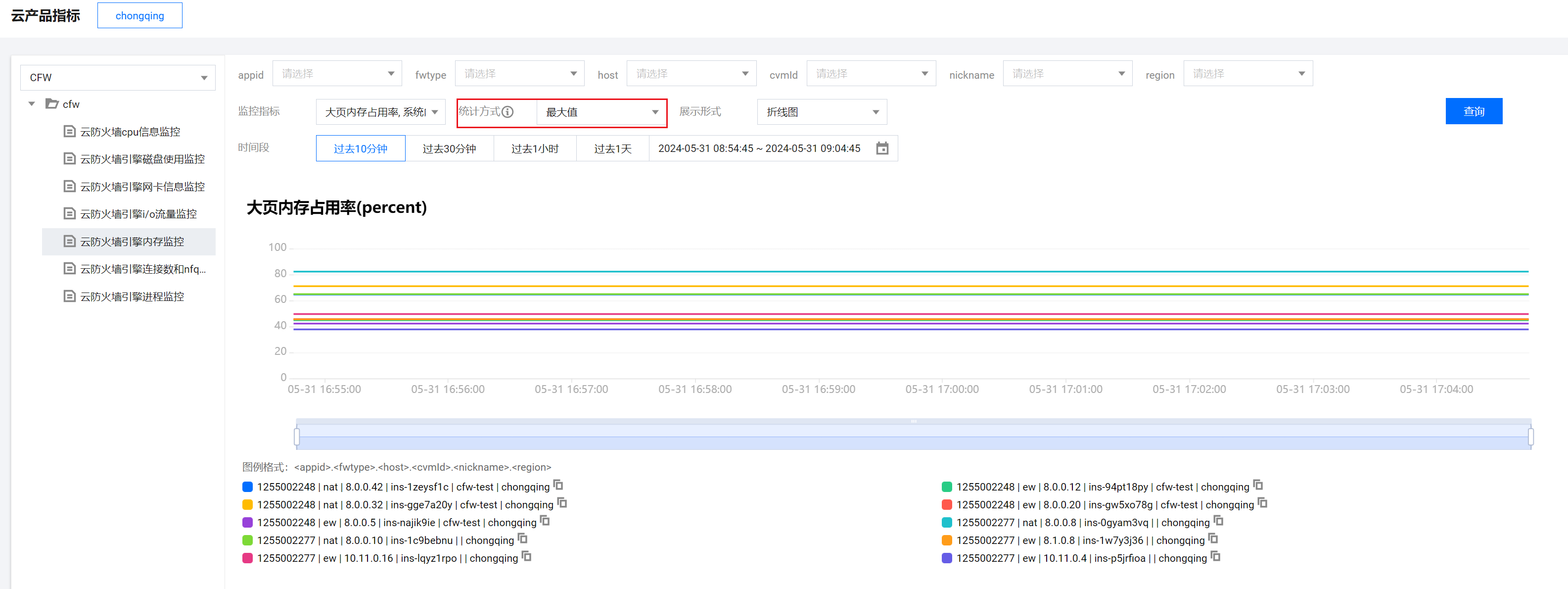
Insufficient huge page memory leads to an automatic primary-secondary switch tcs_type = "cfw_event_err_info", event_name = "HUGE_PAGES_NOT_ENOUGH_SWITCH" - Monitoring folding line graph: [CFW engine memory monitoring]
DPDK CPU Usage Exceeds 95% [Critical]
Threshold: A continuous full load of 95% has existed for 3 minutes.
View metrics: View monitoring folding line graphs and monitoring events.
- Monitoring events: [CFW core workload event monitoring]
DPDK CPU usage exceeds 95% tcs_type = "cfw_event_err_info", event_name = "DPDK CPU. HIGH" - Monitoring folding line graph: [CFW CPU information monitoring]
The CPU metric is reported once every 5 seconds, The minimum scale of Monitoring System is 15 seconds. Therefore, you need to select the statistical method as the maximum value.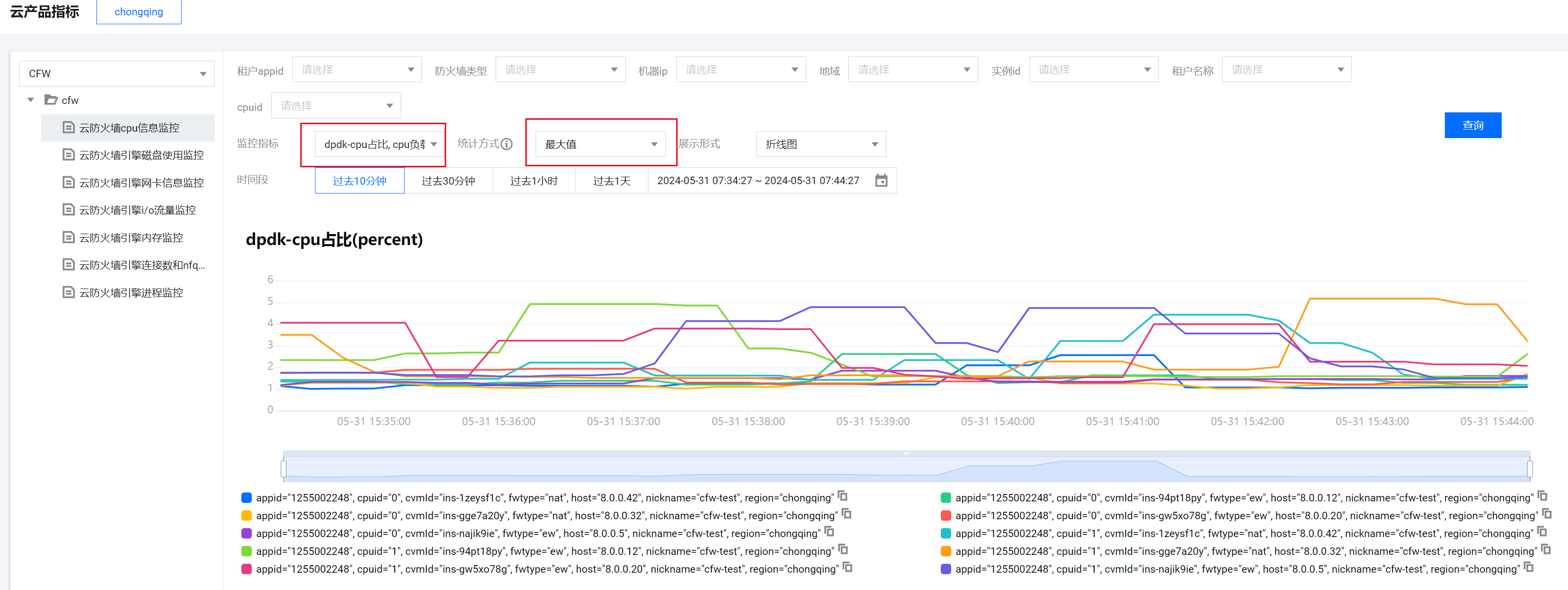
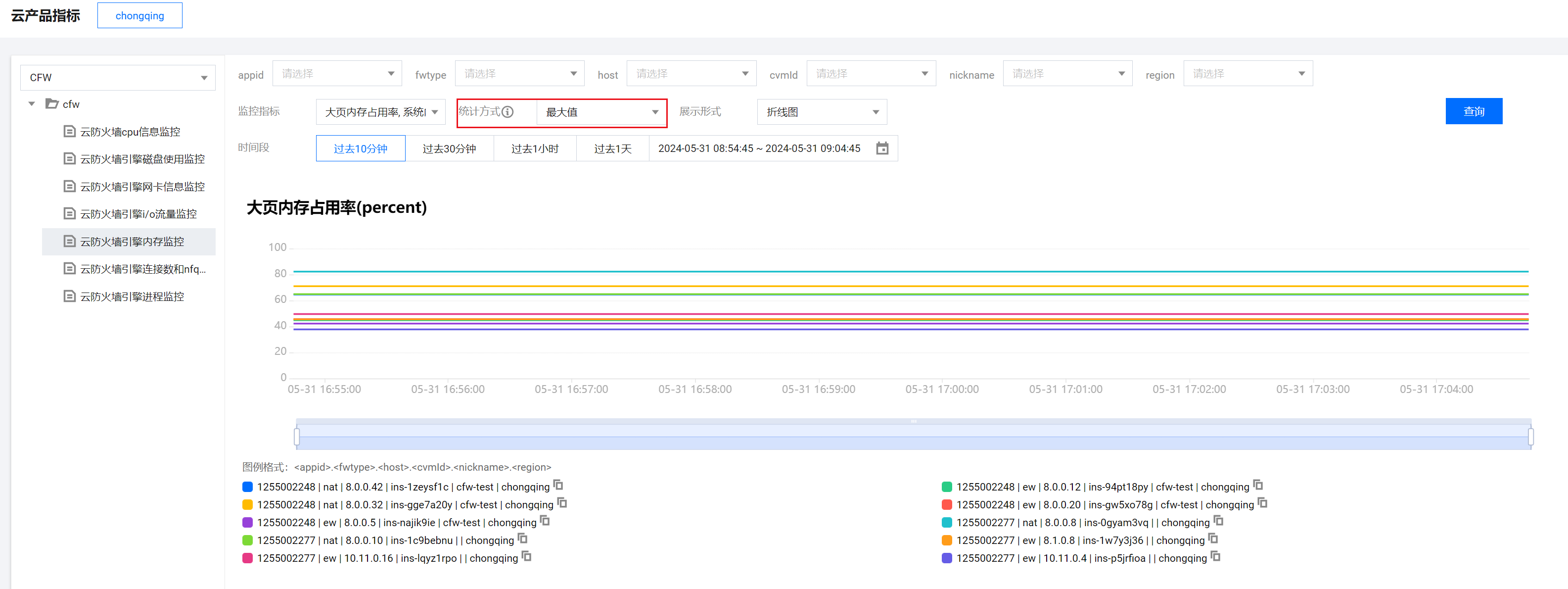
- Monitoring folding line graph: [CFW engine memory monitoring - huge page memory usage]
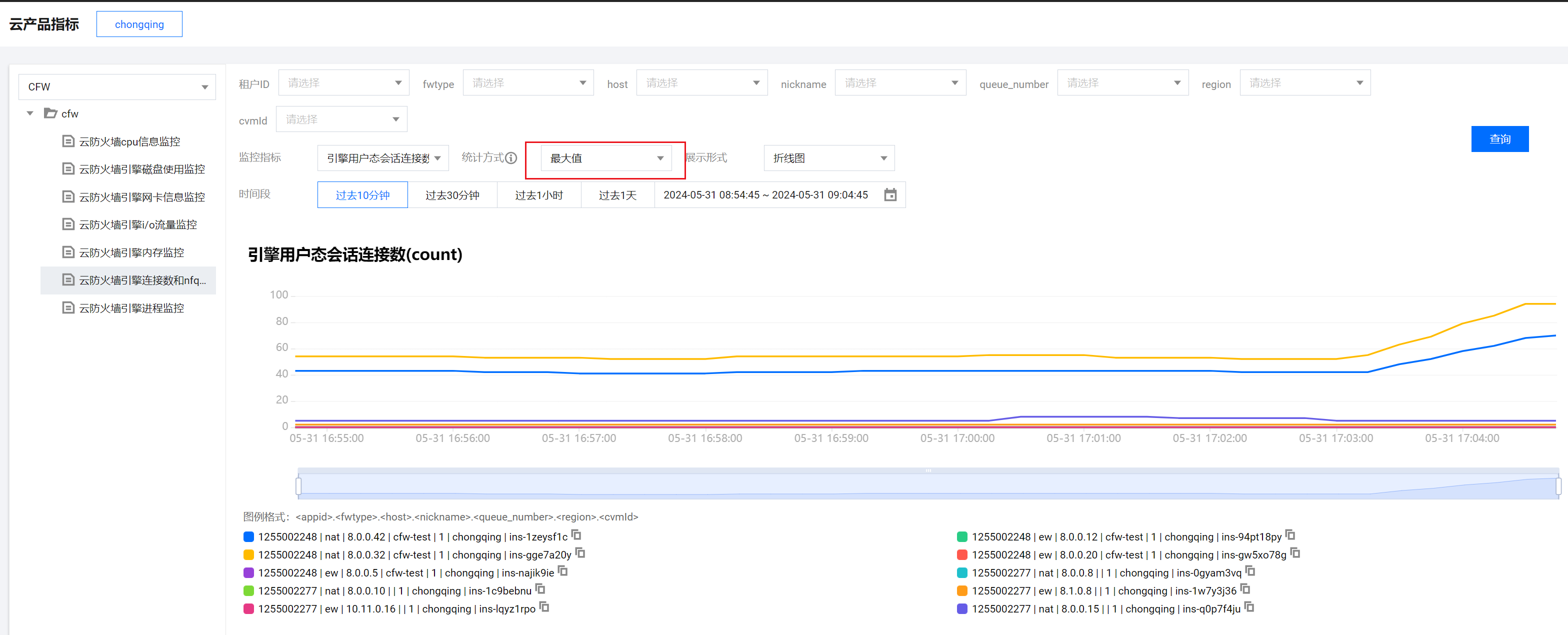
- Monitoring folding line graph: [number of CFW engine connections - number of engine user-mode session connections]
- Monitoring folding line graph: [CFW engine NIC information monitoring - sending or receiving data packets per second]
Primary-Secondary Engine Switch Occurs [Failed to Take Effect] [Critical]
Multiple alarms are generated in a short time, and the alarm that a primary-secondary engine switch occurs [successfully effective] is not received.
View metrics: View monitoring events.
- Monitoring events: [CFW core workload event monitoring]
A primary-secondary engine switch occurs [failed to take effect] tcs_type = "cfw_event_err_info", event_name = "HAVIP_INVALID_CHECK"
A primary-secondary engine switch occurs [successfully effective] tcs_type = "cfw_event_err_info", event_name = "HAVIP_VALID_CHECK"
Firewall HAVIP Is Inconsistent with the Effective CVM [Critical]
View metrics: View monitoring events.
- Monitoring events: [CFW core workload event monitoring]
The firewall HAVIP is inconsistent with the effective CVM barad_err_status = 23
The HAVIP Engine Node IP Address of a NAT Firewall Is Lost [Critical]
View metrics: View monitoring events.
- Monitoring events: [CFW core workload event monitoring]
The HAVIP engine node IP address of NAT Firewall is lost. tcs_type = "cfw_event_err_info", event_name = "NATHAVIP_EMPTY_ALARM"
IP Address of the Server to Which HAVIP Belongs May Not Exist. Please Check the Traffic Status [Critical]
View metrics: View monitoring events.
- Monitoring events: [CFW core workload event monitoring]
The IP address of the server to which HAVIP belongs may not exist. Please check the traffic status. tcs_type = "cfw_event_err_info", event_name = "NO_IP_CHECK"
Insufficient Huge Page Memory [Major]
The memory usage exceeds 95%.
View metrics: View monitoring events.
- Monitoring events: [CFW core workload event monitoring]
Insufficient huge page memory [severity: high] tcs_type = "cfw_event_err_info", event_name = "HUGE_PAGES_NOT_ENOUGH"
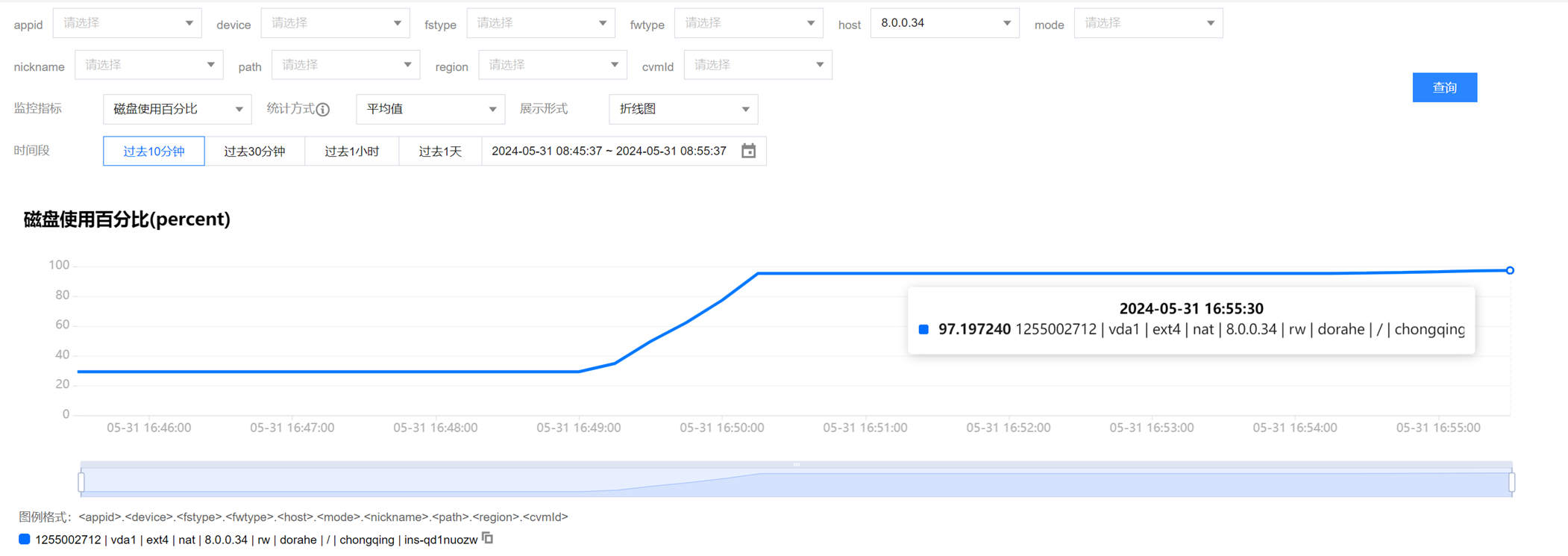
High Disk Usage [Major]
The disk usage exceeds 95%.
View metrics: View monitoring folding line graphs.
- Monitoring folding line graph: [CFW engine disk usage monitoring]
[Monitoring System] Alarm Event Handling
No Mbuf Is Available When Receiving Messages [Critical]
This alarm indicates that there is no extra memory for the NIC packet receiving queue. You can handle this alarm as follows:
- Alarm acknowledgment: [CFW engine NIC information - rx_nombuf]. If there is a value, it means that it is valid.
- Alarm handling: You need to contact Ops personnel to choose Tenant Side > CFW > Console or go to the cloud platform operation side to perform a primary-secondary engine switch, and then check whether the traffic has recovered.
- Recovery confirmation: You can check the NIC traffic [CFW engine NIC information - sending or receiving data packets per second].
- Exception handling: If the NIC traffic does not reach the desired level before the alarm, continues to drop to 0, or decreases sharply, you need to contact Ops personnel to choose Tenant Side > CFW > Console or go to the cloud platform operation side to trigger the engine bypass or disable the firewall toggle to restore your workload.
Insufficient Huge Page Memory Leads to an Automatic Primary-Secondary Switch [Critical]
When the engine's memory usage reaches 98%, the backend will automatically perform a primary-secondary switch. That is, the original primary engine becomes the current secondary engine. At this time, you need to log in to the current secondary engine to restart the engine, ensuring that huge page memory usage returns to a healthy status, the secondary server remains healthy, and the engine works properly during the next switchover.
Alarm handling: You can log in to the engine's secondary server (see steps 2-2-1, 2-2-2, and 2-2-3) and then execute the instruction to restart the engine:kill -9 pidof fwdpdkengine``
DPDK CPU Usage Exceeds 95% [Critical]
When the usage proportion of a certain core of the engine reaches 95%, this alarm will be pushed.
Alarm acknowledgment: You can check the folding line graph: [CFW CPU information monitoring]. If the usage proportion has been higher than 90% for a long time, you need to find out the specific cause based on [CFW engine memory monitoring - huge page memory usage], [Number of CFW engine connections - number of engine user-mode session connections], and [CFW engine NIC information monitoring - sending or receiving data packets per second].
Here are some possible causes that have ever been troubleshooted:
- Huge page memory is exhausted.
- There is a sudden increase in traffic.
- Elephant flows enter the IPS.
One or two alarms related to DPDK-CPU occur occasionally, which has a minor impact and can be considered a normal workload fluctuation. If the alarm persists for a long time (for example, 1 hour or 3 hours), it indicates that the workload traffic does not match the current instance. You can handle the alarm based on actual conditions: - Perform vertical scaling on firewall instances.
- Disable some toggles to reduce firewall pressure.
Primary-Secondary Engine Switch Occurs [Failed to Take Effect] [Critical]
If you receive this alarm but do not receive the alarm that a primary-secondary engine switch occurs [successfully effective], you need to handle this alarm as follows:
- View operation logs such as recent firewall toggles and ACL rules, and check whether this alarm is caused by some operations.
- If you have not received a successful switchover alarm, check whether the workload NIC traffic decreases sharply or drops to 0 based on [CFW engine NIC information - sending or receiving data packets per second].
- If the workload NIC traffic decreases sharply or drops to 0, you need to contact Ops personnel to perform a primary-secondary switch in the console or backend.
- If the alarm persists, you can disable the firewall toggle or bypass the firewall.
Firewall HAVIP Is Inconsistent with the Effective CVM [Critical]
If you receive this alarm but do not receive the alarm that the firewall HAVIP is inconsistent with the effective CVM [recovery], you can handle this alarm as follows:
- Check whether the workload NIC traffic drops to 0 [CFW engine NIC information - sending or receiving data packets per second].
- If the workload NIC traffic drops to 0, you need to contact Ops personnel to trigger a primary-secondary switch in the console or backend.
- If the alarm still persists, you can disable the firewall toggle or bypass the firewall.
The HAVIP Engine Node IP Address of a NAT Firewall Is Lost [Critical]
If you receive this alarm but do not receive the alarm that the HAVIP engine node IP address of NAT Firewall is lost, it indicates that the engine does not have a traffic routing NIC IP address. You can handle the alarm as follows:
- Check whether the workload NIC traffic drops to 0 [CFW engine NIC information - sending or receiving data packets per second].
- If the workload NIC traffic drops to 0, you need to contact Ops personnel to trigger a primary-secondary switch in the console or backend.
- If the alarm still persists, you can disable the firewall toggle or bypass the firewall.
IP Address of the Server to Which HAVIP Belongs May Not Exist. Please Check the Traffic Status [Critical]
If you receive this alarm, it indicates that two engine NICs are abnormal and do not have traffic routing NIC IP addresses. You can handle the alarm as follows:
- Check whether the workload NIC traffic drops to 0 [CFW engine NIC information - sending or receiving data packets per second].
- If the workload NIC traffic drops to 0, you need to contact Ops personnel to trigger a primary-secondary switch in the console or backend.
- If the alarm still persists, you can disable the firewall toggle or bypass the firewall.
Insufficient Huge Page Memory [Major]
You will receive this alarm when the engine's memory usage reaches 95%. At this point, an automatic primary-secondary switch will not occur. You can contact Ops personnel to view the Monitoring System metrics: view [CFW engine memory monitoring], select the statistical method as the maximum value, and then check whether memory is continuously increasing or pulsating occasionally.
If memory is continuously increasing, it is recommended to contact Ops personnel to handle the alarm as follows in the console or backend:
- View the curved line graphs related to huge page memory and CPU usage, and check whether the secondary server is healthy.
- If the secondary server is healthy, you can contact Ops personnel to perform a primary-secondary engine switch in the console or backend.
- After the switchover is successful, the original primary engine becomes the current secondary engine. At this point, you need to log in to the current secondary engine to restart the engine, ensuring that huge page memory usage returns to a healthy status, the secondary server remains healthy, and the engine works properly during the next switchover.
- Log in to the secondary server of the engine (see steps 2-2-1, 2-2-2, and 2-2-3) and then execute the following instruction to restart the engine:
kill -9pidof fwdpdkengine``.
If memory is pulsating occasionally, you can ignore this alarm and need to continuously check whether there are other fatal alarm metrics.
High Disk Usage [Major]
You will receive this alarm when disk usage exceeds 95%. Full disk usage will affect the delivery of firewall rules and routing policies and the normal operation of the engine. You need to log in to the engine to find and clean large files in time.
[Monitoring System] Alarm Configuration Guidelines
Confirming Policy Management
Console path: Choose Monitoring System > Policy Management. After CFW sends packages, the following two types of policies are provided by default.
- Metric-based policies:
Policy name:
Default alarm policy based on the cfw-cfw_engine_disk monitoring metric
Default alarm policy based on the cfw-cfw_engine_memory monitoring metric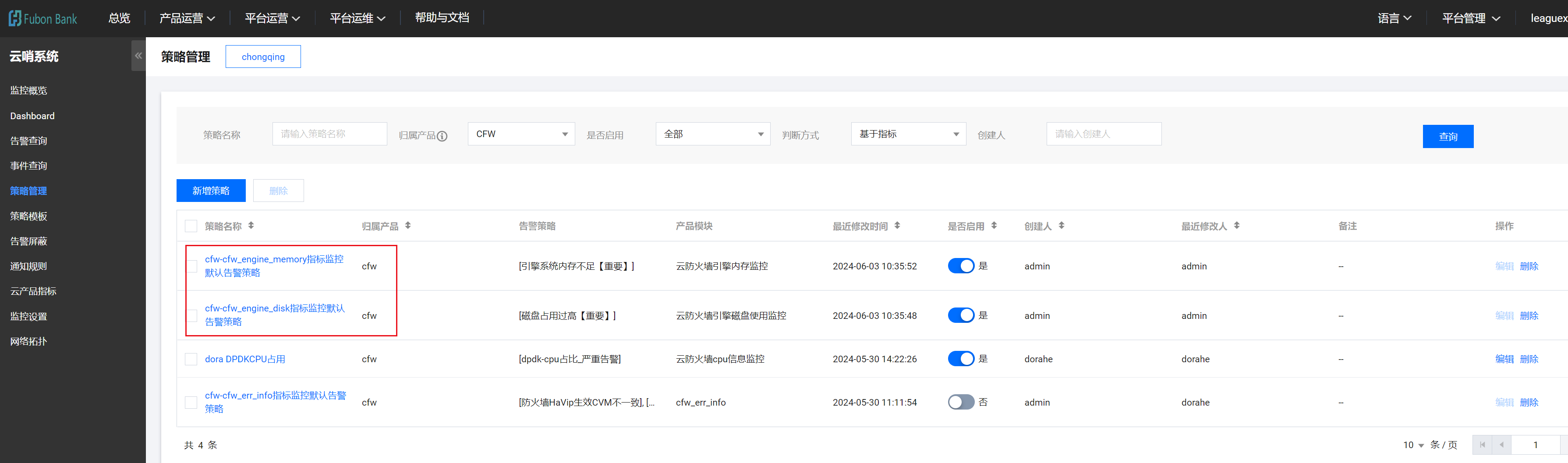
- Event-based policies:
Policy name: default alarm policy based on the cfw-cfw_event_err_info event monitoring
Configuring Notification Rules
Notification rules need to be configured onsite by customers after delivery.
Configured by: Ops personnel or onsite engineers
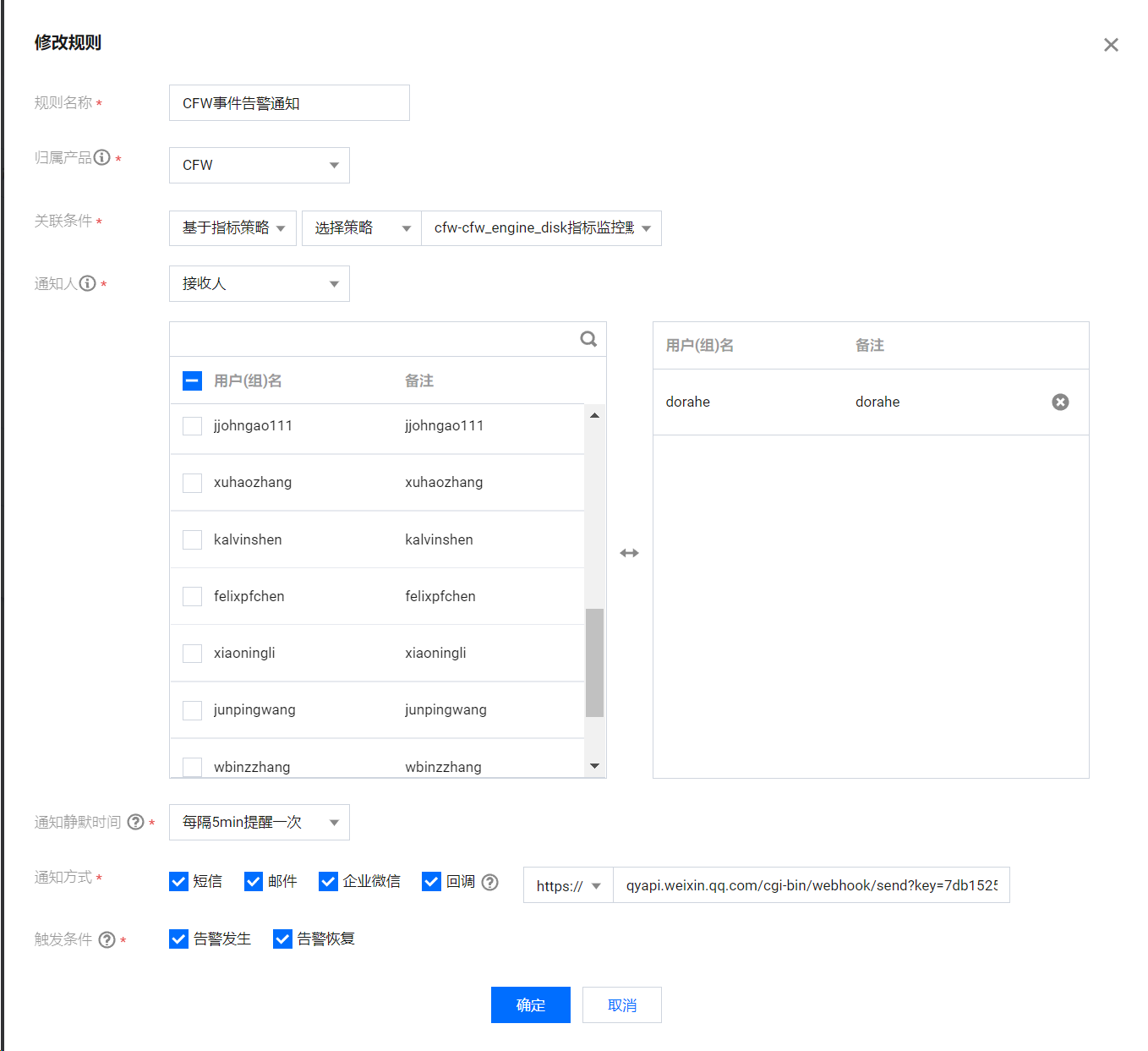
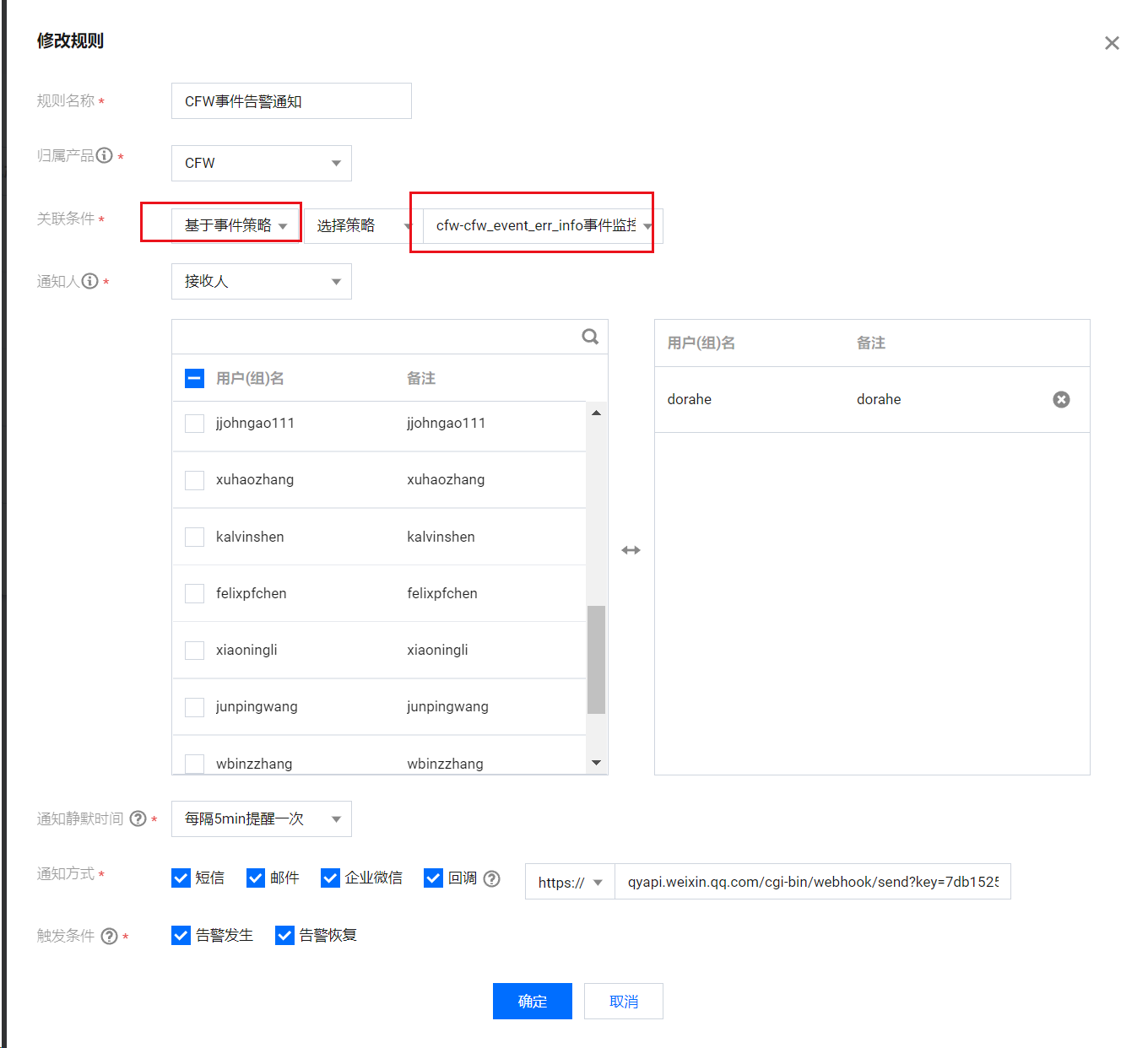
Console path: Choose Monitoring System > Notification Rules > Create
- Configuring metric-based notification rules:
- Configuring event-based notification rules:
Viewing Alarm Notifications
You can view the received historical alarms in the console, as shown in the following figure.