

Overview
Scenarios
The CFW toggle provides the Inter-VPC Firewall toggle feature. It establishes a firewall to carry the access traffic between different VPCs and provides access control rules and a log audit system.
This document describes how to create a firewall, view bandwidth usage and specification information, view network topology, and manage firewall toggles on the Inter-VPC Toggles page.
Architecture Overview
Before using this feature in the system, you need to have a general understanding of the composition of Inter-VPC Firewall.
An Inter-VPC Firewall consists of multiple firewall instances, each responsible for connecting to a different VPC and establishing network connections between the VPCs and the firewall.
The essence of Inter-VPC Firewall is to route traffic to the firewall by modifying the VPC routing. Whether firewall instances can interconnect with each other depends on whether there are reachable routing paths between the VPCs they are connected to. The firewall does not establish basic network connections. The firewall can establish network connections by modifying the next hop in the route table of the VPC.
Creating an Inter-VPC Firewall
Private Network Mode
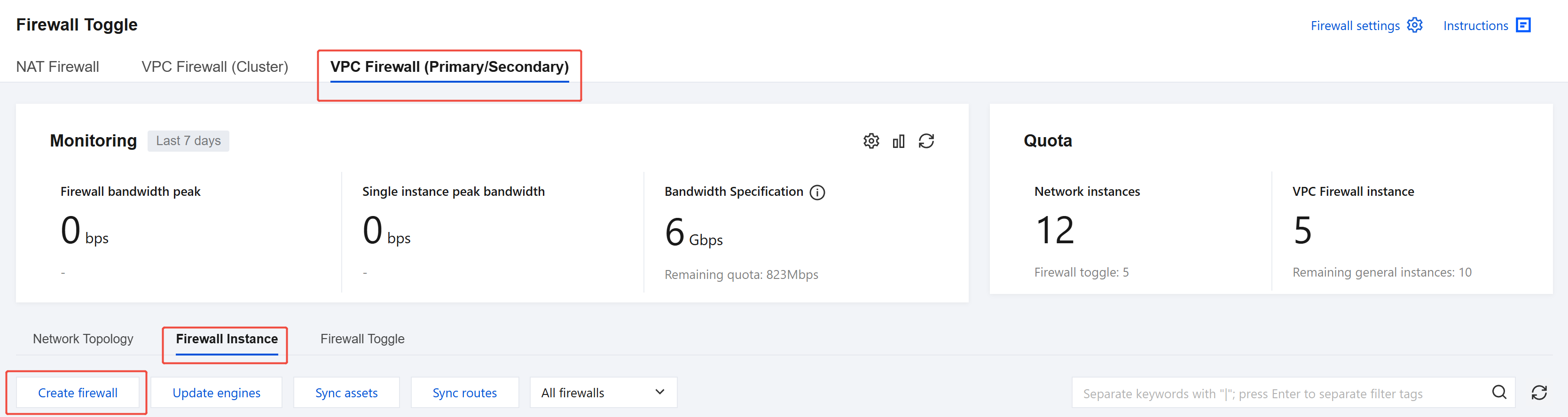
In the left sidebar, choose Firewall Toggle > Inter-VPC Toggles.
On the inter-VPC toggles page, click Firewall Instance to go to the firewall instance page, and then click Create Firewall.
In the Create Inter-VPC Firewall dialog box, enter the instance name, select Private Network Mode, and click Next.
Note:
- Instance Name: custom name defined when you create a firewall instance.
- Private Network Mode: Connect to the firewall via a VPC and modify the VPC route table to implement route steering.
Enter the firewall instance name and region, configure disaster recovery information, set the firewall instance bandwidth specifications and connect to the network, and click Next. If the number of instances does not meet your requirements, you can click ➕ on the right to create multiple firewall instances.
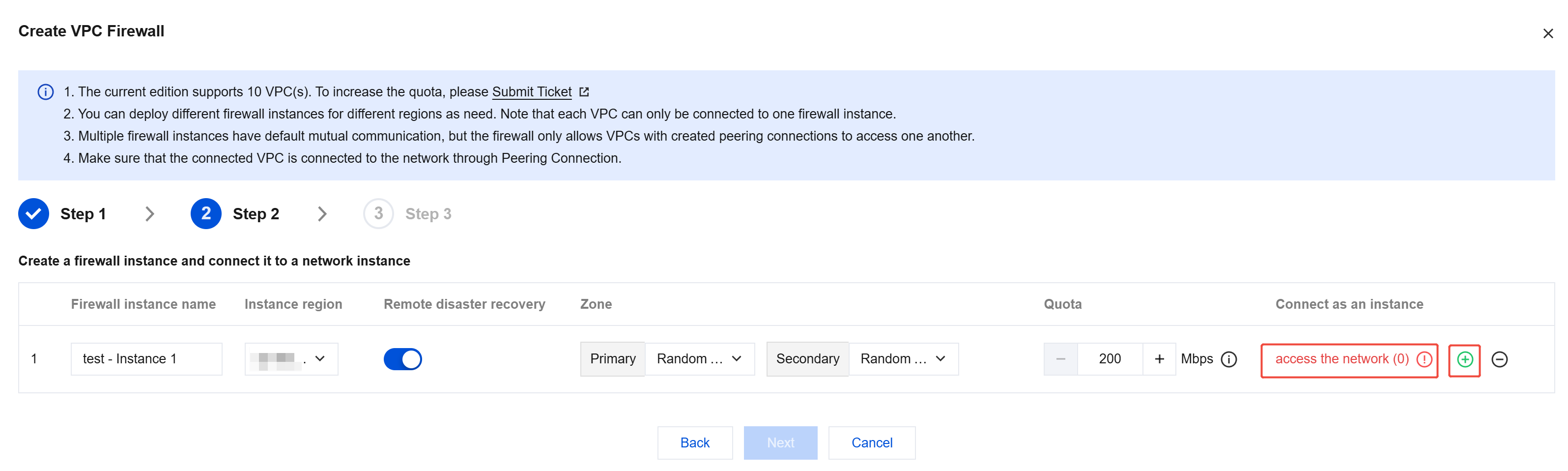
- Region: Indicates the region to which the VPC with protection enabled belongs.
- Remote Disaster Recovery: The Inter-VPC Firewall supports remote disaster recovery, which can be enabled by checking the box.
- Availability Zone: Select a suitable AZ based on your requirements.
- Instance Bandwidth: An instance supports throughput of 1 to 20 Gbps (up to 5 Gbps configurable in the console). To configure a bandwidth greater than the configurable limit, submit a ticket or perform a scale-up. If the maximum bandwidth is insufficient, you can create multiple firewall instances to distribute the traffic. However, please note that each firewall instance has its own throughput limit. If there are multiple firewall instances, please ensure that each individual instance stays within its throughput limit.
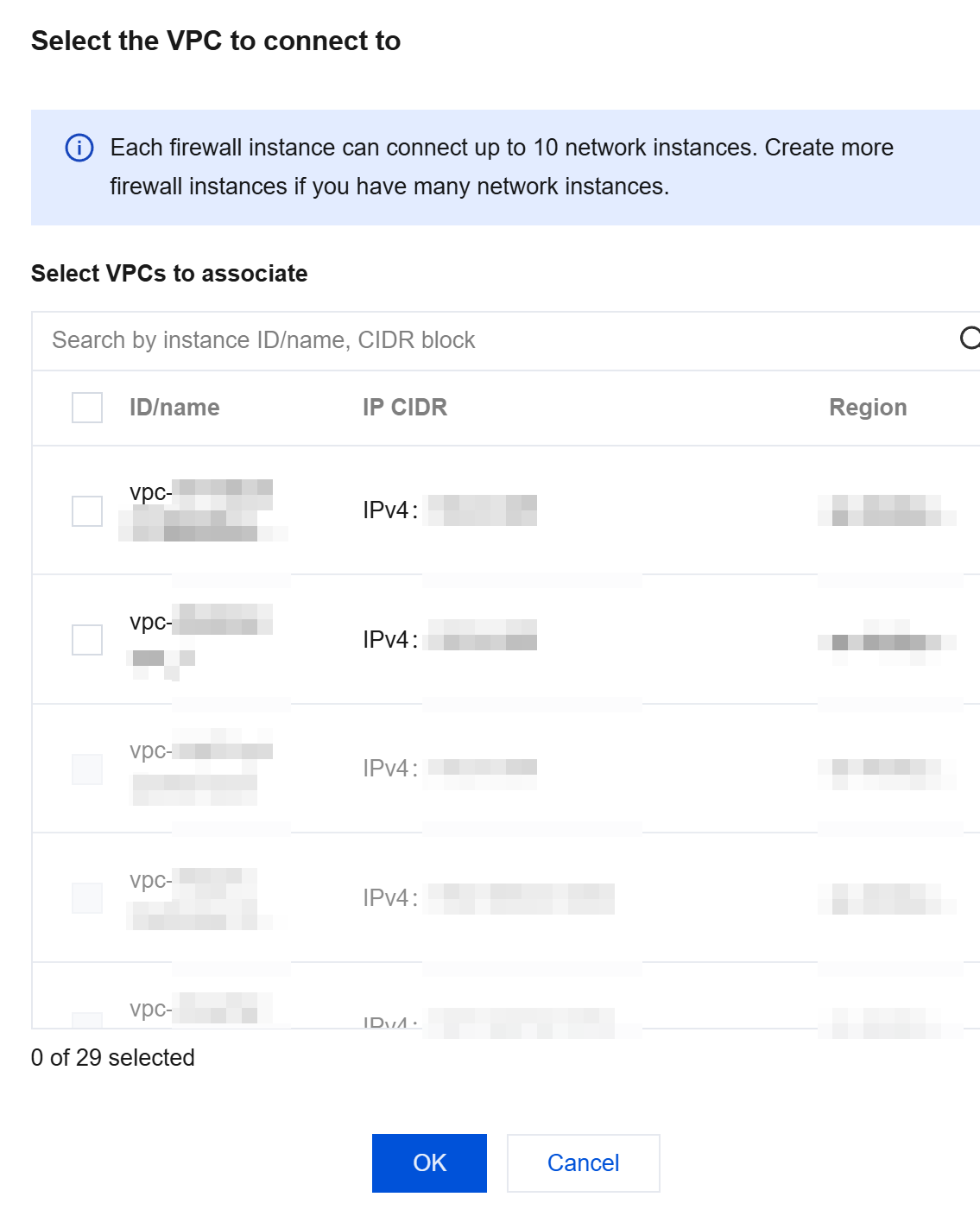
- Instance Access: Click Access Network, select the required VPC based on the region of the instance to be connected, and click OK.
Note:
- A VPC can connect to only one firewall instance.
- The firewall does not establish basic network connections. Before connecting to the network, make sure that peering connections have been created between VPCs. If no connection is established between VPCs, the connection does not take effect, and no firewall toggle is displayed.
- Each firewall instance allows up to 10 VPCs in the same region, and you can create multiple firewall instances in the same region. It is recommended to plan the VPCs to be connected by region in advance before creating firewall instances and performing network connection.
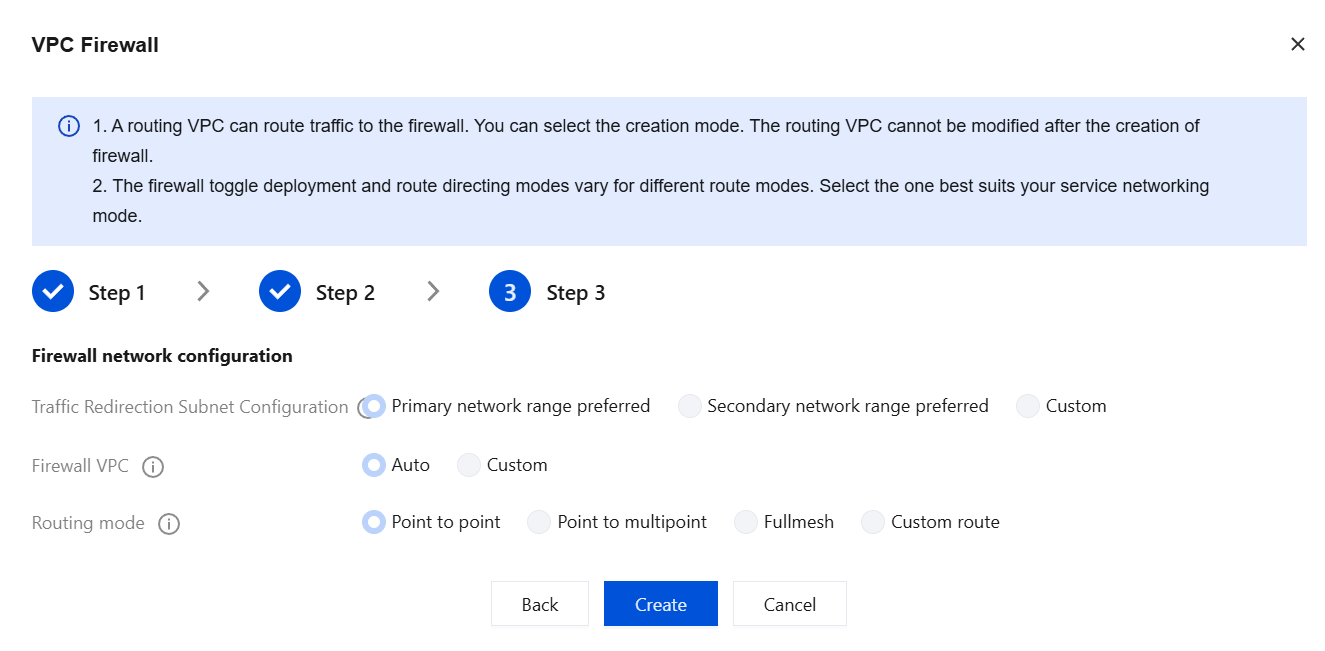
Configure the method for creating the routing subnet, the firewall VPC, and the routing mode. After confirming the settings are correct, click Create.
- How to Create the Routing Subnet: CFW will create a /24 subnet in the VPC you connect to, which will be used to redirect traffic to the firewall. You can choose different methods for creating this subnet. The routing subnet cannot be modified after the firewall is created.
- Preferred Proprietary IP Range: CFW will automatically select an idle subnet IP range in the VPC you chose. If the VPC has no subnet quota, the extended IP range of the selected VPC will be used.
- Preferred Extended IP Range: CFW will prioritize using the available extended IP range reserved by the VPC. This mode will not consume the subnet quota of the selected VPC. The extended IP range refers to the auxiliary IP range within the VPC.
- Custom: You can specify a subnet IP range for the firewall. Note that it must be a /24 subnet, and the custom IP range must fall within the CIDR of the current VPC, for example, 192.168.0.0/24.
- Firewall VPC: It is used to establish network communication between firewall instances. You need to create a new firewall-specific VPC in each region of the selected VPC.
- Automatic Selection: The firewall will automatically create a /20 VPC that does not conflict with the connected VPC.
- Custom: Enter a /20 VPC that does not conflict with the planned network, for example, 192.168.1.0/20.
- Routing Mode: This is the traffic routing scheme for the firewall toggle. Different network interconnection methods determine the modes of the firewall toggle and traffic routing. It is recommended to select a mode based on your business network mode.
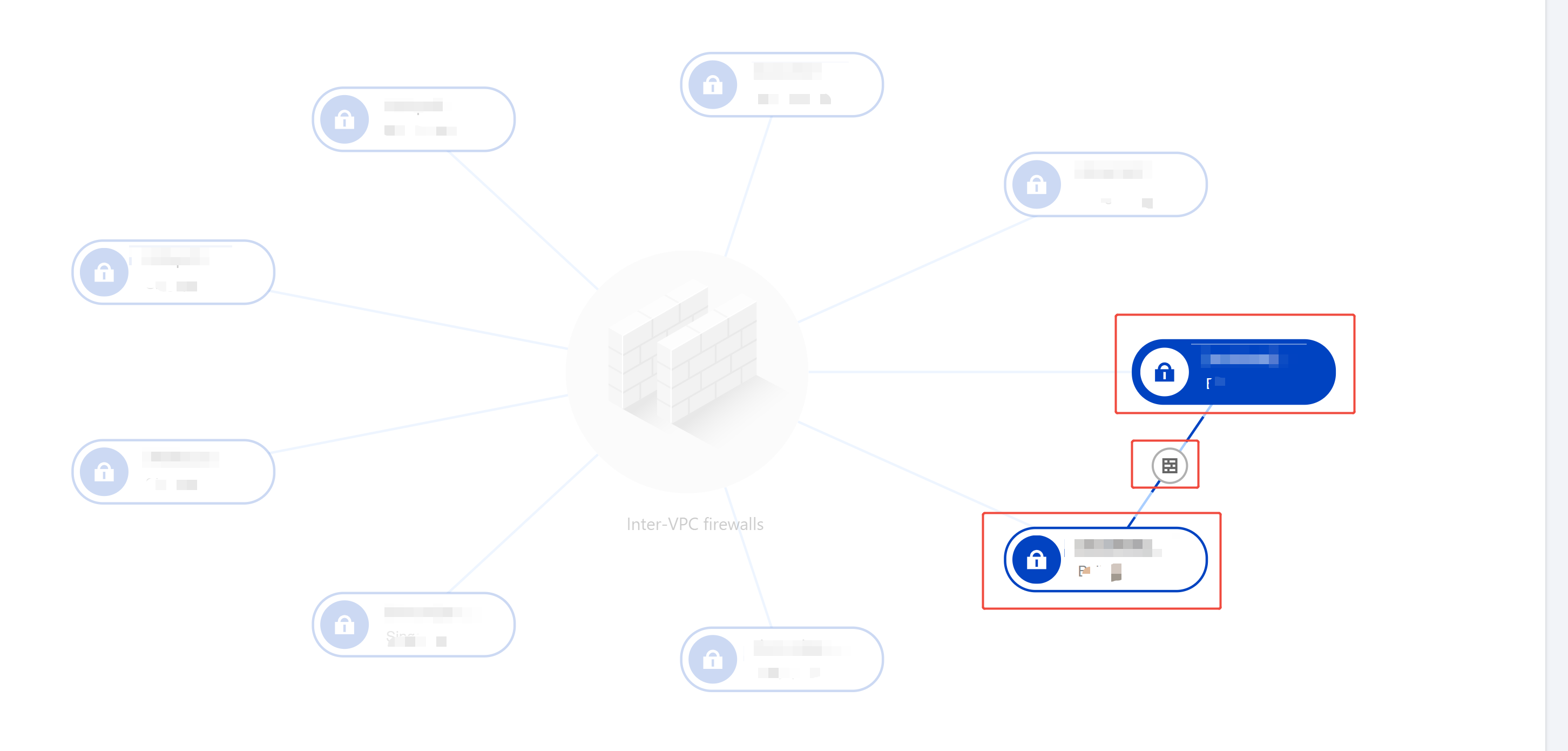
- Single-Point Interconnection: This mode is suitable for scenarios where a small number of VPCs need to be connected and the network topology is simple. In this mode, one firewall toggle is generated for each VPC-to-VPC connection.
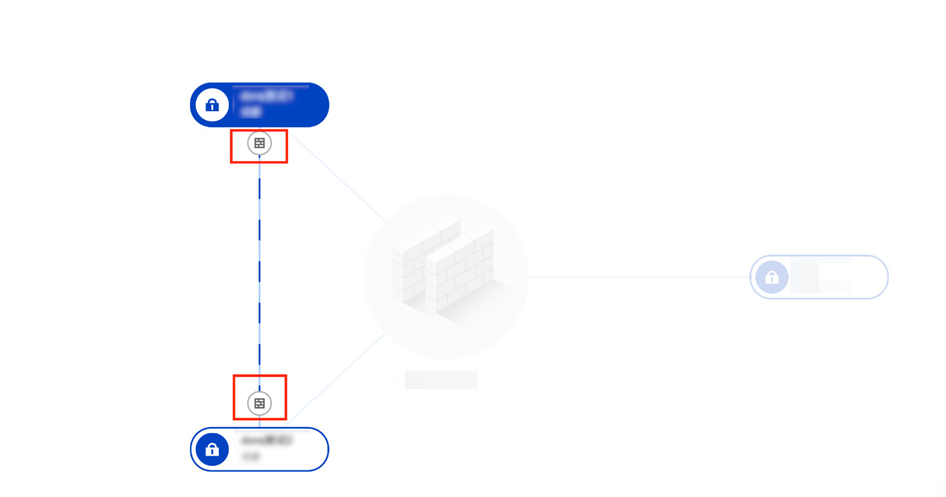
- Multi-Point Interconnection: This mode is suitable for scenarios where multiple VPCs need to be connected and the network topology is simple, such as a star network topology. In this mode, one toggle is configured for each VPC, and traffic between VPCs passes through two firewall toggles.
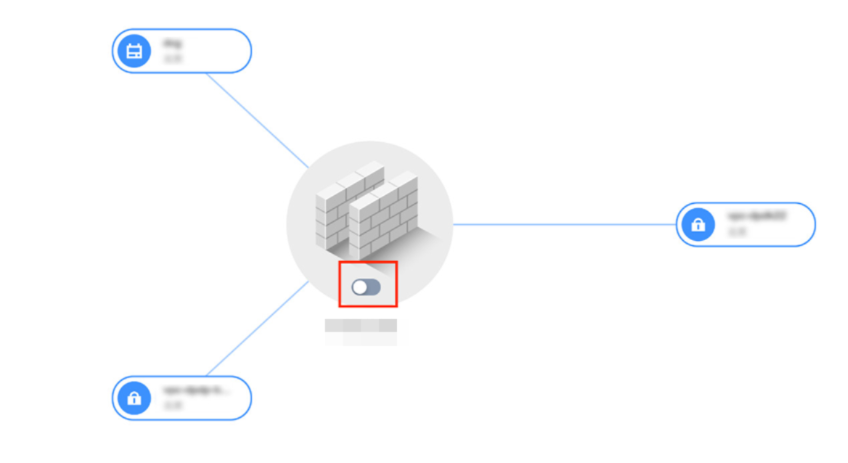
- Full Interconnection: This mode is suitable for scenarios where many VPCs need to be connected and the network topology is complex, such as a mesh network topology. In this mode, only one firewall toggle is configured to control all VPC routes.
- Custom Route: In this mode, no firewall toggle exists. You can configure a custom route as guided in Configuring Custom Routes after creating a firewall.
Note:
When multiple regions are selected, only custom routes are supported. Please refer to the console to verify the availability of specific routing modes.
- How to Create the Routing Subnet: CFW will create a /24 subnet in the VPC you connect to, which will be used to redirect traffic to the firewall. You can choose different methods for creating this subnet. The routing subnet cannot be modified after the firewall is created.
Viewing the Inter-VPC Firewall
Viewing Status Monitoring
The Status Monitoring of Inter-VPC Firewall supports the statistics of the overall firewall bandwidth as well as the bandwidth of each instance. These statistics can be queried through multiple entries.
In the left sidebar, choose Firewall Toggle > Inter-VPC Toggles.
On the Inter-VPC Toggles page, open the monitoring panel in one of the following three ways:
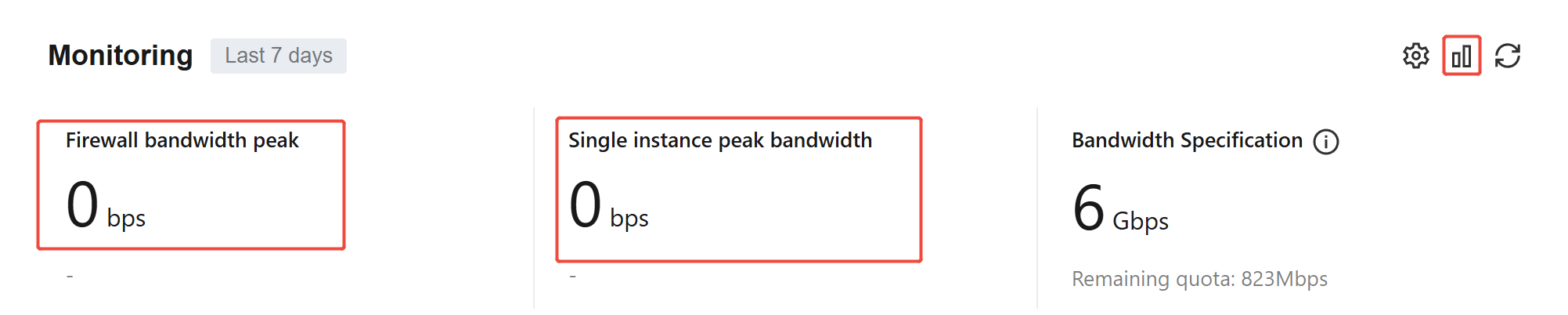
- Click the Monitor icon in the upper right corner of the Status Monitoring section, or click the Firewall Peak Bandwidth or Single Instance Peak Bandwidth panel to quickly access the monitoring panel.
- Click Firewall Instance, select the desired firewall, and then choose Operation > Bandwidth Monitoring to quickly access the monitoring panel.
- Click Firewall Instance, select the desired firewall instance, and click Status Monitoring to quickly access the monitoring panel.
- Click the Monitor icon in the upper right corner of the Status Monitoring section, or click the Firewall Peak Bandwidth or Single Instance Peak Bandwidth panel to quickly access the monitoring panel.
In the monitoring panel, you can filter monitoring dimensions based on 1 Firewall Name or 2 Firewall Instance Name. You can also modify statistical dimensions by selecting a 3 Time Range. You can view the 4 Monitoring Curve for bandwidth and check the 5 Peak Bandwidth Data for toggles under the firewall or instance.
Note:
The minimum statistical granularity varies for different time ranges, which may cause discrepancies with actual peak values. It is recommended to refer to the Cloud Monitor data or the statistics of specific protection units.
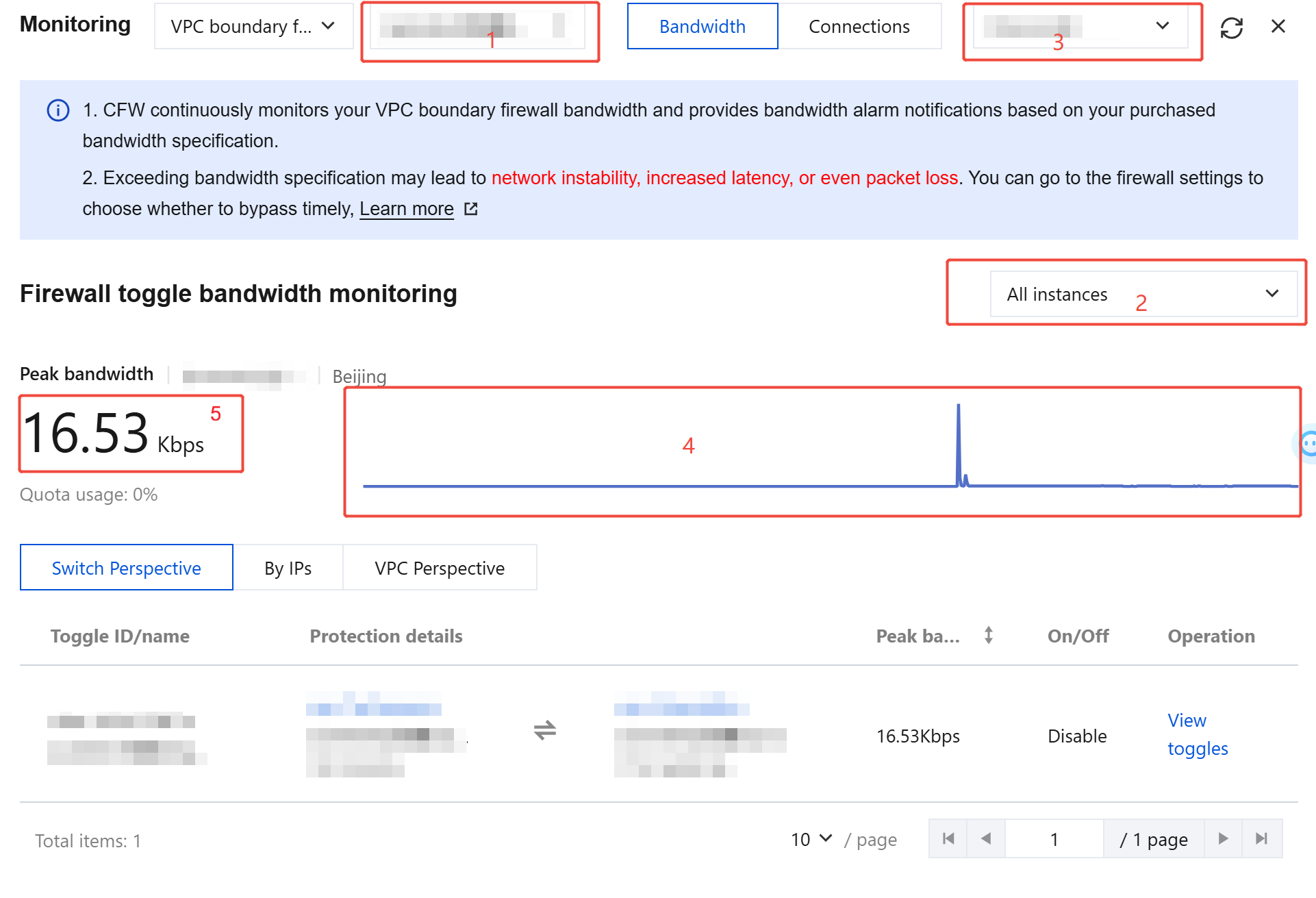
In the monitoring panel, click View Monitoring Metrics to view all monitoring metric data of the firewall instance, including concurrent connections, inbound and outbound packets in a private network, and inbound and outbound bandwidth in a private network. You can also go to Cloud Monitor to view detailed metrics or configure related alarms.
Managing the Inter-VPC Firewall
After the Inter-VPC Firewall is created, you can manage the Inter-VPC Firewall or firewall instances.
Viewing the Overview
In the left sidebar, choose Firewall Toggle > Inter-VPC Toggles.
On the inter-VPC toggles page, click Firewall Instance to go to the firewall instance page, where you can view the created firewalls and their deployed firewall instance information.
Note:
Instance specifications: Indicates the maximum bandwidth and the maximum number of rules for the current firewall instance.

Viewing Associated Toggles
On the firewall instance page, click the number of toggles to go to the firewall toggle page. The toggles associated with the current firewall are automatically filtered.
Configuring Firewall Instances
On the firewall instance page, hover the mouse pointer over the operation on the right side of the inter-VPC firewall that you want to configure, and then select Configure Instance.

Modify the name, specification, and connected network instances that are initially configured when you create the firewall instance, and add more Inter-VPC Firewall instances as needed.
When a new VPC is connected to the Inter-VPC Firewall, its network settings configured when you create the Inter-VPC Firewall are used automatically. If you select Custom to create a routing subnet, you also need to manually enter the subnet CIDR of the new VPC.
Note:
The firewall network settings cannot be modified.
Terminating the Inter-VPC Firewall
On the firewall instance page, hover the mouse pointer over the operation on the right side of the inter-VPC firewall that you want to configure, and then select Terminate Firewall. The firewall is terminated after you confirm the operation.
Note:
If you select Custom Route, make sure that you have restored the route manually.

Managing Inter-VPC Firewall Instances
After the Inter-VPC Firewall is created, you can individually manage the Inter-VPC Firewall instances.
- In the left sidebar, choose Firewall Toggle > Inter-VPC Toggles.
- On the Inter-VPC Toggles page, click Firewall Instance to go to the firewall instance page.
Viewing Instance Details
- On the firewall instance page, click Firewall Instance ID or Instance Details on the right.

- On the Firewall Instance page, view the configuration details of the instance.
Viewing Associated Toggles
On the firewall instance page, choose More > View Firewall Toggle to go to the firewall toggle page. The toggles associated with the current firewall instance are automatically filtered.
Note:
A toggle can be associated with multiple firewall instances and controls traffic passing through these firewall instances.
Terminating Inter-VPC Firewall Instances
To terminate any firewall instance, disable all toggles associated with the current Inter-VPC Firewall.
On the firewall instance page, click the number of toggles associated with the inter-VPC firewall.

Go to the firewall toggle page and click Disable All Toggles for the Current Firewall.
On the firewall instance page, choose More > Terminate Instance. The current firewall instance is terminated after you confirm the operation.
Note:
After termination, the VPCs will be automatically disconnected from the current instance, and the used quota will be returned.

Changing Associated Instances
To change an associated instance, disable all toggles associated with the current Inter-VPC Firewall.
- On the firewall instance page, click the number of toggles associated with the inter-VPC firewall.

- Go to the firewall toggle page and click Disable All Toggles for the Current Firewall.
- On the firewall toggle page, choose More > Change Associated Instance to go to the edit inter-VPC firewall page.
- In the pop-up window, select the VPC you want to reconnect to and click OK.
ByPass Mode
The firewall can be manually switched to ByPass mode. In ByPass mode, all traffic under the current instance will bypass the firewall, and all firewall configurations will become invalid. It is recommended to use this mode for debugging purposes.
On the firewall instance page, choose More > Enable ByPass (or Disable ByPass).
Note:
You need to manually disable ByPass Mode after the debugging is completed.

Managing Firewall Toggles
On the Firewall Toggles page, you can control traffic between VPCs through Inter-VPC Firewall toggles. You do not need to adjust the firewall settings when there is an asset change, as CFW can automatically synchronize assets in a short time.
Note:
Enabling or disabling firewall toggles involves switching networks and routes, which can cause short-term network jitter and momentary disconnection. Therefore, you need to perform this operation at an appropriate time.
Types of Firewall Toggles
There are 4 types of firewall toggles: single-point communication mode, multi-point communication mode, full interconnection mode, and custom route.
- Single-Point Mode: One firewall toggle corresponds to one pair of interconnected VPCs, and one pair of interconnected VPCs corresponds to one peering connection instance.
- Multi-Point Mode: One firewall toggle corresponds to one VPC, and all traffic entering or exiting this VPC is managed by this toggle. Mutual access between one pair of VPCs is independently controlled by their respective toggles.
- Full Interconnection Mode: One firewall toggle corresponds to all interconnected routes of a firewall. When you enable the toggle, the firewall will control the traffic of all connected VPCs.
- Custom Route: This toggle is meaningless. If you select this mode, only the connected VPCs are displayed.
If you change the peering connection instance, the firewall toggle will correspondingly synchronize the changes. To avoid affecting your business, we will only immediately execute changes for toggles that are in the off status. Please ensure that the firewall toggle is disabled when you modify the configuration of the peering connection between VPCs.
Enabling Firewall Toggles
After the toggle is enabled, the system will automatically modify the routing policies of the relevant route tables, routing all traffic between the local and remote networks corresponding to each firewall toggle to Inter-VPC Firewall.
- On the Inter-VPC Toggles page, click the firewall toggle. You can enable a single firewall, multiple firewalls in batches, or all firewalls at one time.
- Single: Select the required firewall and click Firewall Toggle. A confirmation dialog box will appear.

- Batch: After you select the firewall toggles, click Batch Enable in the upper left corner. A confirmation dialog box will appear.
- All: When no items are selected, click Enable All in the upper left corner. A confirmation dialog box will appear.
- In the confirmation dialog box, click OK to enable protection.
Note:
- If the peering connection route between VPCs is not correctly configured, the firewall cannot be enabled.
- After the firewall toggle is enabled, do not manually change the routes corresponding to the toggle in the VPC console. Otherwise, the firewall will lose the routes, causing network interruption.
Disabling Firewall Toggles
After the toggle is disabled, the system will automatically restore the routing policies of the relevant route tables. All traffic between the local and remote networks corresponding to the firewall will be restored to their original paths and will not pass through Inter-VPC Firewall.
- On the inter-VPC toggles page, click Firewall Toggle. You can disable a single firewall, multiple firewalls in batches, or all firewalls at a time.
- Single: Select the required firewall and click the firewall toggle. A confirmation dialog box will appear.
- Batch: After you select the firewall toggles, click Batch Disable in the upper left corner. A confirmation dialog box will appear.
- All: When no items are selected, click Disable All in the upper left corner. A confirmation dialog box will appear.
- In the confirmation dialog box, click OK to disable protection.
Note:
After the firewall toggle is disabled, you can switch VPC routes as needed. However, you cannot manually enable the firewall routes. Otherwise, it will cause network interruption and firewall toggle failure.
Viewing Rules
- On the inter-VPC toggles page, click Firewall Toggle.
- On the firewall toggle page, select the required firewall toggle and click View Rules.

- On the inter-VPC rules page, you can view and edit rules. For operation details, see Access Control - Inter-VPC Rules.
Viewing Logs
- On the inter-VPC toggles page, click Firewall Toggle.
- On the firewall toggle page, choose More > View Logs. You can then choose to view the traffic access control logs or the traffic logs.

Using Network Topologies
Viewing Network Topologies
CFW provides a visual view to help you quickly organize the access relationship between inter-VPC assets.
- In the left sidebar, choose Firewall Toggle > Inter-VPC Toggles.
- On the inter-VPC toggles page, click Network Topology to view details of the connected VPC network instances.
- On the Network Topology page, hover the mouse pointer over a VPC instance to view its details.
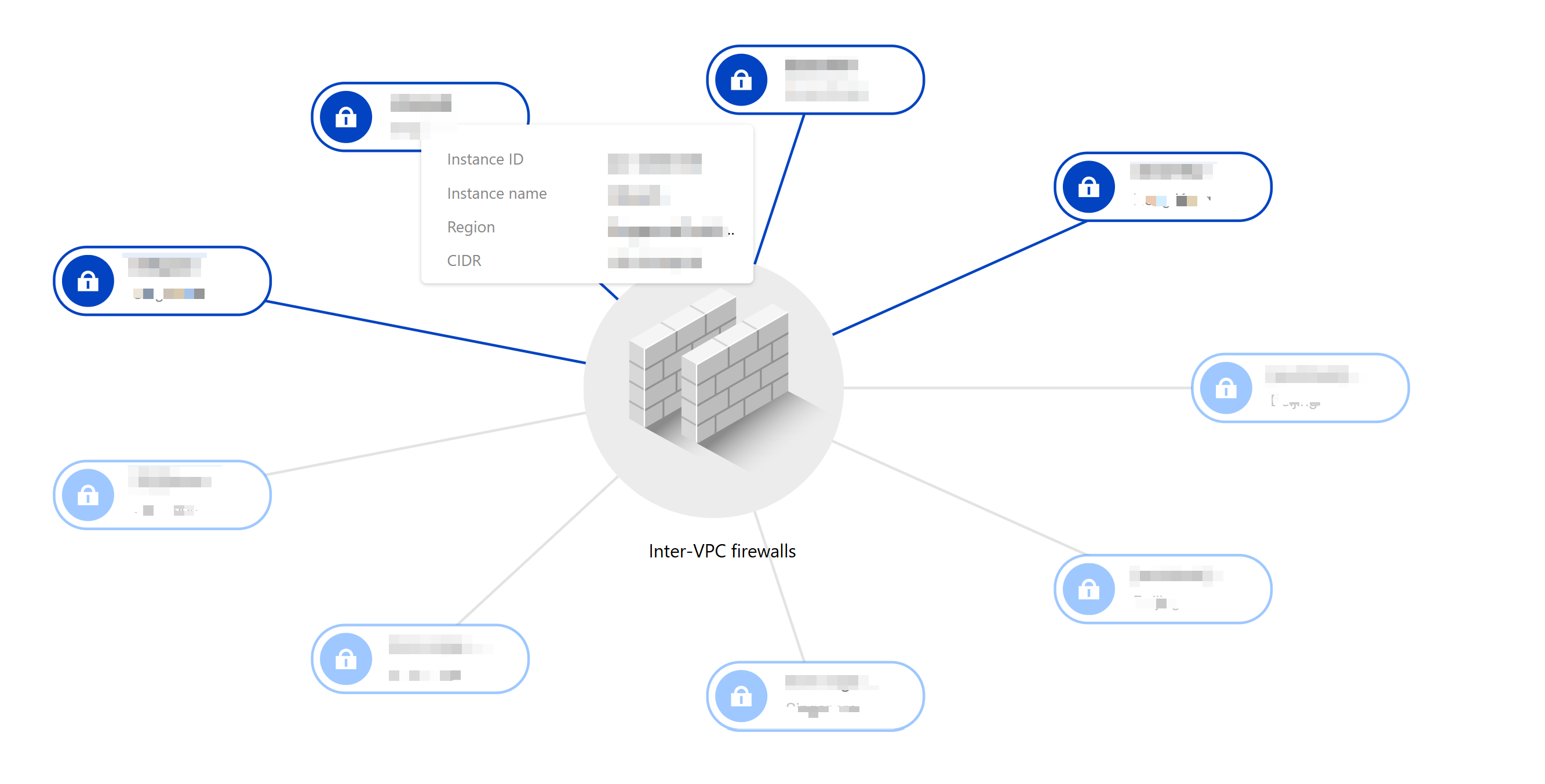
- Click an instance to view its connections to other VPC instances and the firewall toggle status. A dark blue firewall toggle indicator means the toggle is enabled, while a gray one means it is disabled.
- On the network topology page, click Synchronize Assets to promptly synchronize asset information. Hover the mouse pointer over the engine update area to view the version information.
- On the network topology page, click the icon in the upper right corner to view the operation guide or refresh the network topology.
Viewing the Access Relationship Between VPCs Through the VPC View
CFW provides a visual view to help you quickly organize the access relationship between VPCs. In the VPC visual view, each node represents a VPC instance, with Inter-VPC Firewall acting as a centralized device. Each toggle controls different routes. Traffic between VPCs with the toggle enabled will be routed to the firewall for filtering and protection.
In the left sidebar, choose Firewall Toggle > Inter-VPC Toggles.
On the inter-VPC toggles page, click Network Topology to view details of the connected VPC network instances.
Hover the mouse pointer over a VPC node to view its brief information. All VPCs connected to it will also be highlighted. Click VPC ID to go to the VPC details page and view its detailed information.
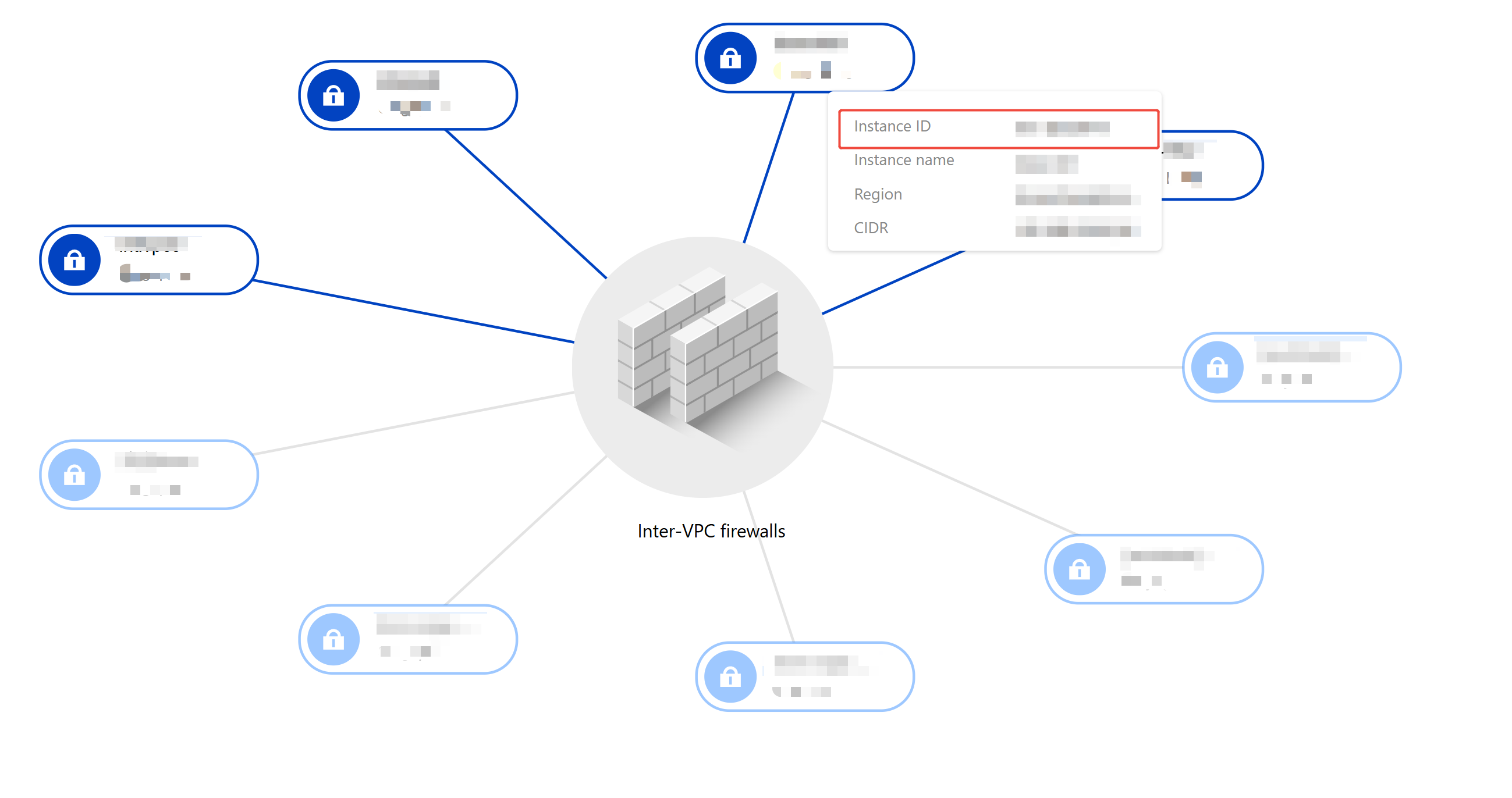
Click a VPC node to enter the focus view, which displays the topology centered on the focused VPC.
Interconnected VPCs are connected via connecting lines. On the lines, you can view or operate the firewall toggle. You can also click Firewall Toggle to directly go to the ACL rule configuration page.
Note:
- In single-point interconnection mode, only one firewall toggle is displayed for each pair of interconnected VPCs.
- In multi-point interconnection mode, one toggle is displayed for each VPC.
- In full interconnection mode, there will be only one toggle for Inter-VPC Firewall.
- Single-Point Interconnection Mode:
- Multi-Point Interconnection Mode:
- Full Interconnection Mode:
Description of Abnormal Scenarios for Inter-VPC Firewall
- When you enable or disable the Inter-VPC Firewall toggle, the backend will automatically modify your routing policy, which causes a momentary network disconnection in a very short time. To avoid affecting your workload, you need to operate Inter-VPC Firewall toggles at an appropriate time. If you want to perform batch or frequent operations on toggles, it is recommended to operate at late night when there is little workload traffic.
- The Inter-VPC Firewall toggle is on top of a peering connection between VPCs. If you change or delete the configurations of the peering connection, the firewall toggle will also be automatically changed or deleted. To avoid affecting your workload, CFW can immediately change or delete only the toggles that are disabled.
- If there is no working route between VPCs, the firewall toggle cannot be enabled.
- To configure peering connection routes, see Configuring the Route to Peering Connection.
- If you enable the CFW toggle, do not change the corresponding VPC route table manually in the VPC console. This can invalidate the firewall and disconnect the network, as CFW cannot synchronize the route changes.
- If you disable the CFW toggle, you can change other peering connection routes between VPCs. However, do not enable the route marked with "Firewall". This can cause the firewall toggle to malfunction and disconnect the network.