

CFW provides a cluster-mode VPC boundary firewall feature. On the VPC boundary firewall feature page, CFW automatically detects all your Peering Connection instances and helps you configure the CFW feature for the instances.
Connection Dependencies and Risks
Connection Impacts
When a VPC boundary firewall is connected, routing rules are automatically updated to implement traffic routing, which may cause 1–2 seconds of network jitter when the routes take effect. The specific impact scope and mitigation recommendations are as follows:
- Service access: Mutual access between CVM instances across VPCs and between servers within the same VPC will not be interrupted. Users perceive this as brief latency fluctuations.
- PaaS service access: When you enable or disable security protection on a Peering Connection instance, long-lived sessions for accessing PaaS services across VPCs may be interrupted. An automatic reconnect mechanism for the long-lived connections needs to be implemented at the application layer to ensure rapid service recovery.
Note:
The network jitter caused by the connection is a normal technical phenomenon of route updates. It is recommended to enable the firewall feature during off-peak business periods and verify the automatic reconnection capability of critical services in advance.
Connection Restrictions
Currently, inter-VPC traffic across regions cannot be protected. Therefore, this traffic cannot be connected to the VPC boundary firewall.
Firewall Enabling
- In the left sidebar, choose CFW > VPC Boundary Firewall.
- On the VPC boundary firewall page, enable protection for a single, multiple, or all Peering Connection instances as needed.
- To enable protection for a single instance, click the firewall feature in the Actions column of the target Peering Connection instance.
- To enable protection for instances in batches, select multiple target Peering Connection instances, and then click Batch Enable at the top of the page.
- To enable protection for all instances, select the Select All checkbox in the list header, and then click Batch Enable at the top of the page.
After you perform any of the preceding actions, the system displays a confirmation dialog box for enabling the feature.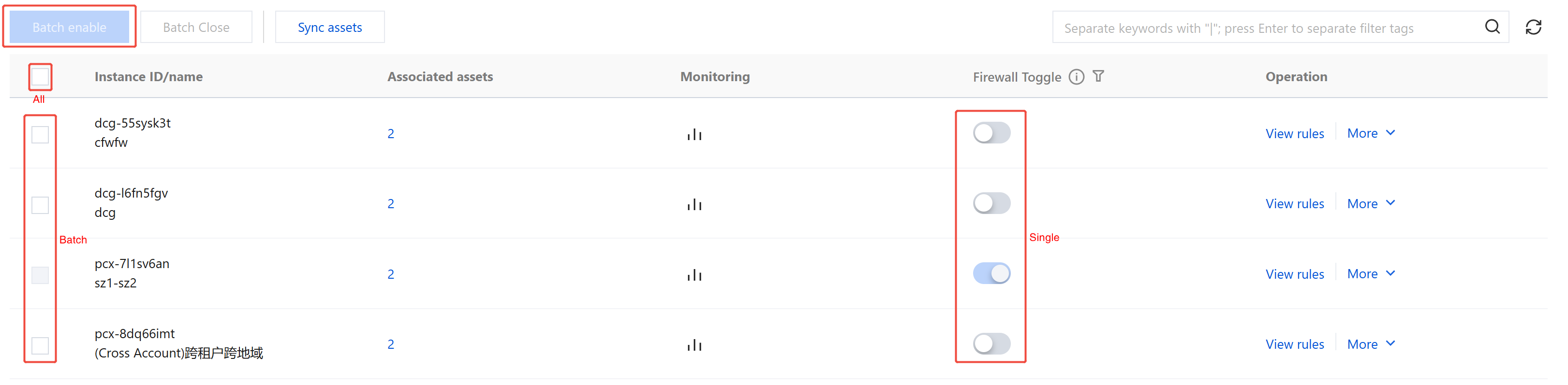
- In the confirmation dialog box for enabling the feature, select a method for creating routing subnets. Based on your selection, CFW creates a subnet with a /28 CIDR block in the connected VPC to route traffic to the firewall.
- Proprietary IP range preferred: CFW automatically selects an idle subnet IP range in the selected VPC. If the VPC has no subnet quota, an extended IP range in the VPC is used.
- Extended IP range preferred: CFW selects an idle extended IP range reserved by the VPC first. This mode does not consume the VPC's subnet quota.
- Custom: You can specify a /28 CIDR block in the current VPC.
Example: 192.168.0.0/28
- Click OK to enable protection.
- Perform operations such as Disable, View Rules, and View Logs on instances that already have protection enabled in the instance list. The methods for disabling a single instance, instances in batches, and all instances are the same as the corresponding methods for enabling them.
Note:
- After you enable the firewall, the traffic of the protected object will pass through the firewall. The ACL rules and intrusion prevention feature will take effect, and traffic logs will be recorded.
- When you disable the firewall, the corresponding traffic routing assets are deleted if no Peering Connection instances associated with the connected VPC are under protection.
- After you disable the firewall, the traffic of the protected object will not pass through the firewall. The ACL rules and intrusion prevention feature will no longer take effect for it, and traffic logs will no longer be recorded.
Status Monitoring
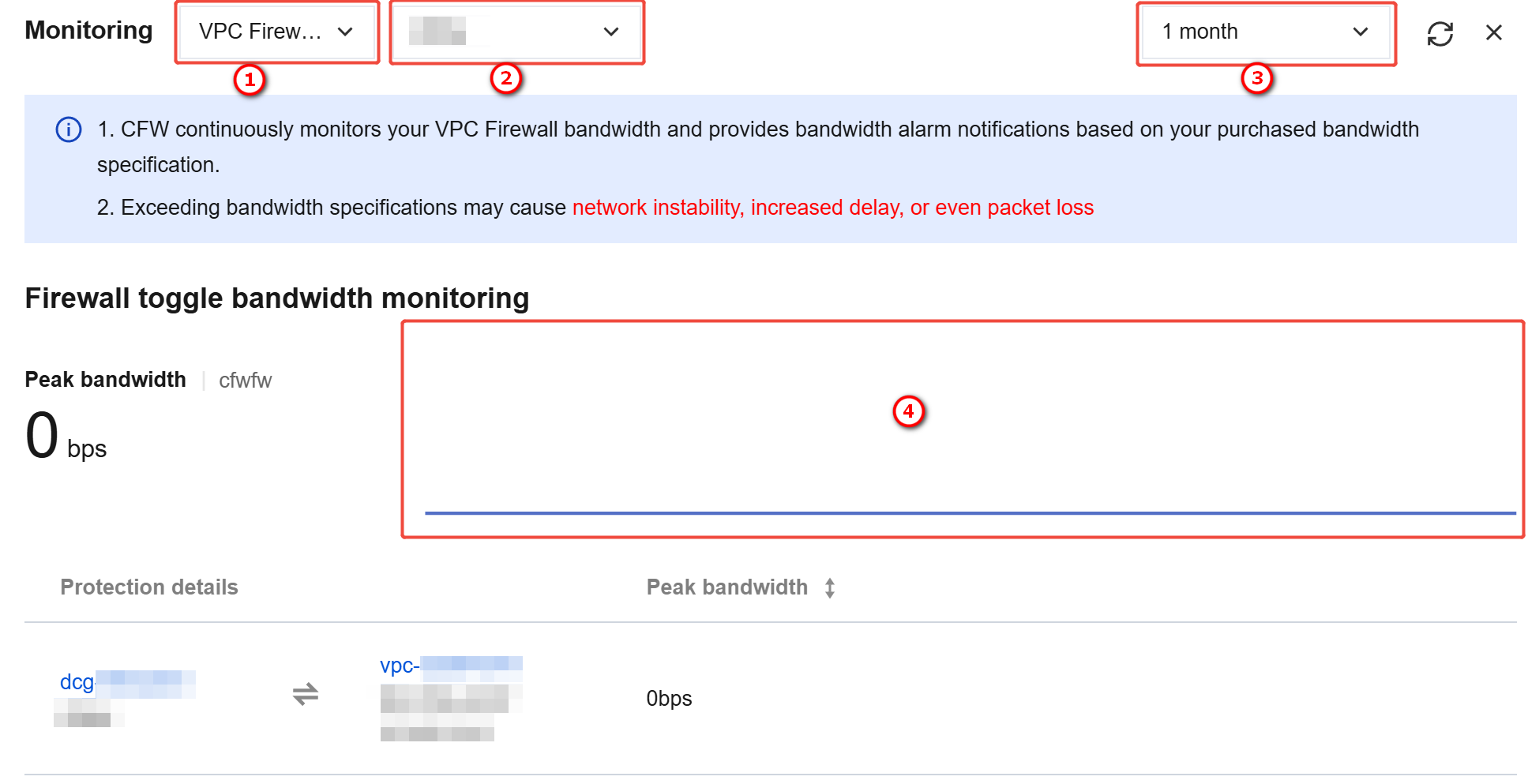
Status monitoring of the VPC boundary firewall supports bandwidth statistics for each Peering Connection instance.
- In the upper-right corner of the peak bandwidth trend panel, click View Monitoring.
- Status Monitoring: On the VPC boundary firewall page ①, specify the instance to monitor based on the Peering Connection instance name ② and the statistical range by selecting a time range ③, and view the monitoring curve ④.
Differences Between Primary/Secondary Mode and Cluster Mode
The following table lists the differences between the primary/secondary mode and the cluster mode editions of the VPC boundary firewall.
| Dimension | Primary/Secondary Mode | Cluster Mode |
|---|---|---|
| Architecture type | Single-active architecture. | Multi-active architecture. |
| Upgrade impact | Primary/Secondary switchover causes network jitter. | Zero-downtime upgrade. |
| Ops complexity | Users are required to manage primary/secondary instances. | The system automatically maintains nodes and performs upgrades. |
| High availability | The secondary server automatically takes over when the primary server fails. | Load is distributed across multiple nodes, and a single point of failure has no impact. |