

To handle possible misoperations, policy change requirements, or emergency fault recovery scenarios, policy backup and rollback features are provided to ensure your network protection policies remain stable and reliable.
With policy backup and rollback, you can quickly undo recent modifications and restore the policy configuration of NAT firewalls or inter-VPC firewalls to a previously saved status.
Flowchart

Policy Backup
- Log in to the CFW console. In the left sidebar, click Common Tools.
- On the Common Tools page, click Go to Configuration under Policy Backup and Rollback.
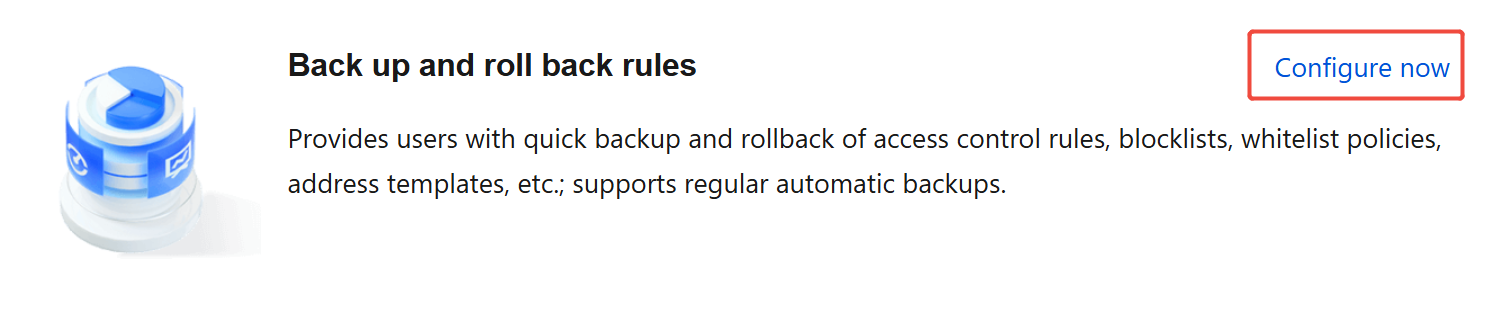
- On the Policy Backup and Rollback page, click New Backup.
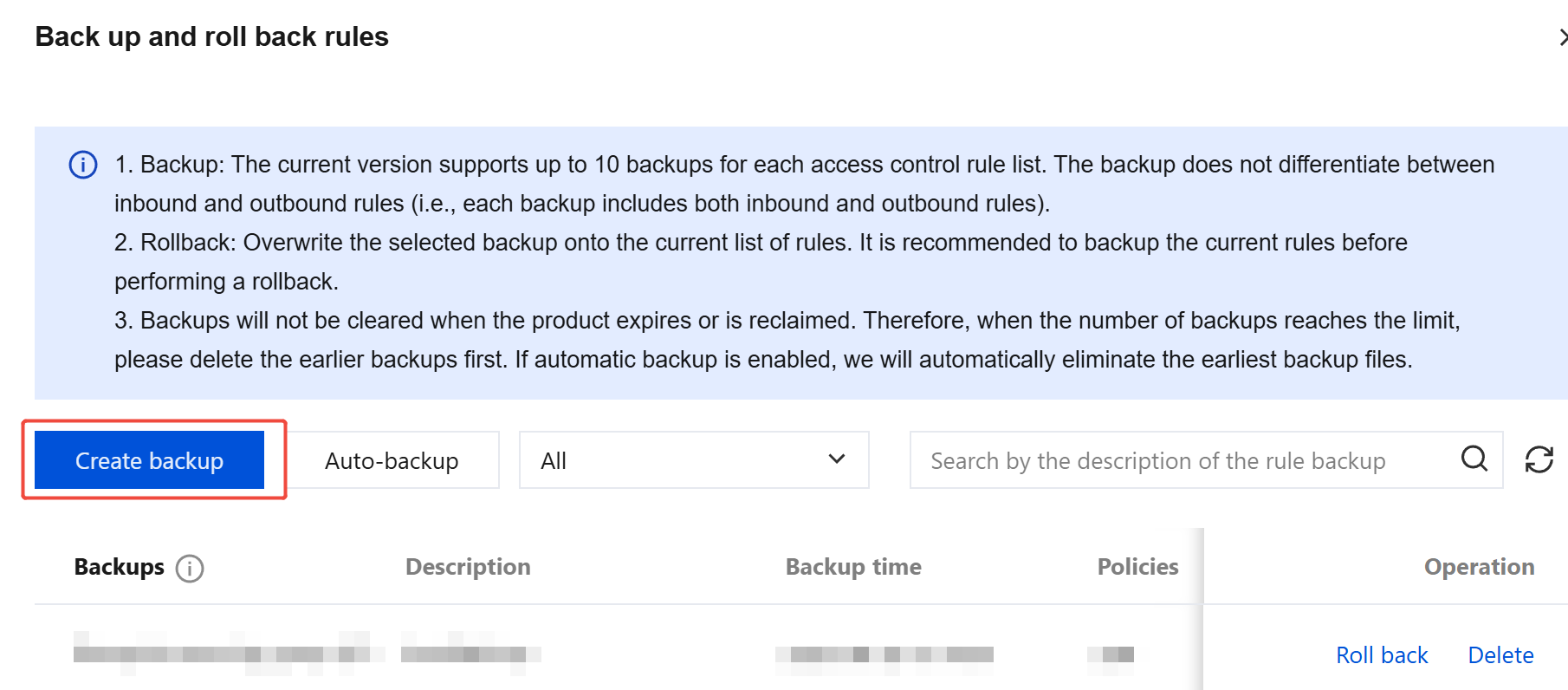
- Expand the backup list box, and the system will display the list of rules currently available for backup. You can make selections based on your needs. Meanwhile, to facilitate later identification of the backup purpose, please enter a clear and concise description information in the Description field.
- After selecting the rules and filling in the description information, click OK. The system will immediately initiate the backup process. After the backup is completed, a 'Backup successful' prompt will appear, indicating that the backup has been completed and securely stored.
- The system can also schedule Automatic Backup for your selected rules as needed. Click Automatic Backup, and the system will list the rules available for backup. Select the rules for which you want to enable automatic backup configuration and set an appropriate time. After selecting the rules and time and verifying the information is correct, click OK, and the system will start the automatic backup task according to your settings.
Policy Rollback
Note:
Performing a rollback with a selected policy backup will overwrite the corresponding policy list. Existing policies will be deleted. To ensure data security, it is recommended to back up the current list before rollback.
Log in to the CFW console. In the left sidebar, click Common Tools.
On the Common Tools page, click Go to Configuration under Policy Backup and Rollback.
On the Policy Backup and Rollback page, the pop-up window includes all backed-up rule resources, descriptions, and backup times.
In the dropdown list box, locate the rules that require rollback and click Rollback.
Click OK, and the system will immediately start overwriting the current rule list with the backed-up rules.
Use Cases
| Scenario Type | Policy Details | |
|---|---|---|
| Policy Backup | Regular backup | Backing up firewall policies periodically helps retain different stages of network protection statuses. This allows for quick reference when reviewing policy evolution, conducting compliance audits, or comparing policies across different periods. For example, during an enterprise's quarterly internal network security review, regular backups can clearly present the direction and focus of firewall policy adjustments between quarters. |
| Before the major business change | Before launching new business systems, expanding network areas, or making large-scale server architecture adjustments, it is essential to perform a policy backup. If the new policy causes issues such as disrupting existing business access, introducing network latency, or exposing security vulnerabilities, the backup can be quickly restored to avoid prolonged business interruption. For example, before the "Double 11" shopping festival, e-commerce enterprises scale out servers and adjust firewall policies. If they back up in advance, even if unexpected issues arise with the new policies, they can quickly roll back to ensure smooth online transactions during the festival. | |
| Personnel handover scenario | When members of the network security management team are replaced, backing up policies in advance helps reduce delays and risks caused by personnel changes. Backup policies can also serve as a reference baseline for new team members when making subsequent adjustments, ensuring consistency and rationality in policy modifications. | |
| Policy Rollback | After misoperation | If an error occurs, such as mistakenly deleting critical rules or misconfiguring access permissions, resulting in business disruption or security risks, the policy rollback feature can immediately recover policies to the correct status before the error, ensuring normal business operations. For example, if an administrator mistakenly deletes active key business access rules while cleaning up expired rules, rolling back to the previous day's backup policy can quickly resolve the issue. |
| After a failed policy adjustment test | When enterprises optimize firewall policies due to business development or new security threats, testing may reveal incompatibility with the existing network architecture, inability to block new attacks, or performance degradation. Using rollback restores the stable status before the adjustment, allowing re-evaluation of the test plan and avoiding losses from failed adjustments. For example, a financial enterprise tests a new intrusion detection policy but finds that a high false-positive rate impacts efficiency. Rolling back to the original policy allows further research and improvements. | |
| After a network attack or failure | If an enterprise network suffers malicious attacks that tamper with firewall policies, or if system failures (such as hard disk damage or software crashes) cause policy files to be lost or corrupted, the rollback feature helps quickly recover the previously reliable policy configuration, minimizing losses and gaining time for troubleshooting and repair. For example, during a midnight DDoS attack, firewall policies are maliciously modified. Rolling back to the previous day's backup quickly recovers protection while technical personnel respond to trace the source and fix the issue. | |