

The packet capture tool allows users to capture network packets for specified IP addresses and ports, and analyze their contents. It helps you locate network failures and analyze attack behaviors to identify security risks in network communications.
Feature Entry
- Log in to the CFW console. In the left sidebar, click Common Tools.
- On the Common Tools page, click Go to Configuration under Network Packet Capture Tool.
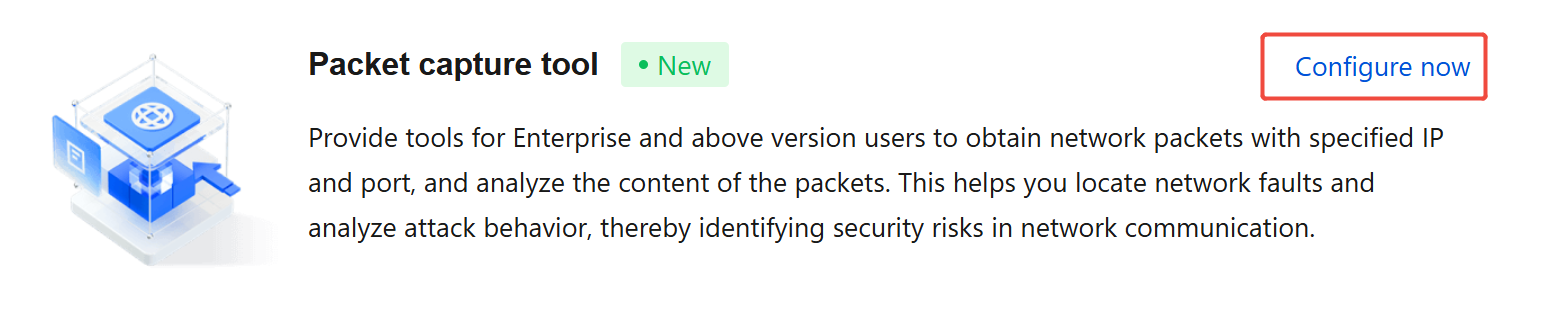
- On the Network Packet Capture Tool page, users can capture packets for traffic from the NAT firewall and inter-VPC firewall and download them for analysis.
Creating a Packet Capture Task
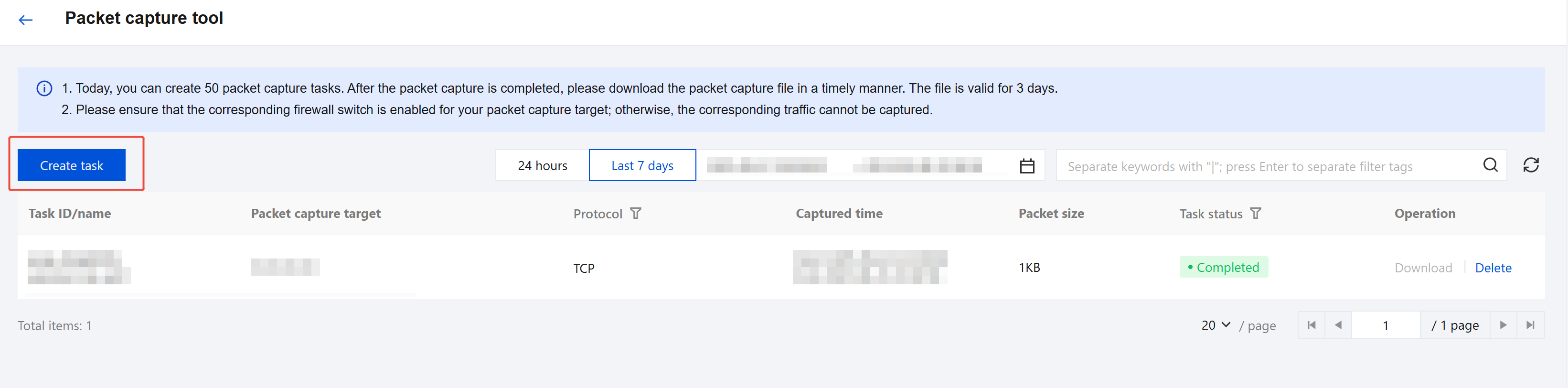
On the Network Packet Capture Tool page, click Create Packet Capture Task.
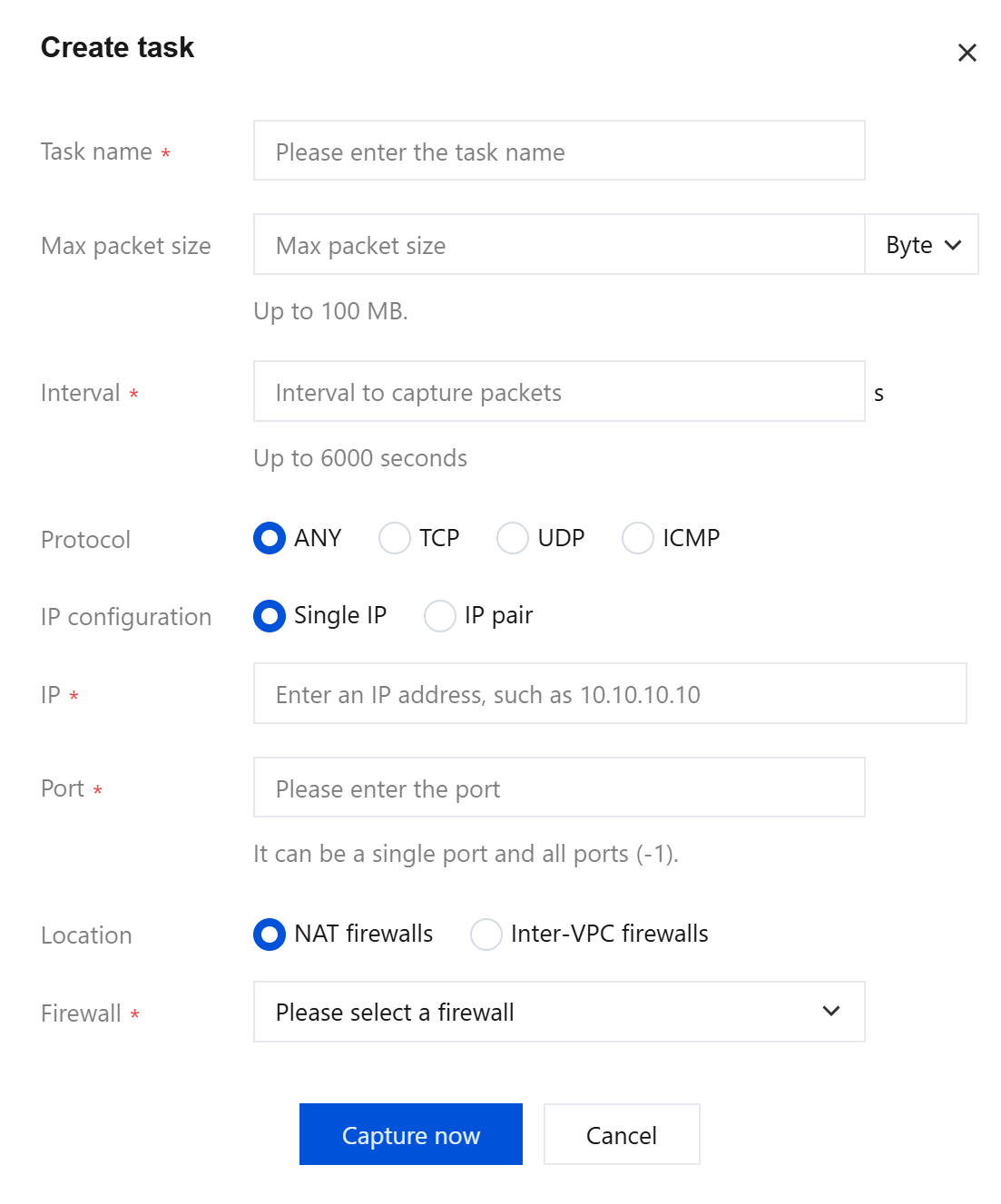
In the New Packet Capture Task pop-up window, configure the relevant parameters and click Start Packet Capture.
Note:
Please confirm that the corresponding firewall switch for your capture object is enabled; otherwise, traffic cannot be captured.
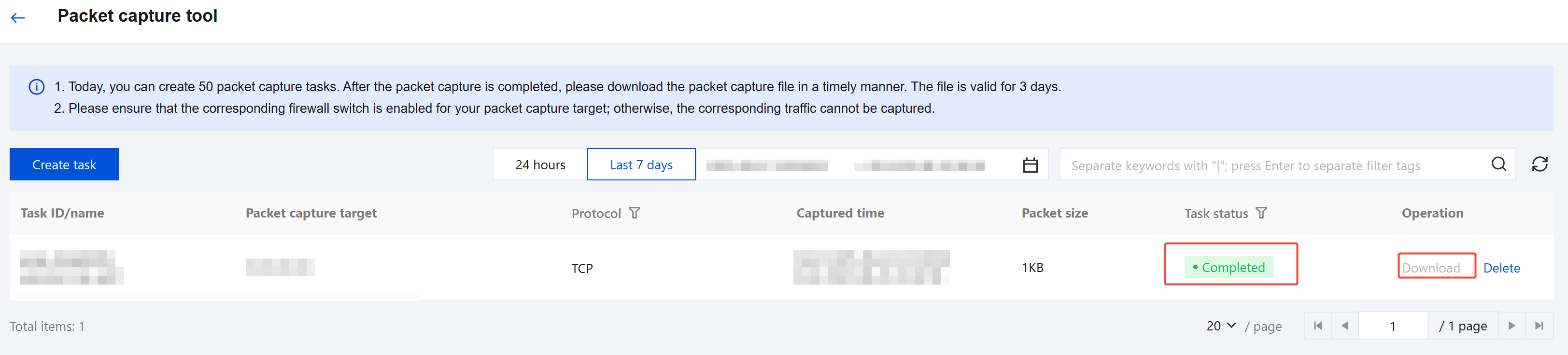
After the packet capture task is completed, click Download to download the packet capture results.
Note:
After the packet capture is completed, please download the packet capture file promptly; it is valid for 3 days.
You can use network packet capture software such as Wireshark to open the packet capture results for further analysis.
