

Choose Common Tools > Simulation Test to make related settings. The simulation test tool can monitor and verify network connectivity in real time, and detect access path anomalies in a timely manner, improving the Ops and availability of network linkages.
Entry to Simulation Test
Choose Common Tools > Simulation Test.
Creating a Simulation Test Task
Click Create Simulation Test Task.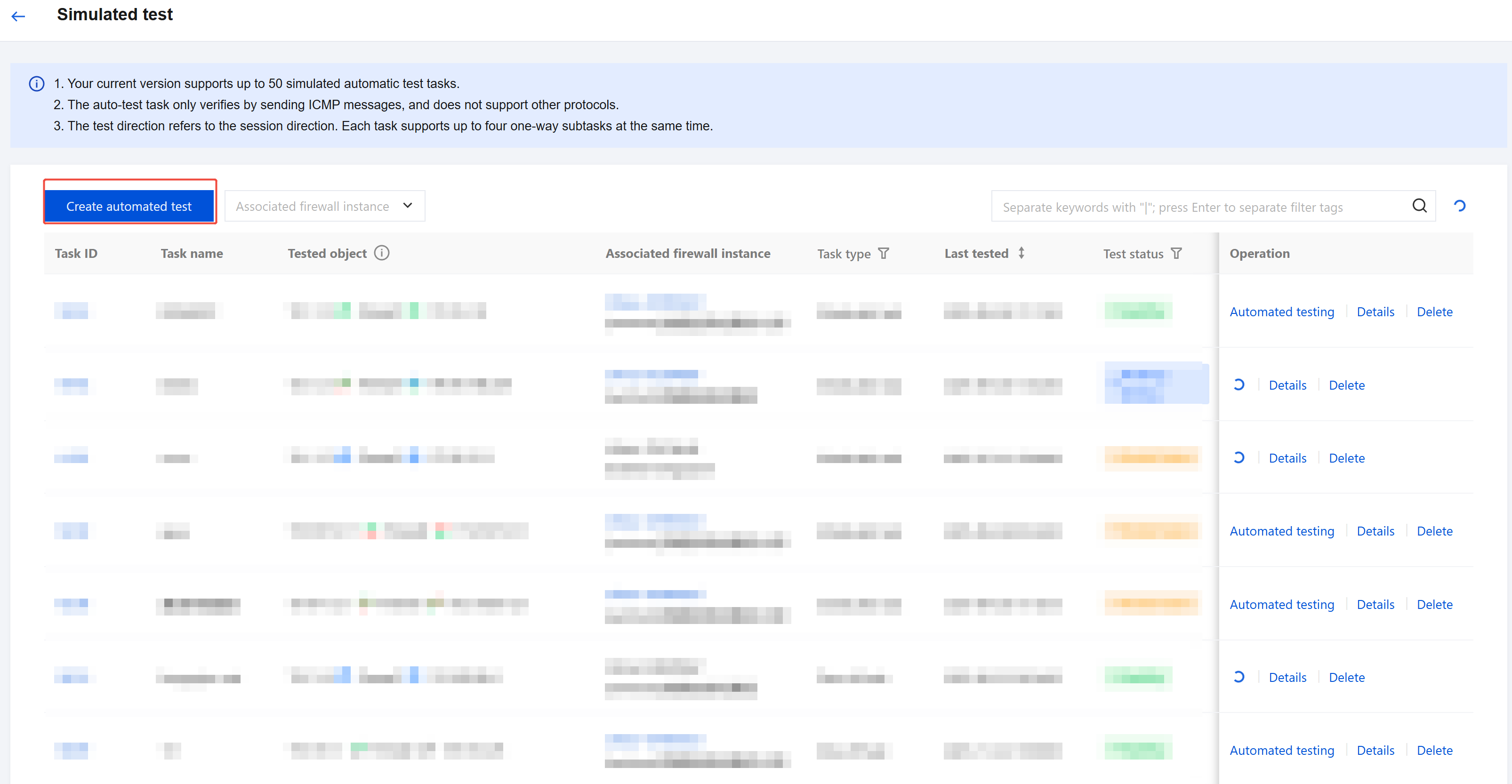
Configure the location to be tested, the access source and destination of the test request, the direction of the traffic request, and the position of entering and exiting a firewall. You can also set the task type to a temporary task or a periodic task.
Note that a simulation test can only be initiated in one direction via a firewall instance. The principle is that the firewall monitors the health status of the engine access path by simulating packet sending and receiving, which helps verify whether the traffic is normal when it passes through the firewall engine sequentially.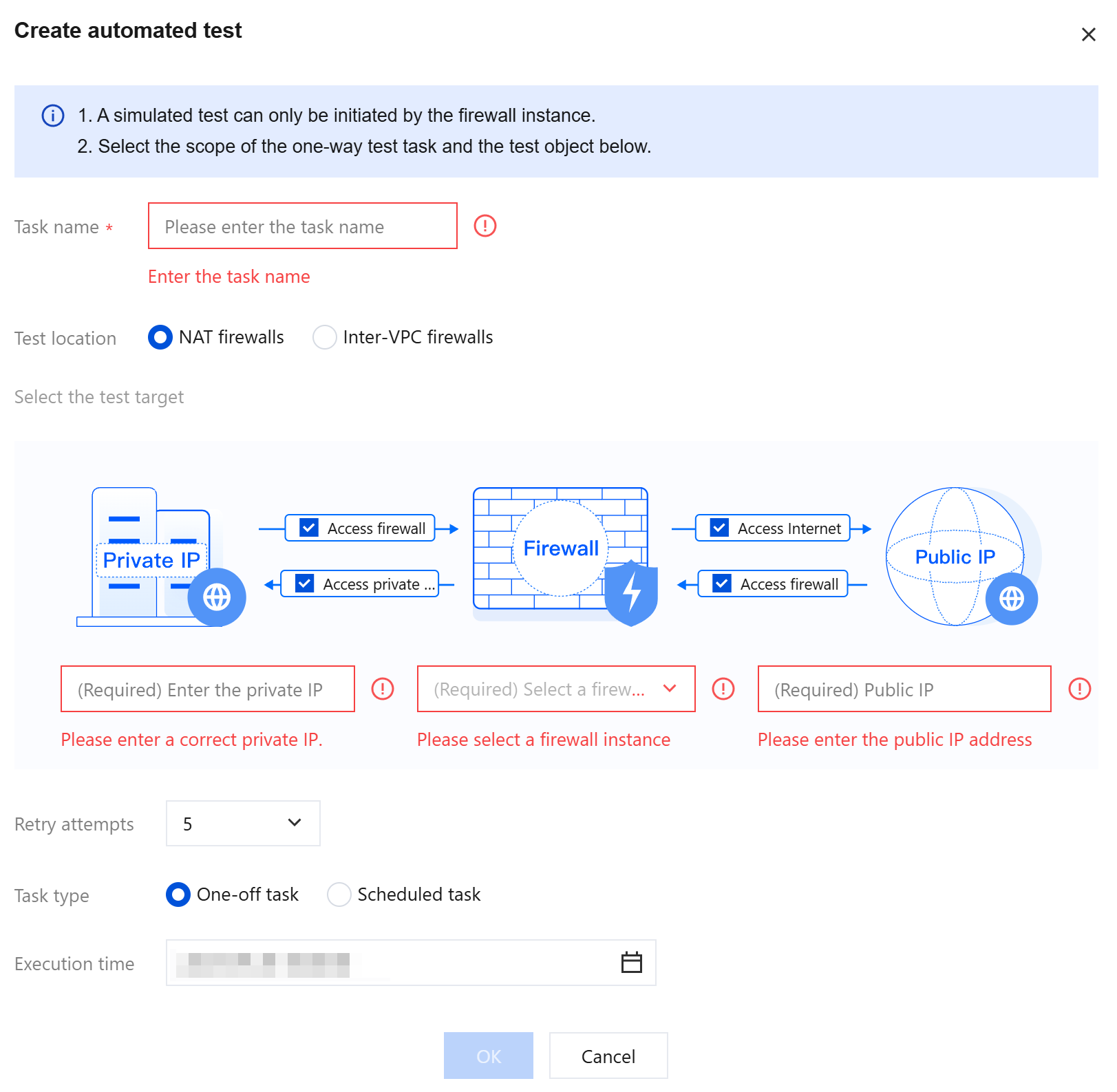
Viewing Test Tasks
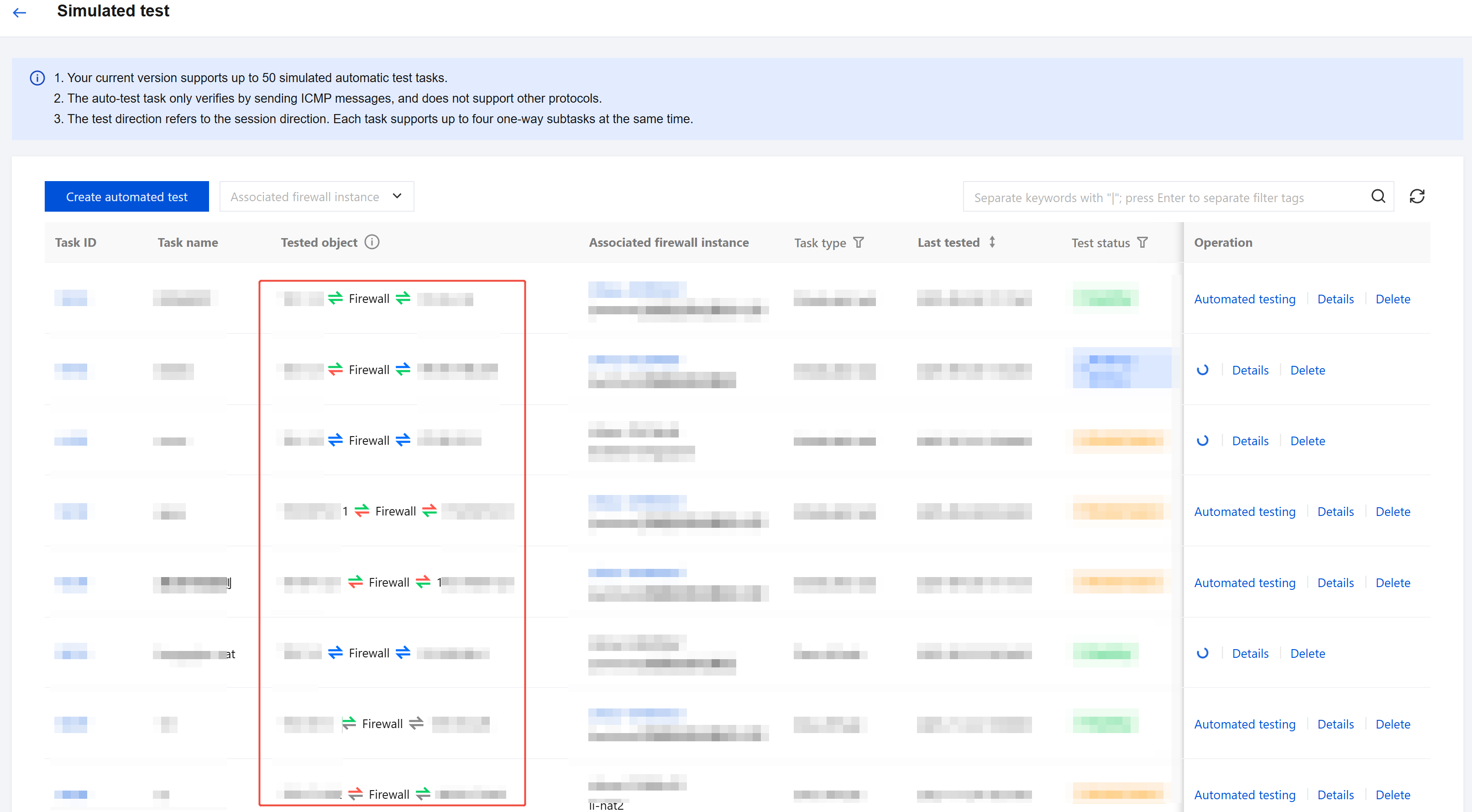
- View the test status of each task in the list. The Test Object column displays the current status of each test subtask in real time. The Test Status column displays the current health status of the entire linkage.
- Click a task ID or the Details button on the right side to view the details of a task.
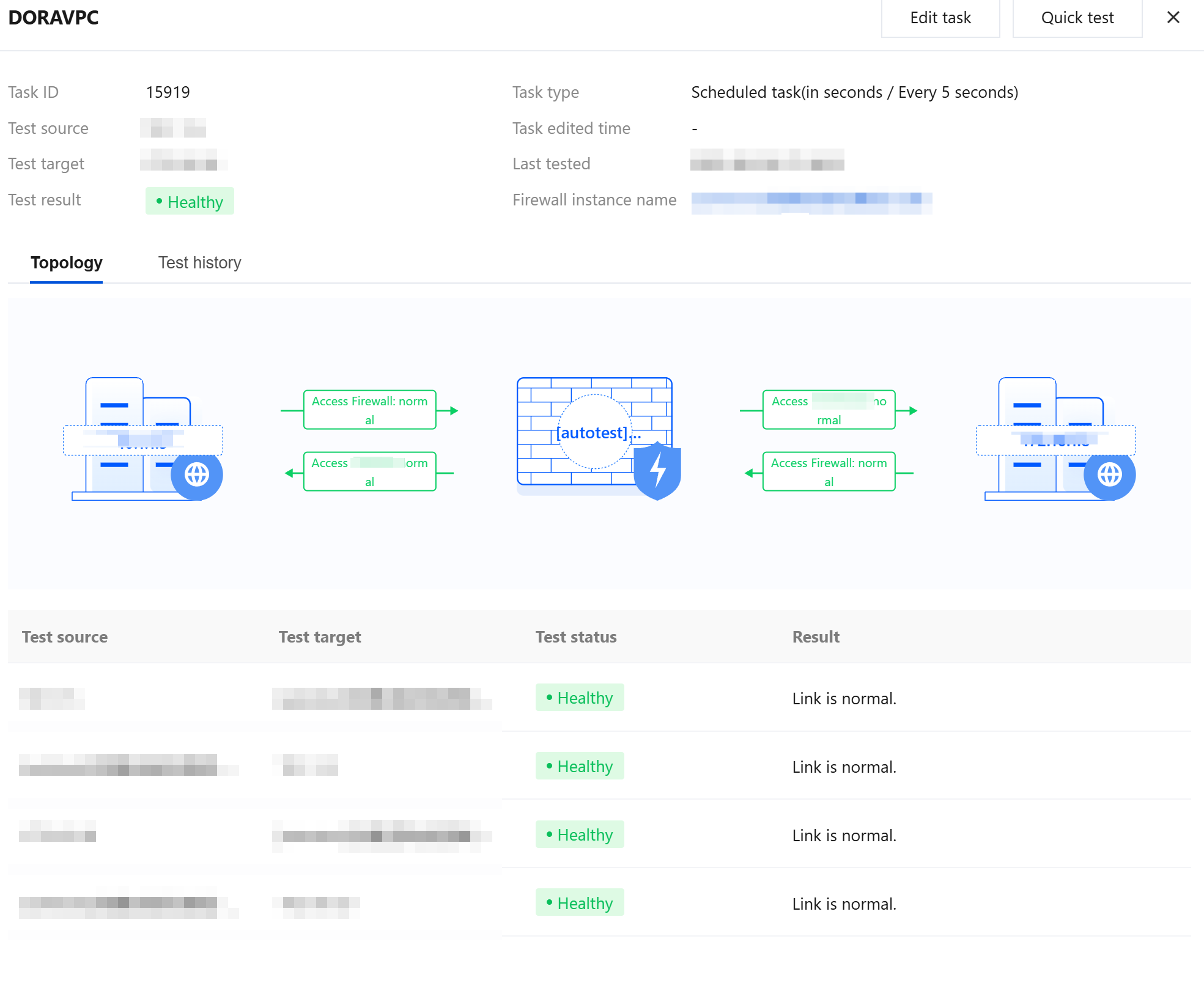
When a test task is abnormal, system logs are recorded and exception information is pushed according to "system log push configurations".
