

Task Scheduler is an Ops tool that provides users with automated instructions and scheduled instructions, allowing users to orchestrate instructions and achieve automated operations.
Feature Entry
- Log in to the CFW console. In the left sidebar, click Common Tools.
- On the Common Tools page, click Go to Configuration under Task Scheduler.
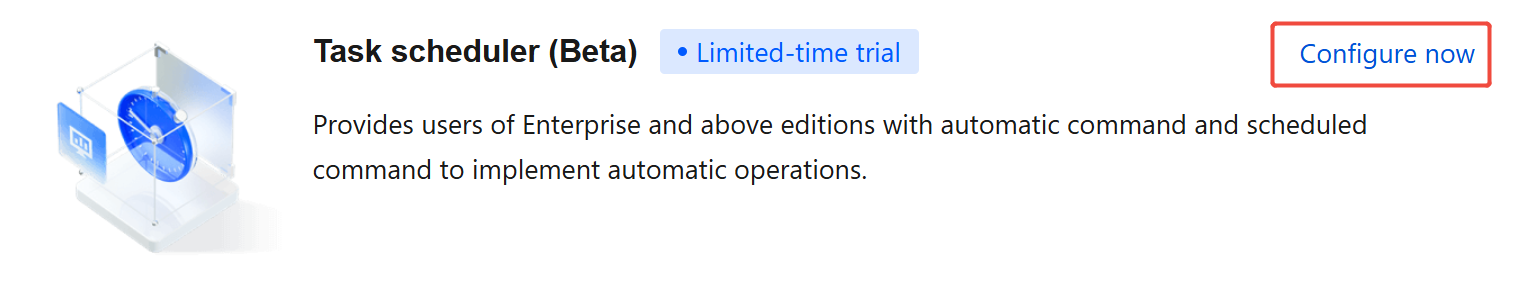
- On the Task Scheduler page, users can create and orchestrate automatic tasks to achieve features such as scheduled enabling/disabling of access control rules and scheduled ignoring of categorized alarms.
Adding an Automatic Task
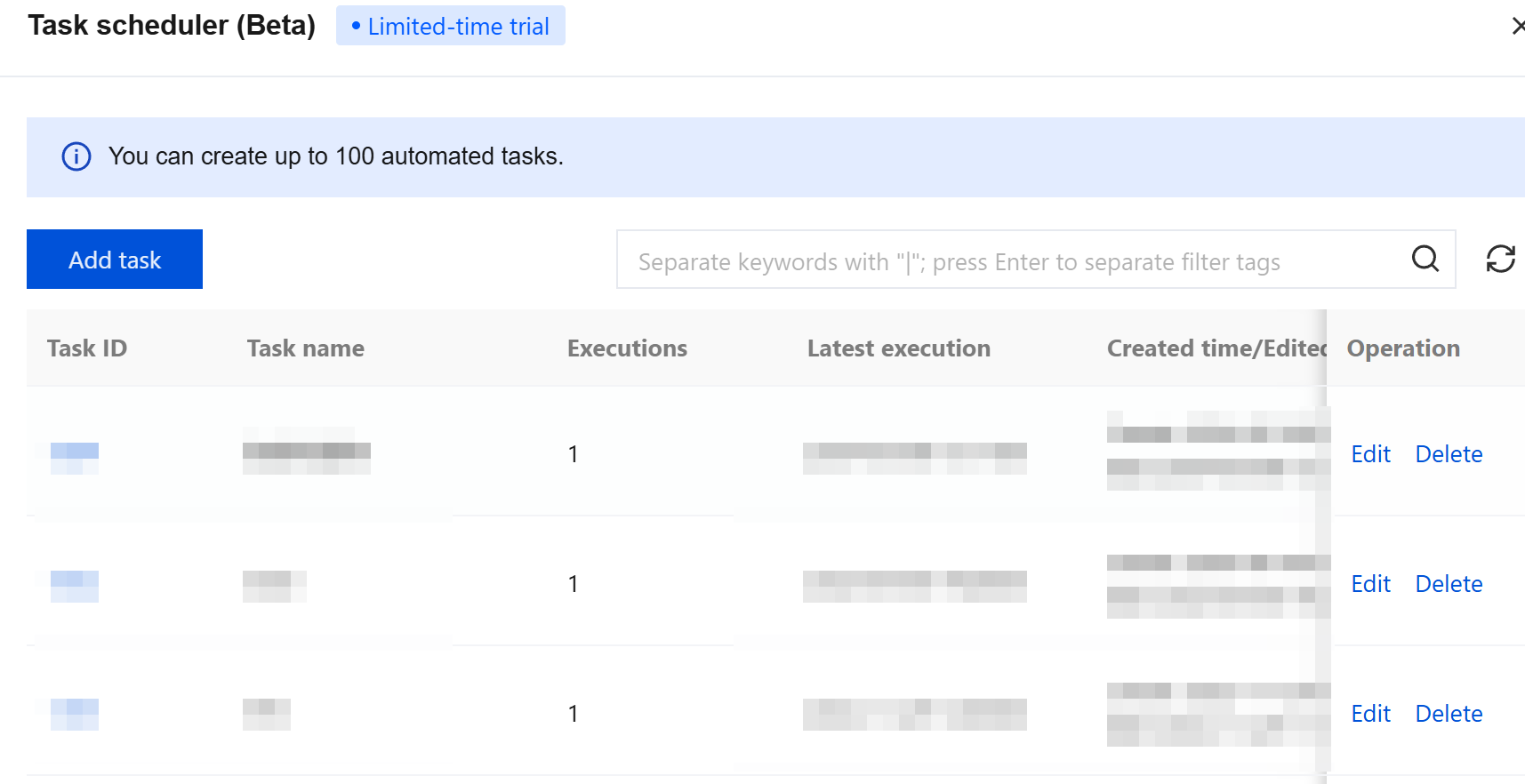
- On the Task Scheduler page, click Add Task.
- In the Create Automatic Task pop-up window, enter the automatic task name.
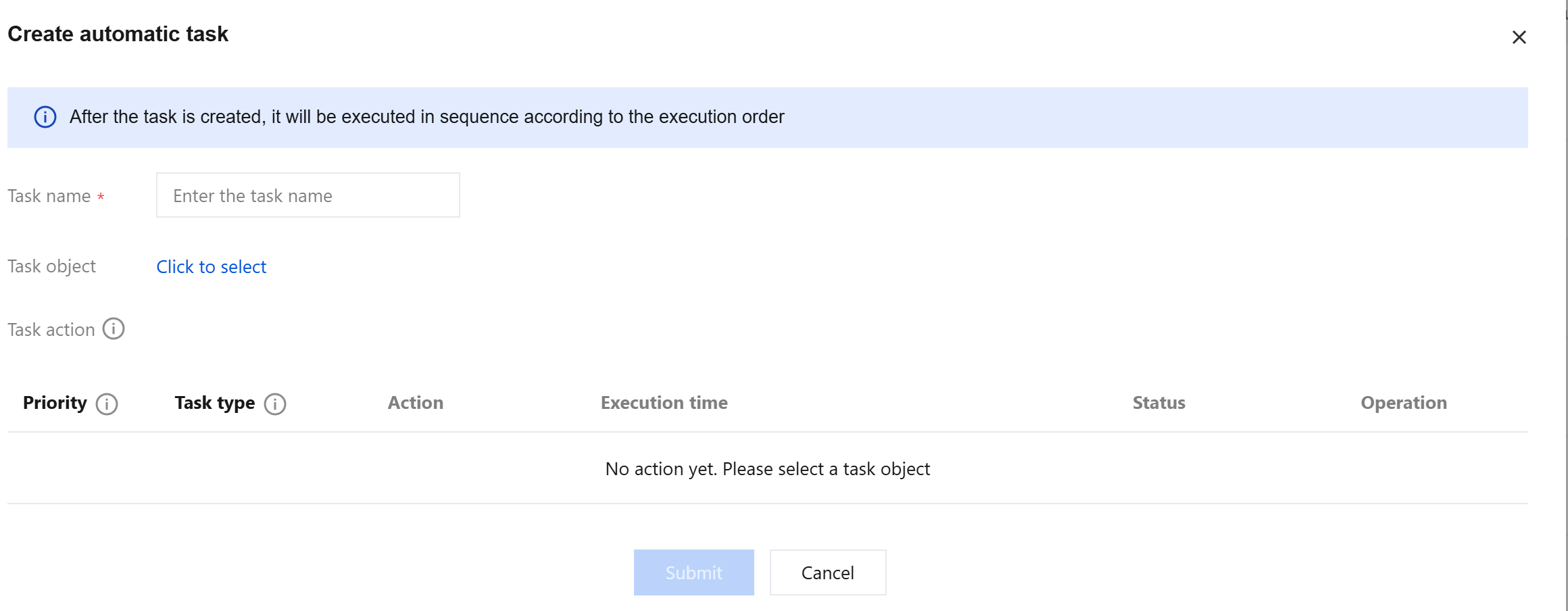
- Click Click to Select on the right of the task object. You can select the task object to associate with the automatic task via Category Selection or Custom Selection, then click OK.
- Click Add Action to add the task actions to be executed. You can configure temporary tasks or periodic tasks along with the execution time. Multiple actions will be executed sequentially in the specified order. Click Duplicate to add more actions, up to 10 in total.
- Click Submit to view the configured automatic tasks and their status in the task list.
Quickly Adding an Automatic Task
You can quickly add tasks from the access control rule list. The following uses NAT firewall rules as an example.
- Log in to the CFW console. In the left sidebar, click Access Control > NAT Boundary Rule.
- On the NAT Firewall Rules page, click Batch Operations.
- Check the rules for which you want to execute automatic tasks, then click Add Automatic Task.
- In the new automatic task window, fill in the task name, click Add Action, configure other parameters, and click Submit.
Editing an Automatic Task
On the Common Tools page, click Go to Configuration under Task Scheduler.
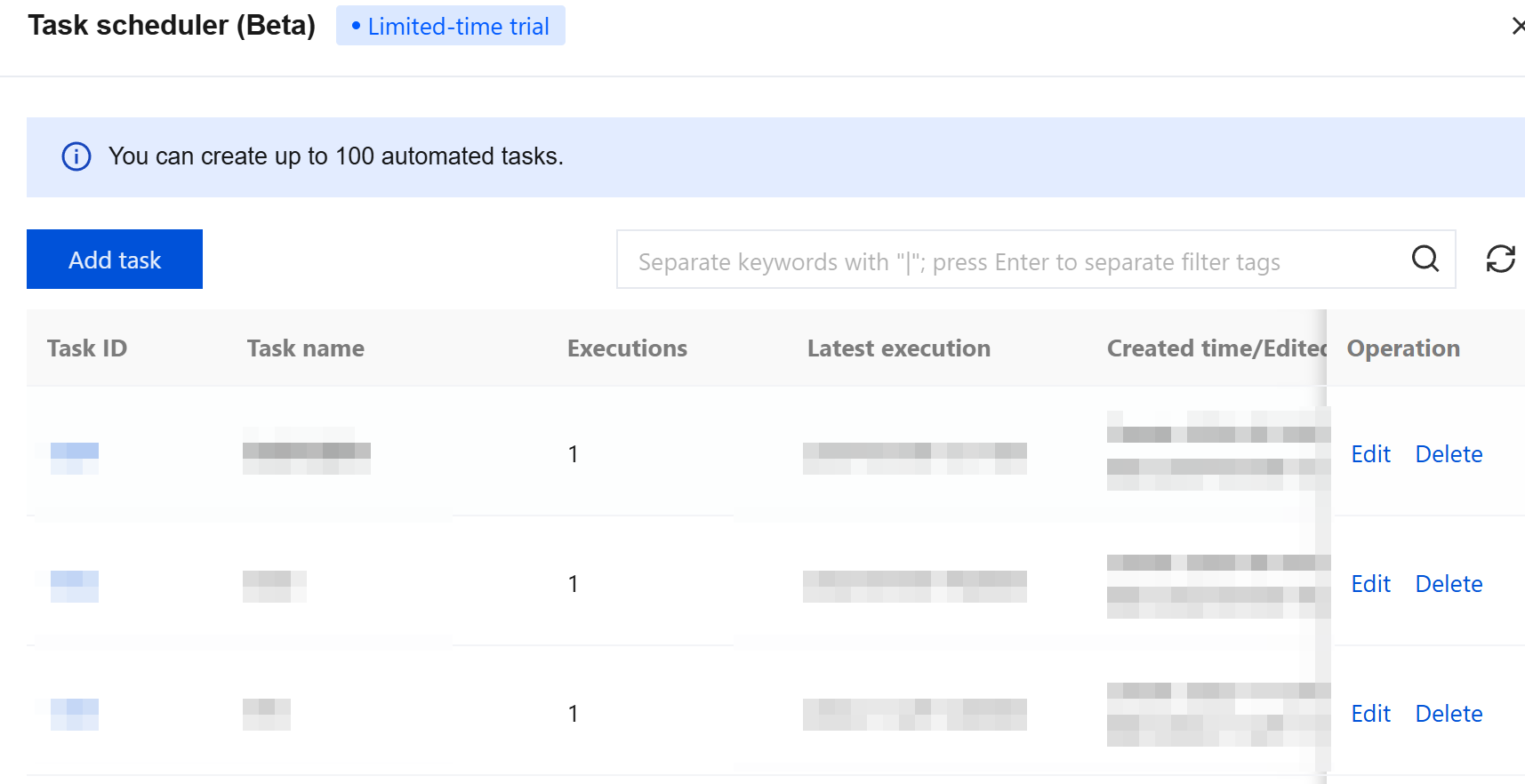
On the Task Scheduler page, locate the task you want to edit and click Edit.

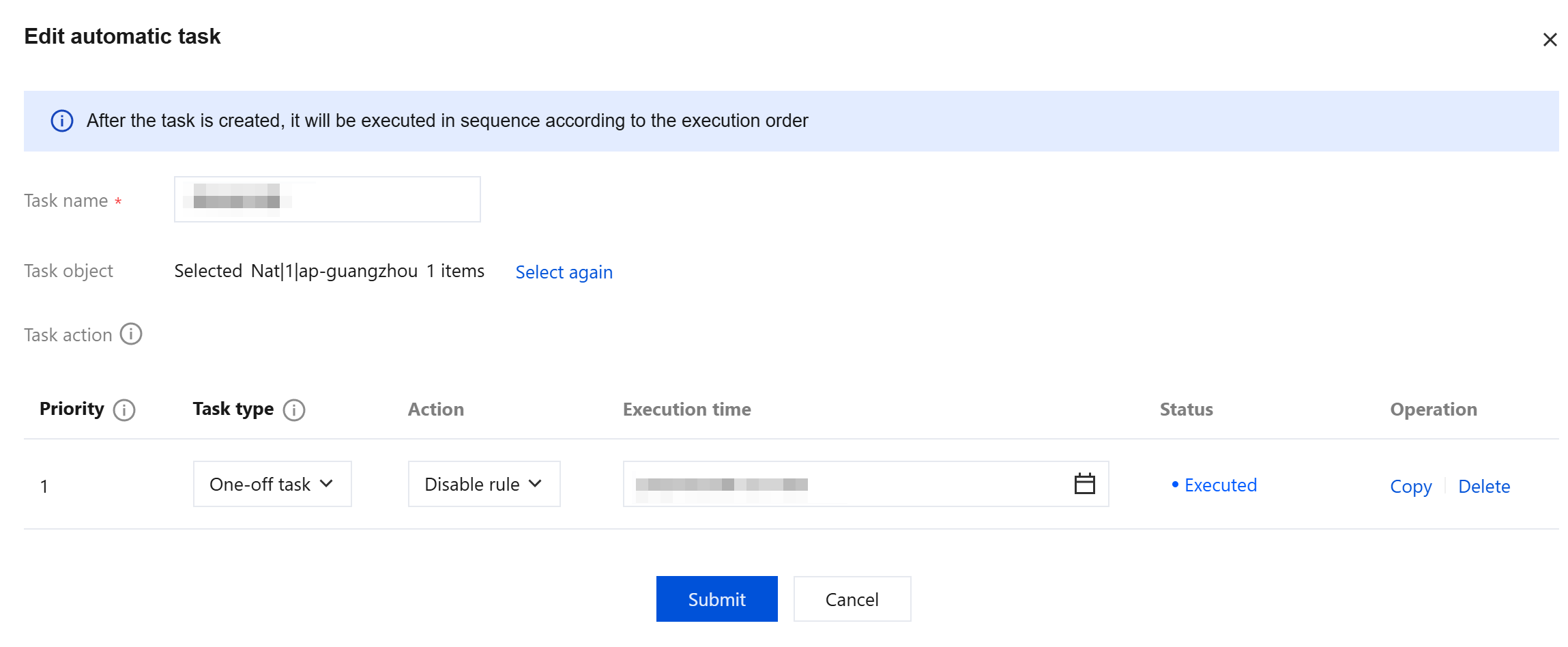
In the Edit Automatic Task pop-up window, you can edit the task name, task type, task actions, and execution time, as well as duplicate or delete tasks. Click Submit to save.
Note:
If the task object changes (such as being edited or deleted), the automatic task will no longer be executed.
Deleting a Task
- On the Common Tools page, click Go to Configuration under Task Scheduler.

- On the Task Scheduler page, locate the task you want to delete and click Delete.

- In the Confirm Deletion pop-up window, click OK to delete the task.
Querying Execution Records
In the operation logs of the task-associated object, you can view operation records where the operation account is "Automatic Task".