

Address templates provide users with a more convenient and efficient way to manage common addresses in batches. Users can create IP address templates, domain name templates, or protocol port templates in the address templates. These templates can be applied to access control rules to facilitate management and Ops. This section describes how to manage addresses in batches by using address templates. Users can also match the existing templates with relevant access control rules for easier management.
Feature Entry
- Log in to the CFW console. In the left sidebar, click Common Tools.
- On the Common Tools page, click Go to Configuration under Address Template.
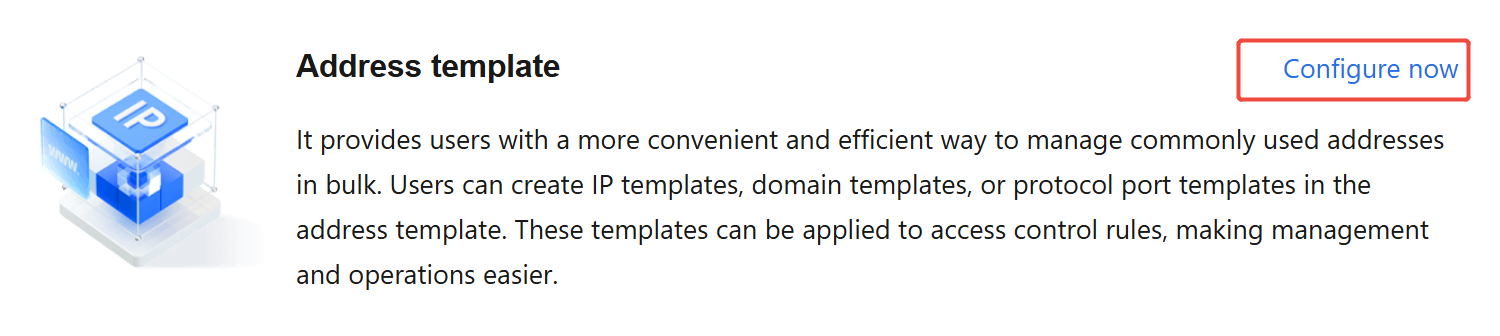
- On the Address Templates page, users can create and edit templates. When adding rules on the Access Control page, they can directly invoke the templates to reduce the operation frequency.
Creating a Template
- On the Address Templates page, click Create Template.
- In the New Address Template pop-up window, select Template Type:
- IP Address Template: contains only IP addresses or CIDR blocks. IP address ranges are supported.
- Domain Template: contains only domain name-type addresses. Wildcard domain names are supported.
- Protocol Port Template: a combination of protocols and ports, categorized by Layer-4 and Layer-7 protocols. Ports can be a single port, a combination of ports, or a port range.
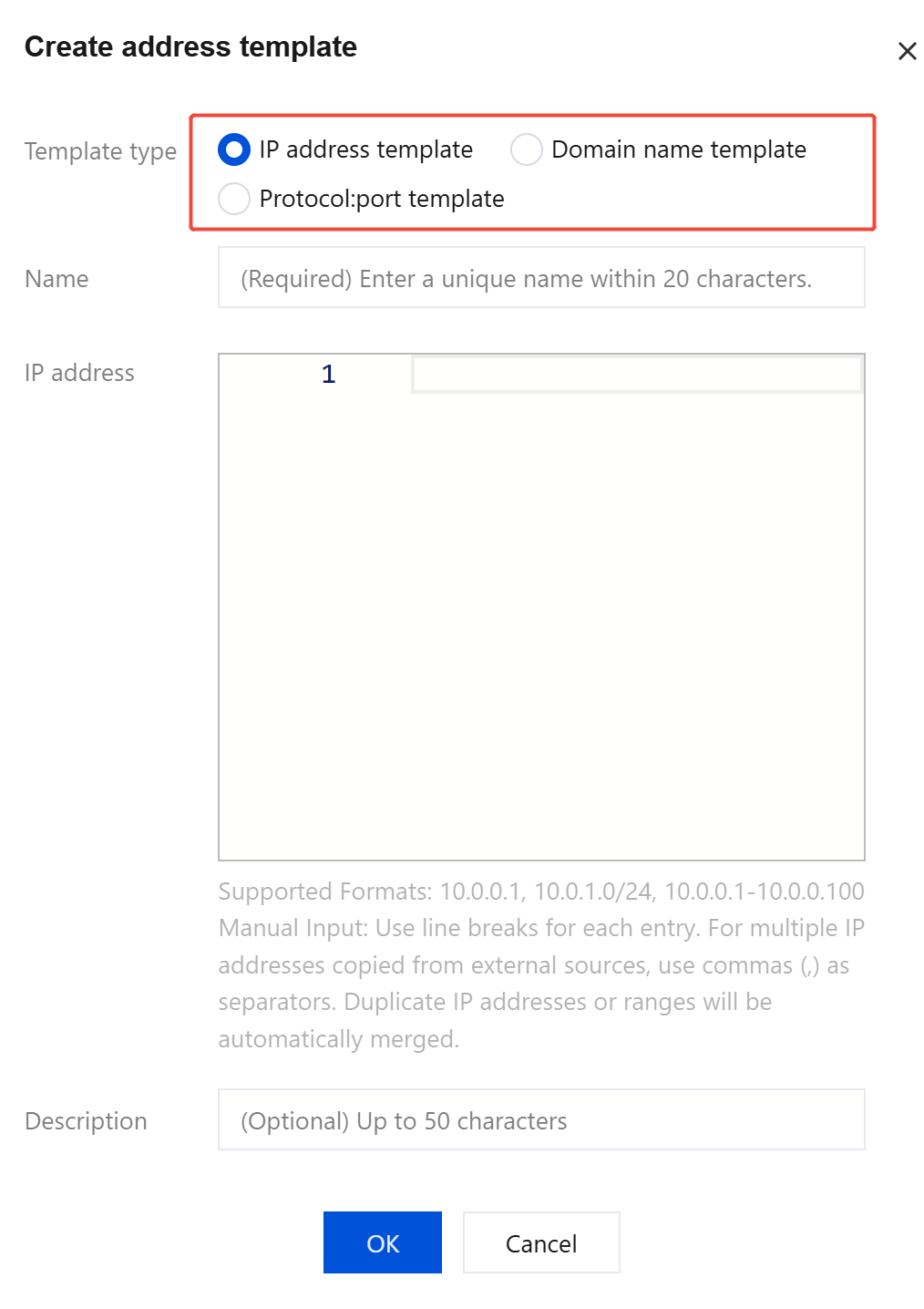
- Enter the address template name, IP address, and description, and click OK to create an address template.
- When you enter a single address, press Enter to wrap to a new line.
- When you enter multiple addresses at a time, make sure that they are separated by commas before pasting to facilitate system recognition.
- Duplicate addresses will be automatically merged by the backend.
- A single address template allows you to add a maximum of 500 addresses at a time. For details about the filling specifications and content, see the related description in the console.
Editing a Template
After creating an address template, users can view it in the address template list on the left. Users can add, delete, and modify addresses of the corresponding category in the existing template list.
- On the Address Templates page, click Edit in the operation column on the right of the target address template.
- In the Edit Address Template pop-up window, select the IP address you want to modify or delete, or search for the IP address you want to modify in the search box to perform the operation. Then, click OK to save the modification.
Template type cannot be edited. If modification is required, delete the template and create a new template.
Deleting a Template
- On the Address Templates page, click Delete in the operation column on the right of the target address template.
- If associated rules exist, go to the Access Control page to delete the associated rules.
- The deletion operation cannot be undone. It is recommended to back up the current template before deletion.
Using an Address Template
On the Access Control page, click Add Rule or locate the rule to be modified and click Edit on the right, then select to use an address template.
- Access rules configured with an address template apply to all addresses within the template.
- The number of address templates is limited, so please plan and use them reasonably.
IP Address Template or Domain Name Template
In access control rules, you can select Address Template in Access Source or Access Destination. The dropdown menu will list supported IP address templates or domain name templates that can be configured.
The selection of template types is related to the protocol. Please fill in according to the prompts of the corresponding access control rule.
Protocol Port Template
In access control rules, you can select Protocol Port Template in Port Protocol Type. The dropdown menu will list supported protocol port templates that can be configured.
The selection of template types is related to the configuration format of the source or destination. Please fill in according to the prompts of the corresponding access control rule.