

Task Scheduler is an Ops tool that provides users with automated instructions and scheduled instructions, allowing orchestration of tasks and achieving automated operations.
Feature Entry
- Log in to the CFW console. In the left sidebar, click Common Tools.
- On the Common Tools page, click Go to Configuration under Task Scheduler.
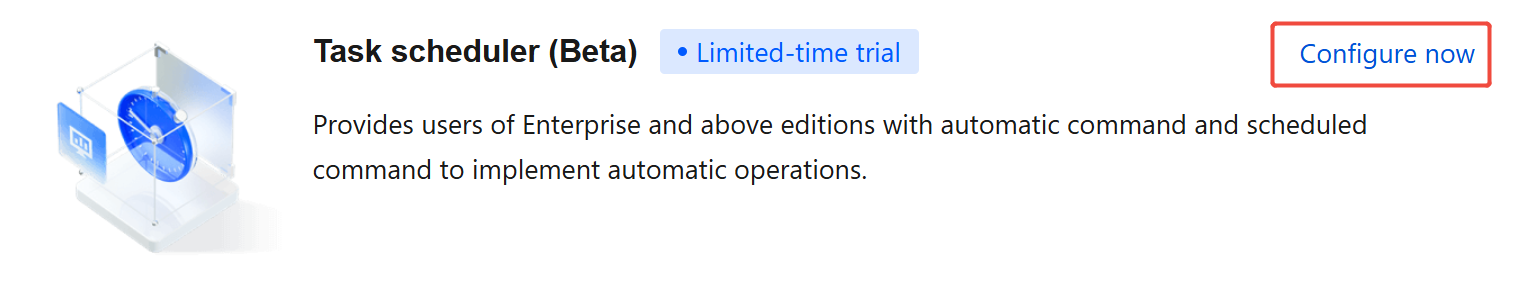
- On the Task Scheduler page, users can create and orchestrate automatic tasks to achieve scheduled operations such as enabling/disabling access control rules or ignoring categorized alarms.
Adding an Automatic Task
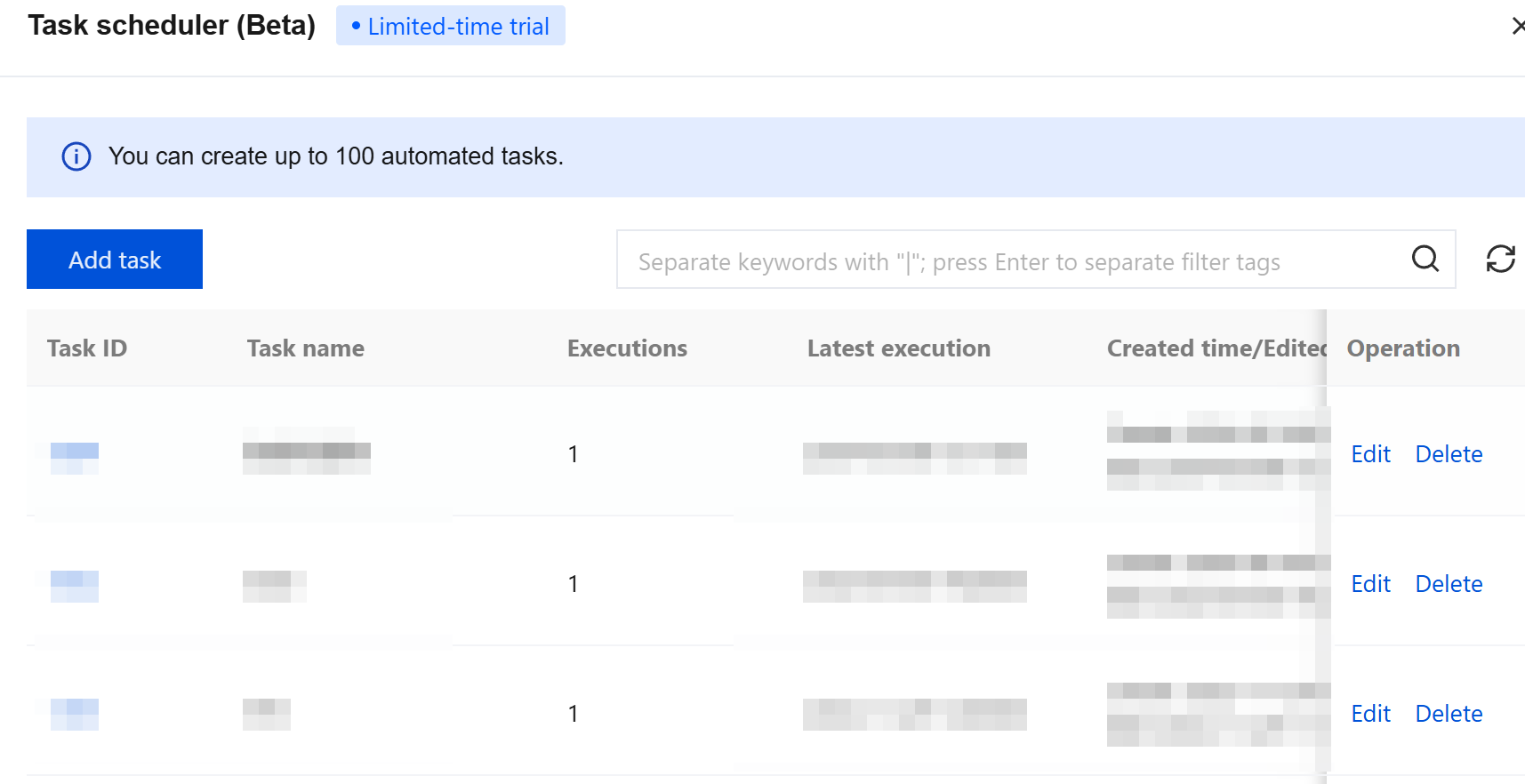
- On the Task Scheduler page, click Add Task.
- In the Create Automatic Task pop-up, enter the task name.
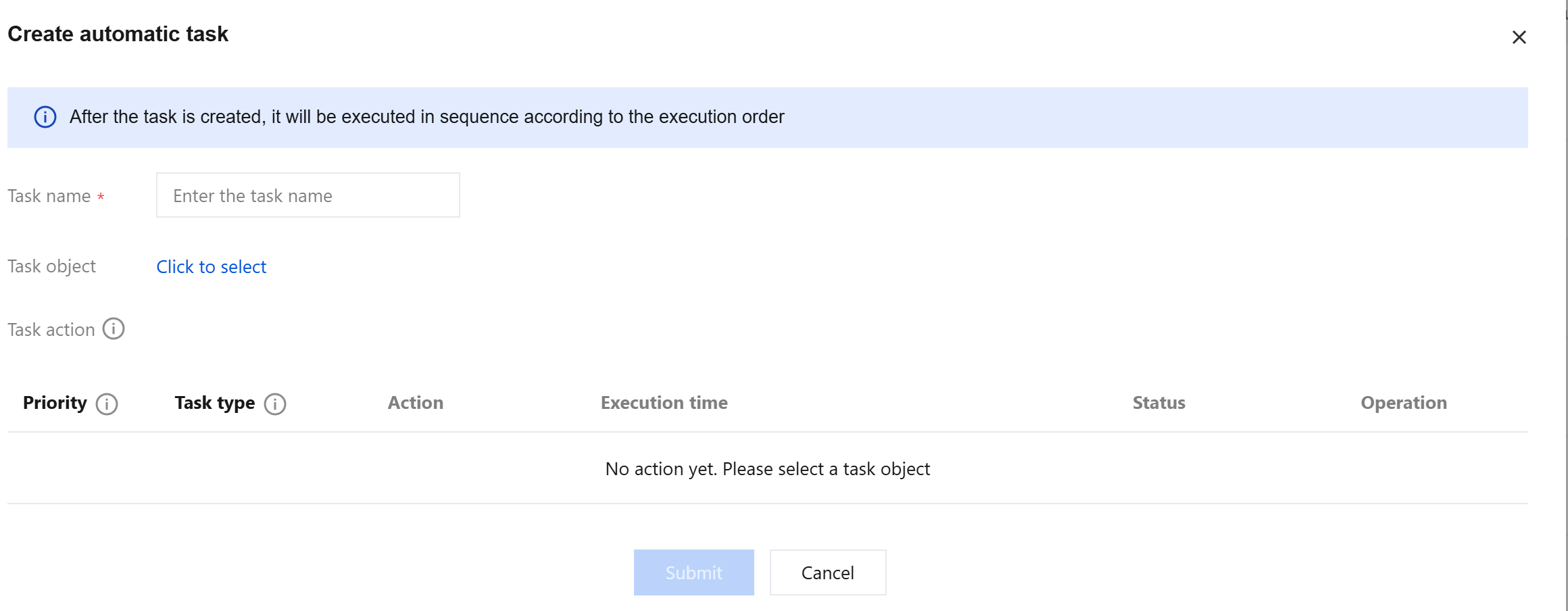
- Click Click to Select next to the task object and select via Category Selection or Custom Selection, then click OK.
- Click Add Action to configure task actions. Set temporary or periodic tasks with execution time. Actions execute sequentially; click Duplicate to add up to 10 actions.
- Click Submit to view tasks and their status in the task list.
Quickly Adding an Automatic Task
- Go to Access Control > NAT Boundary Rule.
- On the NAT Firewall Rules page, click Batch Operations.
- Select rules to execute automatic tasks, then click Add Automatic Task.
- In the pop-up, fill in task name, click Add Action, configure parameters, and click Submit.
Editing an Automatic Task
- Go to Common Tools > Task Scheduler.
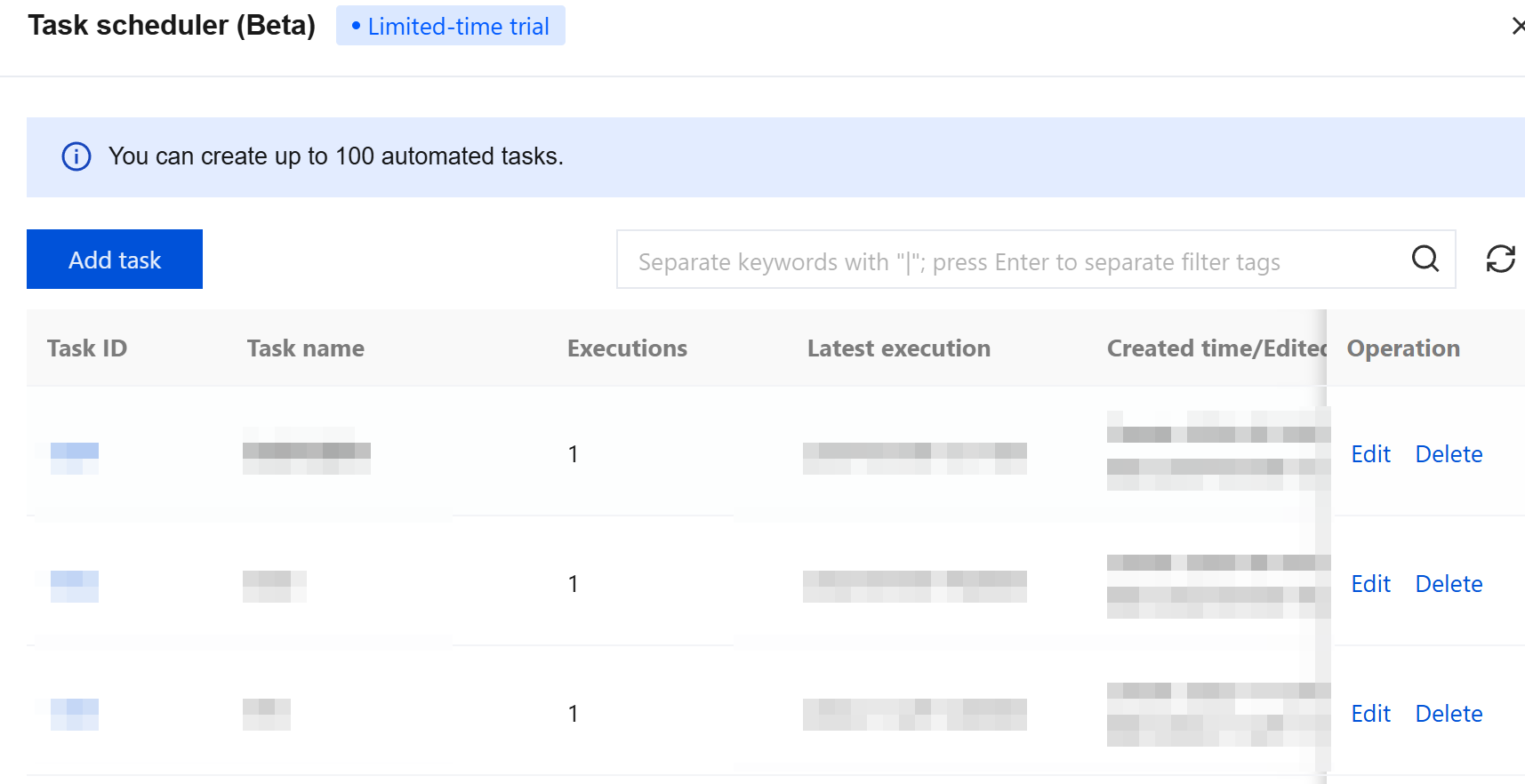
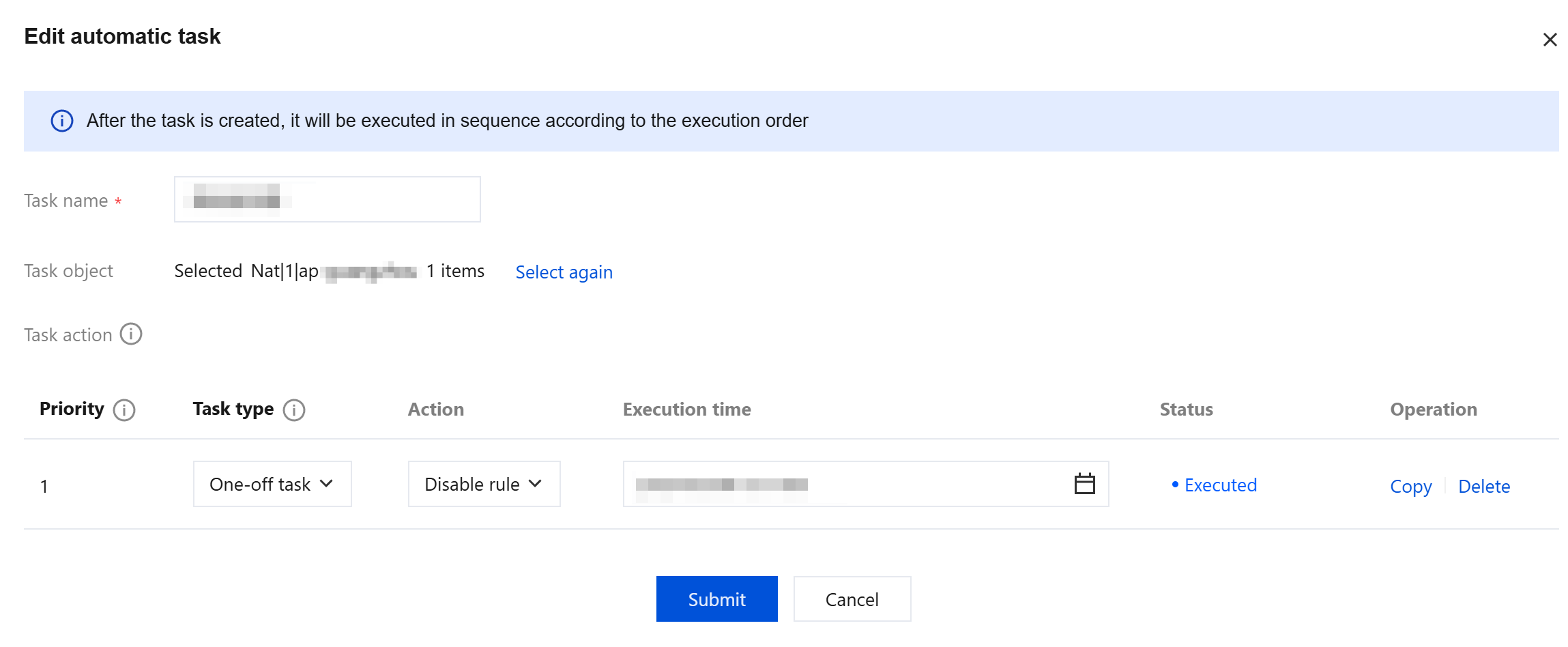
- Locate the task to edit and click Edit.

- In the Edit Automatic Task pop-up, modify task name, type, actions, and execution time. Use Duplicate or Delete if needed. Click Submit to save.
Note: If the task object is changed or deleted, the automatic task will no longer execute.
Deleting a Task
- Go to Common Tools > Task Scheduler.

- Locate the task and click Delete.

- In the Confirm Deletion pop-up, click OK.
Querying Execution Records
Operation logs of the task-associated object display actions where the operation account is "Automatic Task".