

Scenarios
Most components of TCenter run in containers, and most of these containers have their own health detection mechanisms. Therefore, it is important to first confirm whether the containers are running properly.
Prerequisites
The login addresses and account passwords of the tenant console and operation console have been obtained.
Operation Steps
- Log in to the tenant console and confirm that there are no errors on the main page.
- Select Personal Information > Account Center/Cloud Access Management/Security Settings, and enter the tenant-side page of the basic platform. In the left sidebar, click each submenu item sequentially to check if the pages display correctly.
- Log in to the operation console and confirm that there are no errors on the main page.
- Choose Platform Management > User and Permission/Cloud API Management/CAM Management, and enter the operation-side page of the basic platform. In the left sidebar, click each submenu item sequentially to check if the pages display correctly.
If the page is displayed abnormally or errors occur on the page, see Exception Handling for handling.
Exception Handling
- Check the pod status of the service.
# Check if the pod is started normally and if the pod status is normal.
kubectl get pod -n tce | grep cloud-tcenter
# Since all TCenter services are stateless, if there are any pods in an abnormal status, you can quickly recover them using the delete command. Here, ocloud-tcenter-identityaccess is used as an example.
kubectl delete pod -n tce ocloud-tcenter-identityaccess-xxx
- View the service logs.
Since many pages are involved, and almost all of them are served by containerized components that forward requests via cloud API, a common troubleshooting method is provided: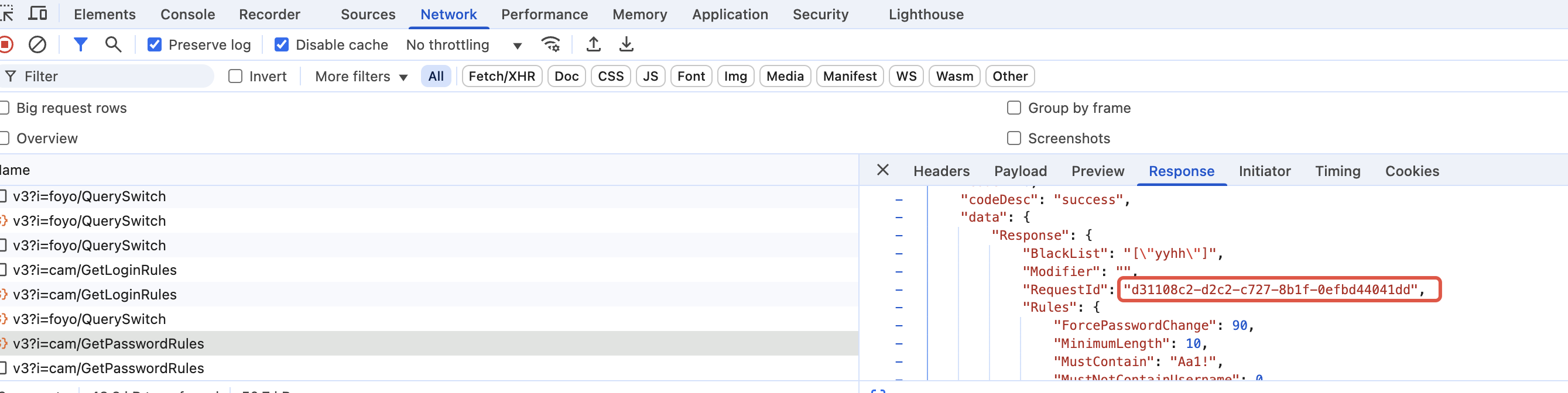
# Obtain the cloud API log search script.
mkdir -p /data/tce_dc/workspace/gateway/
cd /data/tce_dc/workspace/gateway/
kubectl -ntce cp `kubectl get pod -n tce | grep ocloud-tcenter-yunapi3-yuntu | awk '{print $1}' | tail -n 1`:/usr/local/services/yuntu/bin/traefik_tool.sh /data/tce_dc/workspace/gateway/traefik_tool.sh
chmod +x traefik_tool.sh
./traefik_tool.sh log ${reqid}

Pay special attention to the red boxes in the screenshot, including:
(1) Backend request address (tcloud-tcenter-platform-waccount.tcenter:6060/waccount).
(2) Input parameters ({"Action":"GetPasswordRules","AppId":1255000134,"Language":"zh-CN","OperatorUin":"110000000178","Region":"ap-hqtest-ops","RequestId":"d31108c2-d2c2-c727-8b1f-0efbd44041dd","SubAccountUin":"110000000178","Uin":"110000000178","Version":"2019-01-16"}).
For further log analysis, you need to enter the backend workload container for inspection, for example:
nslookup tcloud-tcenter-platform-waccount.tcenter 192.168.0.10
kubectl get svc -n tce | grep 192.168.150.236
kubectl get pod -n tce | grep tcloud-tcenter-identityaccess
kubectl exec -it -n tce tcloud-tcenter-identityaccess-xxxx  bash
grep -rn ${reqid} /data/log/
