

Tenant Cloud
TCenter
Cloud Access Management
Ops Management Guide
Scenario 3: Tags Not Displayed After Being Added to a Resource on the Product Page
Scenario 3: Tags Not Displayed After Being Added to a Resource on the Product Page
Last Updated At: 2026-08-14 08:08:00
Scenario Description of Failure Symptoms
For example, after a tag is assigned to a specific instance on the CVM page, the page displays a success message, but the tag information is not displayed on the CVM page.
Impact Scope of the Failure
- Impact on Cloud Platform product control: Affects customers' ability to assign tags to specific resources.
- Impact on user's workload: None.
Failure Location and Analysis
- Confirm whether the CMQ service is operating normally:
kubectl get pod -n sso | grep cmq
- Check whether the CMQ configuration in the tag service is correct:
Obtain the pod name.
kubectl get pod -n tce | grep wtagSelect any running pod to view configuration.
kubectl exec -n tce tcloud-tcenter-platform-wtag-69b5f84465-6ccwm -- cat /data/release/swoole_tag_write/application/config/idc/hosts_config.php | grep MQ_API_HOSTSet the obtained MQ_API_HOST as an environment variable.

- View mq subscription status:
Confirm that tag-resource-topic exists; if not, submit a ticket to the platform side for handling.
curl $MQ_API_HOST/topics
Check subscription status. For example, check CVM's subscription status. If there is no subscription, submit a ticket to the CVM product side for handling.
curl $MQ_API_HOST/subs/tag-resource-topic | python -m json.tool | grep -C3 -i cvm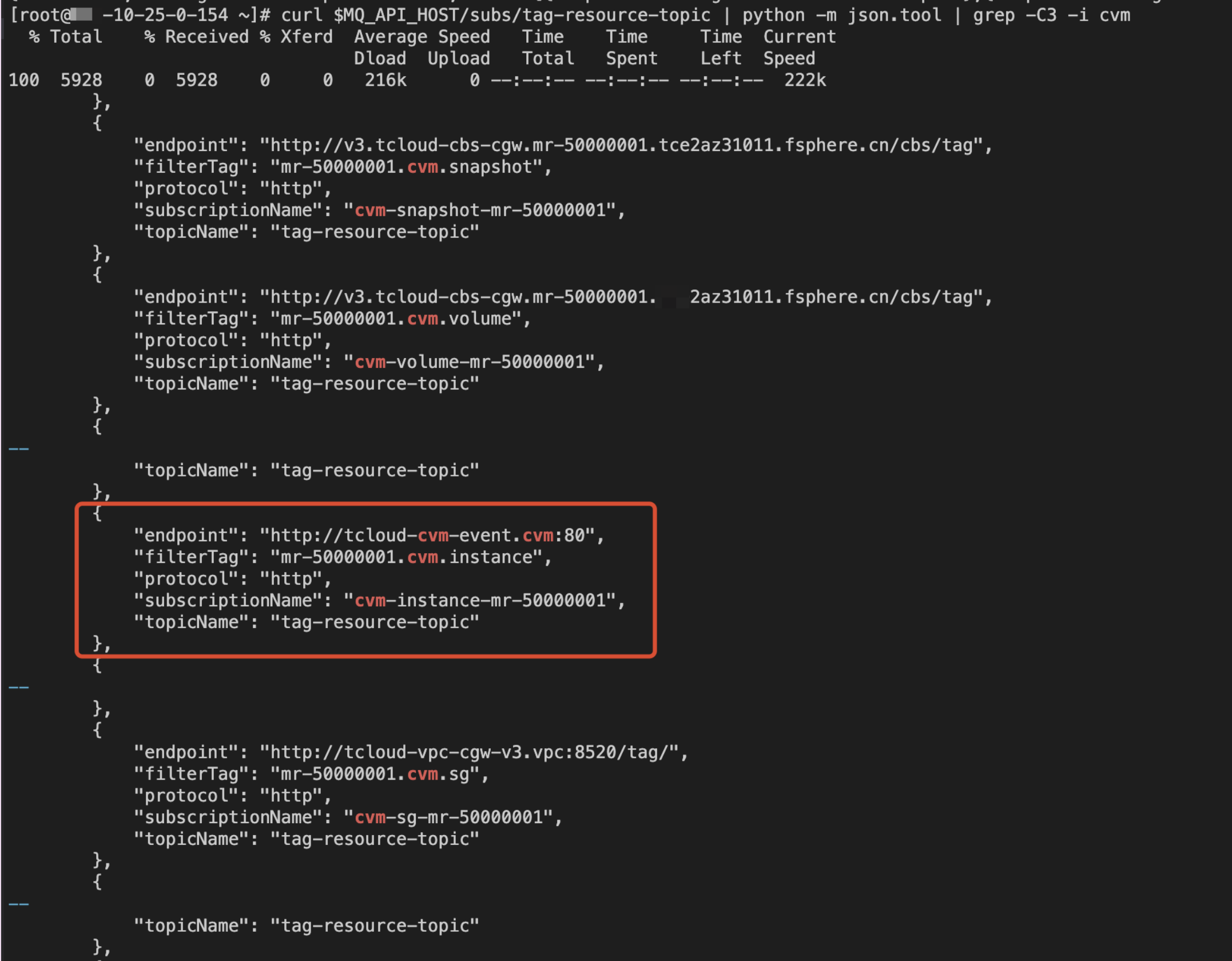
After confirming the subscription is normal, check whether CMQ callback logs are triggered.
First, check the CMQ pod.
kubectl get pod -n sso | grep cmqView logs; since=1h means logs from the past hour. "test" is a sample tag name, or you can filter using instance ID. Multiple pods need to be filtered. If the following log appears, callback is successful. Submit a CVM ticket for further troubleshooting. If no log, submit a ticket to the platform side for handling.
kubectl logs -n sso cmq-tce-tce-support-cmq-1-1-xxx --since=1h | grep -C 3 test
Failure Emergency Response Steps
- If the CMQ topic is missing, you can create it manually:
curl -X POST -d '{"topicName":"tag-resource-topic"}' $MQ_API_HOST/topics - If the CMQ subscription is missing, you need to confirm with the relevant product side to check which components need to be restarted to re-establish the subscription.
- f the previous two steps are normal and there is no callback message from CMQ, as a temporary measure, consider restarting the pods related to the tag and CMQ to check if recovery is possible:
kubectl rollout restart deploy -n tce tcloud-tcenter-platform-tag
kubectl rollout restart deploy -n tce tcloud-tcenter-platform-wtag
kubectl rollout restart deploy -n sso cmq-tce-tce-support-cmq-1-1
Failure Recovery Verification
The tag added to the corresponding resource on the product page can now be displayed correctly.