1 Viewing Operation Records
- Log in to the cloud platform, choose Cloud Services > Management and Audit > CloudAudit to go to the CloudAudit interface.
- On the Operation Record page, you can search for events by keyword or combined tag. Specifically,
- Keyword: Supports entering any keywords related to the event in the search box for event search. After the keyword is entered, CloudAudit will conduct a matching query of keywords and display the results in a list.
- Combined tag: Supports performing a combined search based on fields such as username, resource type, project, event ID, event name, resource name, event source, or source IP address.
You can query operation records within the past 365 days. The records to be queried will be displayed in a list. To see more records, click Click to Load More, and the operation records can be downloaded using the download button in the upper right corner.

2 Viewing Details
After obtaining the list of operation records, you can click the ▼ icon to the left of a specific record to view more details. This will display comprehensive information about the operation, including the access key, region, error code, event ID, event name, event source, event time, request ID, source IP address, and username. You can also click View Event to learn more about the event.
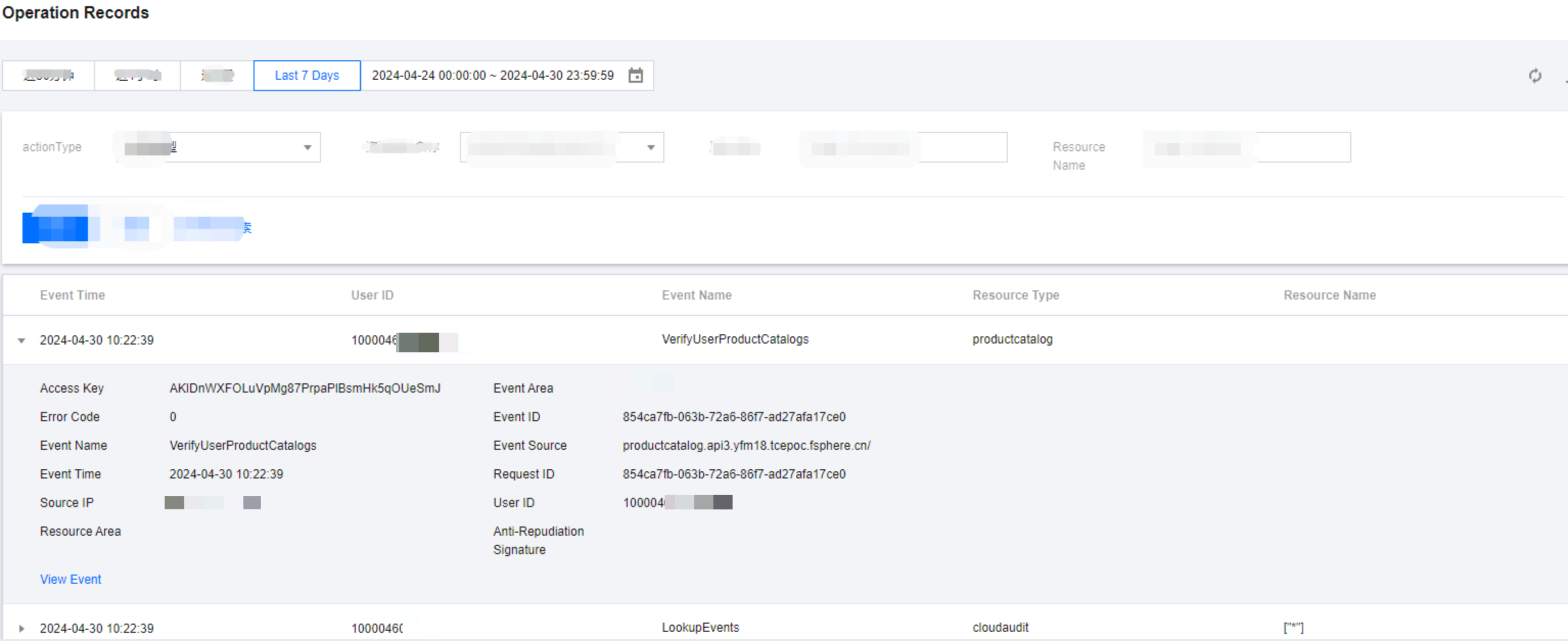
Click View Event to access the associated code details.

3 Exporting History
- Click Export History.
- The interface displays historical export requests. Click Request Export.
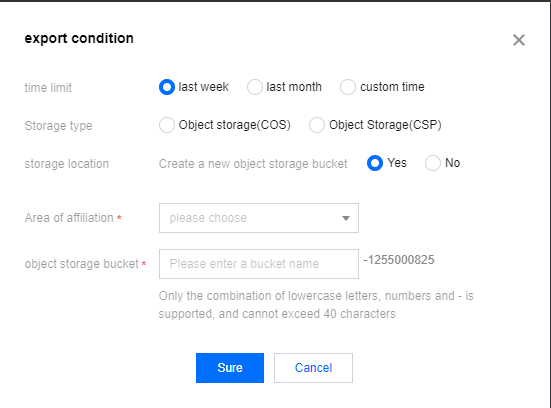
- You can export CloudAudit logs to Cloud Object Storage (COS). Currently, export based on a specified time range is supported. The audit logs can be exported to an existing bucket or to a bucket you create. For exporting to a new bucket, you need to create a role named CloudAudit_QCSRole under Access Control and bind the COSFullAccess policy.