

Scenarios
This document introduces the basic operations on user groups, including creating a user group, viewing user group information, modifying basic information of a user group, deleting a user group, adding a user to a user group, and removing a user from a user group.
Prerequisites
You have logged in to Cloud Organization > Identity Center.
Operation Steps
Creating a User Group
- Go to Cloud Organization > Identity Center.
- In the left sidebar, choose User Management > User Groups.
- On the user group page, click Create User Group.
- On the Create User Group panel, enter a user group name.
The user group name should be unique in the space. - Enter the Remark information.
- Click OK.
Viewing User Group Information
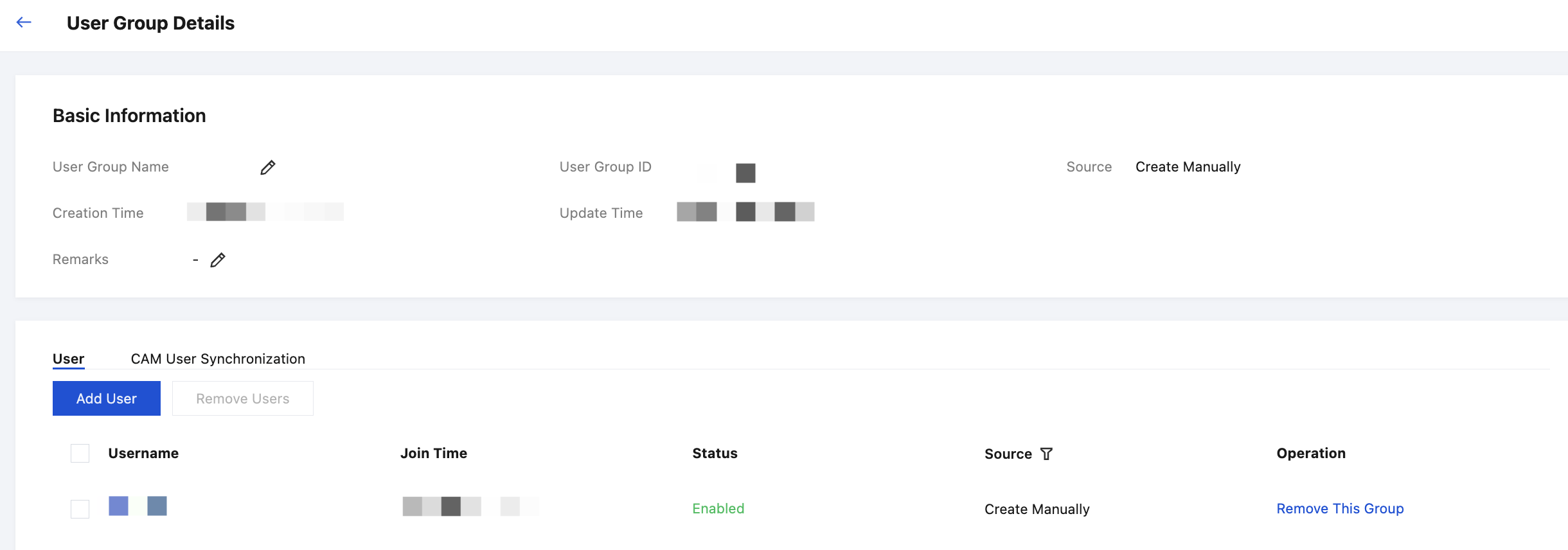
On the User Group list page, click the target user group name to view the following information of the user group:
- View basic information of the user group.
- Click the User tab to view users in the user group.
- Click the CAM User Synchronization tab to view the configured CAM user synchronization information.
Modifying the User Group Information
- On the User Group list page, click the target user group name.
- In the Basic Info area at the top of the user group details page, the modifiable fields are User Group Name and Remark.
Deleting a User Group
Note:
Before deleting a user group, ensure that the user group is not associated with the following resources. Otherwise, the deletion will fail.
- Users: users in the use group to be deleted
- CAM user synchronization: the account synchronization relationship of the user group to be deleted
- On the User Group page, click Delete in the Operation column of the target user group.
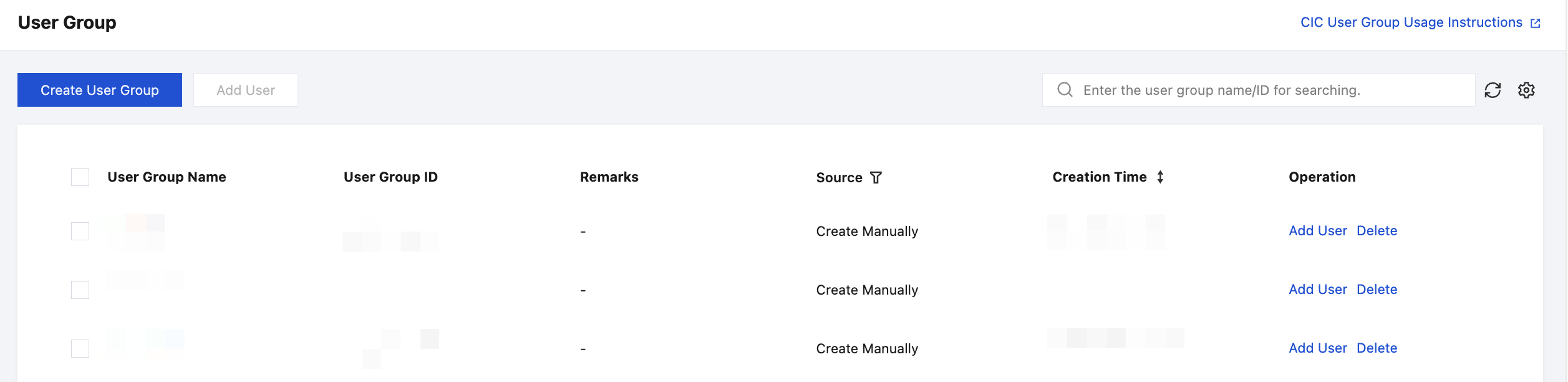
- In the Delete User Group dialog box, click Confirm.
Adding a User to a User Group
On the User Group page, click the target user group name.
Click the User tab, and then click Add User.
On the Add to Group panel, select users.
Note:
A user can be added to multiple user groups.
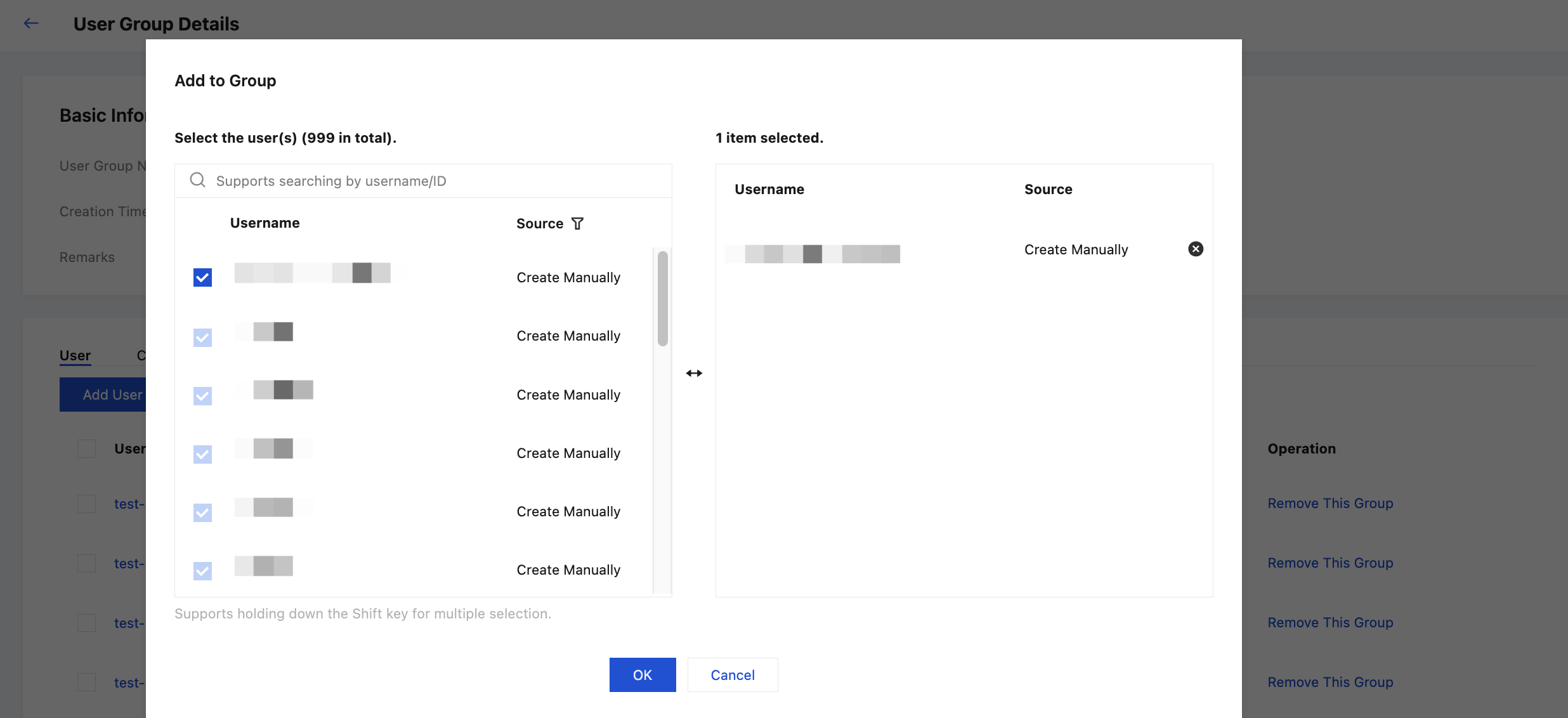
Click OK.
Removing a User from a User Group
- On the User Group page, click the target user group name.
- Click the User tab.
- Click Remove This Group in the Operation column of the target user.
- In the Remove User dialog box, click Confirm.