

Scenarios
When you need to attach an elastic cloud disk with a disk attribute of Data Disk to another CVM for use, you can actively detach the elastic cloud disk from the CVM and attach it to another CVM. Detaching the elastic cloud disk will not clear the data on the disk.
Currently, detaching an elastic cloud disk with a disk attribute of Data Disk is allowed. System disks and non-elastic cloud disks cannot be detached. Before detaching a cloud disk, you need to perform the umount (Linux) or offline (Windows) operation. Otherwise, the elastic cloud disk may not be identifiable when it is attached to the CVM again.
Prerequisites
Before detaching a data disk, make sure that you have understood the following precautions and prerequisites:
In Windows operating system
- To ensure data integrity, it is advised that reading and writing operations on all file systems in the disk be paused. Otherwise, the data not read or written will be lost.
- When detaching an elastic cloud disk, you need to set the disk to offline first. Otherwise, without restarting the CVM, you may be unable to attach the elastic cloud disk again.
In Linux operating system
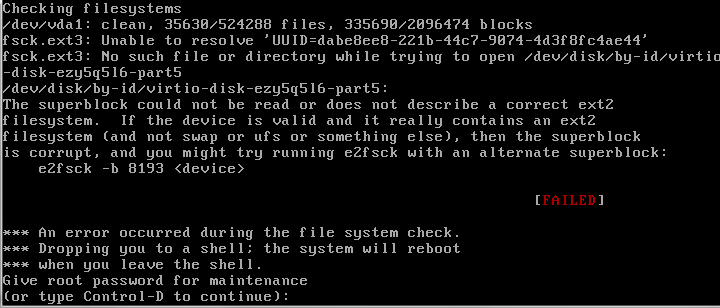
- You need to log in to the instance first and perform the
unmountoperation on the elastic cloud disk that needs to be detached. If the unmount operation is not performed and the disk is forcibly detached directly, the following issue may occur during shutdown and startup:
- If you have created a Logical Volume Manager (LVM) in CVM, detaching the cloud disk directly from the console will result in some device data remaining in instance memory. When an application in the instance tries to traverse or access the device, a system error will occur. Therefore, the following operations must be executed in advance (this example assumes that logical volume /dev/test/lv1 has been created based on/dev/vdb1 and mounted under /data directory):
- Execute
umount /datacommand at the corresponding umount point in the instance. - Execute
lvremove /dev/test/lv1command to remove Logical Volume (LV). If there is more than one LV, remove all LVs one by one. - Execute
vgremove testcommand to remove Volume Group. - Execute
pvremove /dev/vdb1command to remove physical volume. - Change
/etc/fstabfile to avoid mounting the corresponding LV at the next startup.
- Execute
- You need to log in to the instance first and perform the
Operation Steps
Detaching a cloud disk using the console
- Log in to the CBS console.
- You can detach a cloud disk using the following methods:
- Single detachment: Click More > Unmount in the row of the target cloud disk in the state of In use.
- Batch detachment: Select multiple target cloud disks in the state of In use and click Unmount above the list.
- In the Unmount Cloud Disk pop-up prompt box, confirm warning items, and click OK to complete unmount.
Detaching a cloud disk using the API
You can use the DetachDisks API to detach a cloud disk.