

Scenarios
Tag is a key-value pair to identify cloud resources. Tags can help you conveniently classify and manage Cloud Block Storage (CBS) resources from various dimensionalities (such as business, purpose, owner.). It should be noted that Converge Cloud does not use the tags you set. The tags are only used for your management of server resources.
Use Limits
You need to pay attention to the following use limits of tags:
- Quantity Limit: Each cloud resource can have up to 50 tags.
- Tag Key Limit: It can only be
digits,letters, or+=.@-, and the maximum length of the tag key is 255 characters. - Tag Value Limit: It can only be
null character strings or digits,letters, and+=.@-, and the maximum length of the tag value is 127 characters.
Directions and Cases
Case Description
Case: A company purchased 6 cloud disks. The information regarding the usage departments, business scopes, and responsible persons for these 6 cloud disks is as follows.
| Cloud Disk instance-id | Department | Business Scope | Owner |
|---|---|---|---|
| ins-abcdef1 | E-commerce | Marketing Campaigns | Tom |
| ins-abcdef2 | E-commerce | Marketing Campaigns | Harry |
| ins-abcdef3 | Game | Game A | Jane |
| ins-abcdef4 | Game | Game B | Harry |
| ins-abcdef5 | Entertainment | Post-production | Harry |
| ins-abcdef6 | Entertainment | Post-production | Tom |
Taking ins-abcdef1 as an example, we can add the following three sets of tags to this cloud disk:
| Tag Key | Tag Value |
|---|---|
| dept | ecommerce |
| business | mkt |
| owner | zhangsan |
Similarly, we can set tags according to usage department, business scope, and the responsible person for other cloud disks.
Setting Tags in the CBS Console
After the tag keys and values are designed as detailed above, you can log in to the CBS console to set tags.
Log in to the CBS console.
On the cloud disk management page, select the cloud disk whose tag you want to edit and click More > Modify Tag.
Set the tag in the pop-up You have selected 1 resource window.
For example, add three sets of tags to the cloud disk ins-abcdef1.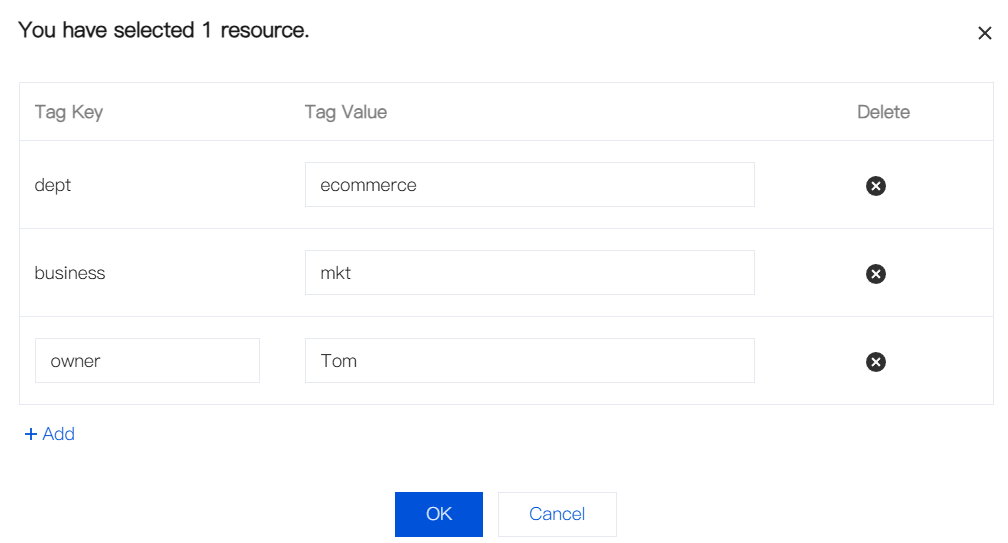
Click OK. Then, a prompt pops up indicating that the modification is successful.
Filtering Cloud Disks by Tag
You can filter cloud disks with a certain type of tag through the following operations.
- Select Tag in the search box.
- Enter the tag key and tag value after Tag: and click
 to search.
For example, if you want to filter out cloud disk resources with the responsible person as Tom, you can input Tom to filter.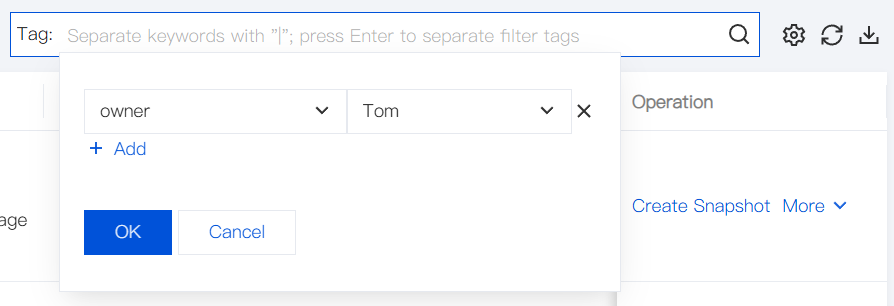
 to search.