

The network bandwidth of private and public network CLB instances can be adjusted as needed.
Usage Notes
Private and public network IPv4 instances: Network bandwidth can be adjusted.
Bandwidth Limit
| Instance Billing Mode | Network Billing Mode | Bandwidth Limit Configurable Range (Mbps) |
|---|---|---|
| Pay-as-you-go | Billing by traffic usage | 0–2,048 (inclusive) |
Note:
To enhance the bandwidth limit, contact the cloud platform's technical support personnel for assistance.
Adjusting Bandwidth
- Log in to the cloud platform console and choose Cloud Products > Cloud Load Balancer to go to the CLB console.
- On the LB Instance List page, select the region, locate the target CLB instance, and choose More > Adjust Bandwidth in the operation column.

- In the pop-up dialog box, set the target bandwidth limit, and click OK.
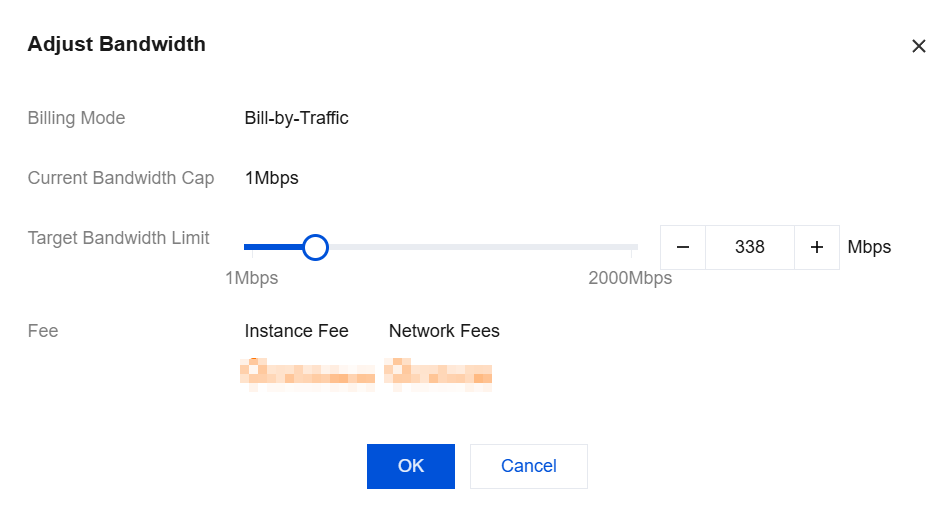
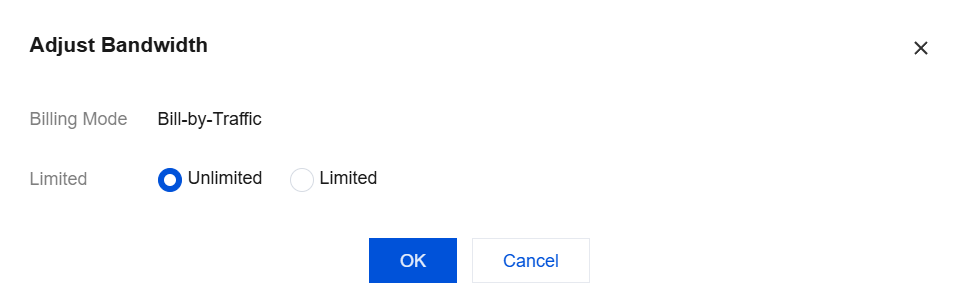
- Private network CLB instances support two options: unlimited bandwidth and limited bandwidth. Set it based on the actual situation.
- After the setup is complete, the bandwidth value of the instance can be viewed on the list page.
