

Scenarios
Expanding a data disk in the console only increases its storage capacity. You need to expand the partition or file system of the cloud disk. This document describes how to expand partitions and file systems online.
Prerequisites
- Before following the steps in this document, create a snapshot of the system disk for the corresponding instance to back up data. For details, see Creating a Snapshot.
In case of data loss due to misoperation, you can roll back the snapshot to recover the data. - You have expanded the cloud disk in the console. For detailed directions, see Expanding Cloud Disks.
- The kernel version of Linux CVM should be later than 3.6.0. You can use the
uname -acommand to check the kernel version.
Operating Environment
Linux instance
| Resources | Description |
|---|---|
| Operating System | CentOS 8.0 64-bit |
| Cloud disk (system disk) | /dev/vda: uses MBR partition and ext4 file system, and has been expanded online from 50 GB to 60 GB via the console. |
Windows instance
| Resources | Description |
|---|---|
| Operating System | Windows Server 2012 R2 IDC 64-bit |
| Cloud disk (system disk) | C drive: uses MBR partition and NTFS file system, and has been expanded online from 50 GB to 100 GB via the console. |
Operation Steps
Linux Operating System
Perform the following steps based on your operating system:
Log in to the CVM instance as instructed in Logging In to Linux Instances.
Execute the following command to query the partition information of the cloud disk.
fdisk -lThe returned result is as shown in the figure below. It can be seen that the
dev/vdadata disk has a capacity of 60 GB, containing an MBR partition/dev/vda1with a capacity of 50 GB.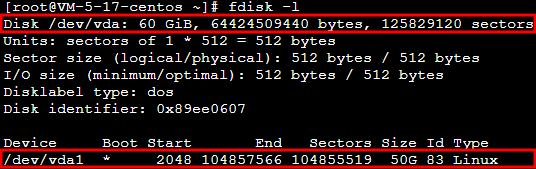
Execute the following command to determine the file system of existing partitions.
df -THThe returned result is as shown in the figure below, indicating that
/dev/vda1has a file system type of ext4.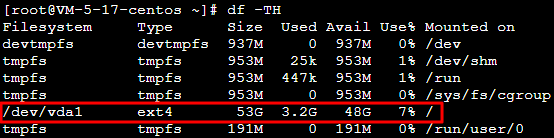
Based on the CVM operating system type, execute the following command to install the growpart tool.
CentOS
yum install -y cloud-utils-growpartUbuntu or Debian
apt-get install -y cloud-guest-utils
Execute the following command to use the growpart tool to expand the partition
/dev/vda1. In the command,/dev/vdaand1need to be separated by a space.growpart /dev/vda 1The returned result is as shown in the following figure:

Execute the following command to expand the ext4 file system.
resize2fs /dev/vda1The returned result is as shown in the following figure:

Run the following command to view the scaling-out result.
df -THThe returned result is shown in the following figure, indicating that the expansion succeeds.
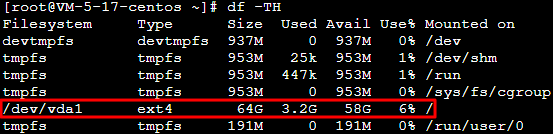
After the expansion succeeds, check data integrity and observe whether the business in the CVM is running normally.
Windows Operating System
Perform the following steps based on your operating system:
- Log in to the CVM instance as instructed in Logging In to Windows Instances.
- On the desktop, right-click
 in the lower-left corner and click Disk Management in the pop-up menu.
 - In the Disk Management pop-up window, select Operation > Rescan the disk the disk at the top of the page.
After the scan is completed, you can view the new space. - Right-click the area of the C drive and select Expand Volume in the pop-up menu.
- Follow the Expand Volume Wizard to expand the volume. After the operation, the newly added space will be merged into the original volume.
After the expansion succeeds, check data integrity and observe whether the business in the CVM is running normally.
 in the lower-left corner and click Disk Management in the pop-up menu.