

Creating a Project
- Choose Resource Management Project Management.
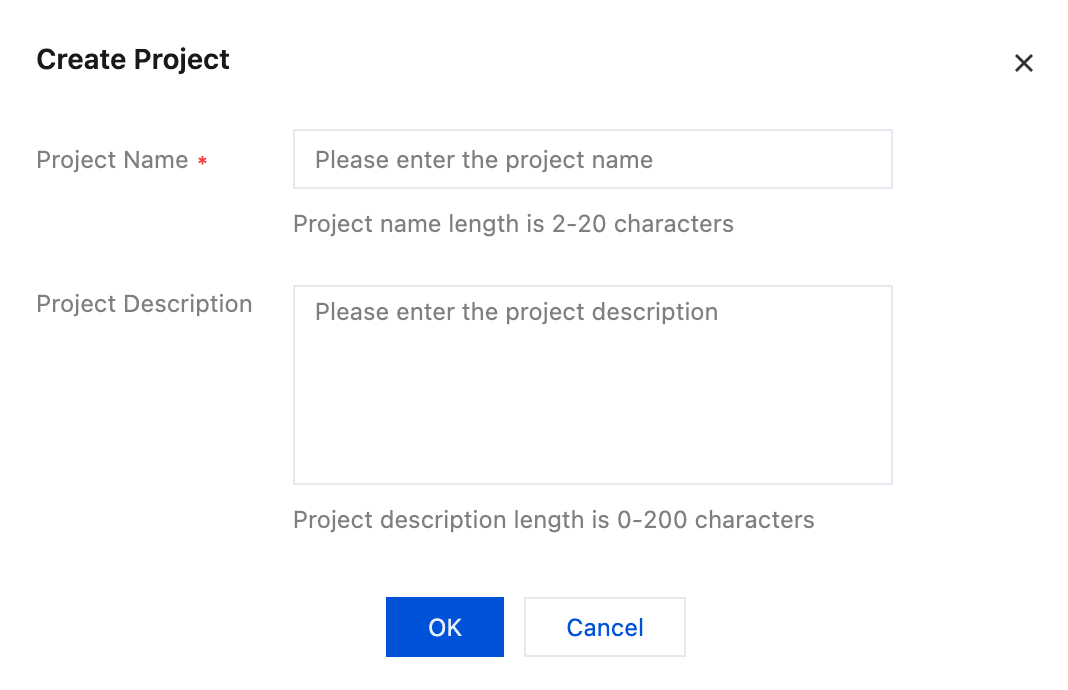
- Click New, and enter the project name and project description.
- Click OK.
Modifying a Project
- Choose Resource Management > Project Management.
- On the Project List page, click Edit in the Operation column, and enter the project name and project description.
- Click OK.
Deleting a Project
- Choose Resource Management > Project Management.
- On the Project List page, click Delete in the Operation column of the target project to delete it.
Note:
Before deleting a project, you should migrate all resources out of it. Otherwise, it cannot be deleted.
Migrating Resources into a Project
- On the Project List page, select the project to be operated, and click its name to go to the Project Details page.
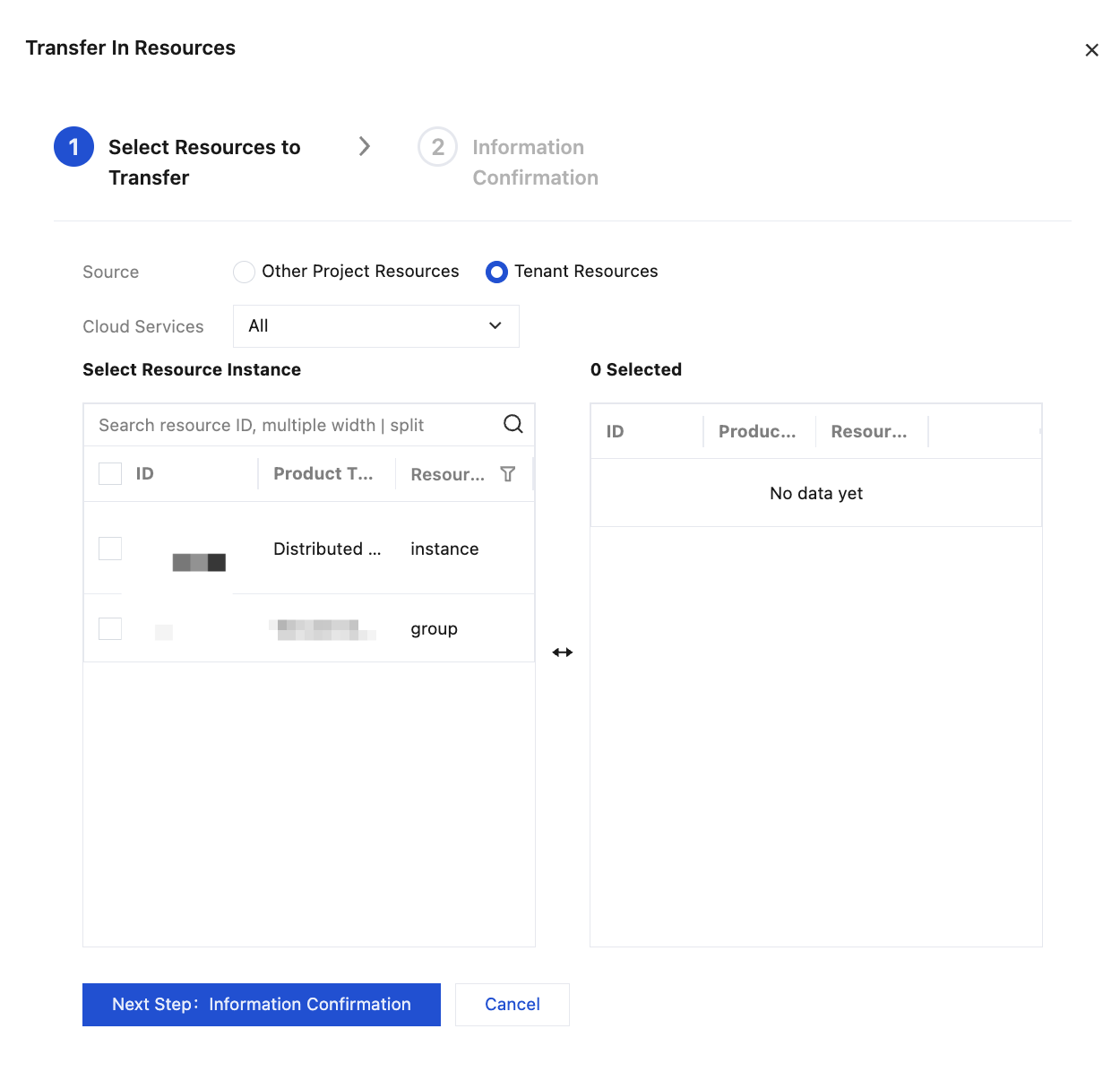
- Click Transfer Resources and select the resource instances to be migrated into this project.
- Click Next to confirm the resources to be migrated in.
Migrating Resources Out of a Project
- On the Project List page, select the project to be operated, and click its name to go to the Project Details page.
- Select the resources to be migrated out.
- Click Transfer Out Resources.
- In the pop-up box, you can choose to migrate resources out to a tenant or to a specified project.
Adding a User to a Project
- On the Project List page, select the project to be operated, and click its name to go to the Project Details page.
- Select the Member Management tab, and click Add Member and Grant Permissions.
- In the pop-up box, select one or more users to be added to the project.
- Click Next to select permission policies in the project for the user.
- Click Next to confirm the information.
Removing a User from a Project
- On the Project List page, select the project to be operated, and click its name to go to the Project Details page.
- Select the Member Management tab, and check the members to be removed from the project.
- Click Remove.
Editing Permissions for Users in a Project
- On the Project List page, select the project to be operated, and click its name to go to the Project Details page.
- Select the Member Management tab, and in the member list, click Edit in the Operation column.
- In the pop-up box, select permission policies for users, and click OK.
Viewing Project Quotas
- On the Project List page, select the project to be operated, and click its name to go to the Project Details page.
- Select the Quota Management tab to view the quota details of the products in the project.