

Restrictions on the Use of Large IP Ranges
To improve the fine-grained scheduling capabilities of your network, avoid publishing the following routes: 10.0.0.0/8, 172.16.0.0/12, 192.168.0.0/16, 100.64.0.0/10.
You can split the above large routes into the following sections:
- 10.0.0.0/8 is split into: 10.0.0.0/9 + 10.128.0.0/9.
- 172.16.0.0/12
is split into: 172.16.0.0/13 + 172.24.0.0/13. - 192.168.0.0/16
is split into: 192.168.0.0/17 + 192.168.128.0/17. - 100.64.0.0/10
is split into: 100.64.0.0/11 + 100.96.0.0/11.
Applying Steps
- Log in to the Direct Connect console.
- In the left navigation bar, click Dedicated Tunnel to enter the Dedicated Channel interface.
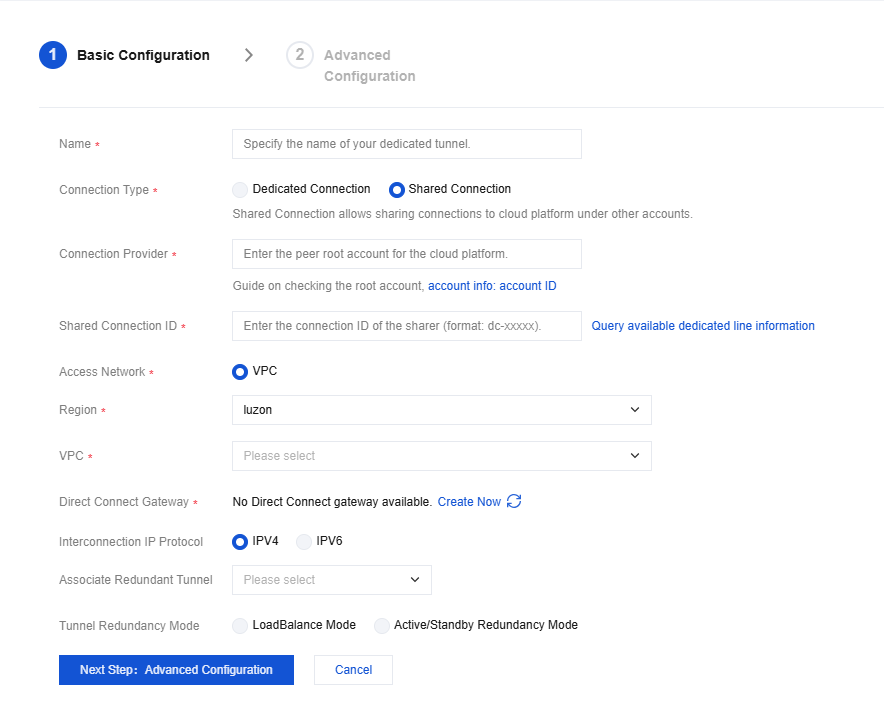
- Click Create, refer to the table below to configure the name, dedicated line type, access network, region, associated dedicated line gateway, and other basic configurations. After completion, click Next.
- Assuming your account has a suitable Connection, select Dedicated Connection and enter the relevant information. The application page is as follows:
- Assuming your account does not have a suitable Connection, you can select Shared Connection. The application page is as follows:
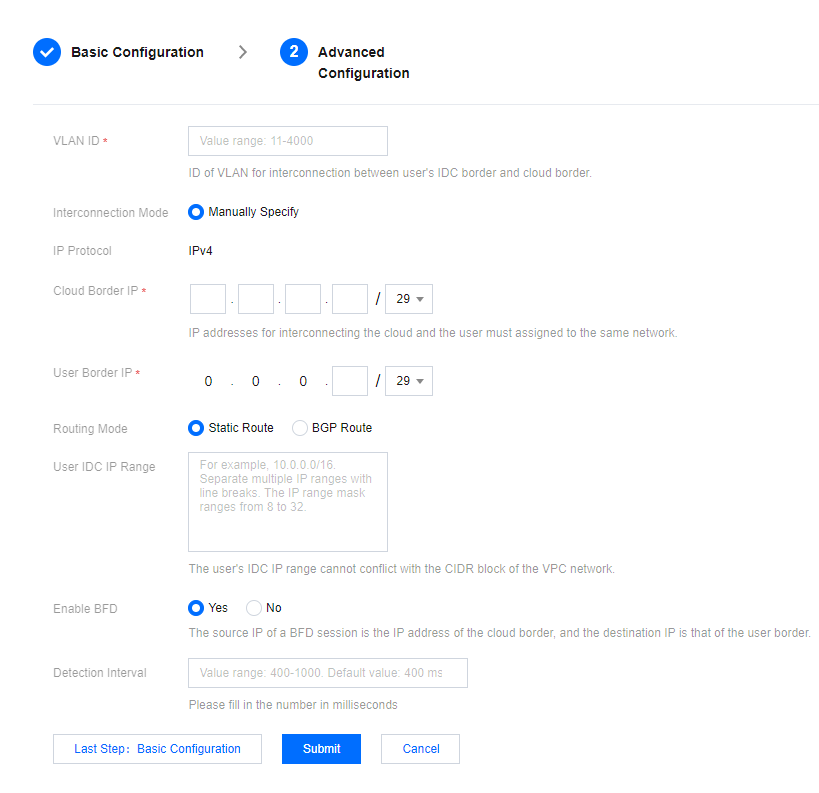
- Advanced Configuration:
| Parameter | Description | Remark |
|---|---|---|
| Dedicated tunnel name | Create your own DC tunnel name. | - |
| Connection Type | - Dedicated Connection: Use the Connection of this account. - Shared connection: Use the Connection of another account. Shared connection does not mean sharing the Connection bandwidth, but sharing the Connection port of the cloud platform. In this mode, different tenants are isolated through 802.1q VLANs technology. |
To apply for a shared connection, you only need the acceptance by the Connection owner. The intervention of the cloud platform is not needed. |
| Connection | Dedicated Connection: Select the Connection ID for which you need to establish a DC tunnel. | - |
| Connection provider | Shared Connection: Enter the account that owns the connection you want to share. | - |
| Shared connection ID | Shared Connection: Enter the Shared Connection ID for which you want to establish a DC tunnel. | - |
| Access network | Supports Virtual Private Cloud. | - |
| VPC | VPC: Select the network instance ID to which the DC tunnel needs to connect. | - |
| Region | Indicates the region of the DC gateway. | In the Shared Connection mode, you need to obtain the regional information of DCion points from the owner of the Connection. |
| Direct Connect Gateway | The VPC DC gateway is in the same region as the VPC. | - |
| VLAN ID | VLAN ID = 0: Indicates that the Connection does not enable a sub-API and can only create one tunnel. | MSTP DC transparent transmission of multiple VLANs requires the operator line to enable the Trunk mode. |
| Interconnect IP | Supports user customization and random allocation by the cloud platform (you can obtain the randomly allocated address by going to the tunnel details after submitting the application to obtain the interconnected IP address). - Cloud Edge IP: Indicates the edge interconnection IP on the cloud platform side of the Connection. - User Boundary IP: Indicates the interconnection IP on the Connection's user side (or carrier network side), which needs to be configured by the user. |
If you choose to publish an Internet IP to a DC gateway, please plan the IP in advance to avoid IP conflicts. |
| Routing mode | Supports BGP routing and static routing. | Cloud Platform ASN: 45090 |
| BGP ASN | BGP Route: Optional. Please enter the BGP neighbor AS number on the CPE side. If you do not enter this number, the system will randomly assign one. | - |
| BGP keys | BGP Route: Optional. Enter the MD5 value of the BGP neighbor. Leaving it blank means no BGP key is required. | - |
| User IDC IP range | Static Route: Enter the IP range of the user-side CPE. In non-NAT mode, make sure it does not conflict with the VPC IP range. | Support Changes: The IP range can be updated later through the Tunnel Change console. |
| Bandwidth limiting | Set the bandwidth upper limit, which cannot exceed the single line threshold. | - |
| Health examination | - Yes: Enable BFD health check. - No: No health check is performed. |
Currently, only BFD health check is supported. |
| Detection interval | Enter the BFD health check detection interval. | Unit: milliseconds. Default value: 400 milliseconds. Falls in the range of [400, 1,000]. |
Connection Status Description
The possible status of a DC tunnel can be one of the following:
- Applying
The system has received the user's applicatiion for a new tunnel and is ready to initiate a task creation. - Pending acceptance
The Connection owner is in the process of approval. Once the Connection owner accepts the tunnel application, the tunnel can be created without approval. - Configuring
The system is applying parameter configurations. If the "Configuring" status takes too long, it indicates there's an issue with the system application. Please consult your architect or submit a support ticket. - Configuration completed
The system has completed the configuration according to the parameters you entered but has not yet pinged your IDC interconnection address. This status allows deletion. - Connected
The system has pinged your IDC device interconnection address, but it does not mean that the service has been successfully connected. Please go to VPC to complete the relevant configuration to achieve connection. - Deleting
The system is processing your deletion request. If the "Deleting" status takes too long, it indicates there's an issue with the system deletion. Please consult your architect or submit a support ticket.