

This section will introduce use cases for automatic vulnerability repair.
Attention:
- Since vulnerability repairs may impact user operations, vulnerabilities are not automatically repaired immediately after detection. You should first review the vulnerability, click Repair, and perform a data backup before automatic repair can proceed.
- The automatic vulnerability repair process may run commands on your host, potentially affecting running applications or core system components and compromising your business continuity. For hosts running core business applications, it is recommended that you carefully evaluate before you decide which vulnerabilities to repair and their repair priority.
Restrictions
- Hosts that support automatic repair: Only CVM instances (with the CWP agent online and bound to a CWP Ultimate Edition license) are supported.
- Vulnerabilities that support automatic repair: Linux software vulnerabilities (partial) and Web-CMS vulnerabilities (partial).
Operation Guide
- Log in to the CWP tenant console and click Vulnerability Management in the left sidebar. You can view the list of detected vulnerabilities at the bottom.
- The vulnerability list is categorized into emergency vulnerabilities and all vulnerabilities. Since both categories display vulnerabilities from a detection perspective, they are essentially the same. The following sections use the All Vulnerabilities category as an example to introduce the steps for automatic vulnerability repair.

- Vulnerabilities that support automatic repair have an Auto repair option in the Operation column. You can manually trigger the automatic repair.
- For vulnerabilities that cannot be automatically repaired at the moment or for affected hosts that do not meet the aforementioned restrictions, a Repair plan option is available in the Operation column. You can refer to the repair plans to perform manual repair.
Step 1: Viewing Vulnerability Details
Click the vulnerability name in blue to open the vulnerability details pop-up window, where you can view information such as the vulnerability description, repair plan, and impact scope.
Step 2: Selecting Hosts That Require Repair
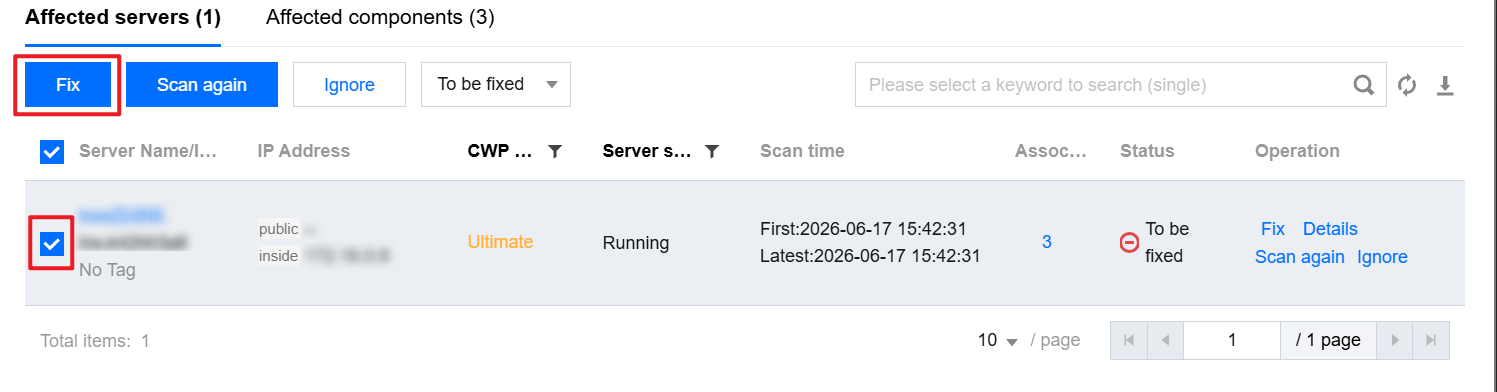
- Select the host you want to repair from the affected server list and click Repair to open the vulnerability repair pop-up window.
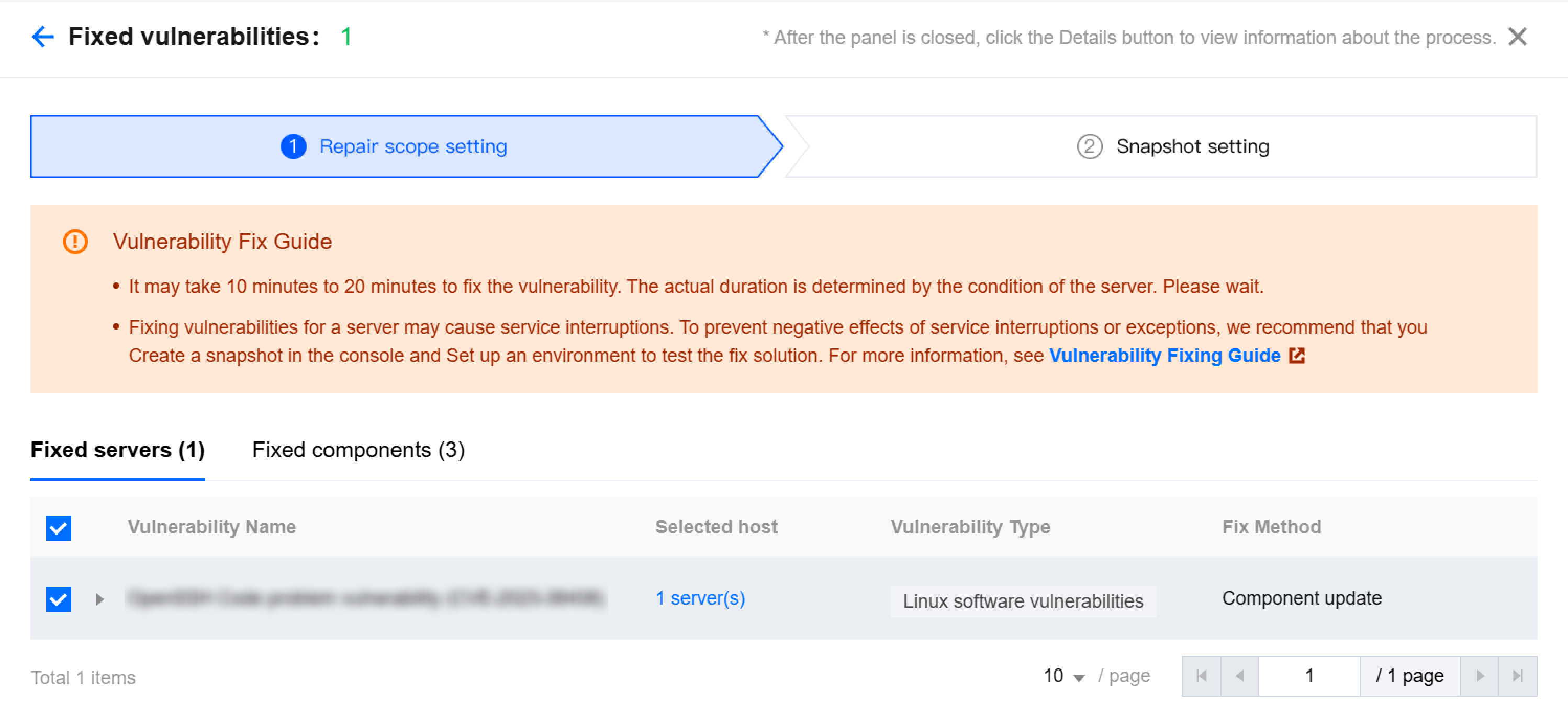
- In the vulnerability repair pop-up window, after confirming the host scope and component scope for repair, click Next to create snapshots.
Step 3: Selecting Whether to Create a Snapshot
- Create snapshots based on your actual needs:
- Automatically create snapshots and repair: You can configure the snapshot name and snapshot retention period (3 days, 7 days, or 15 days; it is recommended to keep them for 7 days for timely rollback when needed).
- Repair directly without creating snapshots: If all selected hosts for repair have already created snapshots today, this option becomes selectable.
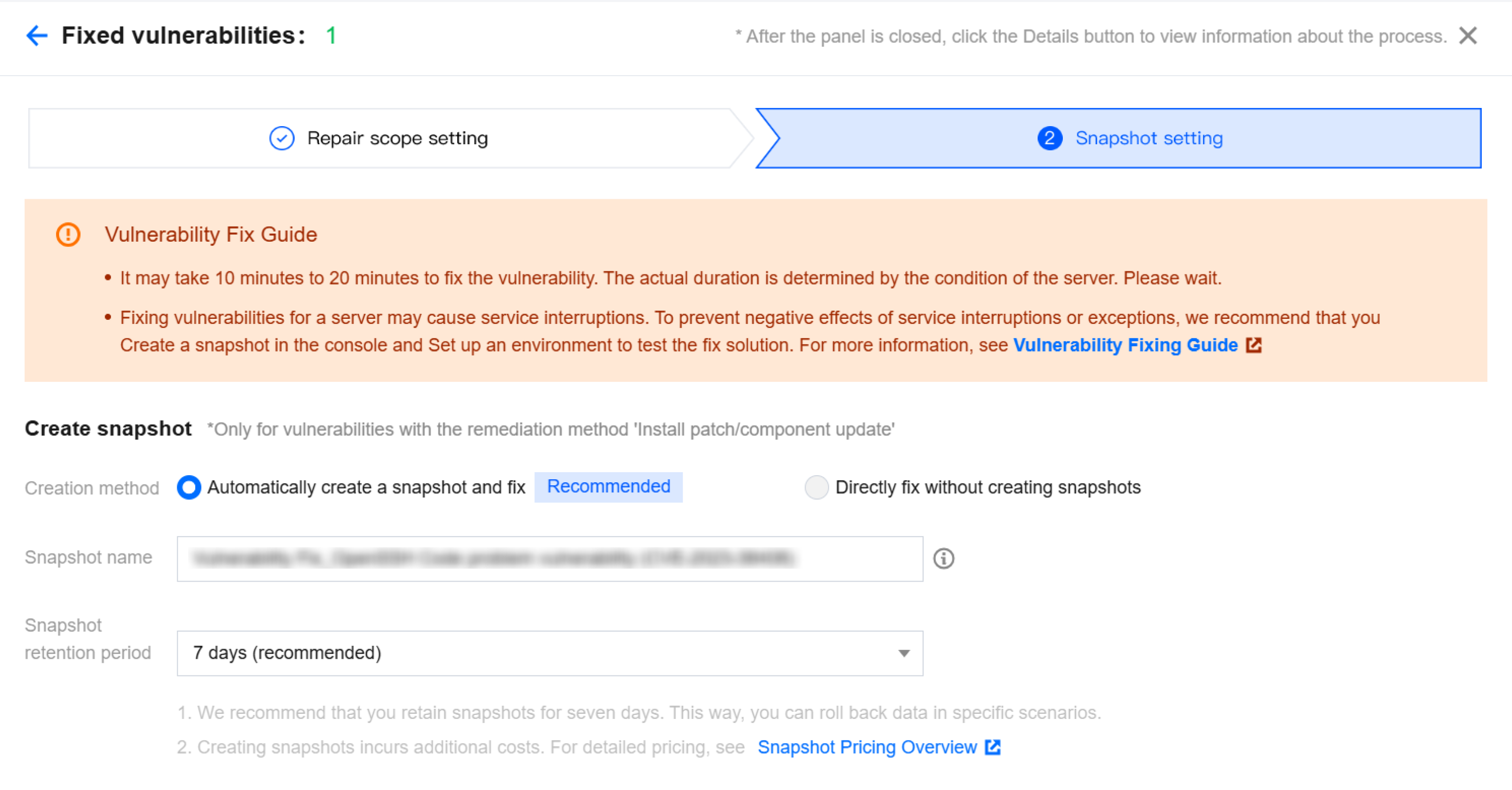
- Click Start Repair to enter the automatic repair process.
Step 4: Automatic Repair
You can view the latest repair progress in the current pop-up drawer.
Step 5: Checking Host Status Changes
Return to the Vulnerability Details section and check host status changes. If vulnerability repair fails, the status is displayed as Repair failed. If vulnerability repair succeeds, the status is updated to Repaired.
- If the vulnerability repair significantly impacts your business, you can click Rollback. This will navigate you to CVM > Snapshot List, where you can select the snapshot created before the repair to perform a rollback. After the rollback succeeds, restart the server and rescan for vulnerabilities.
- After the vulnerability is repaired, you can perform a rescan to verify again whether the vulnerability has been repaired.
- After the vulnerability is repaired, you can also click Repair details to view the specific repair process.