This section will introduce the features and operation steps of each module of Security Overview.
Overview
The Security Overview in CWP displays real-time information about your CWP score, pending risks, protection status, risk trends, and live security updates. It also provides helpful documentation and upgrade suggestions to enhance your protection against hacker intrusions and attacks, thereby safeguarding your enterprise hosts.
Operation Guide
1.Log in to the CWP tenant console.
2.In the left sidebar, choose Security Overview to view the overall security information and perform related actions. The following section describes the modules.
Security Status
- In the Security Status module, you can view the CWP score, three types of security risks, and quick links to address them.
- Intrusion prevention: Includes seven detection features, namely malicious file scan, abnormal logins, password cracking, malicious requests, reverse shells, local privilege escalation, and high-risk commands. It displays the total number of pending risks and affected hosts.
- Vulnerability risks: Includes Linux software vulnerabilities, Windows system vulnerabilities, Web-CMS vulnerabilities, and application vulnerabilities. It displays the number of pending risks and affected hosts.
- Baseline risks: Displays the number of pending security baseline risks and affected hosts only.
- You can click
 to open a detailed pop-up for risk handling, where you can view the detailed information on intrusion prevention, vulnerability management, and baseline management. You can also click a risk card to go to the relevant risk handling page.
The CWP status is divided into 3 levels:
 to open a detailed pop-up for risk handling, where you can view the detailed information on intrusion prevention, vulnerability management, and baseline management. You can also click a risk card to go to the relevant risk handling page.
| Level | Score Range | Color | Status Description |
|---|---|---|---|
| Excellent | 90-100 points | Green | The asset safety status is good and needs to be maintained and inspected regularly. |
| Medium-risk | 60-89 points | Orange | There are relatively many security risks in assets. It is recommended that you handle security incidents in a timely manner. |
| High-risk | 20-59 points | Red | Serious security risks exist in the assets. Handle the security incident as soon as possible. |
Note:
The minimum security score for the CWP health check is 20.
Deduction items are calculated based on security alarm categories. The alarm severity levels and deduction rules are as follows:
| Security Alarms (Calculated by Number of Alarms) | Points Deducted per Event | Maximum Deduction |
|---|---|---|
| Severe | Malicious files, successful brute force cracking, and malicious requests. | 50 points |
| High-risk | Critical vulnerabilities, critical baselines, high-risk vulnerabilities, high-risk baselines, abnormal logins, and reverse shell. | 20 points |
| Medium-risk | Medium-risk vulnerabilities, medium-risk baselines. | 10 points |
| Low-risk | Low-risk vulnerabilities and low-risk baselines. | 5 points |
| Others | Basic editions (non-protected state). | 5 points |
Security Switch
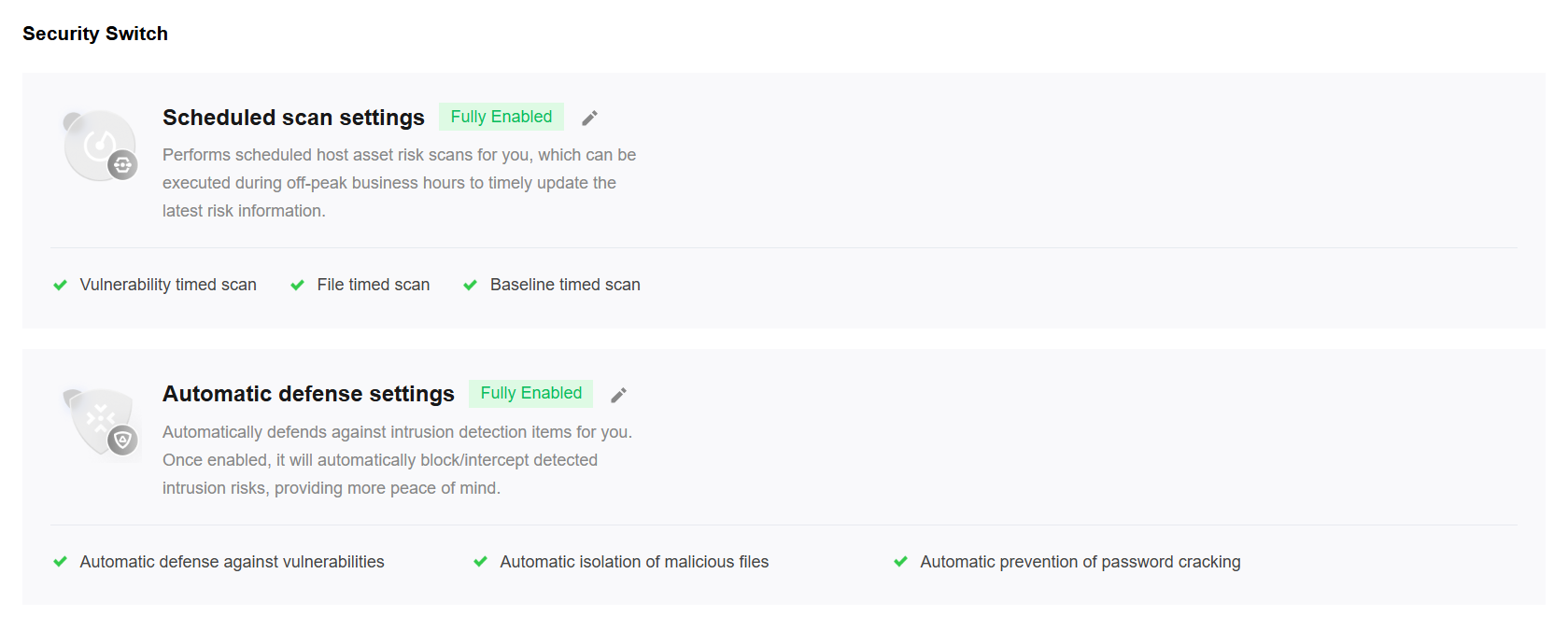
- The Security Switch module provides centralized management and quick configuration for core CWP features. Through the Security Switch module, you can centrally view and manage the enabling status of core CWP features, including scheduled scan settings and automatic defense settings.
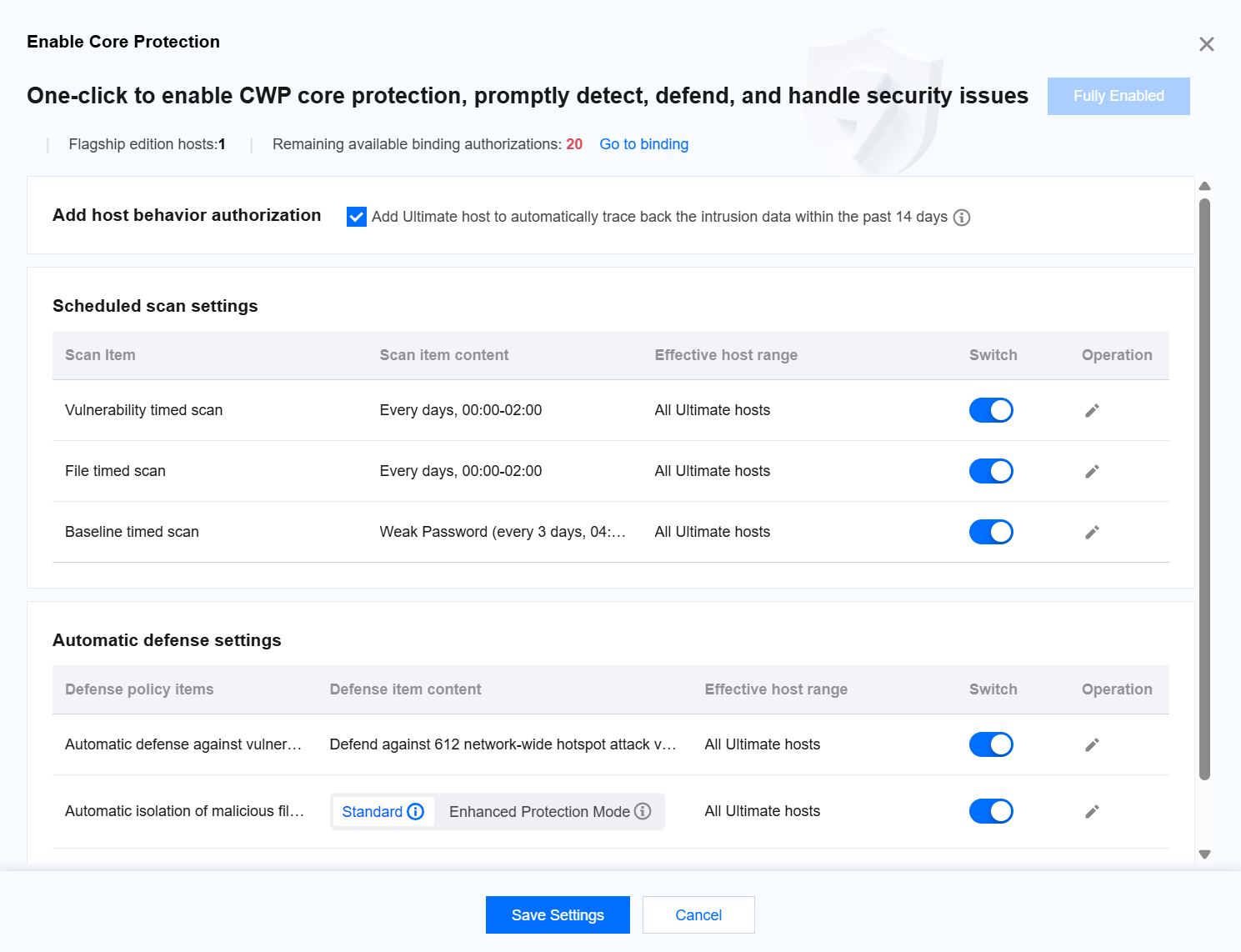
- Click Edit to open the Enable Core Protection Settings pop-up window. In this window, you can view the host protection license usage, the content of each setting, and the scope of hosts where the settings take effect, and enable, disable, or edit core protection features as needed.
Protection Details
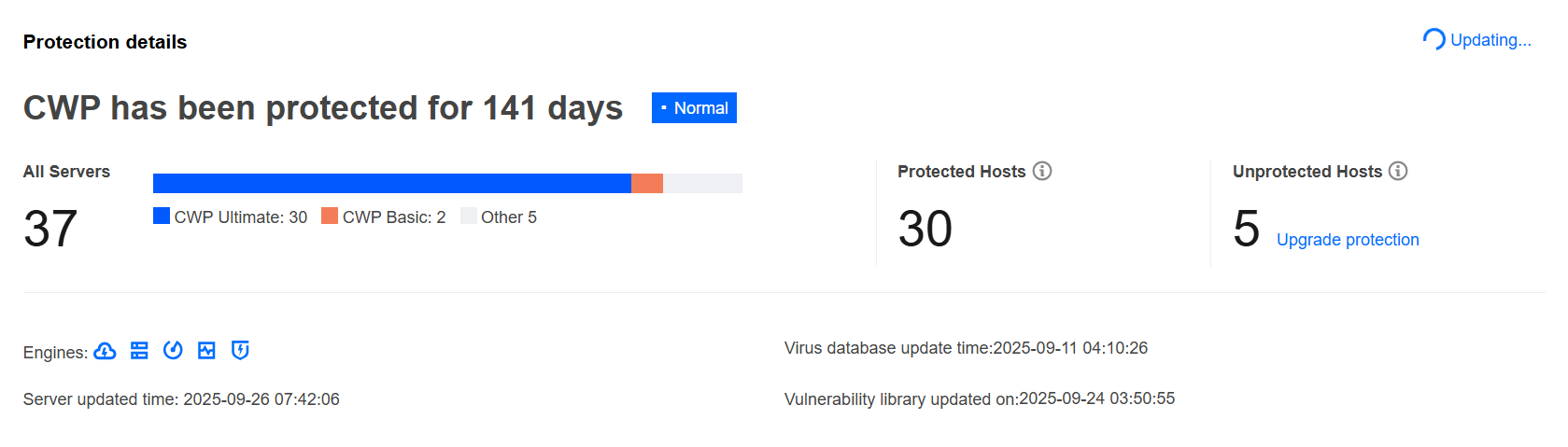
The Protection Details module provides an overview of the following metrics: the total number of hosts, the number of online hosts, the number of unprotected hosts, the number of protected hosts, the number of hosts on Pro or Ultimate Edition, the number of hosts on the Basic Edition, the asset update time, the antivirus database update time, the vulnerability database update time, and the security engine protection status.
Note:
Only hosts using the Pro or Ultimate Edition are counted as protected, as the Basic Edition provides limited protection.
Risk Trends
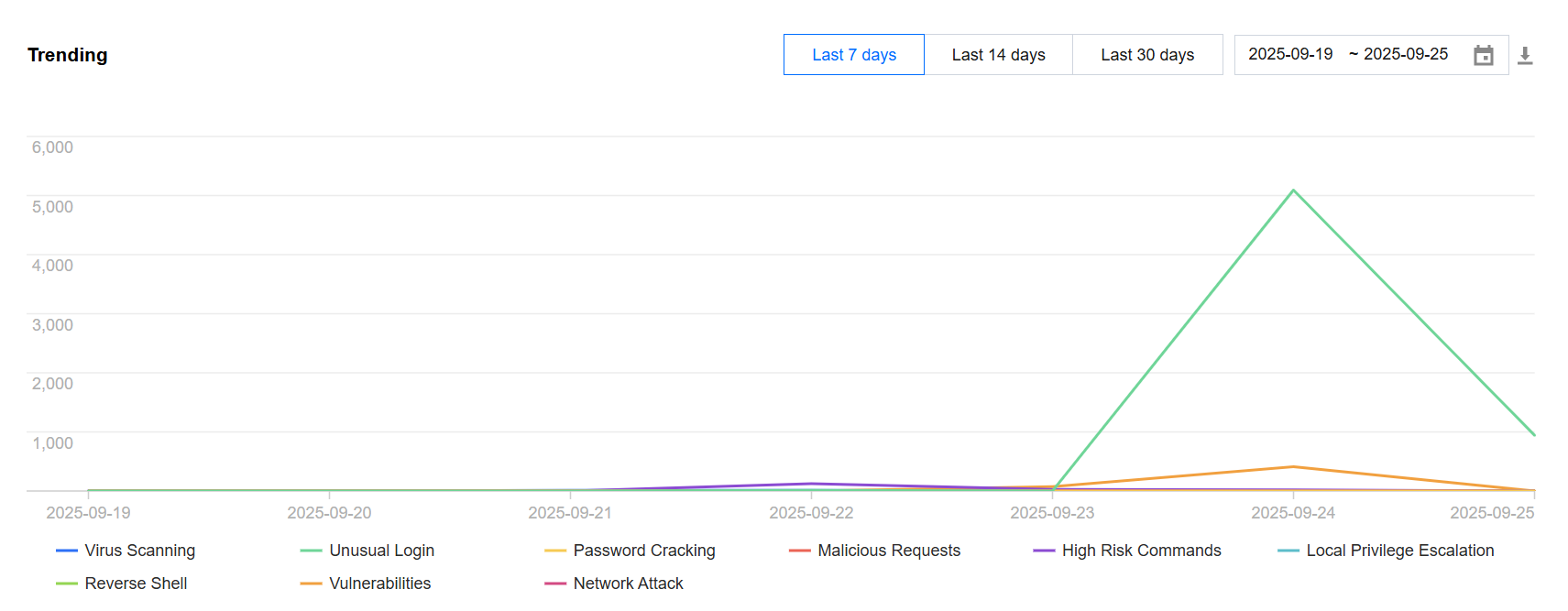
The Risk Trends module displays security risk and threat trends over the last 7, 14, or 30 days using a line chart and supports filtering by time period. Hovering the mouse pointer over the trend chart shows the number of security events, such as file detection, password cracking, suspicious login, vulnerability risk, and network attacks, on each specific date. You can click the download button in the upper-right corner to download the security event statistics on the selected date to your local device.
Note:
The data represents newly detected risks for the day and is updated hourly. Historical events are retained and not changed.
Real-Time Activities
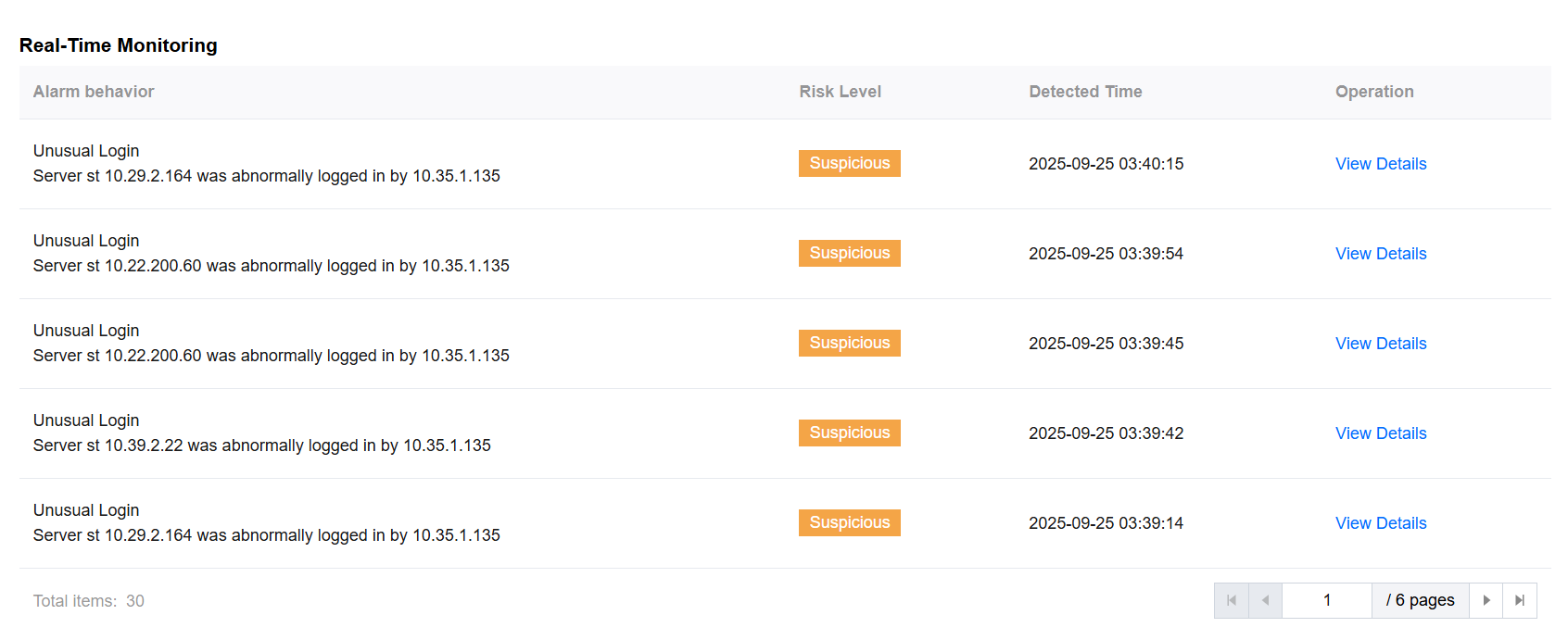
The Real-Time Activities module displays the most recent detected host risks and threats in reverse chronological order. You can click the blue host IP address of a host to go to the Host Details page, where you can view specific security risks for that host. You can also click View Details to go to the corresponding Event Response page.