

Vulnerability management helps customers scan for security vulnerabilities in the system and provides relevant information, including details on the vulnerabilities and recommended solutions. Some vulnerabilities support precise defense and can be automatically repaired. This document describes how to perform vulnerability management.
Restrictions
The scope of vulnerability management is as follows (✓ indicates supported; – indicates not supported).
**Feature** **Type** **Linux System** **Windows System** <strong><Vulnerability scan></strong>
Applicable to hosts of the Pro or Ultimate EditionLinux software vulnerabilities ✓ - Windows system vulnerabilities - ✓ Web-CMS vulnerabilities ✓ ✓ Application vulnerabilities ✓ ✓ <strong>Vulnerability defense</strong>
Applicable to servers of the Ultimate EditionLinux software vulnerabilities - - Windows system vulnerabilities - - Web-CMS vulnerabilities ✓ (Only partial vulnerabilities are supported) - Application vulnerabilities ✓ (Only partial vulnerabilities are supported) - <strong>Automatic vulnerability repair</strong>
Applicable to servers of the Ultimate Edition
(Applicable only to CVM instances)Linux software vulnerabilities ✓ (Only some vulnerabilities are supported) - Windows system vulnerabilities - - Web-CMS vulnerabilities ✓ (Only some vulnerabilities are supported) ✓ (Only some vulnerabilities are supported) Application vulnerabilities - - Note:
Since vulnerability repairs may impact user operations, vulnerabilities are not automatically repaired immediately after detection. You should first review the vulnerability, click Repair, and perform a data backup before automatic repair can proceed.
Supported operating systems for vulnerability scanning are listed below:
<strong>Operating System</strong> <strong>System Version</strong> <strong>System Vulnerability</strong> <strong>Application Vulnerability/Web-CMS Vulnerability</strong> <strong>Centos</strong> Centos 5 ✓ ✓ Centos 6 ✓ ✓ Centos 7 ✓ ✓ Centos 8 ✓ ✓ <strong>Debian</strong> Debian 8 - ✓ Debian 9 - ✓ Debian 10 - ✓ Debian 11 - ✓ Debian 12 - ✓ <strong>Windows</strong> Windows Server 2008 ✓ ✓ Windows Server 2012 ✓ ✓ Windows Server 2016 ✓ ✓ Windows Server 2019 ✓ ✓ Windows Server 2022 ✓ ✓ <strong>Ubuntu</strong> Ubuntu 16.04 ✓ ✓ Ubuntu 18.04 ✓ ✓ Ubuntu 20.04 ✓ ✓ Ubuntu 21.04 ✓ ✓ Ubuntu 22.04 ✓ ✓ Ubuntu 24.04 ✓ ✓ <strong>Tlinux/Tencentos</strong> Tlinux - ✓ <strong>RockyLinux</strong> RockyLinux - ✓ <strong>Opencloudos</strong> Opencloudos - ✓
Vulnerability Scan
- Log in to the CWP tenant console and click Vulnerability Management in the left sidebar.
- In the Vulnerability Scan module, one-click scan and scheduled scan are supported.

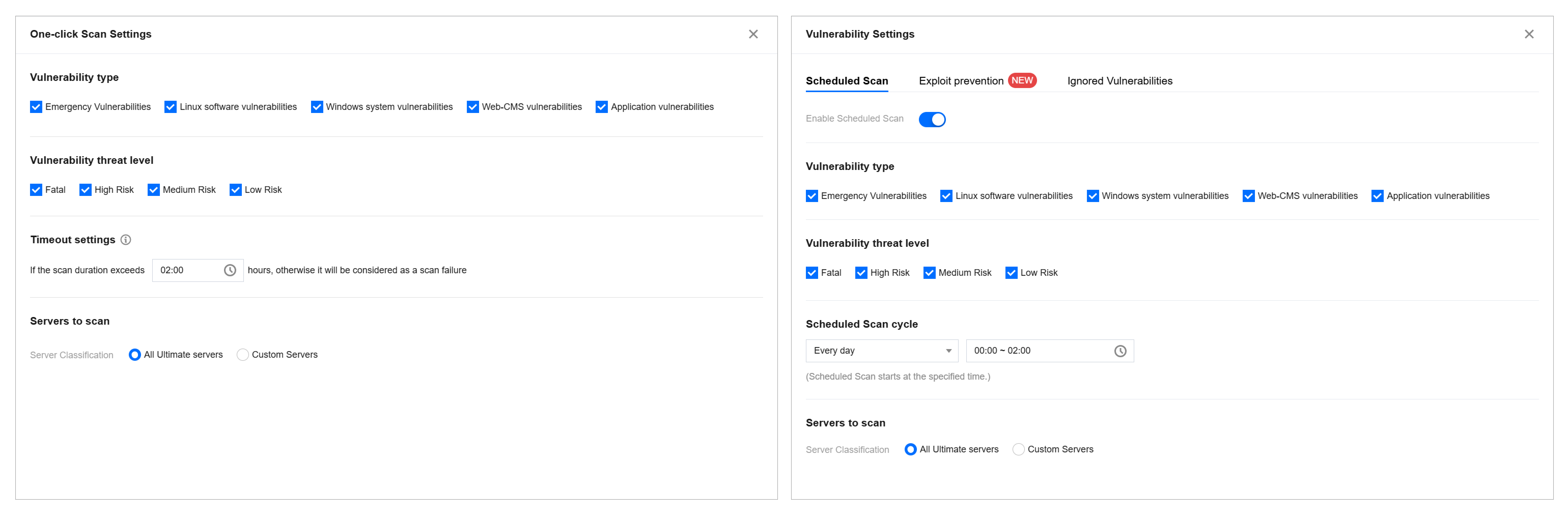
- Click One-Click Scan to open the one-click scan settings pop-up window. Here, you can configure the vulnerability categories, threat levels, scan timeout duration, and server scope for this scan. Click Scan Settings to open the vulnerability settings pop-up window and go to Scheduled Scan, where you can configure the scheduled scan switch, scan frequency, vulnerability type, and threat level.
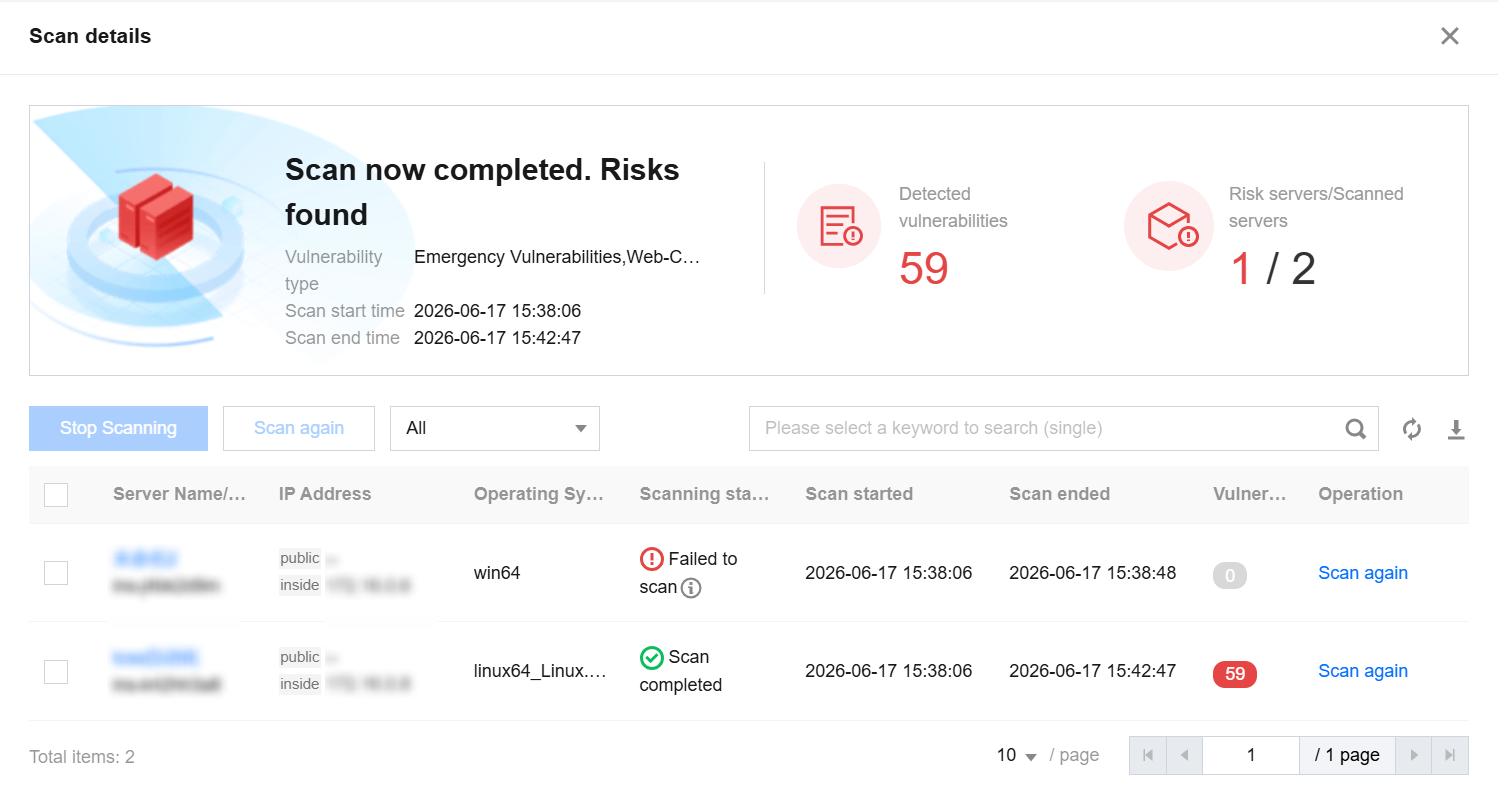
- Click Details to view details of the last vulnerability scan and download the scan results in PDF or Excel format.
Vulnerability Defense
In the Vulnerability Defense module, you can configure the vulnerability defense switch and view the number of defense hosts, number of successful defenses, and defense trends.
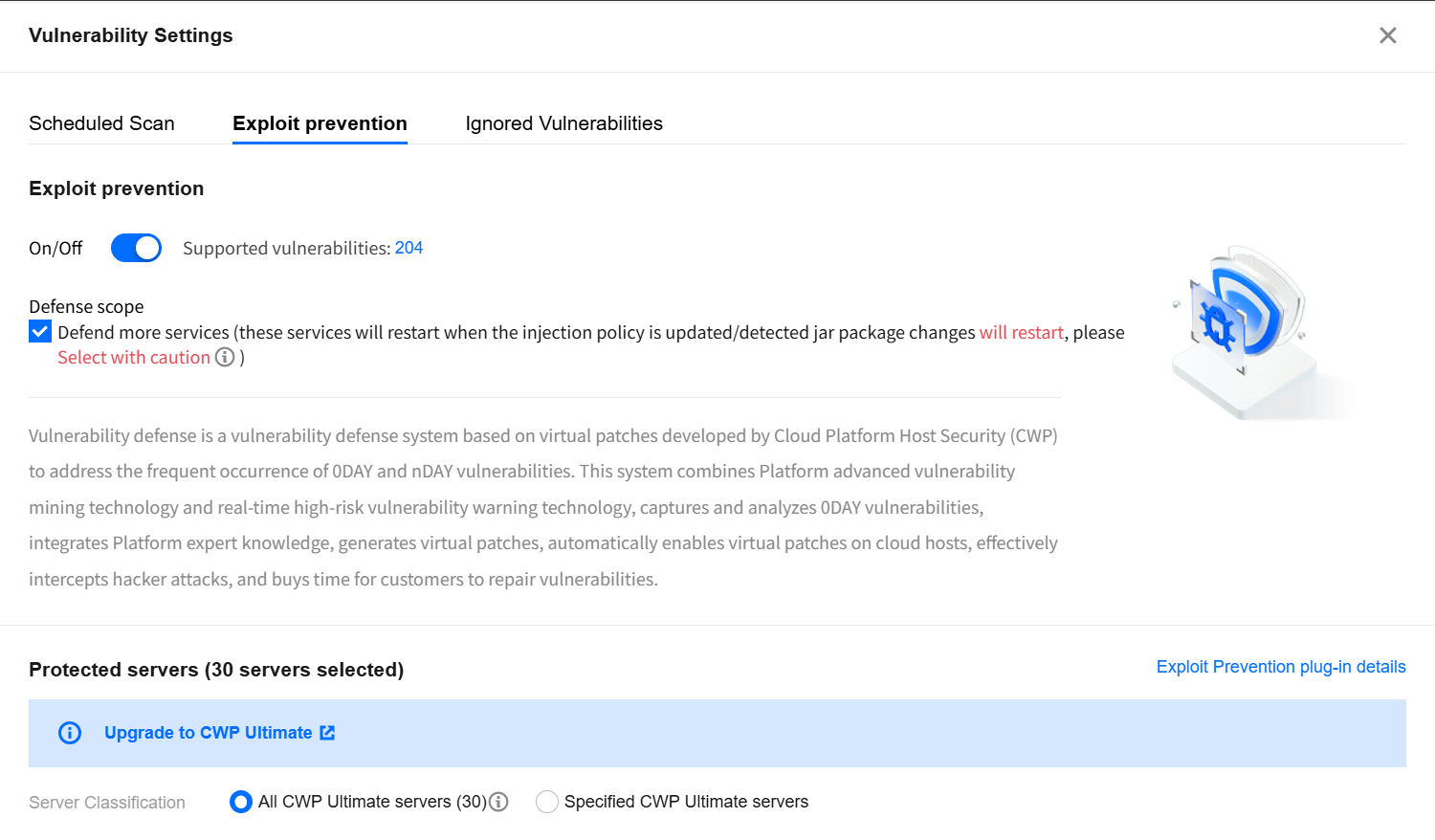
- Click Defense Settings to open the Vulnerability Settings pop-up window and go to Vulnerability Defense, where you can set the defense switch, view the scope of defensible vulnerabilities, select additional services for defense, select the target defense hosts, and view defense plugin details.
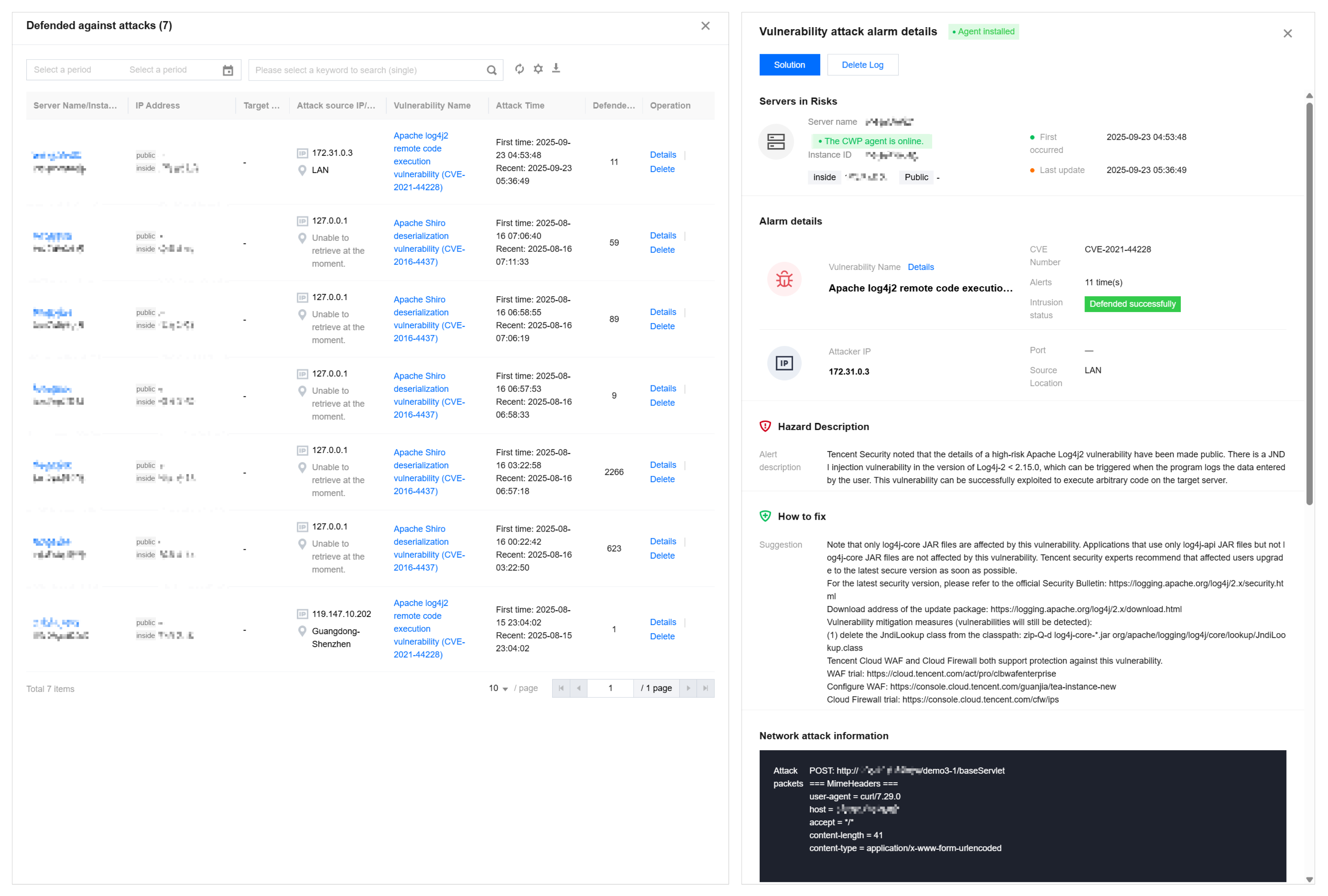
- Click Successful Prevention Count to view the number of successfully defended attacks and the attack details.
Vulnerability Handling
- At the bottom of the Vulnerability Management page, you can view the statistics of detected vulnerabilities and the detailed vulnerability list.
- In the Vulnerability Overview module, you can view the detected vulnerabilities, the number of network attack events, new vulnerabilities detected today, and the total number of vulnerabilities in the CWP vulnerability database.

Field Descriptions:
- All vulnerabilities: The total number of detected Linux software vulnerabilities, Windows system vulnerabilities, Web-CMS vulnerabilities, and application vulnerabilities.
- Affected hosts: The number of hosts with detected vulnerabilities.
- Network attack events: The number of network attack events recorded in the last month.
- Supported vulnerabilities: Displays the vulnerabilities that CWP supports for detection. A single fuzzy search can display up to 100 entries.
The Vulnerability List module is categorized into two types: Emergency Vulnerabilities and All Vulnerabilities. Their main differences are as follows.
Dimension Emergency Vulnerabilities All Vulnerabilities Location A key vulnerability list is established for newly discovered, widespread, and high-severity emergency vulnerabilities. All detected server vulnerabilities are aggregated and displayed. Operation method You can proactively initiate scans. Scan results are displayed. Update mechanism The emergency vulnerability list is updated based on the configuration of the operation side vulnerability database. Dynamically updated based on scan results. Coverage Only emergency vulnerabilities are included. All detected vulnerabilities (including emergency vulnerabilities) are included. Scenario Designed for emergency response scenarios to quickly identify and handle emergency vulnerabilities. Used to gain a comprehensive understanding of the current server's vulnerability status and to perform vulnerability management and repair. Since both categories display vulnerabilities from a detection perspective, they are essentially the same. The following sections use the All Vulnerabilities category as an example to introduce vulnerability handling.

Field Descriptions:
- Vulnerability name/tag: The name of the detected vulnerability and associated tags, such as remote exploitation, service restart, and exploits.
- Vulnerability type: Includes Linux software vulnerabilities, Windows system vulnerabilities, Web-CMS vulnerabilities, and application vulnerabilities.
- Threat level: Includes critical, high, medium, and low.
- CVSS: The Common Vulnerability Scoring System score, ranging from 0 to 10, where 0 indicates the lowest severity and 10 the highest.
- CVE ID: The unique identifier for the vulnerability in the Common Vulnerabilities and Exposures (CVE) database.
- Last scan time: The most recent time the vulnerability was detected.
- Affected hosts: The number of hosts affected by the vulnerability.
- Processing status: To be repaired, Repairing, Scanning, Repaired, Ignored, and Repair failed.
- Automatic repair: Automatically repairable, or Not automatically repairable.
- Actions:
- Repair plan: For vulnerabilities that do not support automatic repair, you can click Repair plan to open the vulnerability details pop-up window and manually repair the vulnerability based on the suggested solution.
- Auto repair: Some Linux software vulnerabilities and Web-CMS vulnerabilities support automatic repair. You can click Auto repair to select the servers to be repaired. For details, see Automatic Vulnerability Repair.
- More: Rescan (to rescan the vulnerability); Ignore (to exclude the vulnerability from future scans on the hosts currently affected by the vulnerability).