

Scenarios
A cloud disk is an expandable storage device on cloud. You can expand its capacity at any time without losing any data in it.
After the cloud disk capacity is expanded, you need to extend the partition and file system. You can allocate expanded capacity to an existing partition or format the expanded capacity into a new independent partition.
Note:
MBR partition supports a disk with a maximum capacity of 2 TB. If you need to extend for over 2 TB, we recommend you create and attach a new data disk and use the GPT partition format.
Operation Limits
- The cloud disks only support expanding and do not support shrinking.
- Only cloud disks with normal lifecycle support expanding, and isolated cloud disks do not support expanding.
- The expanded capacity of the cloud disk should be an integer multiple of 10 GiB.
Expanding Data Disks
Note:
If multiple cloud disks of the same capacity and type are mounted to your CVM, you can identify them by seeing the operations shown in Distinguishing data disks. Select a data disk and expand it as instructed below.
Expanding via the CVM Console
- Log in to the CVM console.
- Select More > CVM Configuration > Adjust Disk in the row of the target CVM.
- Select the required new capacity size (must be greater than the current capacity).
- Depending on the operating system type of the target cloud service, you need to execute Expanding partitions and file system (Windows) or Expanding partition and file system (Linux) to allocate the capacity of the expanded part to the existing partition or format the capacity of the expanded part into a separate new partition.
Expanding via the CBS Console
- Log in to the CBS console.
- Select More > Expansion on the target CBS.
- Select the required new capacity size (must be greater than the current capacity).
- Depending on the operating system type of the target cloud service, you need to execute Expanding partition and file system (Windows) or Expanding partition and file system (Linux) to allocate the capacity of the expanded part to the existing partition or format the capacity of the expanded part into a new independent partition.
Expanding via API
You can use the ResizeDisks API to expand the specified elastic cloud disks.
Expanding System Disks
Expanding via the CVM Console
- Log in to the CVM console.
- Select More > CVM Configuration > Adjust Disk in the row of the target CVM.
- Select the required new capacity size (must be greater than the current capacity).
- After the console expansion is completed, log in to the instance to confirm whether the file system has been automatically expanded.
Expanding via the CBS Console
- Log in to the CBS console.
- Select More > Expansion on the target CBS.
- Select the required new capacity size (must be greater than the current capacity).
- After the console expansion is completed, log in to the instance to confirm whether the file system has been automatically expanded.
Expanding via API
You can use the ResizeInstanceDisks API to expand the capacity of specified non-elastic cloud disks.
Related Operations
Distinguishing Data Disks
Check cloud disks according to the operating system of the CVM, and select your way:
Linux
Log in to a Linux instance.
Execute the following command to check the corresponding relationship between cloud disks and device names.
ls -l /dev/disk/by-idThe returned result is as shown in the following figure:

In which,disk-xxxxis the ID of cloud disks. You can check it in the cloud disks console.
Windows
Log in to a Windows instance.
Right-click
 , and select Run.
Enter
cmdin the popup window and press Enter.Run the following command to check the corresponding relationship between cloud disks and device names.
wmic diskdrive get caption,deviceid,serialnumberOr execute the following command:
wmic path win32_physicalmedia get SerialNumber,TagThe returned result is as shown in the following figure:

In which,disk-xxxxis the ID of cloud disks. You can check it in the cloud disks console.
 , and select Run.
Checking the Cloudinit Configuration
Check cloud disks according to the operating system of the CVM, and select your way:
Checking the Cloudinit Configuration of Linux Instances
After the system disk is expanded, log in to the Linux instance and check whether the /etc/cloud/cloud.cfg file contains the growpart and resizefs configuration items.
Yes. If the system disk is expanded and online expansion cannot be performed, you need to restart the machine. During system startup, cloud-init will call the growpart/resizefs command to complete expansion. As shown below:
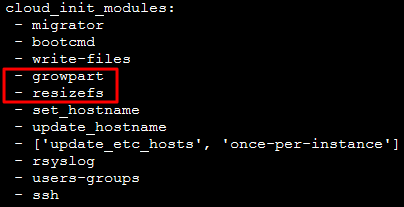
- growpart: Expand the partition size to the disk size.
- resizefs: Expand and adjust the size of
/partition file system to the partition.
No. Manually expand the file system and partition according to the operating system type of the target cloud service. You need to execute Expanding partition and file system (Linux) to allocate the capacity of the expanded part to the existing partition or format the capacity of the expanded part as a new independent partition.
Checking the Cloudinit Configuration of Windows Instances
After the system disk is expanded, log in to the Windows instance and check whether the ExtendVolumesPlugin configuration item exists under plugin in C:\Program Files\Cloudbase Solutions\Cloudbase-Init\conf\cloudbase-init.conf.
Yes. If the
cloudbase-initconfiguration filecloudbase-init.confcontains the ExtendVolumesPlugin configuration item, you need to restart the machinecloudbase-initbefore automatically expanding the volume and adding the blank space behind partition C to partition C. And there should be no other partition interference between the C partition and the blank space. If there are no other partitions between the C partition and the blank space, and you do not want to restart, or a third-party security software interceptscloudbase-initso that it cannot complete the extend volume, you need to manually implement the following powershell command.$DiskOps="@ select disk 0 select volume c extend exit @" $DiskOps | diskpart.exe | Out-NullNo. Manually expand the file system and partition according to the operating system type of the target cloud service. You need to execute Expanding partition and file system (Windows) to allocate the capacity of the expanded part to the existing partition or format the capacity of the expanded part as a new independent partition.