

Overview
Tag is a marker used to mark cloud resources, and is a key-value pair. Tags can help you conveniently manage cloud resources from multiple dimensions (such as business, purpose, and owner). Note that we will not use the tags you set, and tags are only used for your management of resources. This document describes how to edit tags for CFS resources.
Use Limits
Note the following limits when editing tags:
- Quantity limit: The maximum number of tags allowed by each file system is 50.
- Tag key limit: Only
digits,letters, and+=.@-are allowed, and the length of the tag key cannot exceed 255 characters. - Tag value limit: Only
empty strings, digits,letters, and+=.@-are allowed, and the length of the tag value cannot exceed 127 characters.
Operating Methods and Use Cases
Use Case
A company purchased 6 file systems. The information regarding the business group, scope, and owners for these 6 file systems is as follows:
| File System ID | Business Group | Business Scope | Owner |
|---|---|---|---|
| cfs-abcdef1 | E-commerce | Marketing campaigns | Tom |
| cfs-abcdef2 | E-commerce | Marketing campaigns | Harry |
| cfs-abcdef3 | Gaming | Game A | Jerry |
| cfs-abcdef4 | Gaming | Game B | Harry |
| cfs-abcdef5 | Entertainment | Post-production | Harry |
| cfs-abcdef6 | Entertainment | Post-production | Tom |
Taking cfs-abcdef1 as an example, we can add the following three sets of tags to this file system:
| Tag Key | Tag Value |
|---|---|
| dept | ecommerce |
| business | mkt |
| owner | zhangsan |
Similarly, we can add the corresponding tags to other file systems based on the business group, scope, and owners.
Operation Steps
Tagging a New File System
Prerequisites
Confirm that you have the required tags before creating a file system. Otherwise, you should create them in the Tag console.
- Log in to the CFS console.
- Click Create on the File System List page.
- In the pop-up Create File System window, find Tag below and click Add to add a tag to this file system. Only existing tags can be added in this step.
- Click OK, and the file system will be bound to the corresponding tags after it is successfully created.
Note:
For the description of configuration items for creating a file system, see the document titled Creating File Systems and Mount Targets.
Adding, Modifying, or Deleting a Tag on an Existing File System
- On the File System List page, locate the file system and click Edit Tag in the operation column.
- Add, modify, or delete tags based on actual needs in the pop-up You have selected 1 resource window.
- Click OK to complete the addition, modification, or deletion of tags.
Filtering File Systems by Tag
You can filter file systems with a certain type of tag through the following operations.
- Select Tag in the search box.
- Enter a tag key and tag value after Tag:, and click
 or press the Enter key to search. As shown in the figure below:
For example, if you want to filter out file systems with the tag key being business, you can enterTag:business; if you want to filter out file systems with the tag key being business and the tag value being mkt, you can enterTag:business:mkt.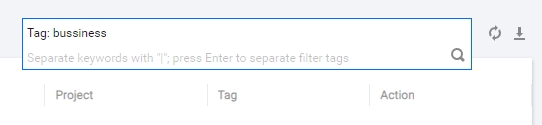
 or press the Enter key to search. As shown in the figure below: