

This document provides an example of creating a CAM sub-account (user1) with the same name as an Identity Center user (user1) in a member account (member_1) by configuring CAM user synchronization.
The sub-account created through CAM user synchronization is granted no permissions. You should grant permissions to the user in the CAM console for the member account.
If you need to preset permissions through Identity Center, select Configure CAM User Synchronization.
Operation Steps
Step 1: Inputting Enterprise Employee Information
Input enterprise employee information into the User Management module of Identity Center. Currently, only manual creation is supported, which indicates that you need to create Identity Center users manually.
- Go to Cloud Organization > Identity Center.
- In the left sidebar, choose User Management > User.
- On the Create User panel, set basic user information.

- Username: required. The username should be unique within the space. The username can contain up to 64 characters, including English letters, digits, plus signs (+), equal signs (=), commas (,), periods (.), at signs (@), hyphens (-), and underscores (_). This parameter is set to user1 here.
- Remarks, Last Name, First Name, and Email: optional. You can specify them as needed.
- Click Confirm to complete the creation.

Step 2: Configuring CAM User Synchronization
In the left sidebar, click CAM Sync > Multi-account Authorization Management.
On the Multi-account Authorization Management page, select a target account.
Note:
In this example, a member account (member_1) is selected.
Click Configure CAM User Synchronization.
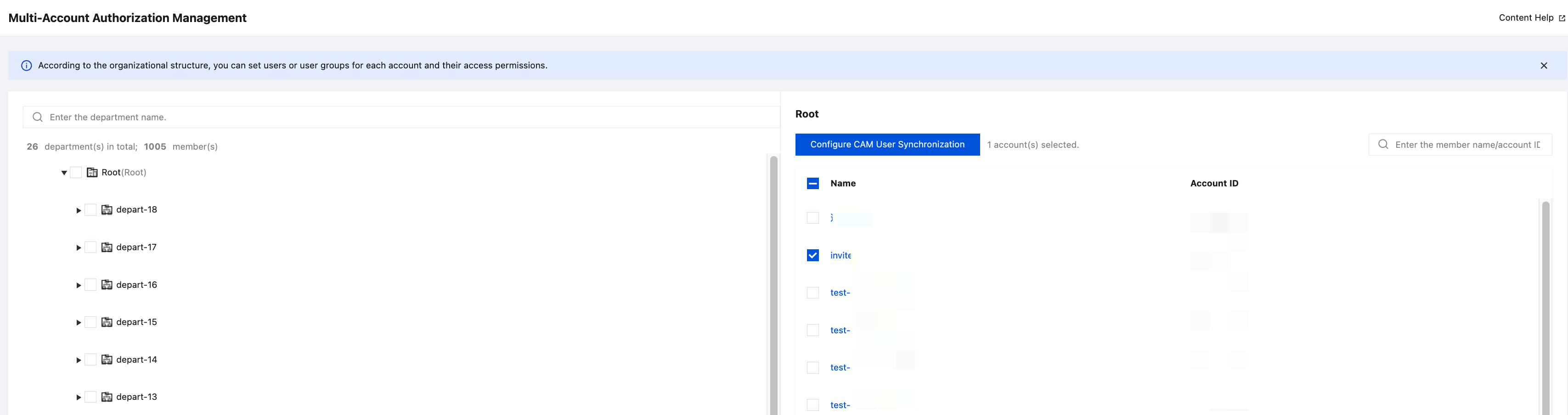
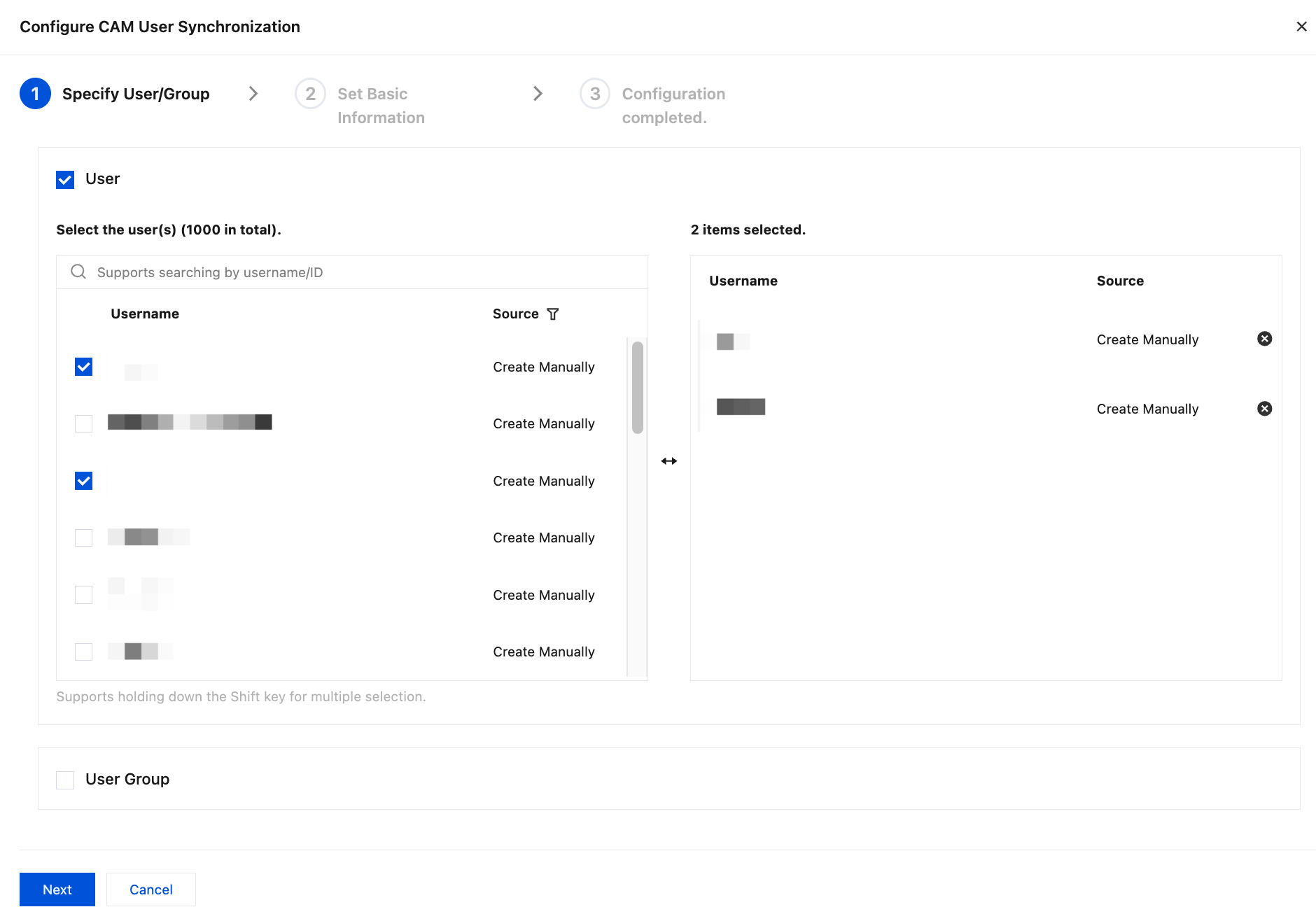
On the Configure CAM User Synchronization panel, select a target user or user group, and click Next.
Note:
In this example, an Identity Center user (user1) is selected.
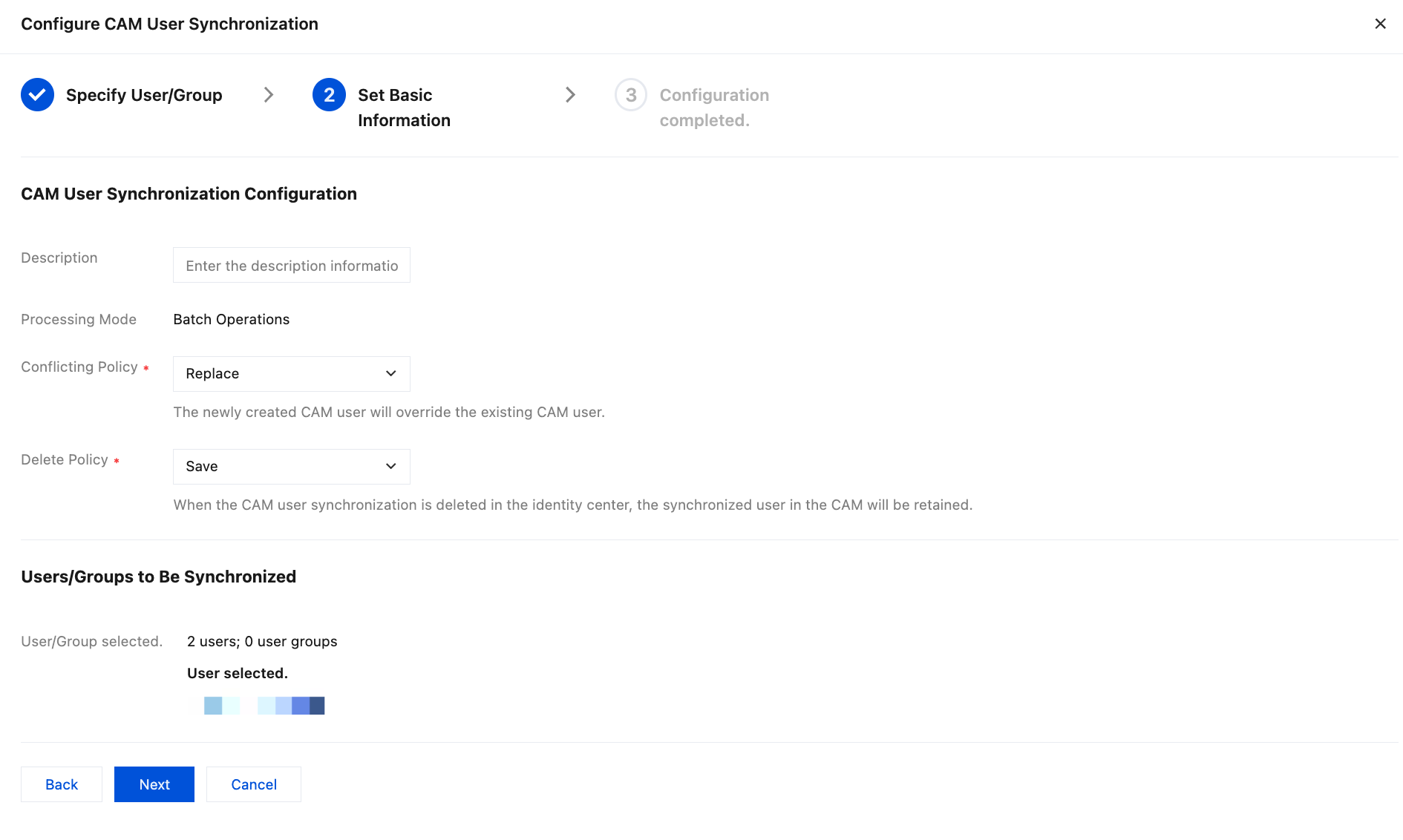
Set basic information. For details, see Configure CAM User Synchronization. After filling in the basic information, click Next.
Click Submit. After receiving a prompt for successful configuration, click Done.
After successful configuration:
- You can choose CAM Sync > User Synchronization Management to view the user synchronization list.
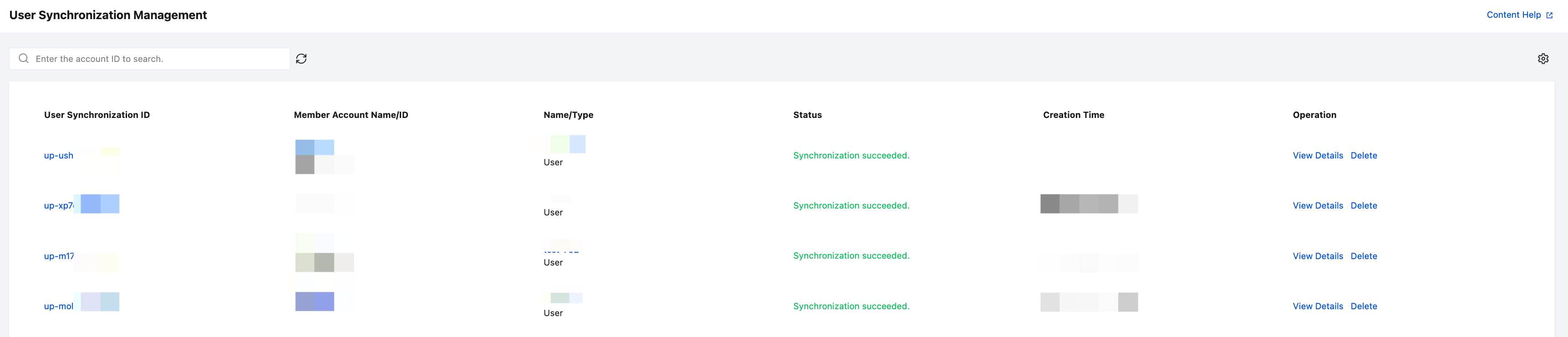
- Alternatively, you can click User Management > Users, go to the user details page of user1, and then select the CAM User Synchronization tab to view the user synchronization list.
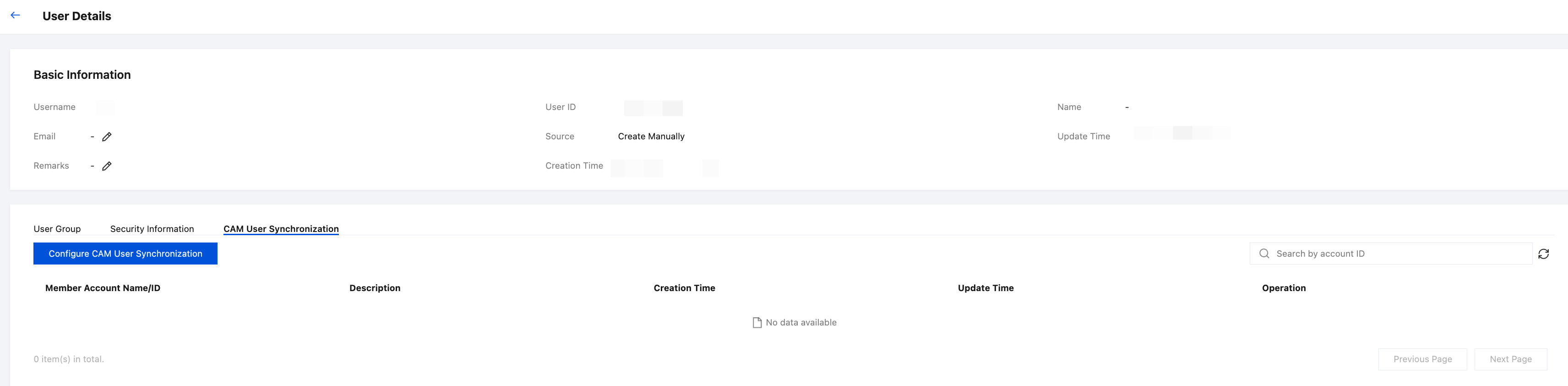
- You can choose CAM Sync > User Synchronization Management to view the user synchronization list.
Effect in CAM
After successful configuration, the system will automatically create a CAM sub-user (user1) with the same name as the Identity Center user (user1) in the member account (member_1) through synchronization.
Note:
The user type in CAM is Identity Center synchronized user.
Click the target username to view the associated policies.
Note:
The sub-user created through synchronization has no permissions. You need to configure permission policies for the user (user1) in CAM.
Step 3: Logging In with a Sub-account
Obtain the user login URL
In the left sidebar, click Identity Center Overview.
On the right side of the overview page, view or copy the user login URL.
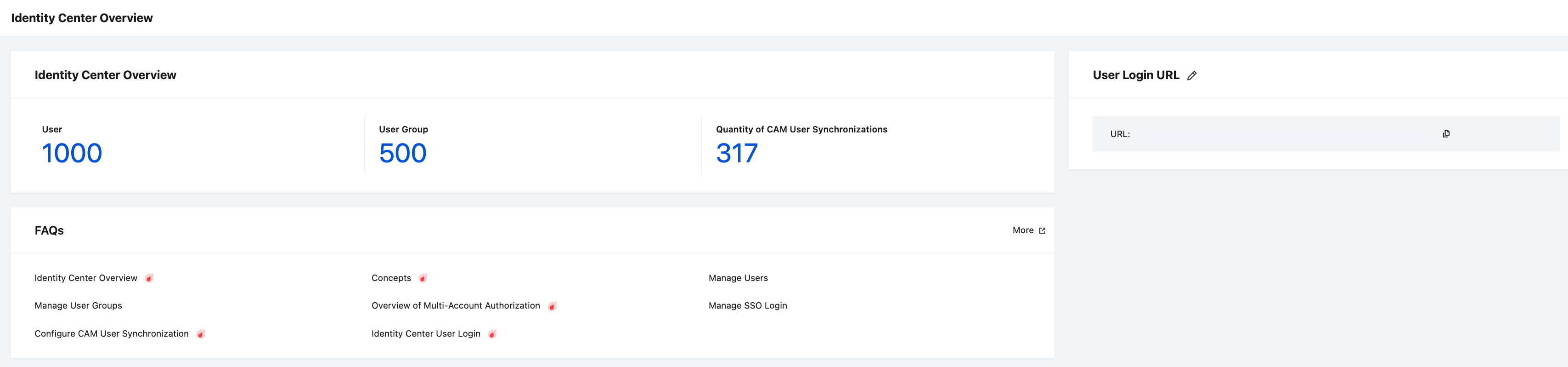
Visit the user login URL in a browserOn the Identity Center Login page, click Login.
Note:
Currently, only user-based SSO is supported. Account password login is not supported. You need to configure SSO by referring to Managing SSO first.
The system automatically redirects to the enterprise IdP Login page.
After verification is passed, go to the CAM User Login tab, and select a member account (member_1) for login.
