

A parameter template is a collection of parameters that support saving IP addresses and protocol ports as templates. It can be directly referenced when adding security group rules.Converge Cloud supports the following four types of parameter templates:
Converge Cloud supports the following four types of parameter templates:
- IP address (ipm): Supports single IP, CIDR, and IP range.
- IP address group (ipmg): a collection of multiple IP address objects.
- Protocol port (ppm): Supports single port, multiple ports, consecutive ports, and all ports, with the protocol supporting TCP, UDP, ICMP, and GRE protocol.
- Protocol port group (ppmg): a collection of multiple protocol port objects.
Overview
Operation scenarios of the parameter template are as follows:
- Manage multiple IP addresses or protocol port groups with the same requirements.
- Manage multiple IP addresses or protocol port groups with frequent editing requirements.
Step 1: Create a parameter template
1. Creating An IP Address Parameter Template
Add the IPs with the same requirements or frequent editing requirements to the IP address object.
- Log in to the VPC console.
- Click on Security > Parameter Template in the left sidebar to enter the management page.
- On the IP Address tag page, click on +Create.
- In the pop-up window, fill in the name and IP address, then click on Submit.
To add multiple IP addresses, separate them with a new line. The supported IP address formats are as follows:
- Single IP, such as
10.0.0.1. - IP range, such as
10.0.1.0/24. - Consecutive IP, such as
10.0.0.1-10.0.0.100.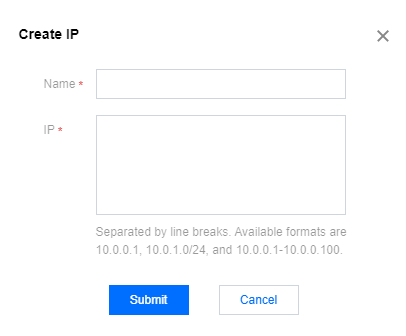
(Optional) You can add several created IP addresses to an IP address group, making it an IP address group.
Select the IP Address Group tag page to enter the management page, then click on +Create.
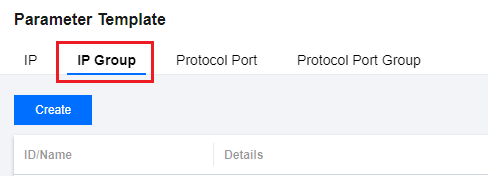
In the pop-up window, fill in the name and select the IP addresses to be added, then click on Submit.

2. Creating A Protocol Port Parameter Template
Add protocol ports with the same requirements or frequent editing requirements to the protocol port object.
- Log in to the VPC console.
- Click on Security > Parameter Template in the left sidebar to enter the management page.
- Click on the Protocol Port tab, enter the Protocol Port tag page, and click on +Create.
- In the pop-up window, fill in the name and protocol port, then click on Submit.
To add multiple protocol ports, separate them with a new line. The protocol ports support the following formats:
- Single port, such as
TCP:80. - Multiple discrete ports, such as
TCP:80,443. - Consecutive ports, such as
TCP:3306-20000. - All ports, such as
TCP: ALL.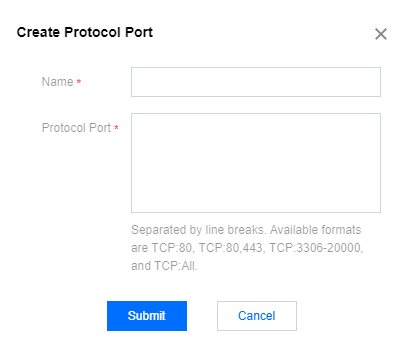
(Optional) You can add the created multiple protocol ports to a protocol port group at the same time, as a protocol port group.
Select the Protocol Port Group tag page to enter the management page, then click on +Create.
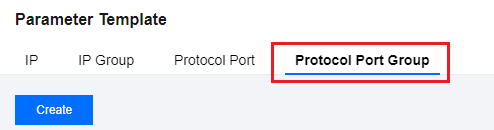
In the pop-up window, fill in the name and select the protocol ports to be added, then click on Submit.

Step 2: Refer to the parameter template in the security group
- Log in to the VPC console.
- Click on Security > Security Group in the left sidebar to enter the management page.
- In the list, find the security group that needs to reference the parameter template and click its ID to enter the details page.
- In the inbound/outbound rule tag page, click on Add Rules.
- In the pop-up window for sources and protocol ports, select the corresponding parameter template. For detailed steps on adding inbound/outbound rules, refer to Adding a Security Group Rule. > If you need to add a new IP address or protocol port in the future, you only need to add it to the corresponding IP address group or protocol port group, and there is no need to modify the security group rules or create another security group.
