

This section explains how to create a High Availability Virtual IP (HAVIP) in the console and subsequent operations such as configuration in third-party software.
Directions
- Log in to the VPC console, and in the left navigation pane, select IP & Network Interfaces > High Availability Virtual IP.
- On the HAVIP Management page, click Apply.
- In the Apply for High Availability Virtual IP dialog box that appears, configure the parameters of the HAVIP.
- Name: Enter the name of the HAVIP.
- VPC: Select the private network where the HAVIP will be created.
- Subnet: HAVIP has subnet properties, so select the subnet.
- IP Address: Supports auto-allocation and manual input. If you choose auto-allocation, the system will assign an IP address from the subnet; if you choose manual input, you need to provide an available IP address within the subnet IP range and avoid system-reserved IPs. For example, if the subnet range is 10.0.0.0/24, the available intranet IP range would be 10.0.0.2 - 10.0.0.254.
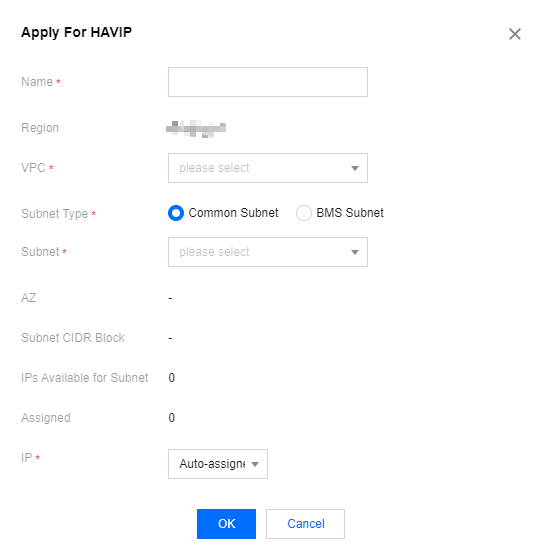
- Click OK to create the HAVIP, which will be displayed in the list with a status of Unbound.

Subsequent Operations
HAVIP is used in conjunction with third-party HA software. After creation, further configuration is required in the third-party HA software. HAVIP is merely an object to be operated on, serving as a declare-bindable private IP. The binding and unbinding operations are initiated by the third-party HA software, not from the HAVIP console. To specify, in third-party HA software, designate HAVIP as a floating VIP (Virtual IP Address), then the third-party HA software specifies the network card to be bound through the ARP protocol. An illustration is as follows:
In a traditional physical device environment, all private IP addresses can be bound to the NIC through the ARP protocol by default and designated as floating IPs in the HA software. However, in a cloud environment, ARP protocol is prohibited for ordinary private IPs. Attempting to designate an ordinary private IP as a floating IP in the HA software will result in a drift failure. Therefore, in the HA software within the CVM, HAVIP needs to be specified as a floating VIP. This operation is exactly the same as the third-party HA software on non-cloud platforms.
Note: Common HA software programs include: Linux HeartBeat, Keepalived, Pacemaker, and Windows MSCS.
When specifying a VIP in the configuration file of the HA software, you only need to enter the HAVIP that you created:
vrrp_instanceVI_1 {
# Select proper parameters for the primary and secondary CVMs.
    state MASTER #Set the initial status to Backup.
    state MASTER               #The ENI such as `eth0` used to bind a VIP
    virtual_router_id 51 #The virtual_router_id value for the cluster
        virtual_router_id 51       #Set to non-preempt mode
        preempt_delay 10           #Set the preempt delay to 10 minutes.
    priority 100               #Set the priority. The larger the value, the higher the priority.
    advert_int 1               #Check interval. The default value is 1 second.
    authentication {           #Set authentication
        auth_type PASS          #Authentication method
        auth_pass 1111          #Authentication password
    }
        unicast_src_ip 172.16.16.5 #Set the private IP address of the local device.
        unicast_peer{
        172.16.16.6                #IP address of the peer device
        }
    virtual_ipaddress {
        172.16.16.12               # <font color="red">Set the HAVIP as a floating IP</font>
    }
    }
After HAVIP is configured in the HA software of CVM, the HAVIP status will change to Bound with CVM in the console.
For common configuration examples, please refer to:
- Best Practices-Building High Availability Primary/Secondary Cluster by Using HAVIP + Keepalived
- Best Practices-Creating a High-availability Database by Using HAVIP + Windows Server Failover Cluster
Documentation
Similar to a private IP address, an HAVIP can also be bound with or unbound from an EIP in the VPC console. If you need public network communication, see Binding or Unbinding EIP. If not, you do not need to bind EIPs.