

AS group adjusts the number of cloud service machines according to the scaling policies:
- Create scheduled tasks to perform scheduled scaling activities, and you can also set whether to perform them periodically.
- Create alarm-triggered scaling policies to perform scaling based on the cloud monitor metrics (such as CPU, memory usage rate, etc.).
Creating Scheduled Task
Overview
If you can predict your load changes, you can set up scheduled tasks to plan your device scale-out activities. This feature allows you to automatically increase or decrease CVM instances on a schedule or periodically to respond to business load changes flexibly, enhance device usage, and save on deployment and instance costs.
Directions
- Log in to the AS console.
- On the Scaling Group page, click Scaling Group.
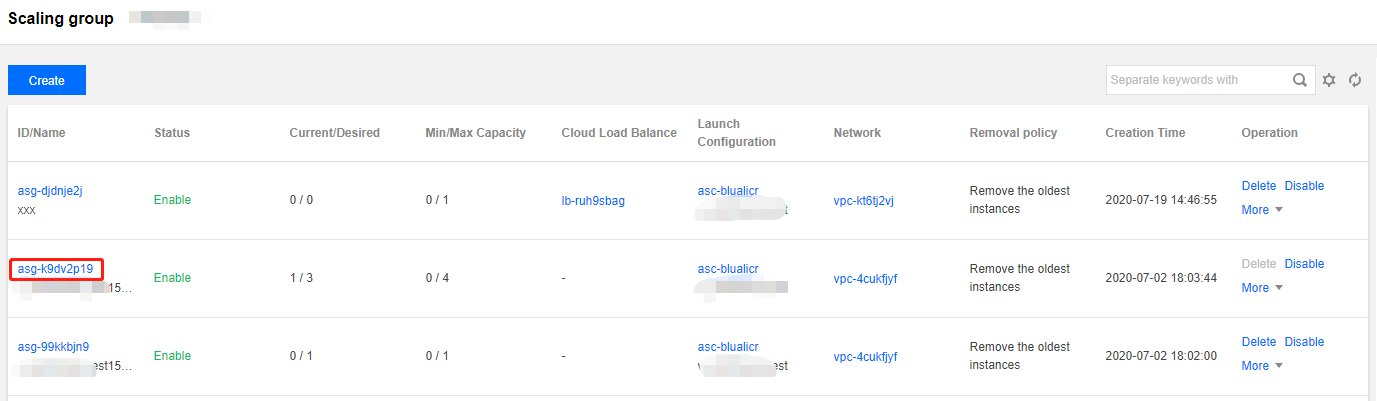
- In the scaling group management page, select the Scheduled Action tab, and click Create.
- In the pop-up Create Scheduled Action window, specify the scheduled task name, execution time, and actions. You can also select Repeat to define a task for periodic scheduled execution.
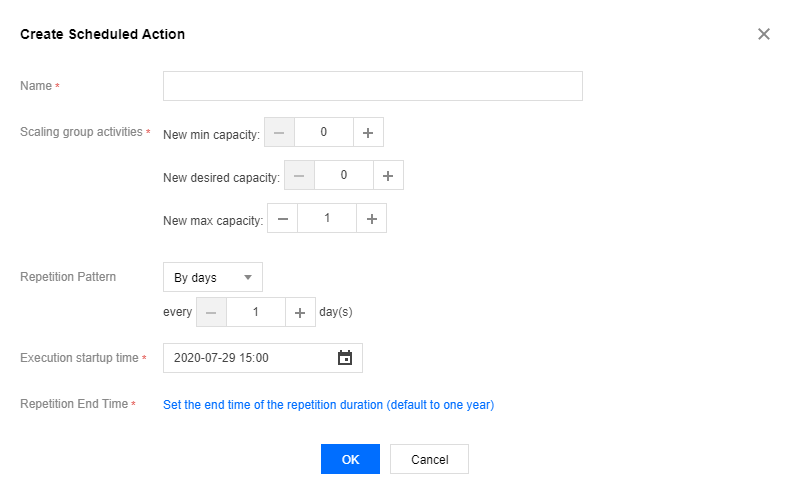
- Click OK to complete the setting. The created scheduled task will be displayed in the list on the page.
Creating Alarm-Triggered Scaling Policy
Overview
If you want to adjust your business deployment based on CVM metrics, you can define your own alarm-triggered scaling policy. When business loads reach the threshold, this policy automatically increases or decreases the number of CVM instances. This allows flexible adaptation to changes in business load, improving device usage and saving on deployment and instance costs.
Directions
Note:
- When a scaling group is created, a ping unreachable alarm-triggered scaling policy is created by default, which is used to replace unhealthy CVMs.
- Before using the Alarm-Triggered Scaling Policy, you need to install the latest version of the cloud monitor Agent in the CVM image.
- Log in to the AS console.
- On the Scaling Group page, click Scaling Group.

- In the scaling group management page, select the Alarm Trigger Policy tab and click Create.
- In the pop-up Create Alarm Trigger Policy window, set up the alarm policy.
The policy is based on the cloud monitor performance metrics (such as CPU, memory, bandwidth, etc.) and automatically increases or decreases a specified number or percentage of CVM instances for the scaling group. You can also copy the policy (optional), directly copying an existing scaling group's policy to the current group.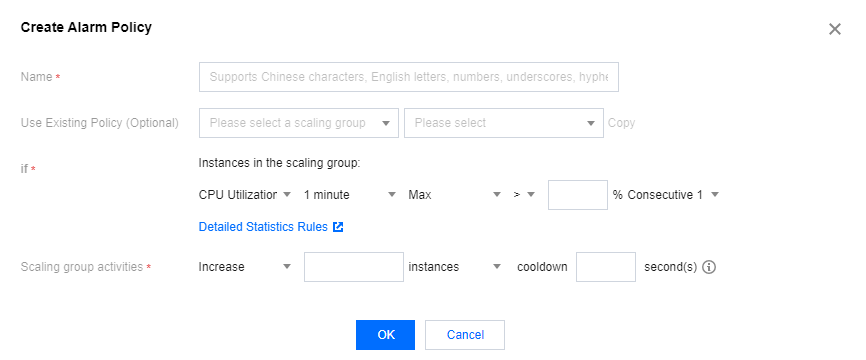
- Click OK to complete the setting. The created alarm-triggered scaling policy will be displayed in the list on the page.
