

In addition to supporting automatic scale-out based on business load, AS also supports manual intervention to achieve fast manual scaling. You can achieve scale-out effect in the following two ways:
- Adding an existing CVM instance to the scaling group;
- One-click scale-out can be achieved by modifying the expected number of instances in the scaling group.
Adding an Existing CVM Instance to the Scaling Group
Scaling groups allow you to add existing instances to an existing scaling group, enabling you to observe and manage loads together with other machines in the scaling group.
Prerequisites
- The instance is in the running state.
- The instance and scaling group are located in the same region.
- The network attributes of the instance must be the same as those of the scaling group; that is, they must belong to the same basic network or the same VPC.
Notes
- AS will add the required capacity of the group to the number of instances to be added.
For example, if the current desired number of instances in your scaling group is 5, and you manually add 3 instances, the desired number of instances in your scaling group will become 5 + 3 = 8. If the number of instances to be added plus the required capacity exceeds the maximum number of instances of the scaling group, the request will fail. - The scaling group is associated with one or more CLBs. Manually added instances are automatically registered with all CLBs in the scaling group.
- When a scaling group scales-in, the automatically created machines are removed first. If there are no automatically created machines, manually added machines are removed.
- When you remove a manually added instance from a scaling group, you only remove the instance from the scaling group and CLB. This means that the instance is no longer managed by the scaling group, but your instance is not terminated.
Manually Add an Instance Using the Console
- Log in to the scaling group console and click the scaling group ID/Name to which you want to add an instance.
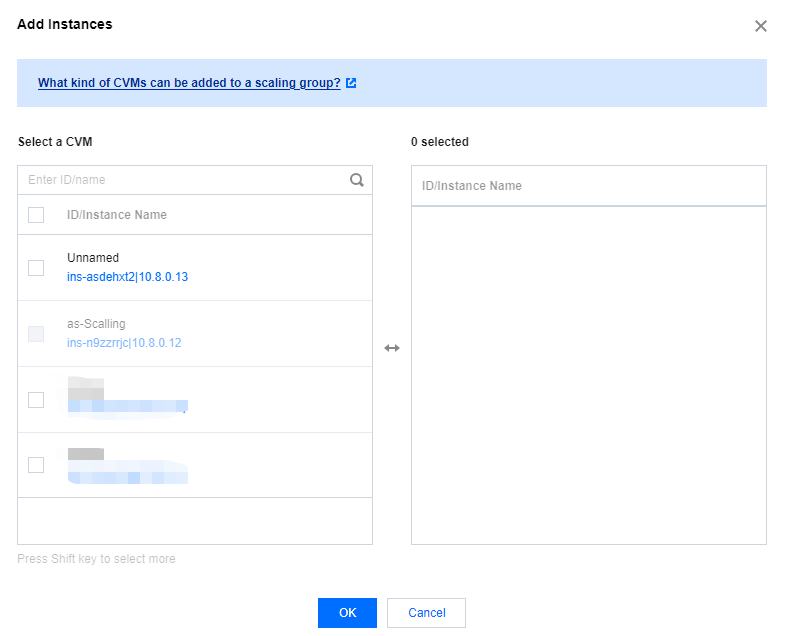
- Go to the scaling group details page and select Bind with Instance > Add Instances.

- In the dialog box, select the corresponding instance and click OK.
One-click scale-out can be achieved by modifying the expected number of instances
Scaling-out Scenarios
If your needs match the following scenarios, you can use the console for one-click expansion. Prepare tasks such as CLB forwarding rules, machine configuration, and business deployment in advance. Even if your business needs scaling later, you only need to modify the parameters of the scaling group with one click to quickly complete the expansion.
- The peaks and troughs of business are difficult to predict, but we are unwilling to leave the scaling entirely to the system. Business peaks and troughs are predictable.
- Your computing needs are project-specific, and the machines you use are similar each time. For example, social opinion collection, gene sequencing, weather forecasting, etc.
One-Click Scale-out in the Console
Perform the following steps to set the CVM template as the launch configuration and configure the corresponding scaling group.
Create a custom image.
Notes:
Subsequent expansion instances deploy the environment based on this image.
Recommended Ideas for Creating a Custom Image: You can select an existing CVM or create a new CVM, deploy your business, set the business to launch with the operating system, and then export it as a custom image.Create a launch configuration based on the custom image.
- Create a Scaling Group.
When creating, select the created launch configuration, and fill in the minimum scaling number, maximum scaling number, and starting number of instances according to the lower limit, upper limit, and current number of servers you need.
After completing the preceding steps, when the business needs to be scaled-out (for example, starting a gene sequencing task or activating a request-based machine to collect data), you can modify the scaling group configuration to increase the minimum scaling number, maximum scaling number, and expected number of instances, and AS will quickly complete the scaling-out.