

Custom policies support combining multiple characteristics of HTTP messages such as the request path, GET parameters, POST parameters, Referer, and User-Agent, and controlling the access of public network users through characteristic matching. Facing various attack behaviors from the Internet, users can use custom policies to respond flexibly and combine targeted rules to block these attack behaviors.
- Each custom policy can be set up to 5 conditions for characteristic control.
- The relationship between multiple conditions in each custom policy is "and", that is, all conditions should be matched for the policy to take effect.
- Two processing actions can be configured after each custom policy is matched: blocking and allowing.
Configuration Cases
Case 1: Prohibiting a Specific IP Address from Accessing a Specific Site
When website administrators need to prohibit a specific IP address from accessing a specified site, they can perform the following configurations:
Log in to the WAF console. In the left sidebar, select WAF > Configuration Center > Basic Security. Select a protected domain name (such as
www.cloudwaf.com) and click to select Access Control to enter the configuration page.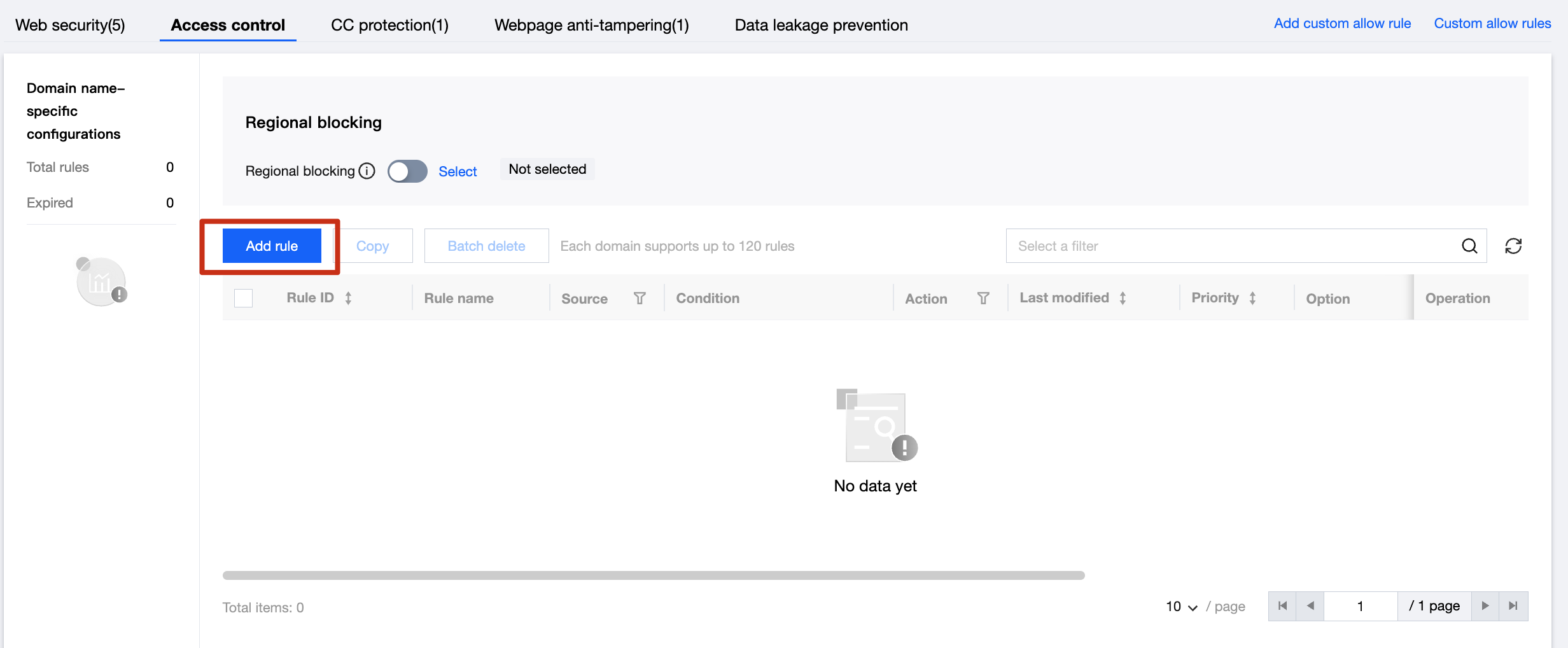
On the Add Rule page, enter a rule name (such as 001). Select a field (such as Source IP) in the matching field and select Match for the logical symbol. Fill in the source IP to be blocked in the matching content (such as
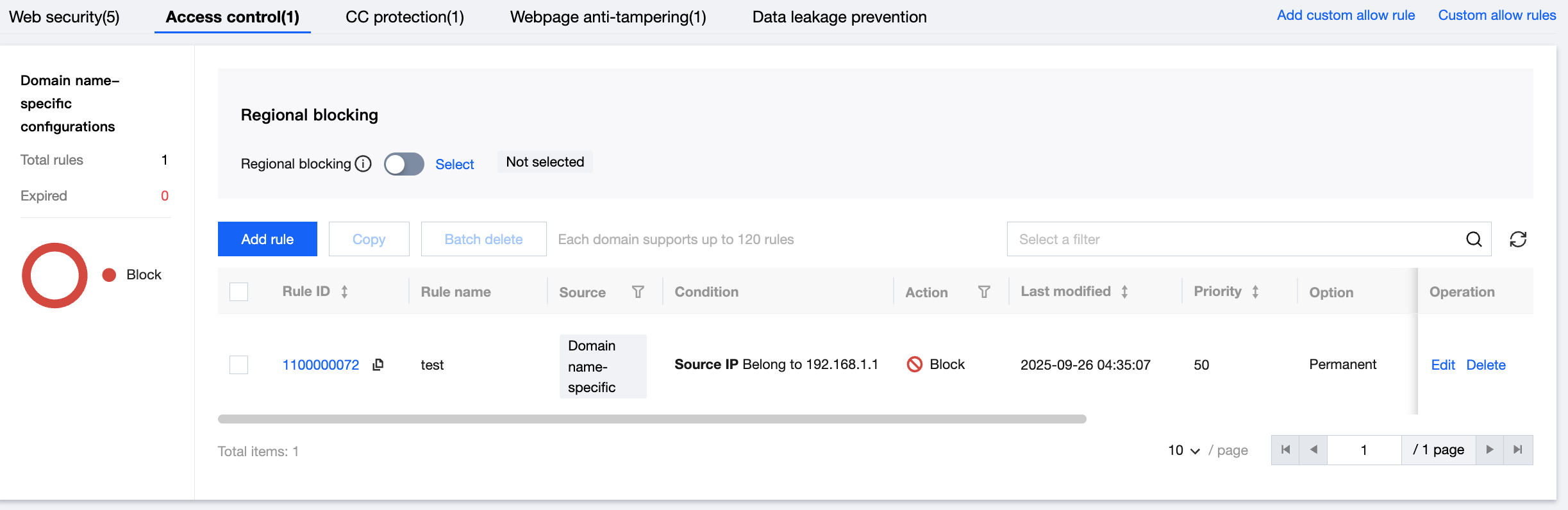
192.168.1.1) and select an execution action (such as Block). After completing, click Add to save the rule.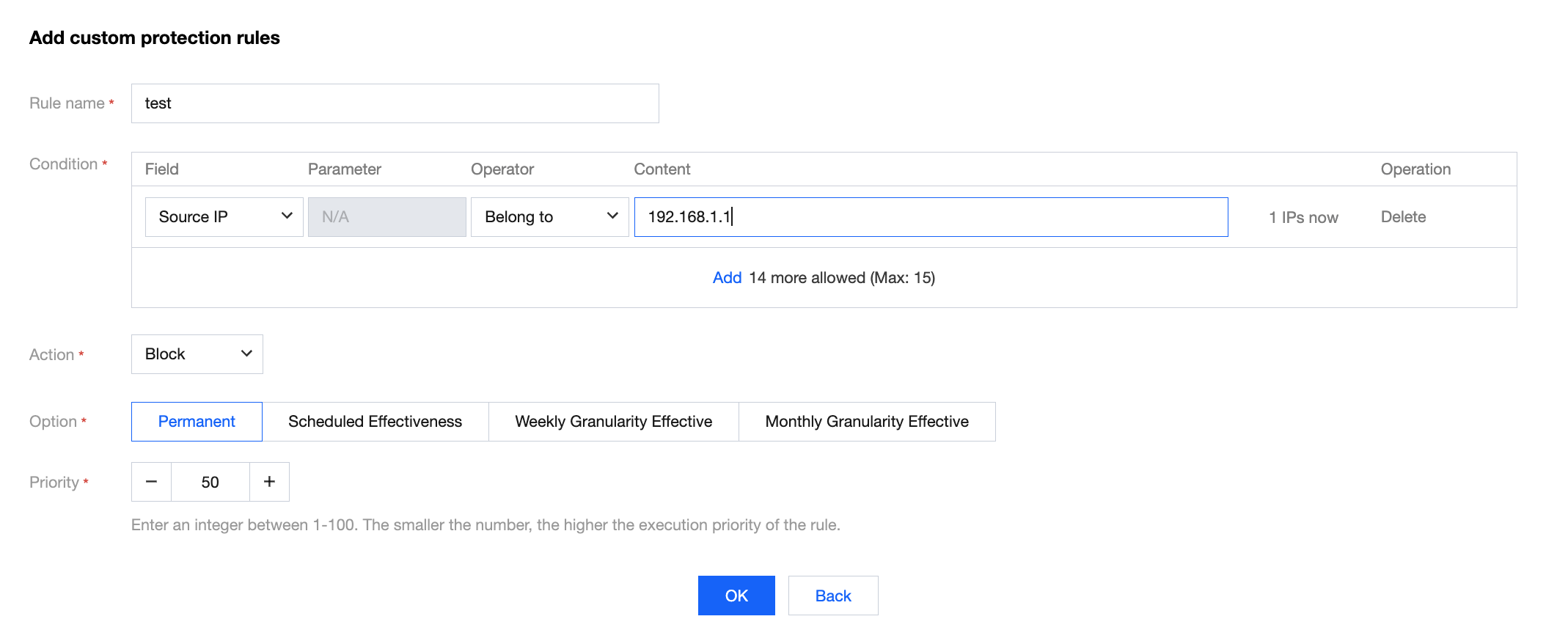
The custom policy of WAF supports using masks to control access requests from source IP addresses in a specific IP range. We can enter a specific IP range in the matching content (such as10.10.10.0/24).The rule will take effect. HTTP access requests from the specific source IP will be blocked.
Case 2: Prohibiting Public Network Users from Accessing Specific Web Resources
When website administrators do not want public network users to access certain specific web resources (such as the management backend /admin.html), they can perform the following configurations:
Set the matching field to Request Path, set the logical symbol to Equal, fill in /admin.html as the matching content, and set the execution action to Block. After the configuration is completed, click Add.
Case 3: Prohibiting an External Site from Obtaining Resources Through Hotlink
When website administrators need to block hotlink activities from an external site (such as www.test.com), they can use custom policies to capture and block the Referer characteristics of hotlink requests.
The configurations are as follows: Set the matching field to Referer, set the logical symbol to Contain, fill in www.test.com as the matching content, and set the execution action to Block. After the configuration is completed, click Add.