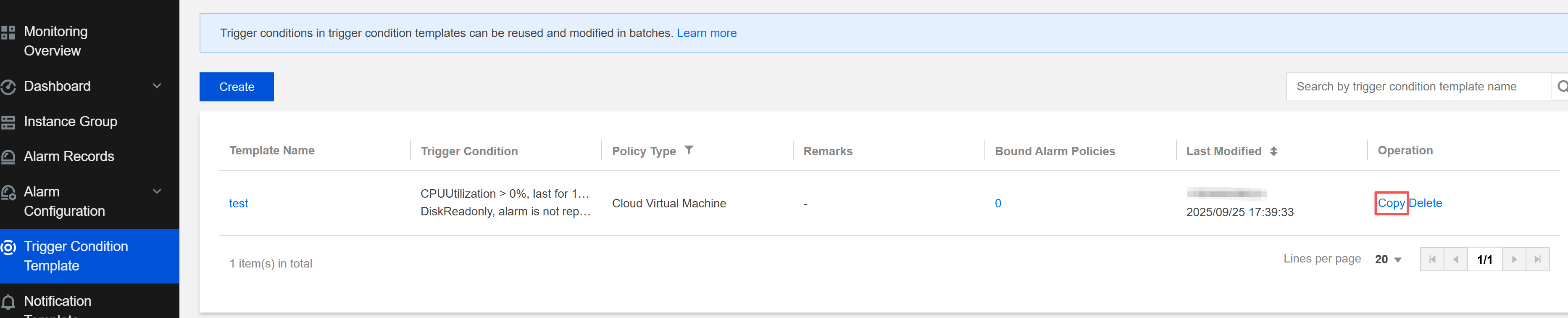
When the same alarm trigger conditions are required for different alarm policies, users can configure an alarm trigger condition template, which can be reused with one click when an alarm policy is created, avoiding repeated configurations. For alarm policies using the alarm trigger condition template, users can modify the template trigger conditions, and the changes will automatically apply to the corresponding alarm policies, improving the Ops efficiency.
Note:
One trigger condition template is used to set up trigger condition rules for one cloud product.
Create a trigger condition template.
- Log in to the cloud platform console and choose Cloud Monitor > Trigger Condition Template.
- Click Create, and configure the trigger conditions in the pop-up window as follows.
- Template name: Enter a template name.
- Note: Enter a note for the template.
- Policy type: Choose the service to be monitored, such as Cloud Virtual Machine > Basic Monitoring.
- Trigger condition: It is divided into metric alarm and event alarm. Below it, click Add to set up multiple alarm items.
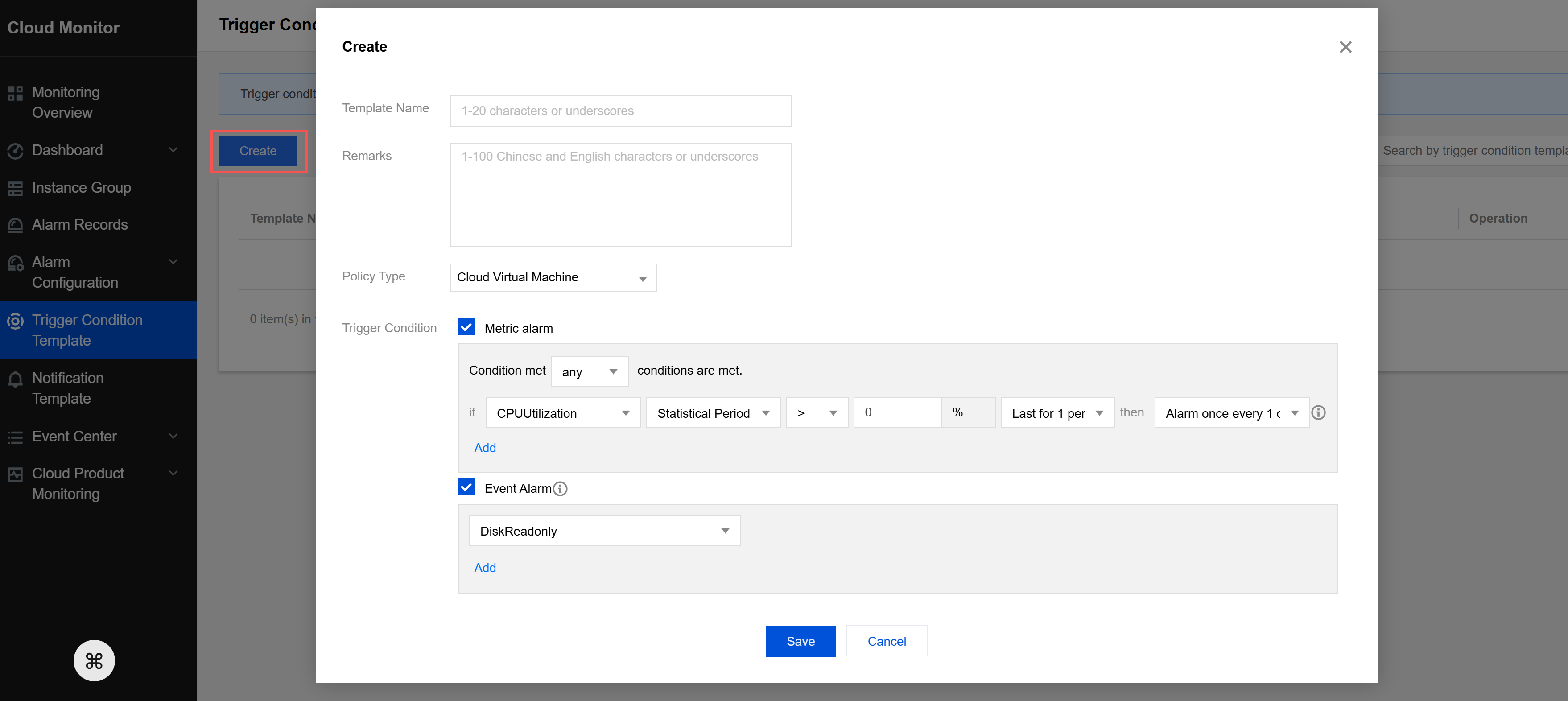
- After completing the configuration, click Save.
Edit a trigger condition template.
Note:
When a trigger condition template is already associated with alarm policies, if the trigger condition template is edited, the modification will be applied to all associated alarm policies.
- Log in to the cloud platform console and choose Cloud Monitor > Trigger Condition Template.
- In the template list, click the name of the template that needs to be edited to go to the template details page.
- In the Template Information Tab, you can click different buttons to edit and modify different information items.

3. View the change records of the trigger condition template.
Log in to the cloud platform console and choose Cloud Monitor > Trigger Condition Template.
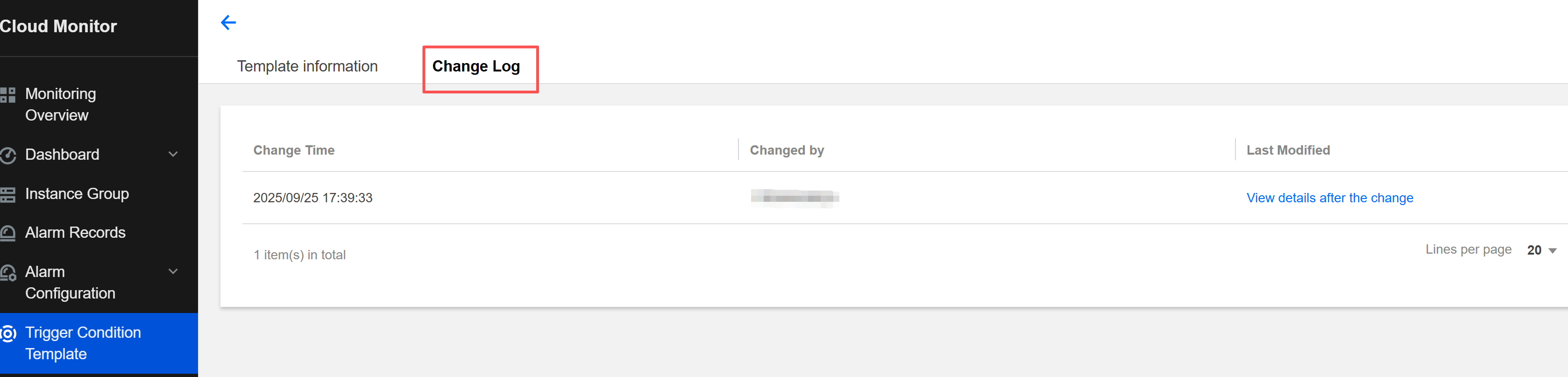
In the template list, click the name of the template for which you need to view the change records to go to the template details page.
In the Change Log tab, you can view the change time, updater, and change result of historical change operations.
Delete a trigger condition template.
Note:
When the trigger condition template is already associated with alarm policies, deleting the trigger condition template will cause the alarm policies associated with the template to become invalid.
- Log in to the cloud platform console and choose Cloud Monitor > Trigger Condition Template.
- Locate the template you need to modify in the template list, and click Delete in the operation column on the right to delete the template.

5. Copy a trigger condition template.
Note:
Copying a trigger condition template means that only the trigger condition rules of the template will be copied, while the association between the template and alarm policies will not be copied.
- Log in to the cloud platform console and choose Cloud Monitor > Trigger Condition Template.
- On the trigger condition template list page, locate the template you need to copy, and click Copy in the operation column on the right.
- In the pop-up dialog box, click Confirm Copy to copy the trigger condition template.