

Scenarios
The following example illustrates how to configure an alarm: Suppose you want to receive an SMS alarm at the phone number 12345678888 when the CPU utilization of CVM instance ins-12345678 (located in Region A) exceeds 80% for two consecutive five-minute periods.
Operation Steps
- Log in to the Cloud Platform console and choose Cloud Monitor > Alarm Configuration > Alarm Policy.
- Click Create and configure the following options.
- Configure the basic information.
- Policy name: CPU alarm.
- Policy type: Choose Cloud Virtual Machine > Basic Monitoring.
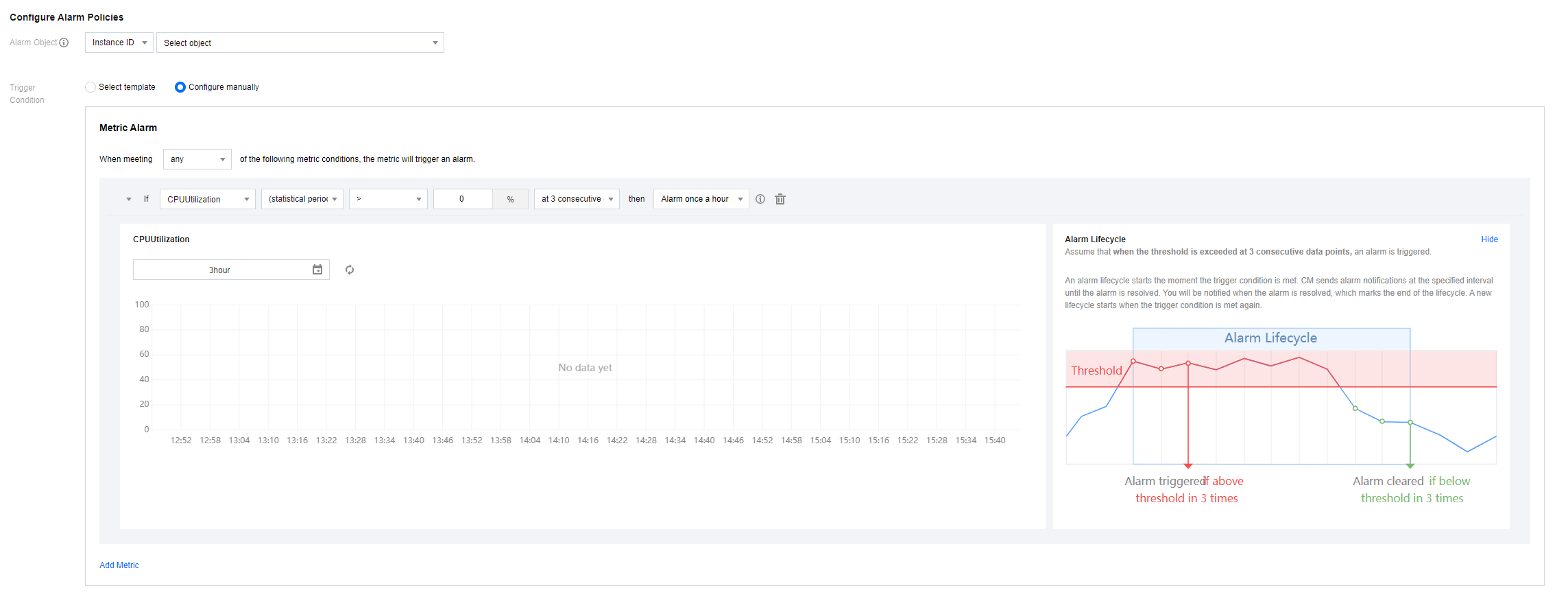
- Configure the alarm object. Under the Alarm Object module, select instance ID, and then choose the CVM instance from the drop-down list on the right.
- Configure trigger conditions. Under the Trigger Conditions module, configure the following conditions.
- Select Manual Configuration.
- In the Metric Alarm module, select CPU utilization, statistical granularity of 5 minutes, >, 80%, for 2 consecutive data points, and trigger an alarm every 15 minutes.
Configure the alarm notification template. Click Create New Template, enter a template name, select the recipient with the phone number 12345678888, and choose SMS as the notification channel. After completion, click Confirm.
Click Complete to complete the alarm configuration.
At this point, when the instance's CPU utilization exceeds 80% for two consecutive 5-minute periods, an SMS alarm will be sent by Cloud Monitor to the phone number 12345678888.