

Tenant Cloud
Monitor and Operation
Cloud Monitor
Operation Guide
Associating and Dissociating Objects
After creating an alarm policy, you need to associate some alarm objects with it to indicate which instance objects will trigger an alarm when they meet the alarm trigger conditions.
- Add an associated object.
- Log in to the Cloud Platform console and choose Cloud Monitor > Alarm Configuration > Alarm Policy.
- In the alarm policy list, click on the name of the alarm policy you want to associate objects with to enter the policy details page.
- In the Alarm Object module, click Edit.
- In the pop-up box for alarm object editing, users can select instance ID, instance group, or all object types, and then choose the instance objects or instance groups available for that type accordingly.
- Click OK to establish the association between the alarm policy and the alarm object.
- Remove the association.
- Log in to the Cloud Platform console and choose Cloud Monitor > Alarm Configuration > Alarm Policy.
- In the alarm policy list, click on the name of the alarm policy you want to associate objects with to enter the policy details page.
- In the Alarm Object module:
- If the alarm policy is already associated with an alarm object, click Remove after selecting the instances for which you want to remove the association, and then click Remove in the pop-up confirmation dialog box. If you need to remove the association between the alarm policy and all instances, click Remove All, and then click Remove All in the pop-up confirmation dialog box to remove the association between the selected instances and the alarm policy.
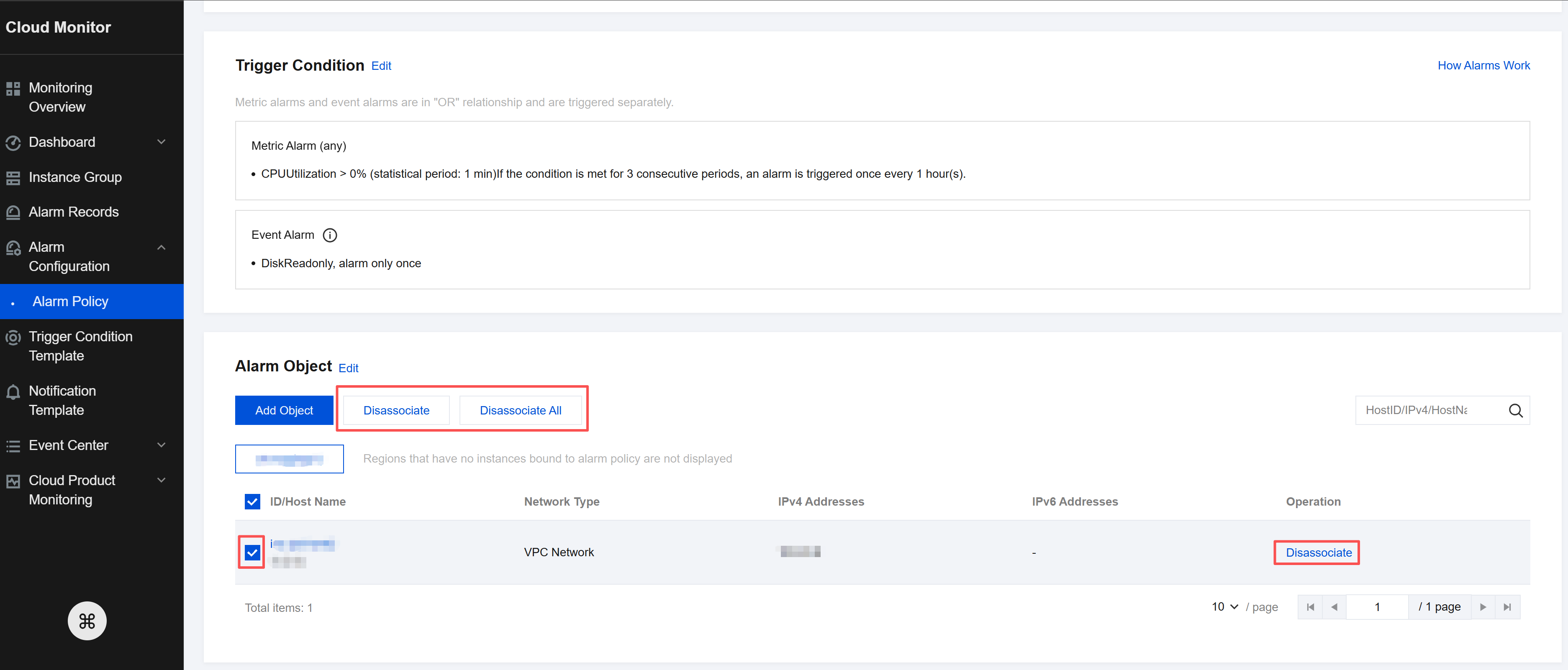
- If the alarm policy is already associated with an instance group, click Unbind on the right side of the instance group for which you want to remove the association. In the pop-up confirmation dialog box, click Confirm Unbind to remove its association with the alarm policy.
