

Cloud Monitor provides you with the alarm records feature, allowing you to trace and view alarm records from the last six months. You can also quickly subscribe to alarm policies on the Alarm Records page.
- View alarm records.
Log in to the cloud platform console, and choose Cloud Monitor > Alarm Records.
(Optional) To view alarm records for a certain time period, click the time filter button in the upper-left corner. You can filter alarms generated today, yesterday, and in the last 7 days or 30 days, and you can also select a custom time period. You can view the alarm records in the last six months at most.
(Optional) You can enter the information of an alarm object (such as instance name, public IP address, and private IP address) in the Alarm Object search box to search for corresponding records.
(Optional) You can click Advanced Filter to search for matching alarm records based on policy name, alarm content, user information, monitoring type, policy type, and alarm object.
(Optional) You can click the alarm policy name in the list of alarm records to redirect to the detailed alarm policy information.
- Clear filter conditions.
After successfully filtering alarm records, click Clear Filter Conditions in the list. - Customize list fields.
- Log in to the cloud platform console, and choose Cloud Monitor > Alarm Records.
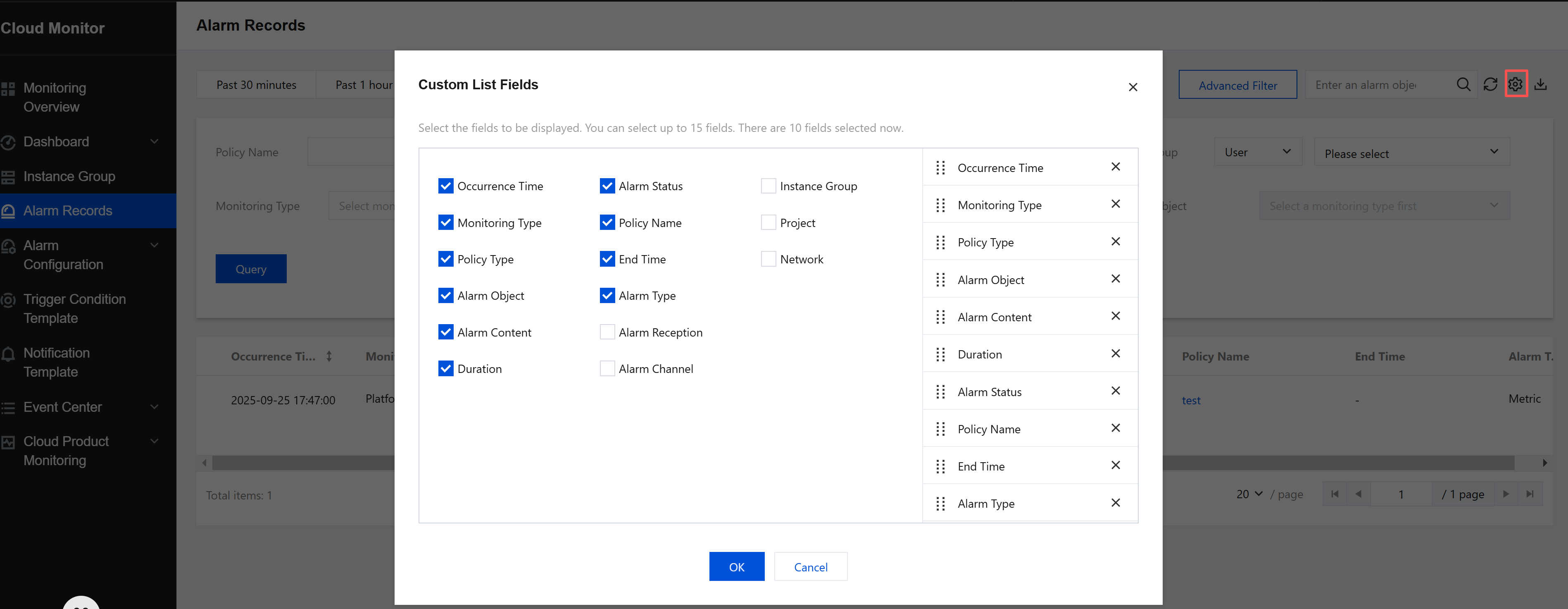
- Click the settings icon in the upper-right corner. You can select the fields to be displayed in the left section of the pop-up box and drag field names in the right section to reorder them, as shown below.
- Download the list of alarm records.
- Log in to the cloud platform console, and choose Cloud Monitor > Alarm Records.
- Click the download icon in the upper-right corner to save the alarm records as a local .csv file.
