You can refer to the following steps to create a chart.
- Add metrics.
- Log in to the cloud platform console and choose Cloud Monitor > Dashboard to enter the dashboard list.
- Select the corresponding dashboard, and click Create > Create Chart.
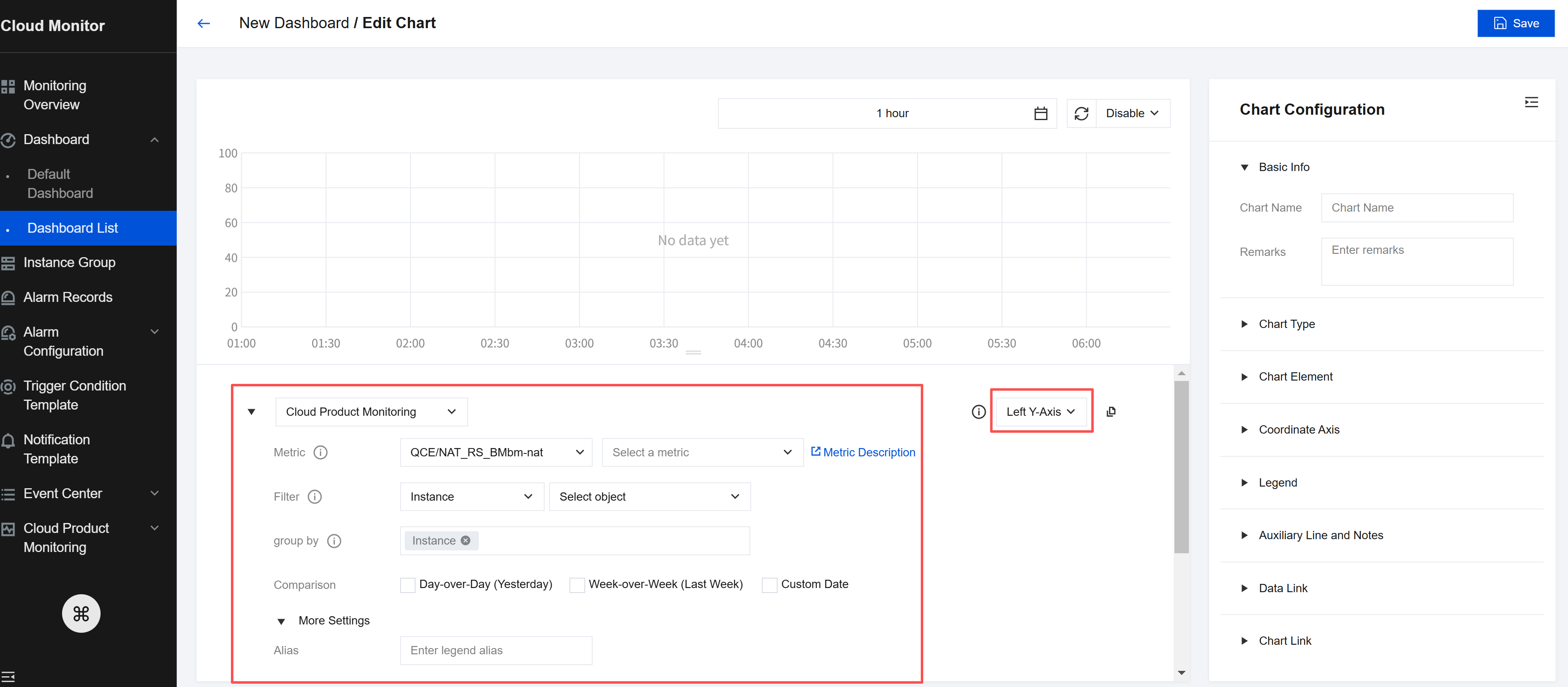
- Configure the metric information as follows:
- Metric: Select the product type and metrics.
- Filtering: Select the filter conditions to filter the data that meets the conditions and display the data in the chart.
Instance: The chart will display the monitoring data of the selected instances.
Template Variables: The chart will display instances from the template variable filter. For configuration of template variables, refer to the template variable documentation. - Group by: Similar to the group by feature in SQL, it groups data based on specified tags and then aggregates them according to aggregation algorithms. When no tag is selected, you can customize the statistical method for metrics within the statistical granularity. Statistical methods such as average (avg), maximum (max), minimum (min), and sum (sum) are supported.
- Comparison: Day-on-day comparison (same period yesterday), week-on-week comparison (same period last week), and custom time comparison are supported. When both options are selected, the chart will display the monitoring curves for the selected instance during the same time period of yesterday and last week, making it easy for you to compare the data.
- Left Y-axis, Right Y-axis: The Y-axis can be adjusted to the left or right.
- More configurations:
Alias: Aliases can be quickly specified for all instances. If you need different aliases for different instances, you can create multiple metrics and enter an alias for each one.
Enable Sorting Feature: The instances associated with the chart will be sorted according to the sorting rules and display quantity. This feature is useful for monitoring a large number of servers and identifying high and low loads.
Sorting Rules: There are various ways to sort metrics. Instances can be filtered based on the sorting results.
Display quantity: It displays the number of instances. For example, if you set the sorting rule as "Maximum Value; Descending Order" and the display quantity as 10, the chart will display the top 10 instances with the maximum values in descending order.
- Configure chart information as follows:
- Basic Information: includes the chart name and chart remarks.
- Chart Type: Choose from line chart, bar chart, dashboard, pie chart, numerical statistical chart, heat map, and table. Customize the chart display method based on each chart type.
- After completing the configuration, click <- in the upper-left corner to return to the dashboard page and add chart configurations.
- Manage multiple metrics.
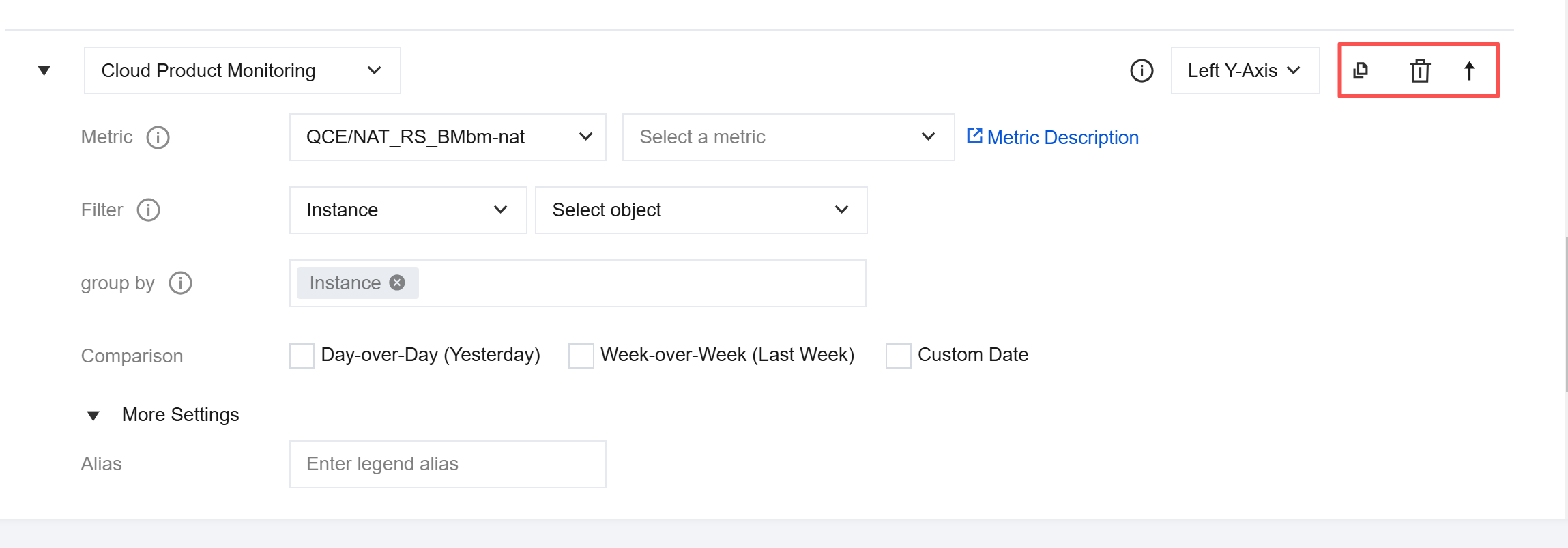
- You can click Add Metric or the copy icon to display multiple metrics in the same chart for cross-instance metric data comparison.
- You can click the up and down arrows to adjust the sorting of metrics.
- You can click deletion to delete the metric.
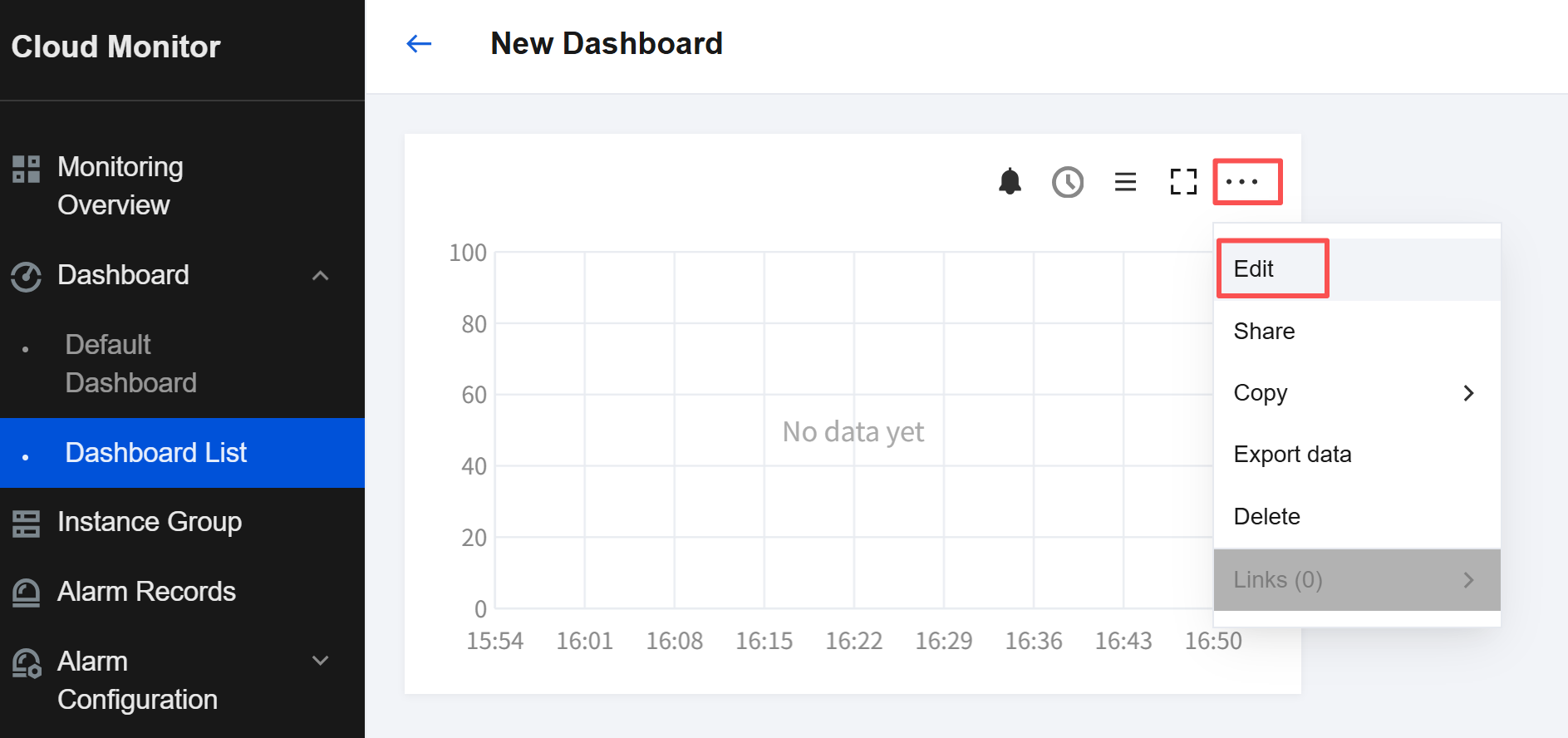
- Edit a chart.
- Click … in the upper-right corner of the chart you want to edit.
- In the pop-up box, click Edit to go to the chart editing page.