

UDP Listener Introduction
You can add a UDP listener on the CLB instance to forward UDP protocol requests from clients. The UDP protocol is suitable for scenarios with high requirements for transmission efficiency and relatively low requirements for accuracy, such as instant messaging and online videos. The UDP protocol listener and the backend server can directly obtain the real IP of the client.
Configuring UDP Listener
Step 1: Open the Listener Management page
- Log in to the CLB console.
- In the left sidebar, select LB Instance List.
- On the CLB Instance List page, click the instance ID that needs to be configured to enter the Instance Details page.
- Click the Listener Management tab.
Step 2: Configure the listener
Under TCP/UDP Listener, click Create and configure the UDP listener in the pop-up box.
1. Basic Configuration
The specific basic configuration of creating a UDP listener is shown in the figure below.

| Basic Configuration of Listener | Description | Example |
|---|---|---|
| Name | The Name of the Listener | test-udp-8000 |
| Listen Protocol Port | The listener's protocol and listening port. - Listener protocol: the protocols supported by CLB under this listener include TCP and UDP. In this example, UDP is selected. - Listener port: the port used to receive requests and forward them to the backend server. The port range is 1 - 65,535. The listening ports in the same CLB instance cannot be repeated. |
UDP:8000 |
| Balance Mode | In the UDP listener, CLB supports two scheduling algorithms: weighted round-robin (WRR) and weighted least connections (WLC). - Polling by Weight: Requests are distributed to different servers in turn based on the weight of the backend servers. Schedule by the weighted round-robin algorithm, based on the number of new connections. The server with a higher weight is rounded more often (high probability), and servers with the same weight handle the same number of connections. - Min. Weighted Connections: The server load is estimated based on the number of active connections currently on the server. For the weighted least connections algorithm, comprehensive scheduling is realized based on the server load and weight. When the weight values are the same, the backend server with fewer current connections will be selected more often (has a higher probability of being selected) in the round-robin scheduling. |
Polling by Weight. |
2. Health Check
The specific configuration of health check is shown in the figure below.
| Parameter | Description |
|---|---|
| Health Check | You can either enable or disable the health check feature. It is recommended to enable the health check to help you automatically check and remove abnormal backend CVM ports. |
| Check Protocol | - Select Check Port, indicating that the VIP (the IP address that the CLB uses to provide services to clients) sends UDP detection messages to the backend CVM and obtains the status information of the backend CVM by pinging the IP address of the backend CVM. - Select PING to obtain the status information of the backend CVM by pinging the IP address of the backend CVM. |
| Check port | Port number is not required. If it is not filled in, the backend server port will be used by default. It is recommended not to fill in the port number unless a specific port needs to be specified. |
| Input Format | Text and hexadecimal are supported. If input format is text, text is converted into binary for request sending and compared with returned result. If input format is hexadecimal, hexadecimal is converted into binary for request sending and compared with returned result. |
| Check Request | Customize the health check request content. For example, a check request for detecting the DNS service is: F13E0100000100000000000003777777047465737403636F6D0774656E63656E7403636F6D0000010001. |
| Check Return Result | When you customize the health check request, you must configure the returned health check result. For example, the result returned by the DNS service detection is: F13E. |
| Health Check Status | Enable or disable health check. In the UDP listener, the CLB instance sends a ping to the server for health check. |
| Response Timeout | - The maximum timeout for health check responses. - If the backend CVM does not respond correctly within the timeout period, it is considered a health check exception. - Configurable range: 2 - 60 seconds. The default value is 2 seconds. |
| Detection Interval | - Interval between CLB health checks. - Configurable range: 5-300 seconds, default value is 5 seconds. |
| Unhealthy Threshold | - If the health check results received for n consecutive times (n is the filled value) are failed, it is identified as unhealthy, and the console displays as Abnormal. - Configurable range: 2-10 times, default value is 3 times. |
| Health Threshold | - If the health check results received for n consecutive times (n is the filled value) are successful, it is identified as healthy, and the console displays as Healthy. - Configurable range: 2-10 times, default value is 3 times. |
3. Session Persistence
The specific configuration of session persistence is shown in the following figure.
| Session Persistence Configuration | Description | Example |
|---|---|---|
| Session Affinity Status | Enable or disable session persistence. - After session persistence is enabled, the Load Balance Listener will distribute access requests from the same client to the same backend server. - The UDP protocol is based on sessions persistence of the client IP address, that is, forwarding access requests from the same IP address to the same backend server. - Weighted round-robin scheduling supports session persistence, while weighted least connections scheduling does not support session persistence. |
Enable |
| Session Held Time | - When the hold time is exceeded and there is no new request in the connection, the session will be automatically disconnected. - Configurable range 30-3,600 seconds. |
30s |
Step 3: Bind the backend CVM
- On the Listener Management page, click the created listener, such as the aforementioned
UDP:8000listener, to view the bound backend service on the right side of the listener. - Click Bind, select the backend server to be bound in the pop-up, and configure the service port and weight.
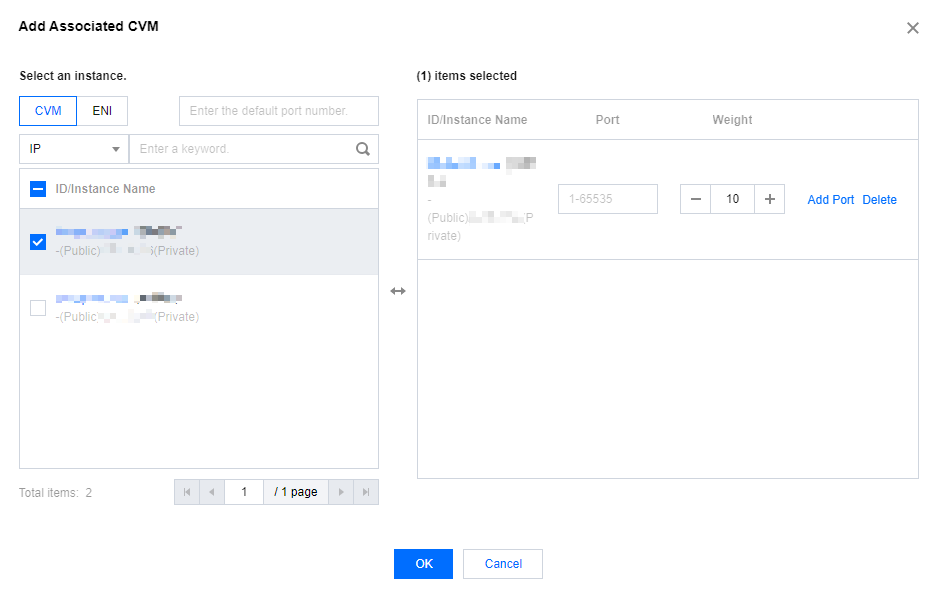
Once you have completed Step 1 to Step 3, the UDP listener rules is configured.
Step 4: Modify/delete the listener
If you need to modify or delete a created listener, on the Listener Management page, click the created listener and select Modify or Delete to complete the operation.