When configuring the HTTPS listener of the CLB service, you can directly use the certificate from the SSL certificate service or upload the required server certificate and SSL certificate issued by a third party to the CLB service.
Certificate Requirements
CLB only supports certificates in PEM format. Before uploading your certificate, make sure your certificate, certificate chain, and private key meet the required formats. For certificate requirements, see Certificate Requirements and Certificate Format Conversion.
Configuring Certificates
There are two types of certificate configuration for HTTPS listeners:
- If SNI is not enabled, the certificate is configured at the listener dimension, and all domain names under the listener use the same certificate. For details, see Configure certificates at the listener dimension.
- If SNI is enabled, the certificate is configured at the domain name dimension. Different certificates can be configured for different domain names under this listener. For details, see Configure certificates at the domain dimension.
Batch certificate renewal
To avoid the impact of certificate expiration on your services, renew the certificate before it expires.
Note:
After certificate update, the system will not delete the old certificate, but will generate a new certificate. All CLB instances using the certificate will automatically update the certificate.
- Log in to the CLB console.
- In the left sidebar, click Certificate Management.
- In the certificate list on the Certificate Management page, click Update in the Action column to the right of the target certificate.
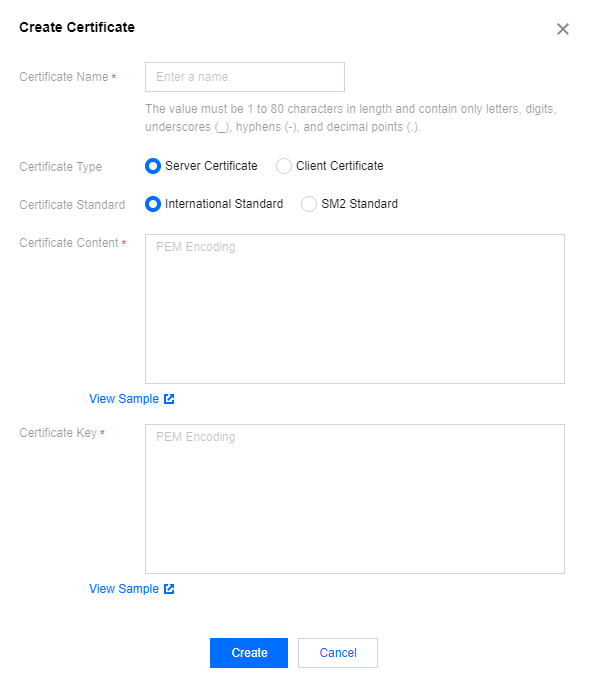
- In the Create Certificate dialog box that pops up, enter the certificate content and key content of the new certificate and click Create.
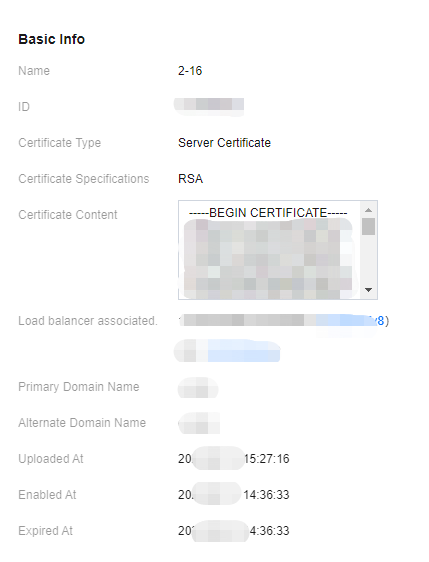
View the CLB associated with the certificate
- Log in to the CLB console.
- In the left sidebar, click Certificate Management.
- In the certificate list on the Certificate Management page, click the target certificate ID.
- On the Basic Information page, view the CLB instance to which the certificate is associated.