Software Versions
The software versions in the example steps in this document are as follows. In actual operations, the actual software versions should prevail.
- Operating system: CentOS 7.5
- Nginx version: Nginx 1.16.1
Installing Nginx
After the purchase is completed, click Log In on the CVM Details page to log in to CVM directly. After you enter your username and password, start building the Nginx environment. For more information on how to create a CVM instance, see Creating a CVM Instance.
# Install Nginx:
yum -y install nginx
# View the Nginx version:
nginx -v
# View the Nginx installation directory:
rpm -ql nginx
# Start Nginx:
service nginx start
Access the public IP address of the CVM. If the following page appears, it indicates that Nginx has been deployed.
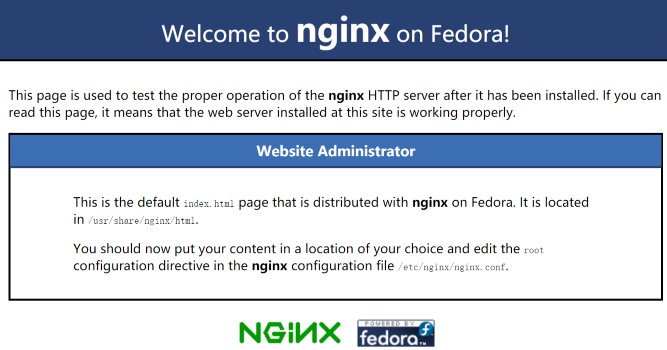
The default root directory of Nginx is
/usr/share/nginx/html. Directly modify theindex.htmlstatic page underhtmlto identify the particularity of this page. The relevant operations are as follows:- Execute the following command to go to the index.html static page under html:
bash vim /usr/share/nginx/html/index.html- Press i to enter the edit mode, and enter the following content in the
<body></body>tag:
# It is recommended to directly enter the following content below <body>:
Hello nginx , This is rs-1!
URL is index.html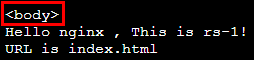
3. Press Esc and enter:wqto save the change.CLB (formerly Application CLB) can forward requests based on the path of the backend server. Deploy static pages under the
/imagepath. The relevant operations are as follows:- Execute the following commands in sequence to create a directory
imageand enter it:
mkdir /usr/share/nginx/html/image cd /usr/share/nginx/html/image- Execute the following command to create an
index.htmlstatic page in theimagedirectory:
vim index.html- Press i to enter the edit mode and enter the following content on the page:
Hello nginx , This is rs-1! URL is image/index.html- Press Esc and enter
:wqto save the edits.Note:
The default port for Nginx is port
80. To modify the port, modify the configuration file and restart Nginx.
- Execute the following commands in sequence to create a directory
Verifying the Nginx Service
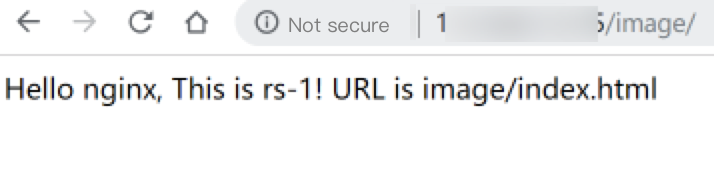
Access the public IP address and path of CVM. If a static page displays that deployment has been completed, it proves that Nginx has been deployed successfully.
- The index.html page of rs-1:
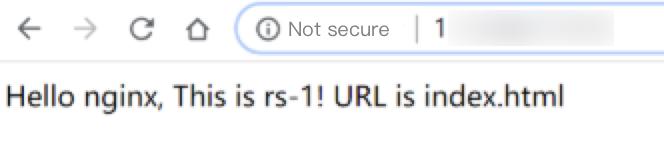
- The /image/index.html page of rs-1: