

Operation Scenarios
If you want to set up your mailbox so that it can receive emails, you need to add an MX record. This document describes how to add an MX record.
Prerequisites
You have created the corresponding private domain. For more details, see Creating Private Domain.
Directions
Log in to the VPCDNS console and enter the VPCDNS List management page.
In the "VPC Domain Resolution List", click the private domain name for which you need to create an MX record.
Enter the Resolution Record Management Page, click Add Record, and in the pop-up "Add DNS Record" window, fill in the relevant record value information.
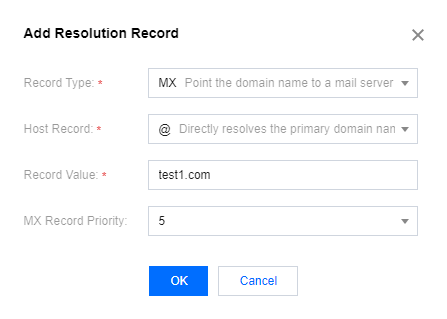
- Record Type: Select MX.
- Host Record: Enter the subdomain.
- Record Value: It can be a domain or an IP address.
- If the record value is a domain, the domain pointed to must have an A record, and a dot will be automatically added at the end of the domain after the record is generated.
- If the record value is an IP address, directly enter the mail server's IP address, and a dot will be automatically added at the end after the record is generated.
- MX Priority: The lower the value, the higher the priority. Note:
The value of MX priority can only be a positive multiple of 5 and must be ≤ 50. Lower values indicate higher priority. Ensure the domain used in the record value has an A record if it's a domain, or enter a valid IP address.
Click Save to complete the addition.
