

CLB supports layer-7 redirection. This feature allows users to configure redirection on the layer-7 HTTP/HTTPS listener.
Note:
Session persistence: If the client accesses
example.com/bbs/test/123.htmland session persistence has been enabled in the backend CVM, after redirection is enabled to forward traffic toexample.com/bbs/test/456.html, the original session persistence mechanism will not take effect.
Redirection Overview
- Automatic redirection
- Overview
For an existingHTTPS:443listener, an HTTP listener (port 80 by default) will be created by the system for forwarding. After the creation is successful, requests sent toHTTP:80will be automatically redirected toHTTPS:443. - Use case
Forced HTTPS redirection, namely redirecting HTTP requests to HTTPS. When a user accesses a web service in a PC or mobile browser over HTTP, CLB will redirect all requests sent toHTTP:80toHTTPS:443for forwarding. - Solution strengths
- Set-and-forget configuration: Forced HTTPS redirection can be implemented for a domain name with only one configuration operation.
- Convenient update: If the number of URLs of the HTTPS service changes, you only need to use this feature again in the console for refreshing.
- Overview
- Manual redirection
- Introduction
You can configure one-to-one redirection. For example, in a CLB instance, you can configure redirection oflistener 1/domain name 1/URL 1tolistener 2/domain name 2/URL 2. - Use case
Single-path redirection. For example, if you want to take your web workload offline temporarily (because of product sellout, page maintenance, or update and upgrade), the original page needs to be redirected to a new page. If no redirection is performed, the old address in a visitor's favorites and search engine database will return a page which displays a404/503error message, degrading the user experience and resulting in traffic waste.
- Introduction
Automatic Redirection
Converge Cloud CLB supports one-click forced redirection from HTTP to HTTPS.
Assume that a developer needs to configure the website https://www.example.com, so that its users can visit it securely over HTTPS no matter whether they send HTTP requests (http://www.example.com) or HTTPS requests (https://www.example.com) in the browser.
Prerequisites
An HTTPS:443 listener has been configured.
Operation Steps
Configure the CLB HTTPS listener in the CLB console and set up the web environment of
https://example.com. For details, see Configuring an HTTPS Listener.Configure the HTTPS listener.
In the Redirection Configuration tab of the CLB instance details, click Create Redirection Configuration.
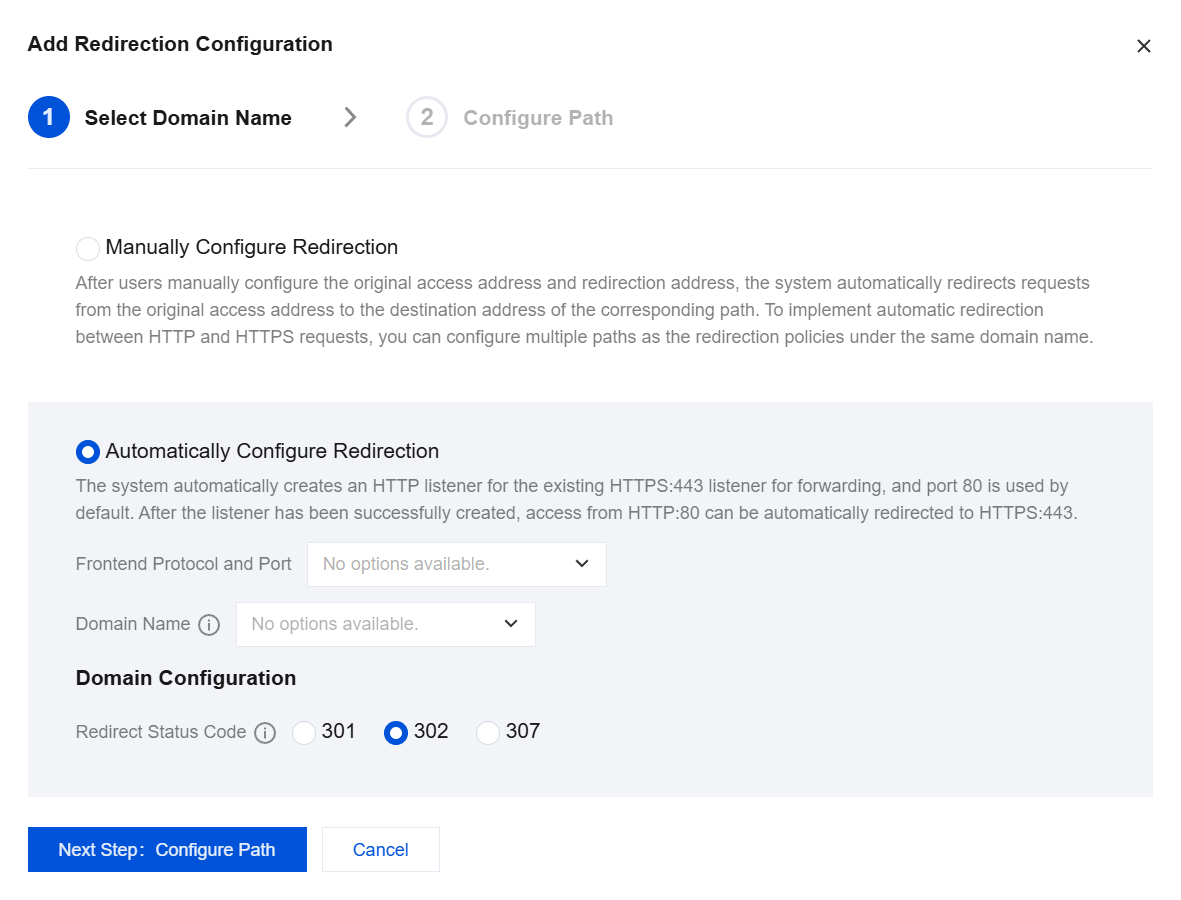
Select Automatically Configure Redirection. Then, select the configured HTTPS listener and domain name, and a redirection status code in the Domain Name Configuration section. Click Next Step: Configure Path.
Note:
The status codes are 301 (Moved Permanently), 302 (Move Temporarily), and 307 (Temporary Redirect). For details, see HTTP/1.1 (RFC 7231).
Click Submit to complete the configuration.
After the redirection configuration is completed, you can see that the
HTTP:80listener has been automatically configured for theHTTPS:443listener, and all HTTP traffic will be automatically redirected to HTTPS.
Manual redirection
Converge Cloud CLB supports configuring one-to-one redirection.
For example, you used a forsale page for your promotional campaign. Now the campaign ends and you need to redirect the campaign page https://www.example.com/forsale to the new homepage https://www.new.com/index.
Prerequisites
- An HTTPS listener has been configured.
- The forwarding domain name
https://www.example.com/forsalehas been configured. - The forwarding domain name and path
https://www.new.com/indexhave been configured.
Operation Steps
- Configure the CLB HTTPS listener in the CLB console and set up the web environment of
https://example.com. For details, see Configuring an HTTPS Listener. - Configure the HTTPS listener.
- In the Redirection Configuration tab of the CLB instance details, click Create Redirection Configuration.
- Select Manually Configure Redirection, and then select the originally accessed frontend protocol port
HTTPS:443and domain namehttps://www.example.com/forsale, as well as the frontend protocol portHTTPS:443and domain namehttps://www.new.com/indexafter redirection. In Domain Configuration, select a redirection status code, and select or clear the URL reservation check box. Then click Next Step: Configure Path.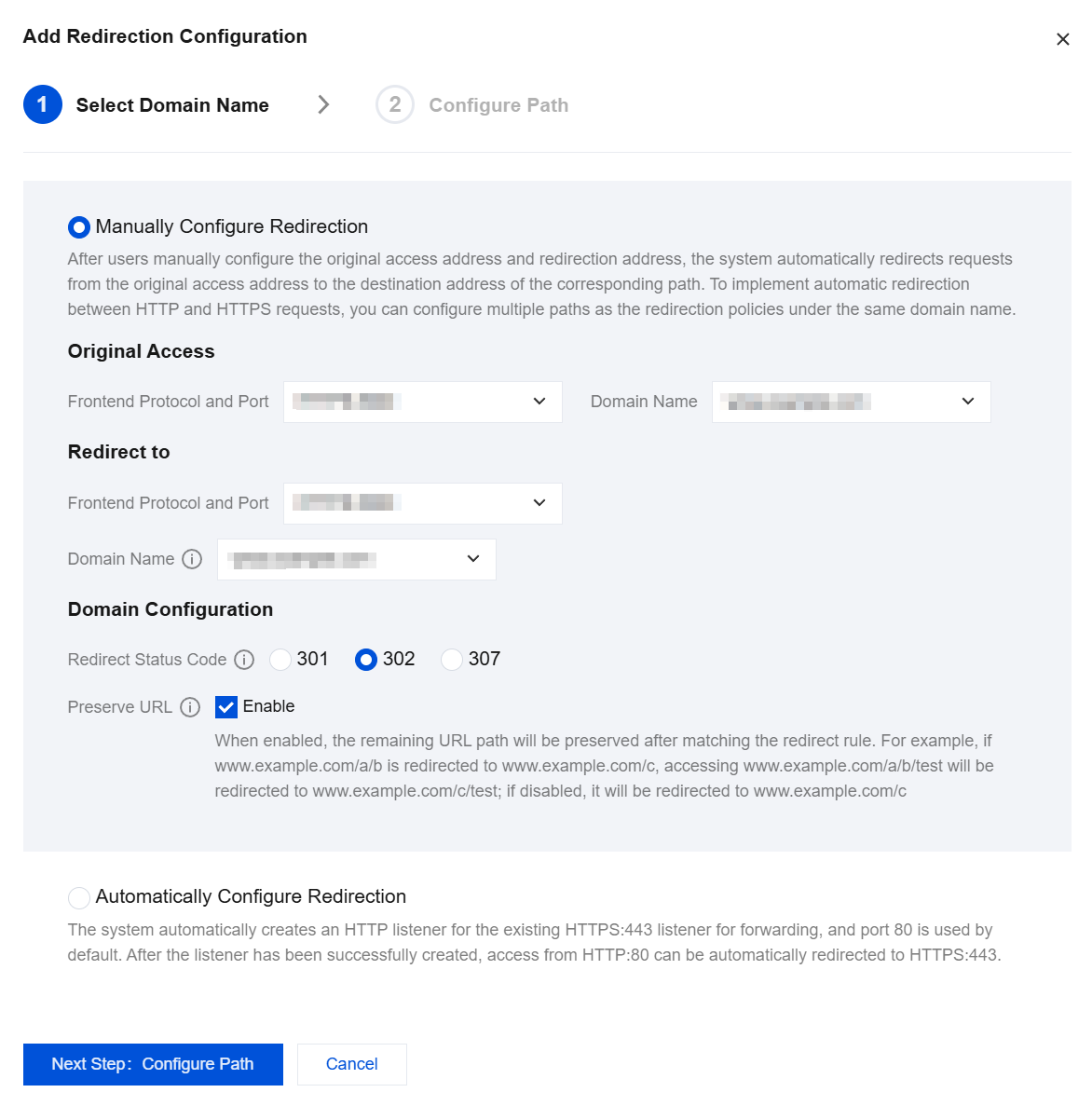
- Select
/forsaleas the original access path and/indexas the access path after redirection. Then, click Submit to complete the configuration. - After the redirection configuration is completed, you can see that in the
HTTP:443listener,https://www.example.com/forsalehas been redirected tohttps://www.new.com/index.
