CLB routes requests to healthy backend CVM instances. If you need to add or remove backend servers for the first time or based on business needs, follow the instructions below.
- Unbinding a backend server will disassociate the CLB instance from the CVM instance, and the CLB instance will immediately stop forwarding requests to it.
- Unbinding a backend server will not affect the lifecycle of CVM, and you can add it to the backend server cluster again.
- If a CLB instance is associated with an auto scaling group, the CVMs in the group will be automatically added to the CLB backend CVMs. The CVM instances removed from the auto scaling group will be automatically deleted from the CLB backend CVMs.
Add a CLB backend CVM
Log in to the CLB console. In the list, click the corresponding CLB instance ID to enter the CLB details page.
In the listener corresponding to the instance, add the corresponding backend CVM.
Description:
IPv4 CLB supports binding to CVMs and BMSs in the same way;
- TCP/UDP Listener
Select the listener that needs to bind a backend CVM, and click Bind.
- HTTP/HTTPS Listener
Select the listener that needs to bind a backend CVM, and click Bind.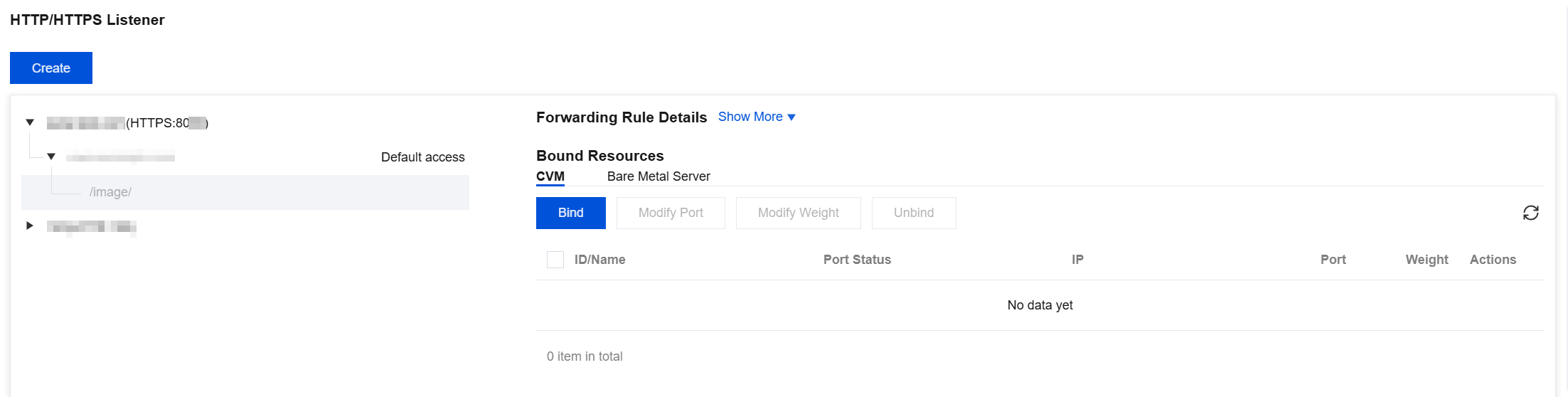
- In the pop-up, select the CVM to be associated, fill in the relevant port and weight for the CVM that need to be forwarded, and click OK to complete the association between the CVM and the CLB.
Description:
The pop-up only displays optional CVMs that are in the same Region, have the same Network Environment, are not isolated, are not expired, and have a Bandwidth (Peak) greater than 0.

4. If you need to bind CVMs in batches and the preset port values are the same, you can first enter the preset port value in Default Port, then check the relevant CVMs and set the weight value, and click OK to complete the binding.
Modify the weight of the CLB backend server
The backend server weight determines the relative number of requests forwarded to the CVM. When binding a backend CVM, you need to preset the weight. If you need to modify the weight later, see the following instructions. For more information about weights of CLB backend servers, see CLB round-robin scheduling method.
- Log in to the CLB console. In the list, click the corresponding CLB instance ID to enter the CLB details page.
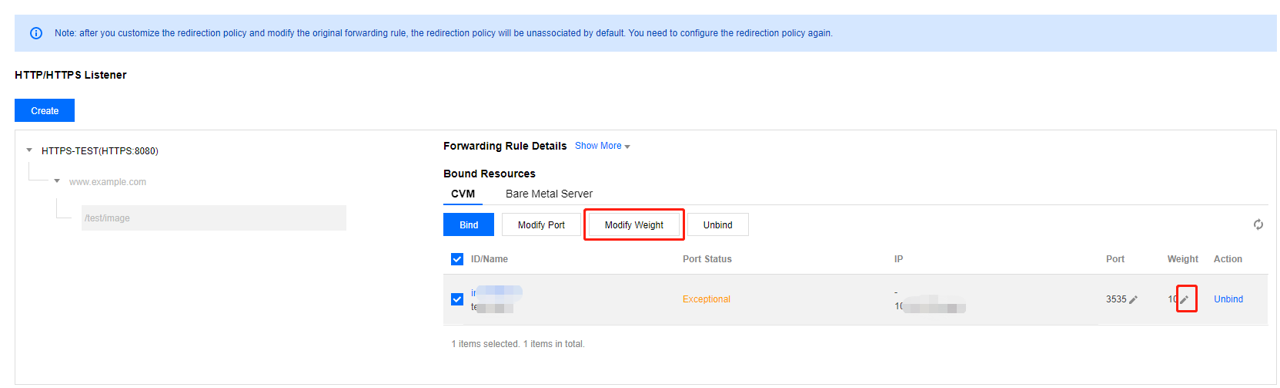
- After selecting the instance and listener rules, select the relevant server in the server list, click the edit icon, enter the modified weight value, and click OK to complete the modification of the server weight.
- If you need to modify in batch, click Modify Weight after selecting all relevant servers, enter the modified weight value, and click OK to complete the batch modification.
Modify the CLB backend server port
- Log in to the CLB console. In the list, click the corresponding CLB instance ID to enter the CLB details page.
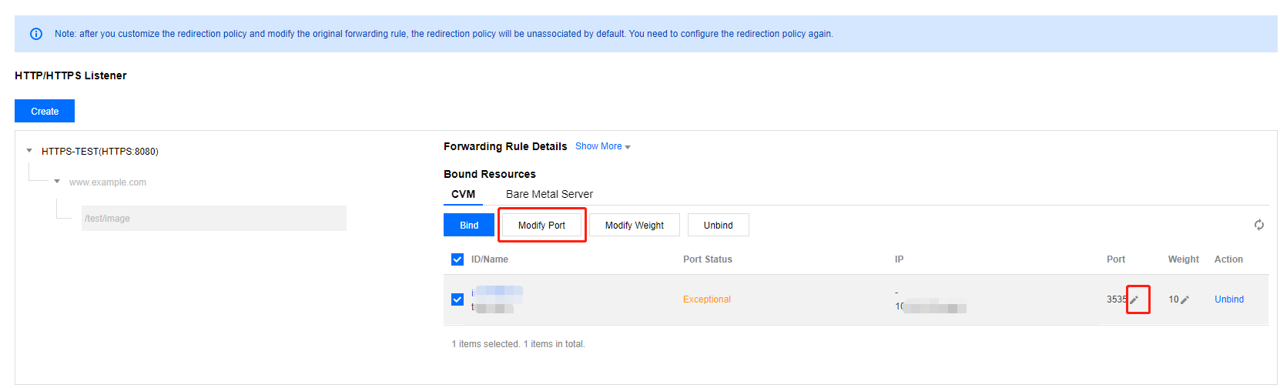
- After selecting the instance and listener rules, select the relevant server in the server list, click Edit, enter the modified port value, and click OK to complete the modification of the server port.
- If you need to modify in batch, select all related servers, click Modify Port, enter the modified port, and click OK to complete the batch modification.
Unbind the CLB backend server
- Log in to the CLB console. In the list, click the corresponding CLB instance ID to enter the CLB details page.
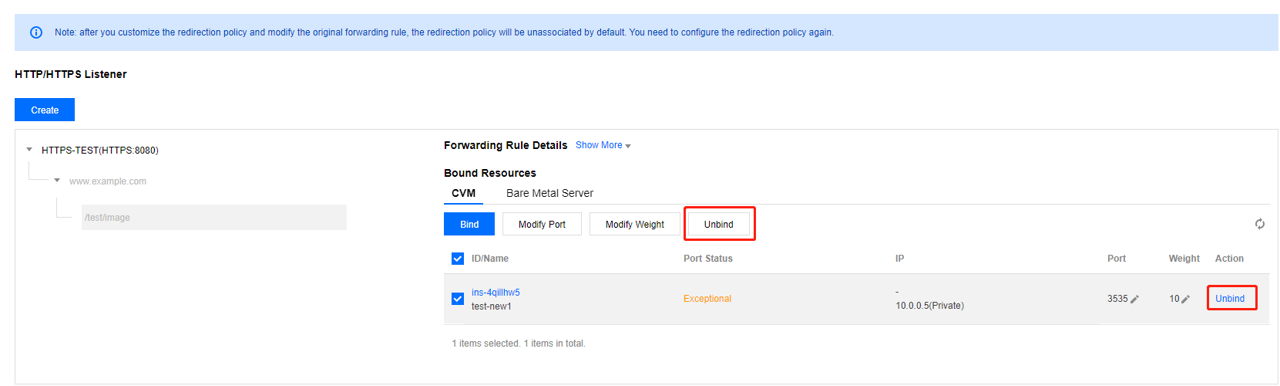
- After selecting the listener and rule, select the CVM to be unbound in the CM list on the right, click Unbind, and click OK in the pop-up box.
- If you need to unbind in batches, select all the CVMs that need to be unbound, click Unbind, and then click OK in the pop-up box.