

Scenarios
In a hybrid cloud networking scenario, you may need to establish connectivity between the multicast services in your on-premises IDC and the CVMs within a VPC of the cloud platform, enabling multicast mutual communication between the IDC and the cloud-based CVMs.
This section describes how to establish a multicast communication link between a VPC and an on-premises IDC using a standard DCGW and a dedicated tunnel, and provides an end-to-end connectivity verification method.
Operation Steps
Step 1: Creating a CVM Instance and Preparing Routes in the Target VPC
- Log in to the CVM console.
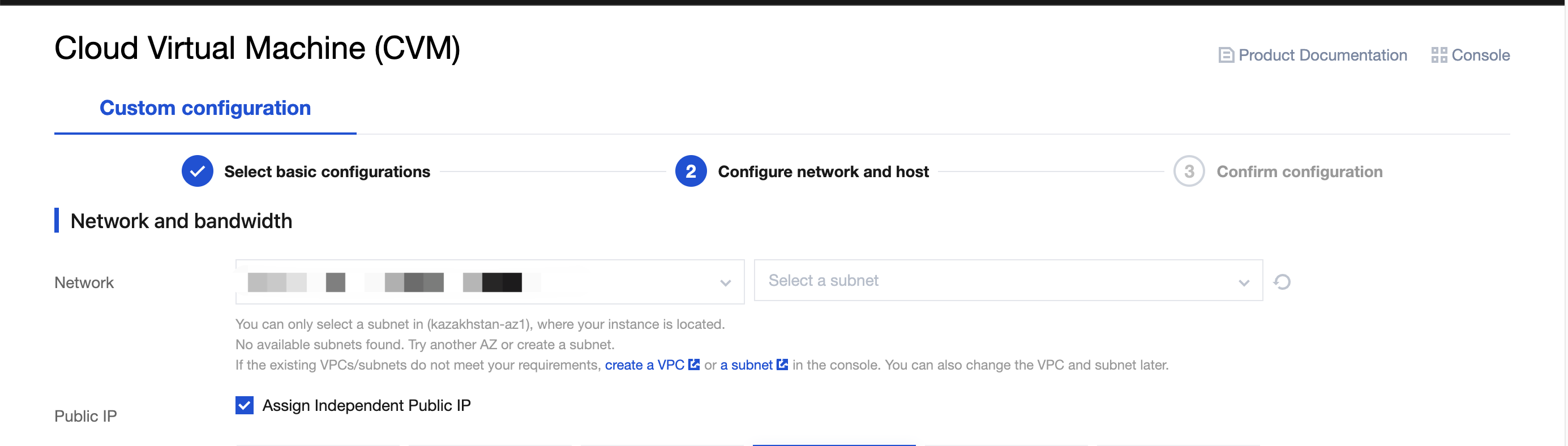
- Click Create to create a CVM instance, and select the target VPC and subnet in the Network and Bandwidth step.
- Log in to the VPC console.
- Create a dedicated tunnel for a standard DCGW in the target VPC and fill in the User IDC IP Range parameter based on your actual situation.
- After the dedicated tunnel is ready, modify the route table associated with the subnet where the CVM instance resides and add a route:
- Destination IP address: IP address of the IDC IP range for the dedicated tunnel.
- Next-hop type: standard DCGW.
- Verify that a route has been configured on the IDC switch, using an address in the VPC IP range as the destination IP address and the cloud boundary IP address as the next hop.
Step 2: Enabling Multicast for the Dedicated Tunnel
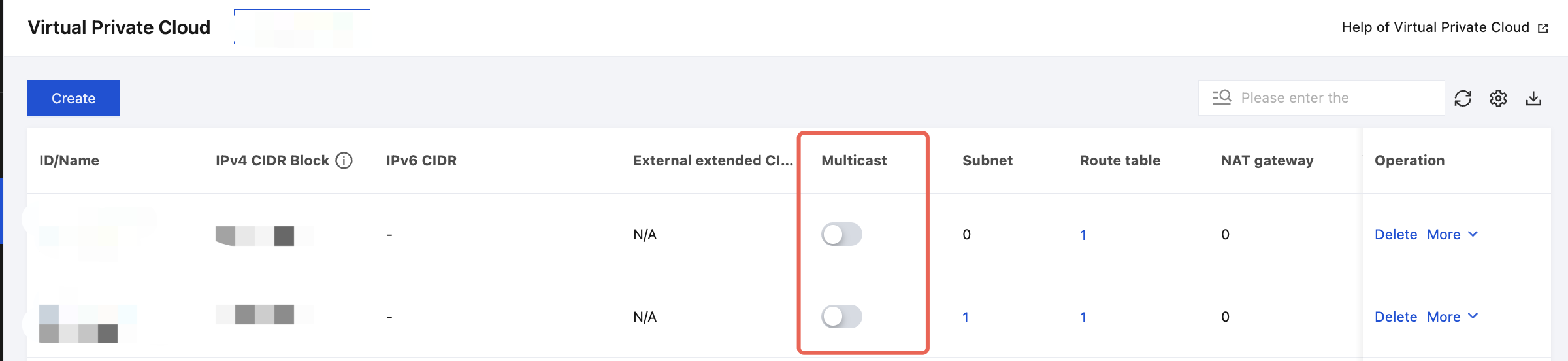
- Log in to the VPC console and enable Multicast for the target VPC.
- Log in to the Direct Connect console. On the dedicated tunnel page, click Tunnel Change in the Operation column on the right side of the tunnel whose parameters need to be changed.

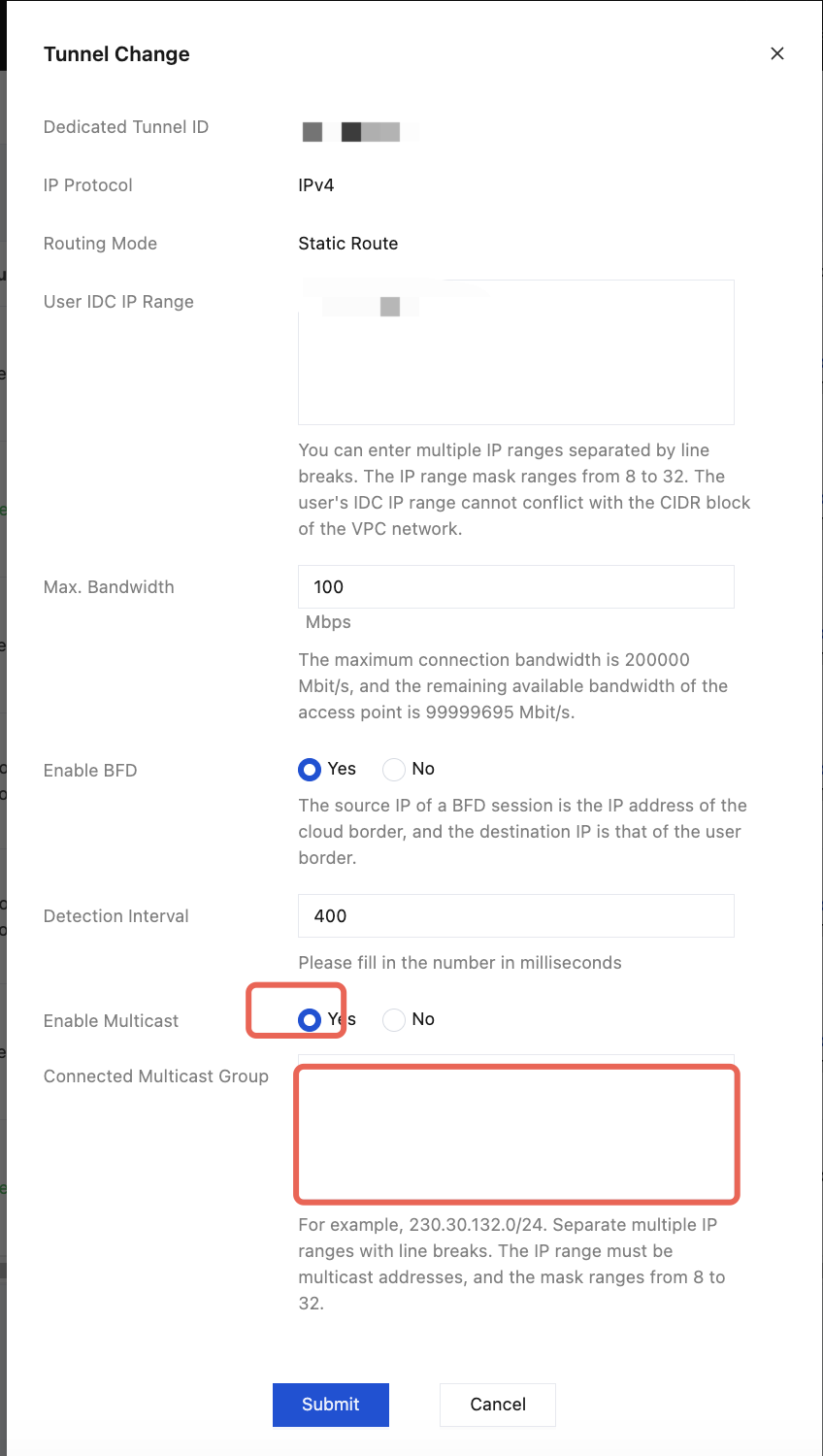
- On the Tunnel Change page, follow the on-screen prompt to Enable Multicast. Click Yes, specify the Connected Multicast Group parameter, and then click Submit to enable multicast for the dedicated tunnel.
Step 3: Configuring the PIM Protocol on the IDC Switch
Complete the corresponding multicast configuration on the IDC switch to ensure that the PIM neighbor relationship can be established properly.
Note:
The pimd tool can be installed on the IDC server to assist in multicast routing management.
Download URL for binary pimd: https://drive.weixin.qq.com/s?k=AJEAIQdfAAoT4m0OKr.
Compilation dependencies: GCC and Make. Install them using yum commands if they are not installed.
Run the following compilation and installation commands after decompression:
./configure --enable-scoped-acls && make
make install
After compilation and installation, the /etc/pimd.conf file is automatically created. You can then start the pimd tool by executing ./pimd.
Step 4: Installing the iperf Testing Tool on the CVM Instance and IDC Server
- Log in to the CVM instance and the IDC server separately and run the yum install -y iperf command to download and install the traffic testing tool iperf.
Note:
For Ubuntu systems, run the apt install -y iperf command to install iperf.
Step 5: Verifying Multicast Connectivity
Run the following command to add the CVM instance to the multicast group: iperf -s -u -B 230.24.0.211 -i1.
Note:
If multiple IP addresses are available on the CVM instance, use the -B parameter to bind communication IP addresses, for example: iperf -s -u -B 230.24.0.211 -i1 -B10.0.0.16.
Run the following command on the IDC server to send multicast messages to the multicast group: iperf -c 230.24.0.211 -t 500 -u -T64 -l 1000 -b 2000pps.
Note:
If multiple IP addresses are available on the IDC server, use the -B parameter to bind communication IP addresses (the IP addresses configured in User IDC IP Range for the tunnel), for example, iperf -c 230.24.0.211 -t 500 -u -T64 -l 1000 -b 2000pps -B 192.10.88.100.
The multicast communication is successful. The CVM instance can receive multicast messages, and no packet loss occurs after the traffic stabilizes.