

Scenarios
This document takes CentOS 7.2 64-bit system as an example, uses vsftpd as the FTP server and FileZilla as the client, and introduces how to build FTP service on Linux Cloud Virtual Machine.
Operation Steps
Installing VSFTPD
Log in to the Linux Cloud Virtual Machine.
Execute the following command to install vsftpd.
yum install vsftpd -y
Starting the Service
Execute the following command to start the service.
systemctl start vsftpdExecute the following command to confirm whether the service is started.
netstat -tunlpIf the following information is returned, the vsftpd service has been started successfully.
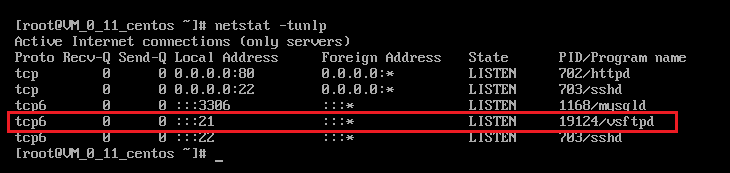
Verifying the VSTPD Service (Optional)
To ensure that the FTP server is configured successfully, you can also perform the following directions on your local computer or other Cloud Virtual Machines to verify whether the vsftpd service is started successfully. The following directions take the local computer running the Linux operating system as an example. If the local computer is running Windows or Mac OS, please ensure that the telnet feature is enabled on the computer.
Execute the following command on the operating system of the local computer to install the telnet service.
Note:If your local computer is running Windows or Mac OS, please skip this step.
yum -y install telnetExecute the following command to test whether the vsftpd service is started successfully.
telnet + Cloud Virtual Machine public network IP + 21If the following information is returned, the startup is successful.
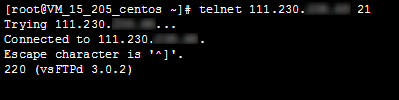
Configuring VSFTPD
Execute the following command to open the vsftpd configuration file.
vi /etc/vsftpd/vsftpd.confPress i to switch to edit mode and change
anonymous_enable=YES in the filetoanonymous_enable=NO. As shown below: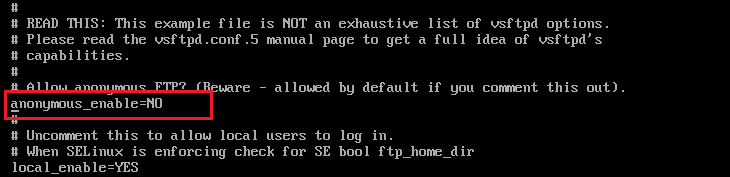
Press "Esc", enter ":wq" to save the file and return.
Adding a FTP User
Execute the following command to add user
ftpuser1.useradd -m -d /home/ftpuser1 -s /sbin/nologin ftpuser1Execute the following command to set password for
ftpuser1user.passwd ftpuser1The user was successfully created and the password has been set.

Subsequent Operations
After the FTP service is set, you can upload or download files. For example, Uploading Files to CVM via FTP on Windows Systems.
FAQs
The FTP Client Connection Timed out or Failed to Read the Directory List
Issue Description
Some users may encounter connection timeouts and fail to read directory list when connecting to the FTP client locally. As shown below:
The problem occurs with the PASV command. The reason is that the FTP protocol is not suitable for the Converge Cloud network architecture. The FTP client transmits in passive mode by default, so during the communication process, it will look for the server's IP address to connect to. However, since the public network IP of Converge Cloud is not directly configured on the network interface, the client cannot find a valid IP in passive mode (it can only find the Cloud Virtual Machine's private network IP address, and the private network IP address cannot directly communicate with the public network), so it cannot establish a connection.
Solution
Change the client transmission mode to active.
If the client network environment requires passive mode, you need to add the following statements to the vsftpd configuration file on the server:
pasv_address=XXX.XXX.XXX.XXX     //(public network  IP)
pasv_enable=YES
pasv_min_port=1024
pasv_max_port=2048
FTP Client Failed to Upload File
Issue Description
In the Linux system environment, when uploading files through VSFTP, the following error message is prompted.
553 Could not create file
Solution
Execute the following command to check the server disk space usage.
df -h- If the disk space is insufficient, the file cannot be uploaded. It is recommended to delete files with large disk capacity.
- If the disk space is normal, please proceed to the next step.
Execute the following command to check whether the FTP directory has write permission.
ls -l /home/test # /home/test is the FTP directory, please change it to your actual FTP directory.- If there is no
win the returned result, the user does not have writing permission. Please proceed to the next step. - If there is already
win the returned result, please submit a ticket for feedback.
- If there is no
Execute the following command to add write permission to the FTP directory.
chmod +w /home/test
# /home/test is the FTP directory, please change it to your actual FTP directory.
Execute the following command to check whether the write permission is set successfully.
ls -l /home/test
# /home/test is the FTP directory, please change it to your actual FTP directory.