

Overview
For Cloud GPU Service to work properly, the correct Data Center Operating System software must be installed in advance. For NVIDIA series GPUs, the following two levels of software packages need to be installed:
- The hardware driver that drives the GPU to work.
- Libraries required by upper-level applications.
This document takes the CentOS operating system as an example to introduce how to install the Tesla Driver.
Directions
Linux Driver Installation
The Linux driver installation uses Shell scripts and is applicable to any Linux release version, including CentOS, Ubuntu, etc.
The Linux driver of NVIDIA Telsa GPU needs to compile kernel module during installation. The system needs to install gcc and the packages that Linux Kernel Module depends on in advance, such as kernel-devel-$(uname -r).
Execute the following command to check whether dkms is installed in the current system.
rpm -qa | grep -i dkmsIf the returned result is as follows, the dkms has been installed.

If the dkms is not installed, execute the following command to install it.sudo yum install -y dkmsLog in to NVIDIA Driver Download or visit https://www.nvidia.com/Download/index.aspx?lang=en-us.
Select the operating system and installation package based on the instance operating system and GPU specifications.
Click Search to find the driver, and select the driver version to download.
Note:
For Operating System, select Linux 64-bit to download the shell installation file. If you select a specific distributions, the downloaded file is the corresponding package installation file.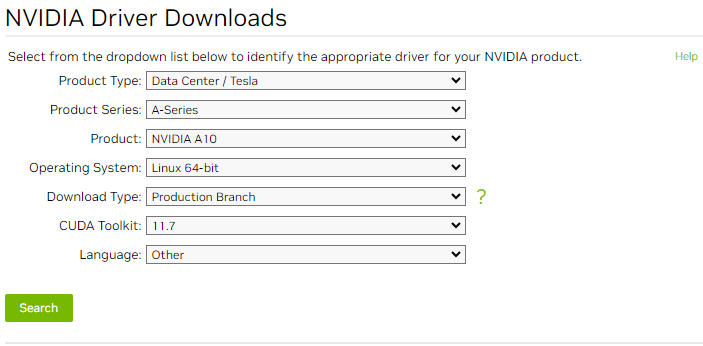
Select a specific version to enter the download page and click Download.
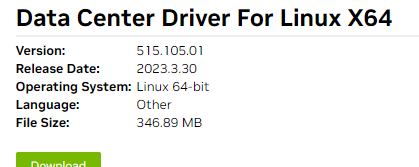
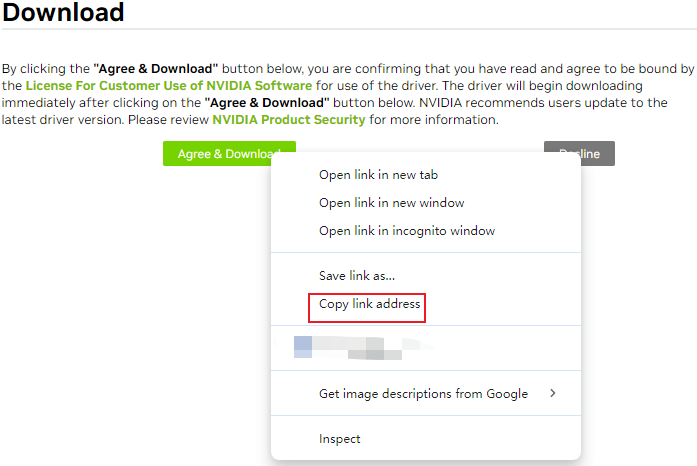
If there is a personal information page, you can choose to skip it directly. When the following page appears, right-click Download and select Copy link address from the menu.
See using the standard method to log in to the Linux instance (recommended) to log in to the GPU instance. You can also choose other different log-in methods according to your actual operation habits:
- Use remote log-in software to log in to the Linux instance
- Use SSH to log in to the Linux instance
Use the wget command to paste the link address obtained in step 6 to download the installation package. As shown below:

Alternatively, you can download the NVIDIA installation package on your local system and then upload it to the server of GPU instance.Execute the following command to add execution permissions to the installation package. For example, add execution permission to the file named NVIDIA-Linux-x86_64-418.126.02.run.
chmod +x NVIDIA-Linux-x86_64-418.126.02.runExecute the following commands in sequence to check whether the gcc and kernel-devel packages are installed in the current system.
rpm -qa | grep kernel-devel
rpm -qa | grep gcc
If the returned result is as follows, gcc and kernel-devel have been installed.

If it is not installed, execute the following command to install it.
sudo yum install -y gcc kernel-devel
Note:
If you upgraded the kernel version, you need to upgrade kernel-devel to the same version as the kernel.
- Execute the following command to run the driver installation program and follow the prompts for subsequent operations.
sudo sh NVIDIA-Linux-x86_64-418.126.02.run
- After the installation is complete, execute the following command to verify it.
nvidia-smi
If the returned information is similar to the GPU information in the figure below, the driver has been installed successfully.

Windows Driver Installation
- Log in to the GPU instance.
- Visit NVIDIA Driver Download website.
- Select the operating system and installation package based on the instance operating system and GPU specifications. For GPU specifications, see Instance Types.
This document takes A10 as an example,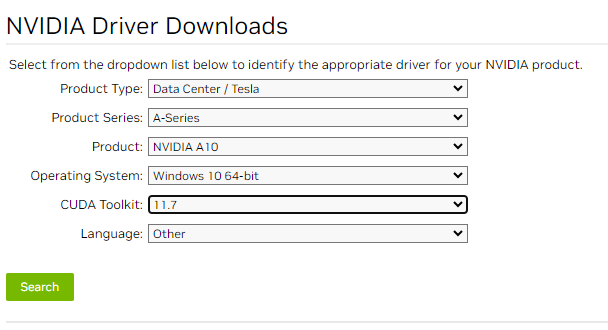
- Open the folder where you downloaded the driver, double click the installation file to start the installation, follow the prompts on the interface to install the driver and restart instance as needed.
After the installation is complete, if you need to verify whether your GPU is working properly, you can view Device Manager.
Reasons for Installation Failure
The failure of Linux system driver installation is manifested as nvidia-smi not working. The common reasons are as follows:
- The system lacks the packages required to compile the kernel module, such as gcc, kernel-devel-xxx, which results in the inability to compile and ultimately the installation fails.
- There are multiple versions of kernel in the system. Due to incorrect configuration of DKMS, the driver is compiled into a kernel module that is not the current version of kernel, resulting in kernel module installation failure.
- After the driver is installed, the kernel version was upgraded, causing the original installation to become invalid.