

This document describes how to troubleshoot and locate the problem of website inaccessibility.
Possible Reasons
The website cannot be accessed due to network problems, firewall settings, excessive server load, etc.
Troubleshooting
Troubleshoot Server-related Problems
The website cannot be accessed due to server shutdown, hardware failure, or high CPU/memory/bandwidth usage, so it is recommended that you check the server's operating status and CPU/memory/bandwidth usage in turn.
Log in to the CVM console and check whether the instance is running normally on the instance management page.
- Yes, perform step 2.
- No, restart the CVM instance.
Click the instance ID/hostname to go to the instance details page.
Select the Monitor tab to check CPU/memory/bandwidth usage.
- If there are high CPU/memory usage problems, see Windows Instance: Unable to Log in Due to High CPU and Memory Usage and Linux Instance: Unable to Log in Due to High CPU and Memory Usage for troubleshooting.
- If the bandwidth usage is too high, see Unable to Log in Due to High Bandwidth Usage for troubleshooting.
- If the CPU/memory/bandwidth usage is normal, perform step 4.
Perform the following command to check whether the corresponding port of the web service is being monitored normally. > Note: The following operations use port 80, which is commonly used by HTTP services, as an example.
- Linux instance: Perform the
netstat -ntulp |grep 80command. As shown below:
- Linux instance: Perform the

- Windows instance: Open the CMD command line Interface and perform the
netstat -ano|findstr :80command. As shown below:
- If the port is monitored normally, perform step 5.
- If the port is not monitored normally, check whether the Web service process is started or configured normally.
- Check the firewall settings to see whether the port corresponding to the Web service process is open.
- Linux instance: Perform the
iptables -vnLcommand to check whether iptables opens port 80. - If port 80 is opened, troubleshoot network-related problems.
- If port 80 is not opened, perform the
iptables -I INPUT 5 -p tcp --dport 80 -j ACCEPTcommand to open port 80. - Windows instance: On the operating system page, click Start > Control Panel > Firewall Settings to check whether the Windows firewall is turned off.
- Yes, troubleshoot for network related problems.
- No, turn off the firewall settings.
- Linux instance: Perform the
Troubleshooting Network-related Problems
Network-related problems may also cause the website to be inaccessible. You can perform the following command to check whether there is packet loss or high latency on the network.
Ping the public IP of the destination server
- If the following result is returned, it represents packet loss or high latency. Use MTR to perform further investigation. See CVM Network Delay and Packet Loss for specific operations.
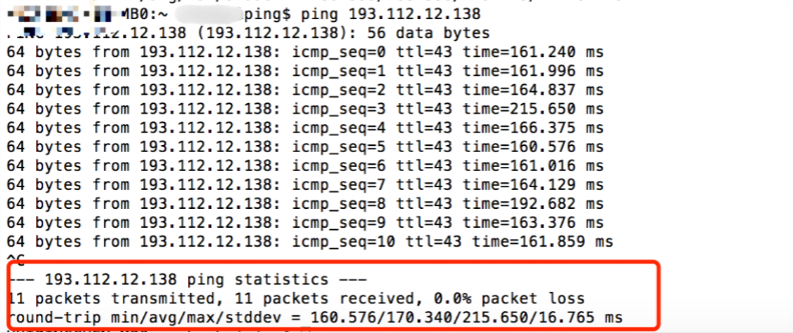
- If there is no packet loss or high latency, troubleshoot problems related to security group settings.
Troubleshooting Problems Related to Security Group Settings
A security group is a virtual firewall that controls inbound and outbound traffic for associated instances. The rules of a security group can specify protocols, ports, policies, etc. If you do not open the ports related to the Web process, the website will be inaccessible.
- Log in to the CVM console and click the ID/hostname of the instance on the Instance List page to enter the instance details page.
- Select the Security Group tab, check the bound security group and the outbound and inbound rules of the corresponding security group, and confirm whether to open ports related to the Web process. As shown below:
- Yes, check the domain name, registration, and resolution-related problems.
- No, modify the security group settings and open the ports related to the Web process.
Troubleshooting Domain Name Registration and Resolution-related Problems
After troubleshooting server-related, network-related, and security group setting-related problems, you can try to access the cloud server using its public IP address. If the website can be accessed using the IP address but fails to be accessed using the domain name, it may be that the website is inaccessible due to problems related to domain name registration or resolution.
- The Ministry of Industry and Information Technology stipulates that websites that have not obtained a license or have not completed registration procedures are not allowed to engage in Internet information services, otherwise, it will be an illegal act. In order not to affect the normal operation of the website in the long term, if you need to open a website, it is recommended that you first register the website, and only enable access after the registration is successful and the ICP registration number issued by the Communications Administration is obtained.
- If you are using our domain name service, you can log in to the domain name management console to check the corresponding domain name status.
- If your domain name has been registered and the website inaccessibility problem still cannot be resolved, submit a ticket.