

Overview
When creating Cloud Virtual Machine, you can configure the instance by specifying custom data. When Cloud Virtual Machine starts for the first time, the custom data is passed to the cloud server as text and executed. If you purchase multiple Cloud Virtual Machines at once, the custom data will be executed on all cloud servers upon their first startup.
This document uses an example of passing a PowerShell script during the first startup of a Linux Cloud Virtual Machine.
Notes
- Supported Linux operating systems for custom data include:
- 64-bit Operating Systems: CentOS 6.8 64-bit and above, Ubuntu Server 14.04.1 LTS 64-bit and above.
- 32-bit Operating Systems: CentOS 6.8 32-bit and above
- Commands are executed by passing text only during the initial startup of the Cloud Virtual Machine.
- Note: The text must be Base64 encoded. Please encode the text in a Linux environment to avoid format incompatibility .
- Use the root account to execute the user data input text. Do not use the "sudo" command in the script. Any files you create will be owned by root. If you need non-root users to have file access, modify the permissions in the script.
- Executing tasks specified in custom data during startup will increase the server's startup time. Please wait a few minutes and test if the task has been successfully executed.
- In this example, the Shell script must start with
#!character and the path to the interpreter that will read the script (usually/bin/bash).
Directions
Writing the Shell Scripts
Execute the following command to create a Shell script file named "script_text.sh".
vi script_text.shPress i Switch to edit mode, refer to the following content, write and save the "script_text.sh" script file.
#!/bin/bash
echo "Hello Converge Cloud."
Note:
Shell scripts must start with #! character and the path to the interpreter that will read the script (usually /bin/bash). For more information about Shell scripts, refer to the Linux Documentation Project (tldp.org) on BASH Programming.
Encoding Script Files Using Base64
Execute the following command to Base64 encode the script_text.sh script file.
# Base64 encode the script.
base64 script_text.sh
The following information will be returned:
# The encoded result will be:
IyEvYmluL2Jhc2gKZWNobyAiSGVsbG8gVGVuY2VudCBDbG91ZC4iCg==
Run the following command to verify the result of Base64 encoding script.
# Perform Base64 decoding on the returned result to verify whether it is the command to be executed
echo "IyEvYmluL2Jhc2gKZWNobyAiSGVsbG8gVGVuY2VudCBDbG91ZC4iCg==" | base64 -d
Transmitting Text
We provide multiple ways to start instances, mainly divided into the following two scenarios. Please select according to your actual needs:
Transmitting Through the Console
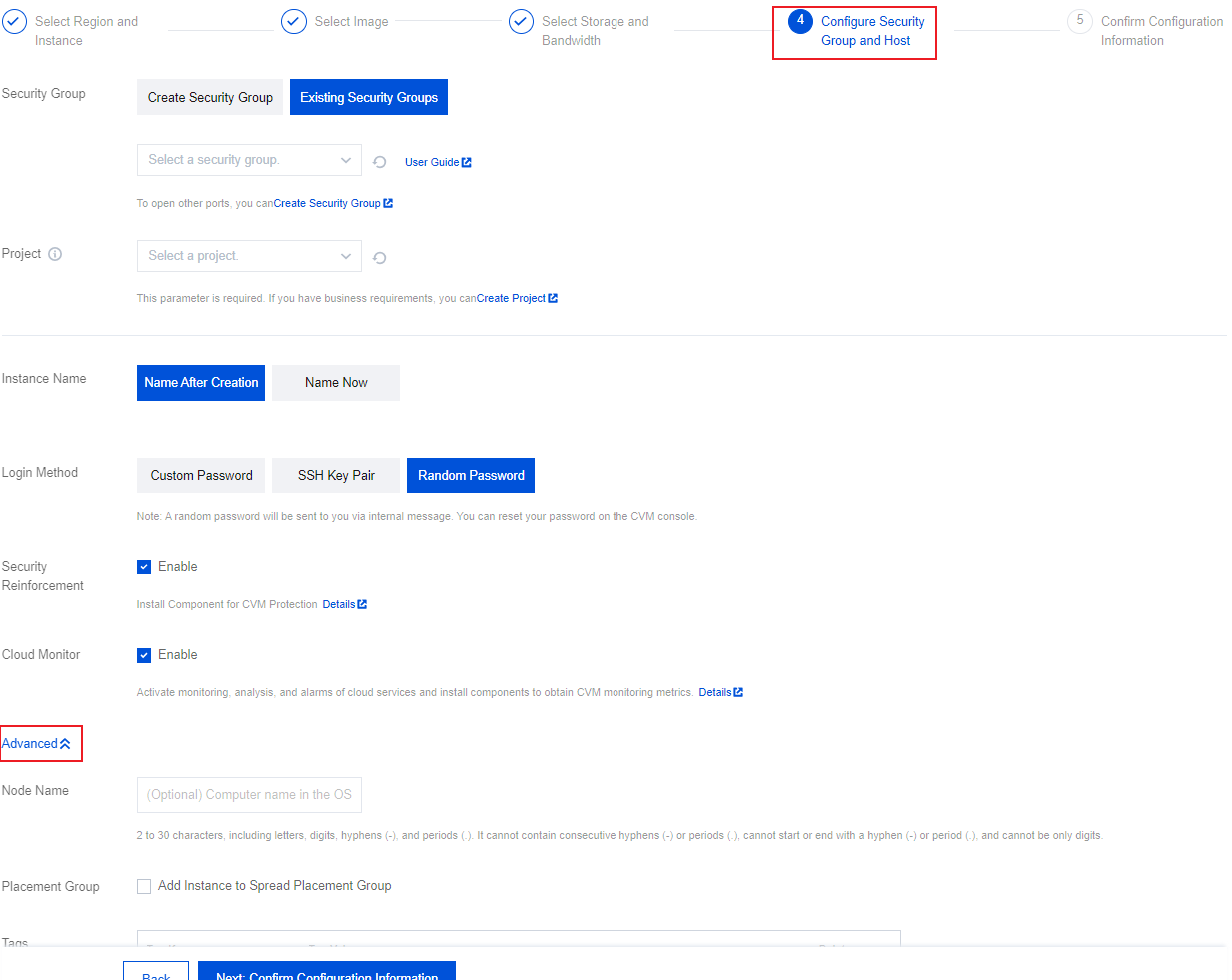
- See Create an Instance Purchase an Instance. In Step 4: Set Security Group and Host, click Advanced Settings. As shown below:
- In the "Advanced settings" section, enter the encoded result returned by the Base64 encoded script file in the "Custom data" text box. As shown below:
For example, the result returned by Base64 encoding the script file script_text is:IyEvYmluL2Jhc2gKZWNobyAiSGVsbG8gVGVuY2VudCBDbG91ZC4iCg==.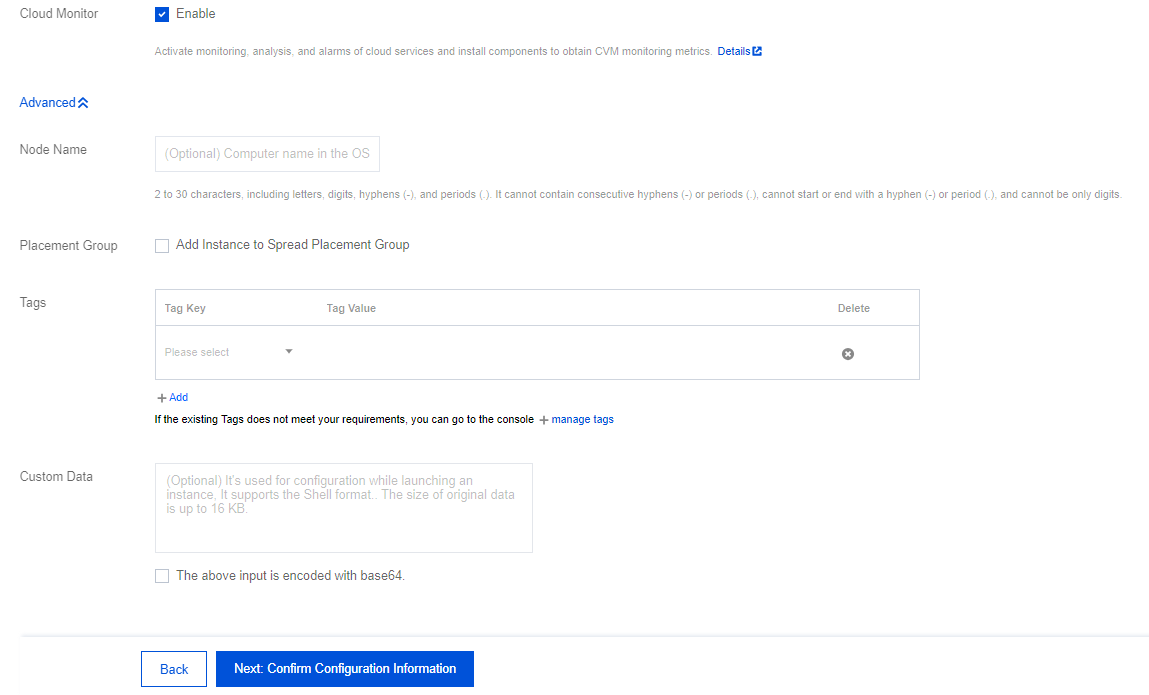
- Follow the instructions on the interface to complete the creation of the Cloud Virtual Machine. > Note:
The Cloud Virtual Machine will execute the script using the open-source software "cloud-init". For more information about cloud-init, refer to the .
Transmitting through API
When you create a Cloud Virtual Machine through API, you can assign the encoded result returned by the Base64 encoded script file to the UserData parameter of the RunInstances interface to transmit the text.
For example, create a request parameter for a Cloud Virtual Machine with a UserData parameter, as shown below:
https://cvm.api3.convergecloud.com/?Action=RunInstances
  &Version=2017-03-12
  &Placement.Zone=ap-cityA-2
  &ImageId=img-pmqg1cw7
  &UserData=IyEvYmluL2Jhc2gKZWNobyAiSGVsbG8gVGVuY2VudCBDbG91ZC4iCg==
  &<Common request parameters>